
How to test server ping is a common question when a website, VPS or remote application responds slowly. You can use the ping command on Windows or Linux to send ICMP requests to a server and measure round-trip time, check packet loss and identify basic network connectivity problems.
A ping test helps determine whether a destination responds over the network. It does not measure complete website loading time, application processing speed or available internet bandwidth.
If you manage a VPS, website or business application, knowing how to interpret ping results helps you distinguish network problems from server-side performance issues.
What Is Server Ping and What Does It Measure?
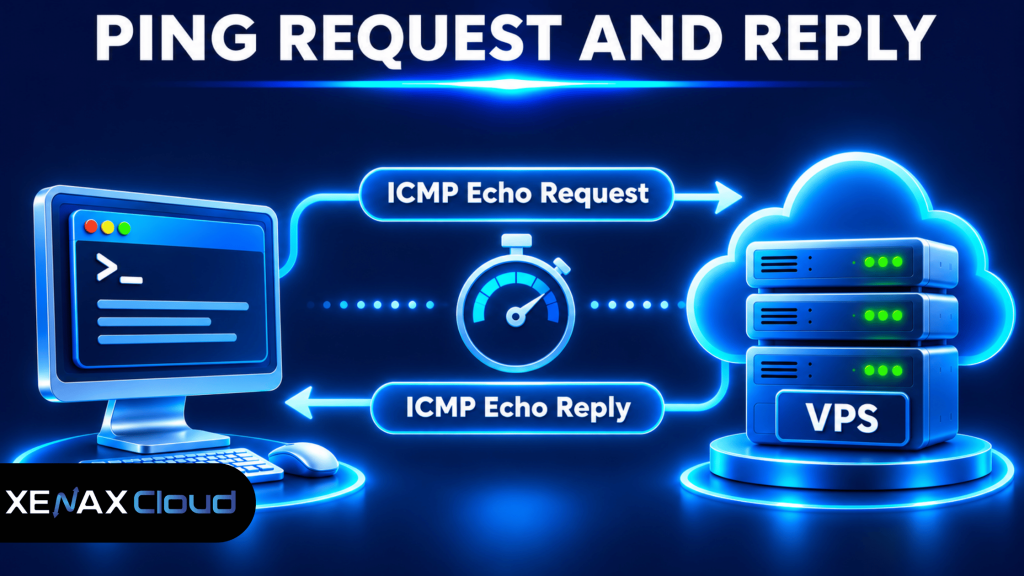
Server ping is a network diagnostic test that measures the time required for an ICMP Echo Request to reach a destination and its Echo Reply to return.
ICMP stands for Internet Control Message Protocol. It is a network protocol used by devices to exchange diagnostic and error information.
Round-trip time (RTT) is the time taken for a request to travel to the destination and for the response to return. Ping usually displays this measurement in milliseconds (ms).
For example, if a ping command reports time=35ms, the measured round-trip time for that response was 35 milliseconds.
A ping test provides three useful measurements:
- Latency: The time required for a packet to travel to the destination and back.
- Packet loss: The percentage of sent requests that do not receive a corresponding reply within the test.
- Latency variation: Differences between individual round-trip measurements.
A stable connection generally produces consistent responses with little or no packet loss. Large variations, repeated timeouts or sustained packet loss deserve further investigation.
However, a server can reject ICMP requests while continuing to serve websites and applications normally. Therefore, a failed ping does not always mean that the server is offline.
How to Test Server Ping on Windows and Linux?
You can test server ping on Windows using Command Prompt and on Linux using the terminal. Both operating systems provide a command-line ping utility.
Before running a ping test to server, identify the destination’s public IPv4 address or hostname. You can obtain the VPS address from the hosting control panel or the server administrator.
Test Server Ping on Windows
Windows includes the ping utility in Command Prompt and PowerShell.
Follow these steps:
- Open the Windows Start menu.
- Search for Command Prompt.
- Launch the command-line window.
- Enter the server IP address in the ping command.
- Send a fixed number of requests.
- Review the latency and packet loss summary.
Use this command:
ping -n 20 YOUR_SERVER_IP
Replace YOUR_SERVER_IP with the actual public IP address of your VPS.
The -n 20 parameter instructs Windows to send 20 Echo Request messages.
Example:
ping -n 20 203.0.113.10
The address 203.0.113.10 is reserved for documentation examples. Replace it with your actual server address.
To continuously monitor a server, use:
ping -t YOUR_SERVER_IP
Press Ctrl + C to stop the continuous test and display the statistics.
Test Server Ping on Linux
Linux distributions commonly include the ping utility through the iputils package.
Open your terminal and execute:
ping -c 20 YOUR_SERVER_IP
The -c 20 parameter instructs Linux to send 20 requests before stopping.
For continuous monitoring, run:
ping YOUR_SERVER_IP
Stop the test using:
Ctrl + C
The final output normally includes transmitted packets, received packets, packet loss and round-trip time statistics.
If the command is unavailable, install the appropriate ping utility using your distribution’s package manager. On Ubuntu or Debian, the package is commonly named iputils-ping.
For command syntax and Windows-specific options, refer to Microsoft’s official ping command documentation.
How to Check Latency to Server Using Ping Results?
You can check latency to server by examining the time values returned by individual ping requests and comparing their minimum, average and maximum round-trip times.
A typical Windows response looks like this:
Reply from 203.0.113.10:
bytes=32 time=32ms TTL=55
Reply from 203.0.113.10:
bytes=32 time=35ms TTL=55
Reply from 203.0.113.10:
bytes=32 time=34ms TTL=55
Reply from 203.0.113.10:
bytes=32 time=33ms TTL=55
Each successful response provides information about the network connection.
The time value represents round-trip latency. The bytes value indicates the response data size, while TTL represents the remaining Time To Live value in the returned IP packet.
How to Interpret Ping Results?
Use the following table to understand the main ping measurements.
| Ping result | Meaning | What to investigate |
| Low, consistent RTT | Stable measured response time | Compare with your normal baseline |
| High RTT | Longer network round trip | Routing, distance and congestion |
| Packet loss | Some requests received no reply | Network path and filtering |
| Request timed out | No reply arrived within the timeout | Firewall, filtering or connectivity |
| Large RTT variation | Inconsistent response times | Congestion and network stability |
There is no universal latency threshold that guarantees a good connection for every application. A response time suitable for file transfers may still feel slow for an interactive remote desktop session.
Compare the results against your normal connection, the server’s location and the application requirements.
How to Calculate Packet Loss?
Packet loss is the percentage of transmitted packets that did not receive a response during the test.
Use this formula:
Packet Loss (%) =
((Sent Packets – Received Packets)
/ Sent Packets) × 100
For example, if you send 20 requests and receive 19 replies:
((20 – 19) / 20) × 100 = 5%
This represents 5% packet loss during that particular test.
Do not immediately conclude that the server network is faulty after one missing response. Repeat the test and compare the results at different times because ICMP traffic can be filtered, deprioritised or rate-limited.
How to Test Ping to Server Using an IP Address and Hostname?
Testing a server using both its IP address and hostname helps identify whether a problem is related to network connectivity or DNS resolution.
A hostname is the human-readable name assigned to a network destination. DNS (Domain Name System) translates that name into an IP address.
For example, you might test the same VPS using these two commands:
ping -n 20 203.0.113.10
ping -n 20 server.example.com
Use your actual VPS address and configured hostname instead of these documentation examples.
Interpret the results as follows:
- If the IP address responds but the hostname does not resolve, investigate DNS configuration.
- If both respond, basic ICMP connectivity is working.
- If neither responds, investigate the network path, destination firewall and server configuration.
- If the hostname resolves to an unexpected IP, check the DNS A or AAAA record.
On Windows, you can inspect DNS resolution using:
nslookup server.example.com
On Linux, you can use:
getent hosts server.example.com
A successful hostname lookup does not guarantee that the website or application is working. It only confirms that the name resolved to an address.
How to Find the Cause of High Ping or Packet Loss?
High ping or packet loss can originate from your local network, internet provider, routing path, destination firewall or server network interface.
Running additional diagnostics helps identify where the problem occurs.
Use Traceroute to Inspect the Network Path
Traceroute is a network diagnostic utility that identifies intermediate routing hops between your computer and a destination.
On Windows, use:
tracert YOUR_SERVER_IP
On Linux, use:
traceroute YOUR_SERVER_IP
If the traceroute utility is unavailable on Linux, install the appropriate package for your distribution.
Traceroute can reveal where response delays or routing changes appear along the path. However, intermediate routers may limit or ignore diagnostic responses, so an asterisk does not automatically indicate packet loss affecting normal application traffic.
For a broader troubleshooting approach, read our guide on how to verify network connectivity to understand how ping, traceroute, DNS lookups and port checks work together.
Check Whether the Application Port Is Accessible
Ping uses ICMP, but websites and applications generally use TCP or UDP.
A server can respond to HTTPS requests even when ICMP Echo Requests are blocked. You should test the actual application port when investigating website or service availability.
On Windows PowerShell, test an HTTPS port using:
Test-NetConnection YOUR_SERVER_IP -Port 443
For an SSH service, use:
Test-NetConnection YOUR_SERVER_IP -Port 22
On Linux, you can test a TCP connection using netcat:
nc -vz YOUR_SERVER_IP 443
These tests check TCP connectivity to the specified port. They do not verify that the website’s application code or database is functioning correctly.
What Is the Difference Between Ping, Latency and Internet Speed?
Ping, latency and internet speed describe related but different aspects of network performance.
| Measurement | What it checks | Common unit |
| Ping | ICMP request and response | ms |
| Latency | Network round-trip delay | ms |
| Packet loss | Missing packet responses | Percentage |
| Download speed | Data received per second | Mbps |
| Upload speed | Data transmitted per second | Mbps |
A ping test does not measure download or upload bandwidth. A connection can have high available bandwidth but still experience latency variation or packet loss.
Similarly, a low ping does not guarantee that a website loads quickly. Website response time also depends on DNS lookup, TCP connection establishment, TLS negotiation, server processing, database queries and content delivery.
For a VPS administrator, separate these tests instead of using ping as the only performance measurement.
Worked Example: Testing VPS Ping for an Indian Web Development Agency
A Jaipur-based web development agency with five employees manages three client websites and one development environment on a Linux VPS.
The team reports occasional delays when connecting to the server and wants to determine whether the issue comes from network latency, packet loss or application performance.
The agency begins by sending 20 ping requests from its office computer to the VPS public IPv4 address.
It then repeats the test from a second internet connection and compares the results.
The diagnostic process is:
- Run 20 ping requests from the office connection.
- Record average RTT and packet loss.
- Repeat the test from another connection.
- Run traceroute to compare network paths.
- Test TCP port 443 for website connectivity.
- Review VPS CPU, RAM and network utilisation.
Suppose the office test shows repeated packet loss, while the second connection receives all replies. The agency should investigate its office router, local connection and ISP routing before assuming the VPS is responsible.
If both connections show normal ICMP results but the website remains slow, investigate web server processing, database queries and application logs.
Which Xenax Cloud VPS Plan Should the Agency Evaluate?
For this agency, Xenax Cloud General VPS with 2 vCPU and 8 GB RAM is a suitable starting configuration to evaluate for three client websites and a separate development workload, provided the applications fit within the available resources.
General VPS provides more RAM per vCPU than the entry Speed VPS and Gold VPS configurations. That makes it worth evaluating when multiple website processes, databases and development tools need memory simultaneously.
Xenax Cloud VPS plans include:
- KVM virtualisation.
- One IPv4 address.
- Full root access.
- A 500 Mbps network port.
- Weekly backups.
- Hosting in an Indian Tier-III data centre.
Use this decision rule:
- Choose Speed VPS with 2 vCPU, 4 GB RAM and 40 GB NVMe when storage performance is a priority and the workload fits within available memory.
- Choose General VPS with 2 vCPU and 8 GB RAM when the workload needs more RAM per vCPU.
- Choose Gold VPS with 2 vCPU and 4 GB RAM when high-frequency Xeon Gold CPU performance is a priority.
- Choose a larger configuration when measured CPU, memory or storage consumption exceeds the smaller size.
General VPS is not the right choice if your application requires high-frequency CPU performance or NVMe storage as its main priority. Evaluate Gold VPS or Speed VPS respectively instead.
You can compare Xenax Cloud KVM VPS hosting plans before selecting a server configuration.
Common Mistakes When Running a Ping Test to Server
The most common ping testing mistakes involve interpreting timeouts as proof of server failure and treating a single measurement as a complete network performance assessment.
Avoid these problems:
Assuming every timeout means the server is offline: A firewall may block ICMP while allowing HTTPS, SSH or other application connections.
Testing only once: A single short test may not reveal intermittent congestion or packet loss. Repeat tests under different network conditions.
Confusing ping with bandwidth: Ping measures round-trip delay, not the amount of data your internet connection can transfer per second.
Ignoring DNS problems: A hostname may resolve incorrectly even when the destination IP address is reachable.
Blaming the VPS without checking the local network: Router problems, Wi-Fi interference and ISP routing can affect the results before packets reach the data centre.
Ignoring application performance: A normal ping does not prove that a database, web server or application is responding efficiently.
Before changing firewall rules or restarting networking services, save the current configuration and ensure you have an alternative administrative connection. Incorrect firewall changes can lock you out of your VPS.
how to test server ping: FAQs
How do I test server ping on Windows?
You can test server ping on Windows using Command Prompt. Run ping -n 20 YOUR_SERVER_IP to send 20 ICMP requests. Review the individual response times, transmitted and received packet counts, packet loss and round-trip statistics to assess basic network connectivity.
How do I test server ping on Linux?
You can test server ping on Linux using the terminal command ping -c 20 YOUR_SERVER_IP. The command sends 20 requests and displays the response times and final packet statistics. If ping is unavailable, install the iputils-ping package using your distribution’s package manager.
What is a good ping for a VPS?
A good VPS ping depends on the server location, user location and application requirements. Compare average RTT and variation against a stable baseline rather than relying on one universal threshold. Interactive applications are generally more sensitive to latency variation than ordinary file transfers.
Why does my server ping show request timed out?
A server ping can show request timed out because the destination firewall blocks ICMP, the network path has a connectivity problem or the response exceeds the timeout. Test the actual application port using TCP connectivity tools before concluding that the VPS or website is unavailable.
Can I test server ping using a domain name?
Yes, you can test server ping using a domain name instead of an IP address. Run ping -n 20 example.com on Windows or ping -c 20 example.com on Linux. If the domain fails but the server IP responds, investigate DNS resolution and the configured records.
Does a low ping mean my VPS is fast?
No, a low ping does not guarantee that a VPS performs every task quickly. Ping measures network round-trip time, while application performance also depends on CPU, RAM, storage, database operations and web server configuration. Evaluate these components separately when diagnosing slow applications.
Can a firewall block ping without blocking a website?
Yes, a firewall can block ICMP Echo Requests while allowing website traffic over TCP port 443 or 80. This means a VPS may host a functioning website even when ping requests time out. Test the actual application port to verify service accessibility.
If you need a Linux VPS for website hosting, development and network diagnostics, evaluate Xenax Cloud General VPS with 2 vCPU and 8 GB RAM when memory capacity is your main requirement. Choose Speed VPS for NVMe storage priorities or Gold VPS for high-frequency CPU workloads.