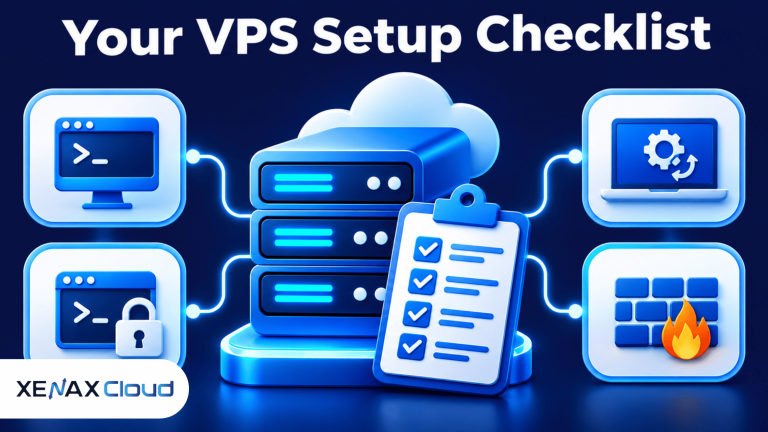
The first steps after buying a VPS are to verify server access, update the operating system, secure administrator login, configure a firewall and prepare backups. Completing these tasks before installing applications reduces avoidable security and configuration problems.
A VPS gives you control over an operating system and server software, but that control also makes you responsible for routine administration. A newly provisioned server may be reachable over the internet before you have configured its users, firewall rules or application services.
Start with access and system checks, then secure remote administration before deploying a website, database or development environment. The exact commands depend on the Linux distribution installed on your VPS.
What Should You Check Immediately After Buying a VPS?
Immediately after buying a VPS, verify its IP address, operating system, login credentials, network access and resource allocation. Confirm these details before changing system settings or installing software.
A Virtual Private Server (VPS) is a virtual machine that runs its own operating system with allocated computing resources on a physical host. A root account is the Linux superuser account that can administer the entire system, including users, packages, services and permissions.
Start by locating the provisioning details supplied by your hosting provider. Keep the following information available:
- Public IPv4 address: The address you use to connect to the server remotely.
- Operating system: The installed Linux distribution and its release information.
- Login method: The initial username, password or SSH key details.
- Resource allocation: The assigned vCPU, RAM and storage capacity.
- Network details: The server’s network configuration and available access methods.
- Backup information: The provider’s backup schedule and the scope of what is covered.
Connect to the server using SSH from a terminal. On Windows, you can use Windows Terminal or PowerShell; macOS and most Linux desktop environments include a terminal application.
ssh username@YOUR_SERVER_IP
Replace username with the account supplied by your provider and YOUR_SERVER_IP with the actual server address. If the provider specifies a custom SSH port or key file, use the corresponding SSH options rather than assuming the default connection settings.
After logging in, check the operating system and resource allocation:
cat /etc/os-release
uname -a
nproc
free -h
df -h
These commands identify the Linux distribution, kernel, available CPU threads, memory and mounted filesystem capacity. Record the results so you can compare resource use after installing your applications.
Do not start by changing SSH ports, deleting users or enabling firewall rules without understanding the current configuration. First confirm that you can log in again and that you have a recovery route if a configuration change interrupts access.
The first steps after buying a VPS should always include checking available RAM, CPU and storage before installing applications. These first steps after buying a VPS help you identify resource limits early and avoid installing software that your server cannot comfortably support. If you are unsure how much memory your project needs, read our guide on how much RAM a VPS needs before selecting your configuration.
VPS Setup Checklist: What Should You Configure First?
A VPS setup checklist should cover account access, operating system updates, time settings, firewall rules, backups and basic monitoring. Completing these tasks creates a safer base before you deploy a website or application.
A Linux server needs regular maintenance because installed packages, exposed services and user permissions affect its security. The setup sequence also matters: for example, configure and test an alternative administrator login before disabling password-based root access.
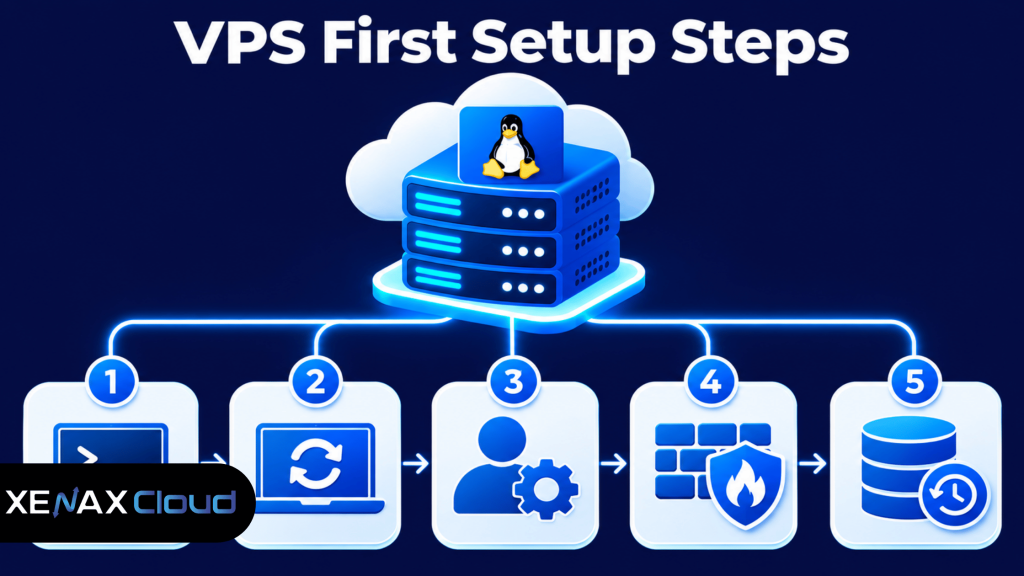
Use the checklist below as a practical order of work. Some tasks depend on the operating system and provider configuration, so check the distribution’s documentation before applying commands copied from another server.
| Setup task | What to verify | Why it matters |
| Login access | SSH works with the supplied credentials | Confirms administrative access |
| System updates | Package lists and installed packages are current | Applies available fixes |
| Administrator account | A separate user can use sudo | Avoids routine root login |
| Firewall | Only required ports are allowed | Limits network exposure |
| Backups | Files and databases have recoverable copies | Reduces data-loss risk |
A firewall is a network security control that allows or blocks traffic according to defined rules. For a basic web server, you may need SSH for administration and HTTP/HTTPS for website traffic, but do not open database ports publicly unless your architecture specifically requires remote database access.
Xenax Cloud VPS plans include full root access, one IPv4 address, a 500 Mbps port and weekly backups. The VPS families use KVM virtualisation and Linux in Xenax Cloud’s Tier-III data centre in India; you remain responsible for configuring the operating system and applications.
How to Secure a New VPS Before Installing Applications
To secure a new VPS, create a separate administrator account, protect SSH authentication, configure a firewall and remove unnecessary network exposure. These controls reduce the chance of unauthorised access while you prepare the server.
Secure Shell (SSH) is a network protocol that provides encrypted remote access to a server. Linux administrators commonly use SSH to run commands, manage files and maintain services without a local keyboard or monitor.
Create a separate administrator account
Use a normal account for daily administration and grant it sudo permissions when elevated access is needed. On Ubuntu, an administrator can create a user with:
adduser adminuser
usermod -aG sudo adminuser
Replace adminuser with your chosen username. Open a second terminal and test the new account before ending your original root session.
Configure SSH key authentication
An SSH key pair contains a private key kept on your computer and a public key placed on the server. Key authentication can reduce reliance on password-based remote login, provided the private key is protected.
On your local computer, generate a key pair if you do not already have one:
ssh-keygen -t ed25519
Copy the public key to the server using your distribution’s supported method or ssh-copy-id where available. Test a new login using the key before changing the SSH server configuration.
The SSH server configuration is commonly stored at:
/etc/ssh/sshd_config
Do not disable password authentication or root login until you have confirmed that key-based access and the separate administrator account both work. A configuration error can prevent remote access, so keep your existing session open while testing changes.
The OpenBSD SSH daemon configuration manual explains SSH server options, including authentication and login controls. Check the options supported by the SSH version installed on your distribution before applying settings.
Configure a firewall carefully
A firewall should allow the services you need and block unnecessary incoming connections. For a typical web server, that may mean SSH, HTTP and HTTPS, but the correct rules depend on your application and network design.
On Ubuntu systems using UFW, first allow SSH:
ufw allow OpenSSH
ufw allow 80/tcp
ufw allow 443/tcp
ufw status verbose
Review the rules before enabling UFW. If your SSH service uses a custom port, allow that port instead of relying on the OpenSSH application profile.
Then enable the firewall only after confirming that the SSH rule matches your actual connection:
ufw enable
ufw status
Do not expose MySQL, PostgreSQL, Redis or other internal service ports to the public internet unless remote access is specifically required and protected. Prefer local connections or private network access for databases and application services.
How to Update and Prepare Your VPS for Its Workload
Update the operating system and install only the software required for your workload before making the VPS publicly available. A smaller software footprint reduces maintenance work and limits unnecessary services.
Package management is the operating system process for installing, updating and removing software through trusted repositories. Ubuntu and Debian commonly use APT, while other Linux distributions use different package managers.
For Ubuntu or Debian, refresh package information and install available updates:
apt update
apt upgrade
Read the package manager’s proposed changes before confirming them, particularly if the server already runs applications. If a kernel or service update requires a restart, schedule it when the server can safely be unavailable.
Set the correct time zone and check time synchronisation. Accurate system time helps with log analysis, scheduled tasks, certificate checks and troubleshooting across applications.
timedatectl
timedatectl list-timezones
If you need to change the time zone, use the appropriate value from the list:
timedatectl set-timezone Asia/Kolkata
Install only the runtime and services your project requires. A PHP website may need a web server, PHP and a database; a Node.js application needs its runtime and application process management. Avoid installing several web servers or database systems just because they are available.
Before deploying an application, decide how it will run after you disconnect from SSH. Use a supported service manager such as systemd for long-running Linux services rather than leaving an application attached to an interactive terminal session.
The first steps after buying a VPS should also include checking which applications and services need to run on the server. These first steps after buying a VPS help you prepare the right environment, avoid unnecessary software and keep system resources available for your actual workload. Complete these checks before deploying your website or development project.
Worked Example: A Bengaluru Developer Setting Up a New VPS
Consider a developer in Bengaluru who has purchased a Linux VPS to host a Node.js API, PostgreSQL database and a small test application. The developer wants to practise server administration, deploy code through Git and keep the API available while working from a laptop.
The planned application stack is expected to need around 6 GB RAM when the API, database and supporting services run together. This is a planning estimate for the example, not a measured benchmark; actual use must be checked after deployment.
Xenax Cloud General VPS with 2 vCPU and 8 GB RAM is the more suitable configuration to evaluate. It provides more memory per vCPU than the smallest Speed VPS configuration, which has 2 vCPU and 4 GB RAM. That smaller configuration would not meet the example’s estimated 6 GB memory requirement without reducing the workload or moving services elsewhere.
Use this decision rule:
- Choose Speed VPS with 2 vCPU and 4 GB RAM for Linux practice, command-line learning, small scripts and lightweight applications that fit within its memory capacity.
- Choose General VPS with 2 vCPU and 8 GB RAM when a development stack needs around 6 GB RAM for an API, database and supporting services running together.
- Consider a larger General VPS configuration if measured memory use remains high or the application needs more concurrent processes.
- Consider Gold VPS if CPU frequency is the main constraint for repeated processor-intensive tasks.
The developer should install updates, create a separate administrator account, test SSH key login and configure the firewall before deploying PostgreSQL. The database should listen on a local or private interface rather than accepting unrestricted public connections.
General VPS is not the right choice if the project depends on a Windows-only application or GPU computing; select a compatible service after checking the software requirements.
Review Xenax Cloud VPS hosting to compare the Speed, General and Gold VPS families. Xenax Cloud provides full root access, one IPv4 address, a 500 Mbps port and weekly backups across its VPS offering.
First Steps After Buying a VPS: FAQs
What should I do immediately after buying a VPS?
First, verify the VPS IP address, operating system, login credentials and allocated resources. Connect through SSH, inspect RAM and storage, and confirm that you can access the server again before changing its configuration. Then update the operating system, create an administrator account and configure basic security.
Do I need to update Linux after buying a VPS?
Yes, update Linux before installing applications or exposing additional services. Package updates can include security fixes and software corrections. Use the package manager for your distribution, review the proposed changes and check whether a restart is required before deploying your website or application.
How do I secure a new VPS?
Secure a new VPS by using a separate administrator account, protecting SSH access, configuring a firewall and disabling unnecessary services. Test key-based login before changing password authentication settings. Keep database ports private unless remote access is required and protected by appropriate network controls.
Should I change the default SSH port?
Changing the SSH port is optional and does not replace authentication or firewall security. A non-default port may reduce some automated connection attempts, but it does not prevent targeted access attempts. Prioritise SSH keys, account security, software updates and restricted network access.
How much RAM do I need when setting up a VPS?
The RAM requirement depends on the operating system, applications and services you intend to run. Xenax Cloud Speed VPS starts with 2 vCPU and 4 GB RAM, while General VPS starts with 2 vCPU and 8 GB RAM. Monitor actual memory use before selecting a larger configuration.
Are weekly VPS backups enough to protect my data?
Weekly backups provide a recovery point, but they may not contain changes made since the latest backup. Keep separate copies of important files and databases, particularly before migrations and major updates. Periodically test restoration so you know the backup is usable when needed.
Can I use a VPS immediately after buying it?
Yes, you can connect to a newly provisioned VPS once the provider has completed setup and supplied its access details. However, complete initial updates, account security, firewall configuration and backup checks before hosting a public application. The first login is the start of setup, not the end.
For a small Linux project or basic server administration, evaluate Speed VPS with 2 vCPU and 4 GB RAM. If your application, database and supporting services need more memory together, compare General VPS with 2 vCPU and 8 GB RAM before ordering.