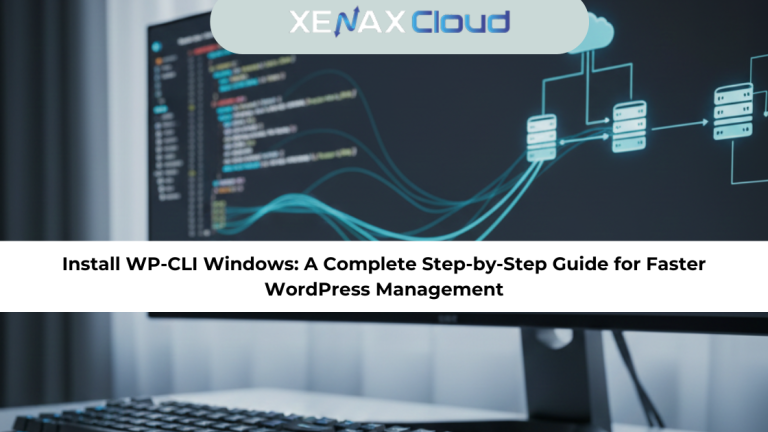
Managing WordPress manually can feel slow when your site grows. Tasks like updating plugins, installing themes, or managing users consume time when performed through the dashboard. That is why developers, agencies, and businesses worldwide use WP-CLI, a command-line tool that makes WordPress management faster and more predictable. But many users think WP-CLI only works on Linux. The truth is, you can install WP-CLI Windows easily and use it just like you would on a Linux server.

They are also highly scalable, allowing international businesses, agencies, and developers to upgrade resources as their WordPress workloads grow. When you combine WP-CLI with a reliable server environment, your website becomes faster, more stable, and easier to maintain.
What Is WP-CLI and Why Install WP-CLI on Windows?
WP-CLI is a command-line tool used to manage WordPress without needing the dashboard. It lets you update plugins, manage posts, clear caches, export databases, and perform tasks in seconds. While Linux servers usually come ready for WP-CLI, Windows requires a few additional installation steps.
Many developers prefer installing WP-CLI on Windows because:
- They build locally before deploying to a VPS
- It speeds up development and testing
- It allows automation of tasks
- It reduces dashboard dependencies
- It streamlines host migration and staging setups
On hosting platforms such as XenaxCloud VPS or WordPress Hosting, WP-CLI is often pre-supported. But installing WP-CLI Windows helps developers manage both local and remote sites more effectively.
Install WP-CLI Windows — Step-by-Step Technical Guide
Including the primary keyword in this H2 ensures strong SEO visibility. The following tutorial walks you through the complete process to install WP-CLI Windows safely.
Step 1: Install PHP on Windows
WP-CLI requires PHP. The easiest way is to install XAMPP or manually install PHP for Windows.
Manual installation steps:
- Download PHP for Windows from the official website.
- Extract it to
C:\php. - Add the PHP folder to your system PATH.
To test PHP, open PowerShell and run:
php -v
If PHP shows version details, the system is ready.
Step 2: Download wp-cli.phar
The WP-CLI executable comes as a .phar file.
Run this command in PowerShell:
curl -O https://raw.githubusercontent.com/wp-cli/builds/gh-pages/phar/wp-cli.phar
This downloads the latest version of WP-CLI.
Step 3: Test WP-CLI Execution
Now test the downloaded file:
php wp-cli.phar --info
If you see WP-CLI information, your installation is correct.
Step 4: Make WP-CLI a Global Command
To avoid typing php wp-cli.phar each time, rename and move it:
rename-item wp-cli.phar wp
move-item wp C:\php\
Then update your PATH environment variable to include:
C:\php\
Now test WP-CLI again:
wp --info
This confirms WP-CLI is globally accessible on Windows.
Step 5: Connect WP-CLI to Your WordPress Project
Navigate to your local WordPress directory:
cd C:\xampp\htdocs\wordpress\
Then try any WP-CLI command:
wp plugin list
If you see plugin details, you have successfully completed install wp-cli windows on your system.
Step 6: Use WP-CLI With Remote Hosting (VPS or WordPress Hosting
One major benefit of installing WP-CLI on Windows is managing remote servers via SSH.
You can run commands such as:
wp plugin update --all --ssh=user@server-ip
This is extremely useful for developers using XenaxCloud VPS or WordPress Hosting, where SSH access enables fast automation.
To explore hosting optimized for WP-CLI, check XenaxCloud WordPress Hosting.
Internal link (best contextual match):
https://xenaxcloud.com/shared-hosting/
Scalability Options for Startups and Agencies
Startups and agencies often begin with shared hosting but eventually need more control. WP-CLI usage increases as workloads expand, making VPS servers highly beneficial.
Recommended upgrade paths:
- Small sites: Gold or Platinum Shared Hosting
- Growing agencies: Diamond Shared Hosting
- Developers: KVM VPS 1 or 2
- Large organizations: KVM VPS 3 or 4
As your website grows, you can scale vertically without downtime.
XenaxCloud’s hosting plans make scaling straightforward by offering flexible vCore, RAM, and storage upgrades.
FAQs
What is the difference between Indian VPS and foreign VPS?
Can Indian servers handle global website traffic?
How reliable is XenaxCloud hosting?
How to choose the right server for my business?
Conclusion
Learning how to install WP-CLI Windows empowers you to manage WordPress quickly and professionally. With WP-CLI, tasks that often take minutes in the dashboard complete in seconds. When paired with a strong hosting environment, especially Indian servers known for low latency and cost efficiency, your WordPress workflow becomes smoother and more reliable.
XenaxCloud hosting plans provide everything needed for WP-CLI-based management, from shared hosting for beginners to high-performance KVM VPS servers for developers and agencies. With 24/7 support and a 15-day money-back guarantee, you can migrate or upgrade with confidence.
For the latest discounts and offers, visit the XenaxCloud Offers Page here:
https://xenaxcloud.com/indian-rdp/