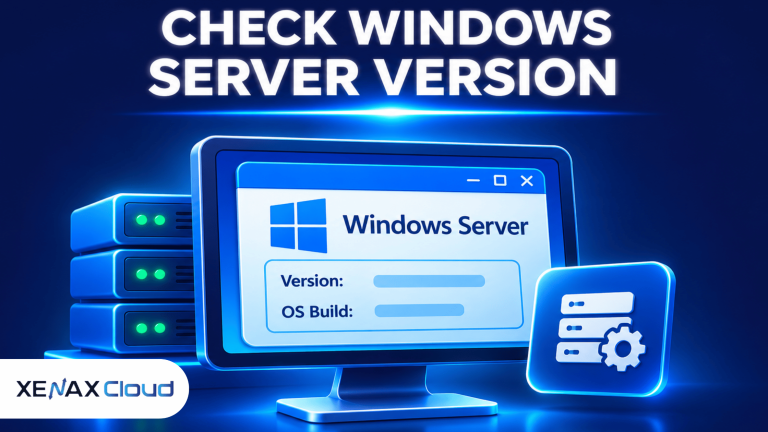
How to check Windows Server version means identifying the installed Windows Server release, edition, OS version and build number on a machine. You can use the winver command for a quick visual check, or Command Prompt and PowerShell to collect more detailed information for troubleshooting, inventory and remote administration.
Knowing your Windows Server version helps you select compatible applications, install appropriate updates, check support status and troubleshoot software problems. It is also useful when managing Windows RDP servers because different server releases can have different administrative features and update requirements.
The following methods work for common Windows Server installations, including Windows Server 2016, 2019, 2022 and 2025.
What Information Should You Check About Your Windows Server?
A Windows Server installation has several identification details, including its product name, edition, version, operating system build and update revision.
These values describe different aspects of the operating system. Checking only the version name may not provide enough information when troubleshooting an application or verifying whether a particular update has been installed.
Here are the main terms you should understand:
- Windows Server version: Identifies the major operating system release, such as Windows Server 2022 or Windows Server 2025.
- Edition: Identifies the installed product edition, such as Standard or Datacenter.
- OS version: Shows the technical version identifier reported by Windows.
- Build number: Identifies the operating system build associated with the installed release.
- Update revision: Identifies a more specific build revision associated with servicing updates.
- Architecture: Identifies whether the operating system uses an x64 or ARM64 architecture, where applicable.
For example, two computers can both run Windows Server 2022 but have different full build numbers because they have received different cumulative updates.
When you report a Windows Server problem to an administrator or software vendor, provide the product name, edition and full OS build wherever possible. This makes it easier to identify compatibility issues without guessing which installation is involved.
How to Check Windows Server Version Using the winver Command?
The winver command opens the About Windows dialog, which displays the installed Windows Server product and version information.
This is usually the quickest method when you have access to the graphical Windows desktop. You do not need administrator permissions just to view the basic version details.
The command can be launched through the Run dialog, Command Prompt or PowerShell. It is especially useful when you need to confirm which major Windows Server release is running before following an installation or troubleshooting procedure.
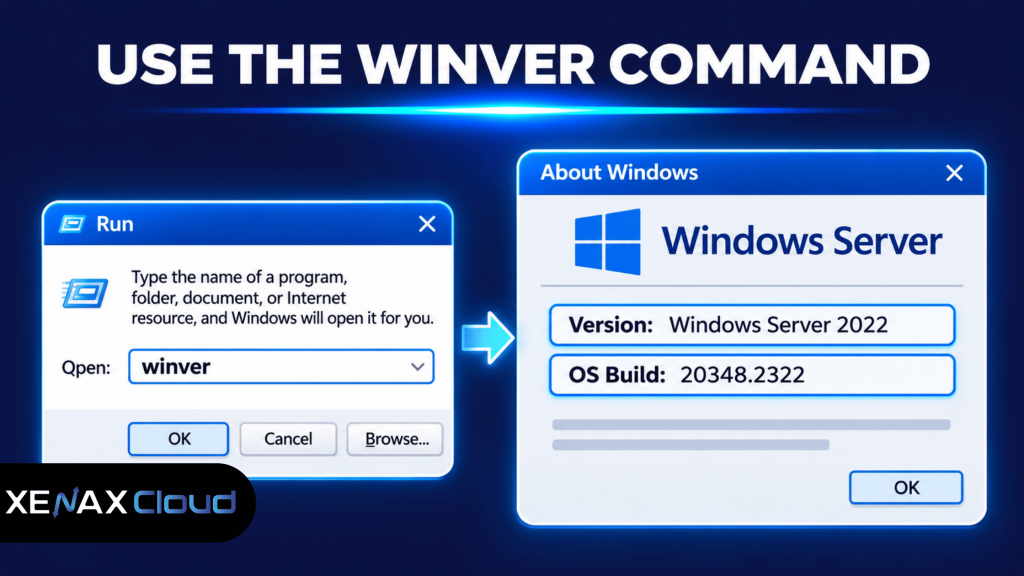
To check the version, follow these steps:
- Log in to your Windows Server desktop.
- Press Windows + R to open the Run dialog.
- Enter winver in the input field.
- Press Enter to execute the command.
- Read the product name and version details.
- Record the OS build information for your system inventory.
The About Windows window displays the Windows Server release and associated version information. Depending on the installed release, it may also display the full OS build.
The winver command is a convenient first check, but it does not provide every detail required for server administration. For example, you may need the installed edition, architecture or additional system information.
If your server runs Server Core without a graphical desktop, use Command Prompt or PowerShell instead.
How to Check Windows Server Version Using Command Prompt?
Command Prompt can identify the Windows Server operating system name and version through the systeminfo command.
The systeminfo utility displays detailed configuration information about the computer and its operating system. It can also show hardware, memory, network and system configuration details.
Open Command Prompt and run:
systeminfo
Windows displays information including:
- OS Name
- OS Version
- System Manufacturer
- System Model
- System Type
- Total Physical Memory
- Network configuration details
To display only the operating system name and version on an English-language installation, run:
systeminfo | findstr /B /C:”OS Name” /C:”OS Version”
The output may look similar to:
OS Name: Microsoft Windows Server 2022 Standard
OS Version: 10.0.20348 N/A Build 20348
This is an illustrative output. The exact displayed information depends on the Windows Server release and installed updates.
The command is useful when you need a quick text-based result rather than a graphical window. If the filtered command does not return anything, run plain systeminfo; the filter uses English field labels and may not match a localised Windows installation.
For a fuller administrative report, save the output to a text file:
systeminfo > C:\WindowsServerInfo.txt
You can then review the file or attach it to an internal support report. Store the report appropriately because system information can reveal details about your infrastructure.
How to Check Windows Server Version Using PowerShell?
PowerShell can retrieve Windows Server product, version, architecture and build details in a structured format.
This is useful for administrators who manage several servers or need to automate operating system inventory. Unlike a graphical version dialog, PowerShell output can be selected, filtered and exported for further analysis.
Open PowerShell and run:
Get-ComputerInfo | Select-Object WindowsProductName,
WindowsVersion, OsName,
OsVersion, OsBuildNumber,
OsArchitecture
The command retrieves available operating system properties from the local Windows installation.
For a more direct look at the Windows version registry values, run:
Get-ItemProperty `
“HKLM:\SOFTWARE\Microsoft\Windows NT\CurrentVersion” |
Select-Object ProductName, DisplayVersion, CurrentBuild, UBR
The output contains several useful fields:
| Property | Meaning |
| ProductName | Windows product name |
| DisplayVersion | Displayed release version, when populated |
| CurrentBuild | Base operating system build |
| UBR | Update build revision |
The CurrentBuild and UBR values are particularly useful when comparing installations that run the same major Windows Server release but have different update levels.
For example, you can collect the product name and build details from multiple machines and compare them before planning an application update.
To save the PowerShell results as a CSV file, use:
Get-ComputerInfo |
Select-Object WindowsProductName, WindowsVersion, OsBuildNumber |
Export-Csv C:\ServerInventory.csv -NoTypeInformation
This creates a structured inventory file that you can open in spreadsheet software.
Windows Server Build Number: How to Identify the Release?
A Windows Server build number identifies the underlying operating system build and helps administrators distinguish between major releases.
The build number is useful when a software vendor specifies supported operating system releases or when an administrator needs to verify an installed cumulative update.
The following table lists the base build numbers for commonly used Windows Server releases.
| Windows Server release | Base build number | Typical edition names |
| Windows Server 2025 | 26100 | Standard, Datacenter |
| Windows Server 2022 | 20348 | Standard, Datacenter |
| Windows Server 2019 | 17763 | Standard, Datacenter |
| Windows Server 2016 | 14393 | Standard, Datacenter, Essentials |
These are base build numbers, not the full build numbers associated with every update. Microsoft maintains the detailed release and build history in its official Windows Server release information.
Why Does the Full Build Number Matter?
The full build number includes an update revision that helps identify the servicing level of the installation.
For example, a system may display a build in the format:
10.0.26100.XXXXX
The initial build component identifies the main operating system build, while the final component represents the update revision.
Two Windows Server 2025 machines can therefore have the same base build but different update revisions.
This distinction matters when troubleshooting security updates, application compatibility and operating system servicing. Do not assume that two servers are fully up to date simply because they have the same major Windows Server version.
How to Check the Installed Windows Server Edition
You can also use DISM to identify the Windows Server edition currently installed.
Run the following command in an elevated Command Prompt:
DISM /Online /Get-CurrentEdition
The command returns the current edition identifier, such as ServerStandard or ServerDatacenter.
This is useful when an application or infrastructure requirement specifically calls for a particular edition. Product version and edition are separate details, so check both before making deployment decisions.
How to Check Windows Server Version on a Remote Server?
You can check a remote Windows Server version using PowerShell remoting or the systeminfo remote computer option.
This is helpful when managing multiple servers and you do not want to open a separate Remote Desktop session for every machine.
Using PowerShell Remoting
If PowerShell remoting is configured and your account has the required permissions, use:
Invoke-Command -ComputerName “SERVER01” -ScriptBlock {
Get-ComputerInfo |
Select-Object WindowsProductName, WindowsVersion, OsBuildNumber
}
Replace SERVER01 with the actual remote computer name.
PowerShell remoting requires the appropriate WinRM configuration, network access and account permissions. It will not automatically work on every Windows Server installation.
Using Systeminfo Remotely
You can also run:
systeminfo /s SERVER01
The command requests configuration information from the specified remote computer. Authentication and administrative permissions may be required.
Remote checks are particularly useful for maintaining a Windows Server inventory. If remote management is unavailable, connect through RDP and execute the same local commands.
If you encounter connection problems while accessing your remote machine, read our guide on how to fix RDP not connecting errors for practical Windows troubleshooting steps.
Worked Example: Checking Windows Server Versions for an Indian IT Team
Consider a Jaipur-based IT support company that manages four Windows Server machines for its business operations.
One administrator needs to check the operating system version, installed edition and full build number on each server before approving a software deployment. The company wants to maintain a central inventory instead of relying on screenshots from individual machines.
The administrator can use PowerShell remoting to collect the information, provided WinRM is configured on the four servers.
A simple inventory script might look like this:
$servers = @(
“SERVER01”,
“SERVER02”,
“SERVER03”,
“SERVER04”
)
Invoke-Command -ComputerName $servers -ScriptBlock {
Get-ComputerInfo |
Select-Object @{
Name = “ComputerName”
Expression = { $env:COMPUTERNAME }
}, WindowsProductName, WindowsVersion, OsBuildNumber
} | Export-Csv C:\WindowsServerInventory.csv -NoTypeInformation
The resulting CSV file provides a consolidated view of the operating systems reported by all four machines.
If the four-server company also needs a dedicated Windows administration environment, Xenax Cloud offers three RDP families:
- Speed RDP: NVMe storage, with configurations from 2 vCPU and 4 GB RAM to 32 vCPU and 64 GB RAM.
- General RDP: More RAM per vCPU, with configurations from 2 vCPU and 8 GB RAM to 16 vCPU and 64 GB RAM.
- Gold RDP: High-frequency Xeon Gold processors, with configurations from 2 vCPU and 4 GB RAM to 32 vCPU and 64 GB RAM.
Which RDP Configuration Fits This Workload?
For one administrator running version checks, PowerShell and routine server management tools, Xenax Cloud Speed RDP with 2 vCPU and 4 GB RAM is a reasonable entry-level choice.
The published Speed RDP range starts at 2 vCPU and 4 GB RAM, so there is no smaller Speed RDP configuration in the supplied lineup. If several administrators need simultaneous desktop sessions or the management environment runs memory-intensive tools, General RDP with 2 vCPU and 8 GB RAM provides more memory headroom.
Use this decision rule:
- Choose Speed RDP with 2 vCPU and 4 GB RAM for one administrator running light management tools.
- Choose General RDP with 2 vCPU and 8 GB RAM when more memory per vCPU is needed.
- Consider larger configurations if monitoring shows sustained CPU or memory pressure.
- Consider Gold RDP when the workload benefits from high-frequency Xeon Gold processors.
The entry-level Speed RDP configuration is not the right choice for memory-intensive applications or several demanding concurrent desktop workloads. Select a larger configuration based on measured resource consumption instead.
You can review Xenax Cloud Windows RDP hosting configurations to compare the available families and specifications.
Common Mistakes When Checking Windows Server Version
Incorrect interpretation of version and build information can lead to incompatible software installations or unnecessary troubleshooting.
Watch for these common mistakes:
1. Confusing Windows Server version with build number
Windows Server 2022 is the product release, while 20348 is its base build number. They represent related but different information.
2. Treating every build revision as a different Windows Server version
Cumulative updates can change the full build revision without changing the major Windows Server release.
3. Checking only the edition
Knowing that a machine runs Standard or Datacenter does not tell you its full operating system version or update level.
4. Using winver on Server Core
The winver dialog requires a suitable graphical interface. Use systeminfo or PowerShell when the server has no desktop environment.
5. Checking an inventory without identifying the correct machine
When working remotely, verify the computer name along with the operating system details. Otherwise, you may record information against the wrong server.
Before upgrading or installing software, save the current version and build details in your infrastructure inventory. Also take an appropriate backup before making changes that affect production systems.
Before managing a production Windows server, review our guide on how to secure an RDP server to understand authentication, firewall restrictions and remote access security.
how to check windows server version: FAQs
How do I check Windows Server version without logging in through RDP?
You can check a remote Windows Server version using PowerShell remoting or the systeminfo remote computer option. Both methods require network connectivity and appropriate permissions. PowerShell remoting also requires WinRM configuration. If remote management is unavailable, an administrator must access the machine through another authorised method.
Does the winver command show the Windows Server build number?
Yes, the winver command displays the Windows product information and associated OS build details. For a more detailed inventory, use PowerShell to retrieve CurrentBuild and UBR from the Windows registry. These values help distinguish the base operating system build from its installed update revision.
What is the difference between Windows Server version and edition?
Windows Server version identifies the major release, such as 2022 or 2025, while edition identifies the product variant, such as Standard or Datacenter. Both details matter for software compatibility and administration. Use winver for the release information and DISM to check the installed edition.
How do I check the Windows Server build number using CMD?
Run systeminfo in Command Prompt to display the operating system name and version information. For a more specific update revision, use PowerShell to read the CurrentBuild and UBR registry values. Save the output before making changes to a production server.
Is Windows Server 2022 the same as Windows Server 2025?
No, Windows Server 2022 and Windows Server 2025 are separate operating system releases with different base build numbers and release histories. Windows Server 2022 uses base build 20348, while Windows Server 2025 uses base build 26100. Verify application compatibility before upgrading between releases.
Can I check Windows Server version remotely using PowerShell?
Yes, you can retrieve remote operating system information using Invoke-Command when PowerShell remoting is configured. Use an authorised account and verify WinRM connectivity before running the command. The returned product name and build number can then be exported into a central inventory file.
Why does my Windows Server show a different full build number?
A Windows Server installation can display a different full build number because cumulative updates change its update revision. The base build can remain the same even when the revision changes. Compare both components against Microsoft’s release history to determine the installed servicing level.
To identify your server correctly, start with the winver command for a quick check, then use PowerShell for edition, build and update revision details. For a dedicated Windows administration environment, select a Xenax Cloud RDP configuration according to the number of administrators and the resources required by their management applications.