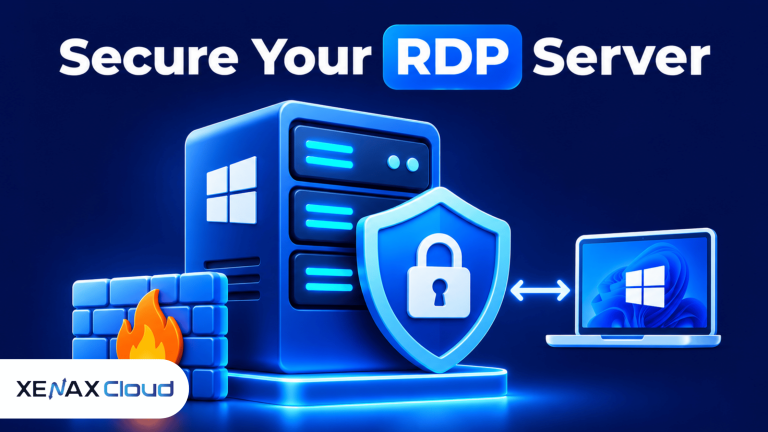
To understand how to secure RDP server access, protect the Windows login with strong passwords, multi-factor authentication and Network Level Authentication, restrict incoming connections through a firewall, keep Windows updated and monitor login activity. Changing the default port can reduce routine scanning, but it cannot replace access controls or encryption.
Remote Desktop Protocol (RDP) is a Microsoft protocol that allows a user to interact with a Windows computer over a network. It is useful for remote administration and business applications, but an exposed RDP service can become a target for password attacks and unauthorised access.
The right security setup depends on who needs access, where they connect from and whether the server is reachable directly from the public internet. The following steps cover Windows Server settings, firewall configuration, account permissions and ongoing checks.
Why Is RDP Server Security Important?
RDP server security matters because a remote login service can provide access to files, applications and administrative functions on the Windows machine.
An attacker who obtains valid credentials may be able to access the same desktop and resources as the compromised account. If that account has administrator privileges, the potential impact is greater because it can change system settings, install software and create additional accounts.
Common risks include:
- Brute-force attempts: Repeated login attempts using guessed or reused passwords.
- Credential theft: Stolen passwords used to access the remote desktop.
- Exposed services: RDP listening on a public IP address without sufficient network restrictions.
- Unpatched systems: Vulnerabilities in Windows or remote access components that have not been addressed.
- Excessive permissions: Users receiving administrator access when standard account permissions would be sufficient.
- Unmonitored logins: Suspicious access attempts going unnoticed because nobody reviews security events.
RDP encryption protects the remote session in transit, but encryption alone does not prove that the person connecting is authorised. Authentication, network restrictions, patching and monitoring must work together.
What Is the Difference Between RDP and a VPN?
RDP provides remote desktop access to a Windows computer, while a virtual private network (VPN) creates an encrypted network connection through which authorised devices can reach private resources.
A VPN can reduce direct exposure by keeping the RDP service off the public internet. A user first connects to the VPN and then opens the remote desktop session through the private network.
| Security control | Main purpose | What it does not replace |
| RDP encryption | Protects session traffic | Strong authentication |
| VPN | Restricts access to a private network | Windows account security |
| Firewall | Controls permitted network connections | Patch management |
| MFA | Adds another identity check | Least-privilege permissions |
| NLA | Authenticates before a full session | Network restrictions |
For internet-facing systems, avoid exposing RDP to every source address if a VPN, private network or restricted allowlist is available. The best architecture is the one that limits who can reach the service before the Windows login screen is exposed.
How to Secure RDP Server Access in Windows
You can secure RDP server access by combining Network Level Authentication, strong account credentials, limited user permissions, firewall restrictions and regular Windows updates.
Network Level Authentication (NLA) is a Remote Desktop security feature that requires a user to authenticate before a full remote session is established. It helps reduce unauthenticated session exposure and should be enabled when all connecting clients support it.
Start by confirming that Remote Desktop is required and that only authorised people need access. Disable remote access for systems and accounts that do not need it.
Enable Network Level Authentication
On a supported Windows Server installation, open the Remote Desktop settings and require Network Level Authentication for connections.
A common settings path is:
Server Manager
> Local Server
> Remote Desktop
> Enable Remote Desktop
> Allow connections only from computers running Remote Desktop with NLA
The exact label can differ by Windows Server version. You can also inspect the Remote Desktop configuration through System Properties, under the Remote tab.
NLA is not a replacement for MFA. It adds an authentication requirement before session creation, while MFA checks an additional factor of identity through a supported authentication system.
Use Strong Passwords and Separate Accounts
Every person who connects to the RDP server should use an individual account. Shared administrator credentials make it difficult to identify who performed an action and complicate access removal when a staff member leaves.
Apply these controls:
- Use long, unique passwords that are not reused on other services.
- Enable MFA through a supported Remote Desktop access architecture.
- Remove inactive accounts and review membership of Remote Desktop Users.
- Avoid using the built-in Administrator account for routine work.
- Give administrator privileges only to people who need them.
- Set account lockout policies that balance attack resistance with legitimate access.
Do not rely on a complex password alone if the same password is used elsewhere. A unique credential and a second authentication factor provide stronger protection against credential reuse.
Apply Windows Updates
Install supported Windows security updates and restart the server when required to complete the update process. Unpatched operating systems and remote access components can leave known security weaknesses unresolved.
Schedule maintenance so updates do not interrupt critical business sessions. Before a major update, confirm that important application data is backed up and that you have a working recovery or console access method.
How to Change RDP Port 3389 Safely
You can change RDP port 3389 by editing the Windows Remote Desktop registry setting and updating the matching firewall rule, but the new port does not make the service secure by itself.
RDP commonly listens on TCP port 3389 by default. Some configurations also use UDP for Remote Desktop traffic. If you change the listening port, make sure that your network firewall and any provider-level firewall permit the intended traffic on the new port.
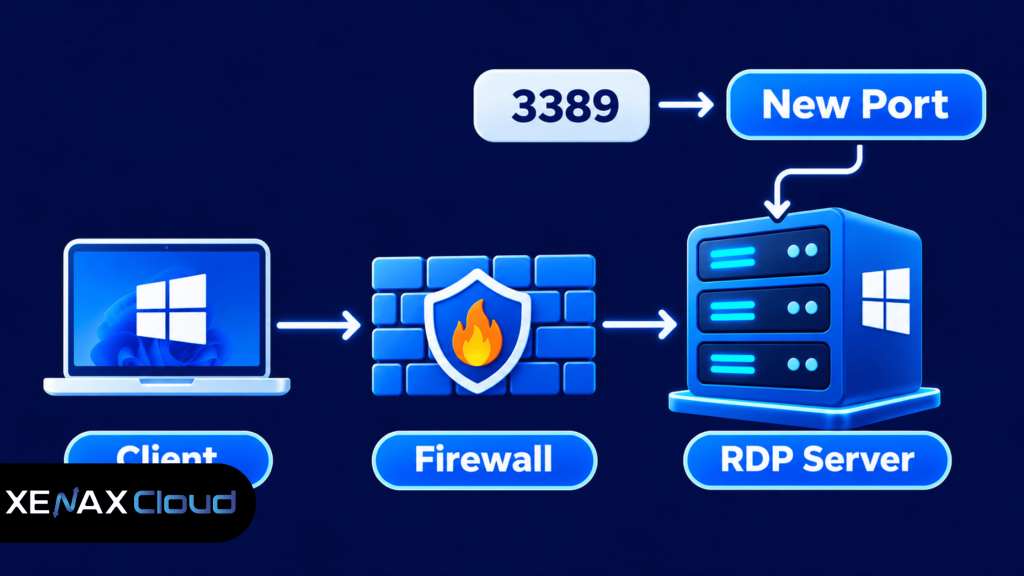
Steps to Change the RDP Listening Port
- Back up the registry and record the current RDP configuration.
- Choose an unused TCP port permitted by your network policy.
- Open Registry Editor with administrator privileges.
- Locate the RDP-Tcp PortNumber registry value.
- Set the new port using the correct numeric format.
- Create matching firewall rules for the new port.
- Test a new connection before closing your existing session.
The registry path is:
HKEY_LOCAL_MACHINE
\System
\CurrentControlSet
\Control
\Terminal Server
\WinStations
\RDP-Tcp
Open the PortNumber value and select Decimal before entering the new port number. If you use Hexadecimal instead, the same number must be converted correctly or Windows will listen on a different port than intended.
After changing the registry value, update the Windows Defender Firewall inbound rule or create a new rule that allows the selected TCP port. If your hosting provider has an external firewall, update that rule too.
Restart the Remote Desktop Services service or reboot during a maintenance window if required for the new setting to take effect. Keep your existing session open while testing a second connection using the new port.
A Remote Desktop connection using a custom port can be entered in this format:
203.0.113.10:NEWPORT
Replace the example IP address and NEWPORT with your actual server address and configured port. Do not close the original session until the new connection succeeds.
Changing the port can reduce automated scans that target the default port, but scanners can still discover services on other ports. Treat the change as a minor exposure-reduction measure, not as a substitute for firewall restrictions, MFA and strong credentials.
Firewall Rules That Limit RDP Access
A Windows Defender Firewall rule controls which network connections can reach the RDP service on the server.
The most important network control is to allow connections only from trusted source IP addresses whenever your users connect from known networks. If users connect from changing locations, consider a VPN or Remote Desktop Gateway rather than opening the service to every internet address.
Open Windows Defender Firewall with Advanced Security:
Start
Run
wf.msc
Inbound Rules
Remote Desktop – User Mode (TCP-In)
Review the rule’s Scope and restrict Remote IP addresses to the approved source addresses. If you use a custom RDP port, create or update the matching inbound rule and confirm that the old rule no longer exposes an unnecessary listening port.
Also check any firewall or network security group outside Windows. A server-level rule cannot protect a public service if the provider-level firewall still allows unrestricted access.
Should You Expose RDP Directly to the Internet?
Direct public RDP access is harder to restrict than access through a private network or a Remote Desktop Gateway. For business systems containing sensitive files, prefer a design where users authenticate to a controlled access point before reaching the Windows server.
A Remote Desktop Gateway is a Windows Server role that provides remote access to internal resources through an HTTPS connection. It can be combined with authentication policies and MFA, reducing the need to expose the internal RDP listener directly.
RDP Security Best Practices for Accounts and Sessions
RDP security best practices include limiting account privileges, requiring additional authentication, controlling session behaviour and reviewing access regularly.
A secure RDP setup should give each person only the access needed for their work. A staff member who uses one business application does not automatically need administrator rights to install software or change Windows security settings.
Add Only Approved Remote Desktop Users
Open the local users and groups management console:
lusrmgr.msc
Go to Groups, open Remote Desktop Users and review the membership list. Remove accounts that no longer need remote access, and add approved users individually or through an authorised group.
Do not add every employee to the Administrators group simply to make remote login easier. Use a standard user account for daily work and a separate administrator account for system maintenance.
Configure Multi-Factor Authentication
Multi-factor authentication (MFA) is an identity check that requires more than one proof of identity, such as a password and an authenticator approval.
MFA for Remote Desktop Services commonly uses an RD Gateway with an authentication integration such as Network Policy Server and a supported MFA provider. The exact design depends on your Windows Server environment and identity platform.
Microsoft explains the architecture and planning considerations in its Remote Desktop Services MFA documentation.
Microsoft Learn
Do not assume that installing an authenticator app on a user’s phone automatically adds MFA to ordinary direct RDP logins. Confirm that the server’s gateway or authentication architecture actually enforces the second factor.
Control Session and Device Redirection
Review which local resources users can redirect into a remote session. Clipboard, local drives, printers, microphones and other device redirection can be useful, but they may also move data between the endpoint and server.
For a server handling confidential business information, disable redirection features that users do not need. Apply the policy consistently through Group Policy where several servers or users are managed centrally.
Worked Example: Securing a Business RDP Server in Jaipur
Consider a Jaipur accounting firm that uses a Windows RDP server for business applications and document access. One administrator manages the server, while authorised staff connect remotely from approved office and home networks.
The firm wants to reduce unauthorised login attempts and prevent staff from receiving more permissions than their roles require. Its security setup should use NLA, individual accounts, strong unique passwords, MFA through a supported gateway architecture and firewall restrictions for known source networks.
For the server configuration, assume the firm’s required working memory is 6 GB after accounting for its Windows environment and business applications. Xenax Cloud’s Speed RDP entry configuration provides 2 vCPU and 4 GB RAM, so it does not meet that stated memory requirement. General RDP starts with 2 vCPU and 8 GB RAM, making it the more appropriate starting point for this example.
Xenax Cloud provides Windows RDP on KVM with administrator access, a 500 Mbps port, one IPv4 address and weekly backups. Its Speed RDP, General RDP and Gold RDP families offer different resource configurations, so the firm should select according to measured memory and CPU needs rather than assuming that every RDP workload needs the same size.
You can review the Xenax Cloud Windows RDP plans and compare the available configurations. The RDP server is hosted in Xenax Cloud’s Tier-III data centre in Banda, Uttar Pradesh, India.
General RDP is not the right choice if the workload is CPU-sensitive and needs the high-frequency Xeon Gold processor family; in that case, assess Gold RDP against the application’s actual CPU demand.
How to Monitor RDP Logins and Detect Suspicious Activity
Monitoring RDP logins helps you identify repeated failures, unfamiliar access patterns and account activity that does not match normal business use.
Windows records authentication and logon events in Event Viewer. Open the security log through:
Event Viewer
Windows Logs
Security
Useful event identifiers include:
- 4624: A successful account logon.
- 4625: A failed logon attempt.
- 4634: An account logoff.
- 4778: A session was reconnected to a Windows station.
- 4779: A session was disconnected from a Windows station.
The exact events recorded depend on audit policy and the Windows configuration. Review the account name, source address, time and logon type where available instead of treating every failed login as proof of an attack.
Investigate patterns such as repeated failures against one account, successful logins from unfamiliar addresses and activity outside expected working hours. Keep logs protected from unauthorised changes and forward them to a central logging system if your organisation operates multiple servers.
A Practical RDP Security Checklist
A secure RDP server needs layered controls rather than one setting such as a custom port or a strong password.
Use this decision rule when reviewing your setup:
- If the server is publicly reachable: Restrict source IP addresses or move access behind a VPN or RD Gateway.
- If more than one person uses the server: Create individual accounts and review Remote Desktop Users membership.
- If the server contains sensitive business data: Enforce MFA through a supported architecture and restrict clipboard and drive redirection.
- If you changed port 3389: Update Windows and external firewall rules, test the new connection and remove obsolete exposure.
- If failed logins repeat: Review Event Viewer, check the source addresses and investigate the targeted accounts.
- If the server is used for business-critical work: Maintain tested backups and a documented recovery procedure.
Before choosing an RDP configuration, review the server’s RAM and workload requirements. This helps prevent performance issues when multiple applications run during remote sessions. Read our guide on how much RAM a VPS needs to understand how memory requirements vary by workload.
Xenax Cloud Windows RDP vs the usual alternatives
| Feature | Xenax Cloud | Typical Indian shared host | Global budget host |
|---|---|---|---|
| Starting price | ₹649/mo | ₹199/mo | ₹149/mo (renews ₹499) |
| Storage | 40 GB SSD storage | 10 GB SSD | 25 GB SSD |
| DDoS protection | 100 Gbps, always on | Basic | Cloudflare only |
| Support | 24×7, in-house engineers | Tickets, business hours | Chat, outsourced |
| Data centre | India (NVMe) | India | Singapore / US |
| Control panel | cPanel / WHM included | cPanel | Custom panel |
Entry-level plans, list prices including GST where shown. Check each provider before buying — prices change.
See Windows RDP plansHow to Secure RDP Server: FAQs
Is RDP safe to use over the internet?
RDP can be used remotely, but exposing its listening port to unrestricted internet traffic increases security risk. Restrict incoming connections through a firewall, require NLA, use strong unique credentials and enforce MFA through a supported access architecture. A VPN or Remote Desktop Gateway can provide an additional controlled access layer.
Does changing RDP port 3389 make a server secure?
No, changing RDP port 3389 does not secure a server by itself. It may reduce routine scans targeting the default port, but attackers can discover services on other ports. Keep firewall restrictions, NLA, strong authentication, updates and login monitoring enabled after changing the listening port.
Should I disable Network Level Authentication?
No, you should normally keep Network Level Authentication enabled because it requires authentication before a full remote session is established. Disable it only temporarily when diagnosing a confirmed client compatibility issue, and restore it afterwards. Update older clients where possible instead of weakening the server’s authentication requirements.
How do I enable MFA for an RDP server?
You can enable MFA by integrating Remote Desktop Services with a supported authentication architecture, commonly involving RD Gateway and an MFA provider. The setup depends on your Windows Server and identity environment. Test the complete login flow, including backup authentication, before making MFA mandatory for every remote user.
Which firewall ports should be open for RDP?
RDP commonly uses TCP port 3389 by default, and UDP may also be used depending on the configuration. If you change the listening port, update the Windows firewall and any external firewall consistently. Allow access only from approved source addresses or the private network used by your organisation.
How can I check who accessed my RDP server?
You can review remote login activity in Event Viewer under Windows Logs, Security. Event ID 4624 records successful logons and 4625 records failed attempts. Check account names, timestamps and source addresses where available, and investigate unfamiliar activity rather than relying only on the number of failed attempts.
Is a VPN better than changing the RDP port?
A VPN generally provides stronger network-level access control than changing the RDP port alone. A VPN can keep the RDP service reachable only through a private network, while a custom port merely changes where the service listens. You should still use NLA, MFA, account restrictions and security monitoring.
For a Windows remote desktop used by a business, begin with the Xenax Cloud RDP configuration that meets your memory and CPU requirements, then apply NLA, restricted firewall access, individual accounts and MFA through a supported gateway. Keep Windows updated and review login events regularly so that security remains part of routine server administration.