If your PC feels slower than usual or apps behave strangely, the fix is often simple. Learning how to clear cache in Windows 11 can restore speed, fix glitches, and free up hidden storage. Cache files are useful, but over time they pile up and create problems.

Understanding Cache in Windows 11
Cache is temporary data stored to speed up tasks. Windows 11 uses different cache types for different purposes.
System cache helps Windows load files faster. App cache stores temporary data for applications. Browser cache saves website elements to speed up loading. DNS cache remembers recently visited domains.
Over time, cache files can become outdated or corrupted. This leads to slow performance, display errors, or failed updates.
Clearing cache does not delete personal files. It only removes temporary data. Knowing which cache to clear and when is the key to safe system maintenance.
This how to clear cache in Windows 11 guide focuses on practical methods that work for home users and business systems alike.
How to Clear Cache in Windows 11 Using Settings
Clear Temporary Files
The easiest method uses built-in Windows tools.
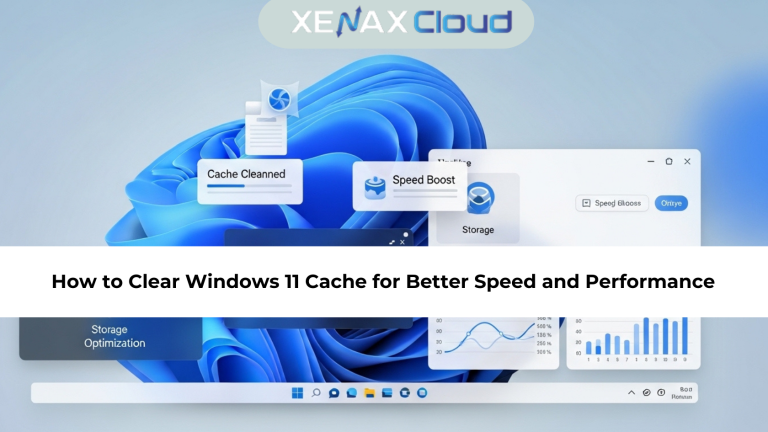
Open Settings, go to System, then Storage. Click Temporary files. Windows will scan and list removable cache items.
Select the files you want to remove and click Remove files. This clears system cache safely.
This method is ideal for beginners and regular maintenance. It reduces clutter without touching important data.
Storage Sense Automation
Windows 11 also offers Storage Sense. It automatically clears temporary files on a schedule.
Enable it from Settings > System > Storage. This keeps cache under control without manual effort.
For business machines, this reduces long-term performance issues.
How to Clear Cache in Windows 11 Using Disk Cleanup
Disk Cleanup is a classic but effective tool.
Search for Disk Cleanup in the Start menu. Select your system drive, usually C:.
Check options like Temporary files, DirectX Shader Cache, and Thumbnails. Click OK to clean.
This method removes deeper system cache that Settings sometimes misses.
For older systems upgraded to Windows 11, Disk Cleanup can recover significant space.
How to Clear Browser Cache in Windows 11
Browsers create large cache files quickly. Clearing them improves browsing speed and fixes loading issues.
In Chrome, Edge, or Firefox, open settings and find Privacy and Security. Choose Clear browsing data.
Select cached images and files. Avoid clearing passwords unless needed.
This step is essential for users accessing cloud dashboards, admin panels, or remote servers.
Browser cache cleanup is a core part of any how to clear cache in Windows 11 tutorial.
How to Clear DNS Cache in Windows 11
DNS cache stores domain lookups. Corrupted entries cause connection errors.
Open Command Prompt as administrator. Run:
ipconfig /flushdns
You will see a confirmation message. This clears DNS cache instantly.
This step is useful when websites fail to load or IP changes are not reflected.
On hosted Windows systems, DNS cache clearing helps resolve network issues quickly.
Scalability Options for Startups and Agencies
As teams grow, Windows systems handle more users and apps. Cache builds up faster.
Startups often begin with basic setups. As usage increases, VPS hosting becomes necessary for better control.
Agencies managing multiple remote desktops rely on regular cache cleanup to maintain performance.
Indian hosting providers support smooth upgrades. You can scale resources without reinstalling systems.
This flexibility helps teams manage performance proactively.
Use Cases
Remote Work Systems
Clear cache regularly to maintain smooth RDP performance.
Developers and Testers
Cache cleanup ensures accurate testing and faster builds.
Business Applications
Improves stability for accounting, CRM, and ERP tools.
FAQ
What is the difference between Indian VPS and foreign VPS?
Can Indian servers handle global website traffic?
Is Indian hosting cost-effective for international users?
How reliable is XenaxCloud hosting?
How to choose the right server for my business?
Conclusion
Learning how to clear cache in Windows 11 keeps systems fast, stable, and secure. Whether you manage a personal PC or a cloud-hosted Windows environment, regular cache cleanup prevents performance issues before they grow.
XenaxCloud provides reliable Indian hosting that supports Windows systems with speed, scalability, and expert support. With a 15-day money-back guarantee, you can get started without risk.
Check the latest offers here:
https://xenaxcloud.com/indian-rdp/
Choose hosting that keeps your systems running smoothly.