Instant RDP is a remote desktop service that lets you access a Windows environment hosted on a remote server without setting up a physical computer for the same workload. You connect over a network using Remote Desktop Protocol (RDP), sign in with authorised credentials and work with applications, files and server resources from your own device.
For Indian businesses, developers, accountants and remote teams, the main decision is not simply how quickly access becomes available. You also need enough RAM, CPU capacity, storage and appropriate security controls for your applications.
This article explains how instant RDP works, how to connect, how to select a suitable configuration and which Xenax Cloud RDP family matches different workloads.
What Is Instant RDP and How Does It Work?
Instant RDP is a remote access service that provides a Windows desktop hosted on a server for use through a network connection.
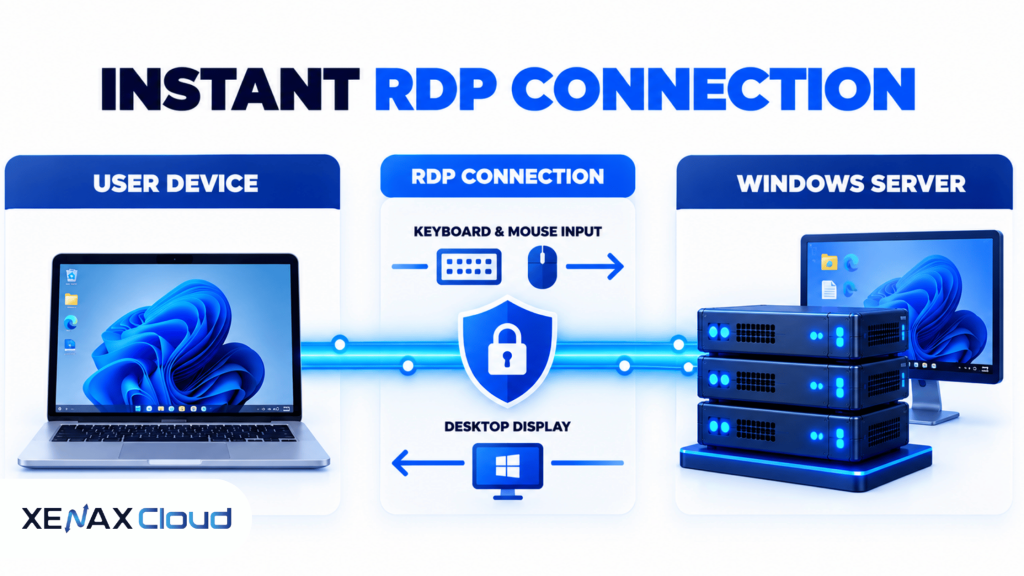
RDP is a Microsoft protocol that transmits remote display information and carries keyboard and mouse input between a client device and a remote Windows computer. The applications run on the remote server, while your local device displays the desktop and sends your actions to it.
A typical connection involves four components:
- Local device: Your laptop, desktop or another supported device.
- Remote Windows server: The computer that runs your applications and stores working files.
- RDP client: Software that establishes the remote desktop session.
- Network connection: The path between your device and the server.
Instant RDP does not mean that every application is preinstalled or that every order activates at precisely the same moment. Actual availability depends on provisioning, operating system configuration, account credentials and the provider’s activation process.
A hosted Windows desktop is particularly useful when you want to keep applications and working files on a central computer rather than depend entirely on your personal device. Your local computer still needs a suitable network connection, and the remote server must have enough resources to handle your workload.
How to Connect to Instant RDP from Windows
Connecting to instant RDP involves obtaining your server credentials, opening an RDP client and verifying the remote session.
The steps below apply to a typical Windows client connecting to a provisioned Windows server. Your provider’s connection details may differ.
Steps to connect securely
- Obtain the server address, username, password and any required connection details.
- Open Remote Desktop Connection by searching for mstsc in the Windows Start menu.
- Enter the remote server’s hostname or IP address in the Computer field.
- Review the connection settings and confirm the intended server address before connecting.
- Authenticate using the credentials supplied for your authorised account.
- Verify the Windows desktop and check that the expected applications and storage are available.
- Disconnect through the Windows session menu when finished, following your organisation’s session policy.
Remote Desktop Connection is built into many Windows desktop editions, although the ability to host incoming RDP sessions depends on the Windows edition and configuration. Other devices can use compatible remote desktop clients where supported.
For Microsoft’s official guidance on remote desktop clients and supported connection methods, consult the Microsoft Remote Desktop client documentation.
Keep the server address and login credentials private. If a connection fails, check the hostname or IP address, network reachability, credentials, server status and remote access configuration before changing firewall settings.
Which Instant RDP Configuration Should You Choose?
The right instant RDP configuration depends on concurrent application demand, memory use, CPU requirements and the amount of data you need to store.
An entry-level remote desktop can be suitable for a single lightweight application, while a server running multiple business applications or several concurrent sessions may need more resources. The amount of RAM alone does not determine performance: CPU contention, storage activity and network conditions also affect responsiveness.
The following configurations describe Xenax Cloud’s three RDP families and their available resource ranges.
| RDP family | Available configuration range | Main consideration | Suitable workload |
| Speed RDP | 2–32 vCPU; 4–64 GB RAM | NVMe storage is available in the corresponding Speed family; confirm the selected RDP plan’s storage specification | Storage-sensitive applications and mixed workloads |
| General RDP | 2–16 vCPU; 8–64 GB RAM | More RAM per vCPU | Memory-intensive business applications |
| Gold RDP | 2–32 vCPU; 4–64 GB RAM | High-frequency Xeon Gold processors | CPU-sensitive applications |
All three families use Windows on KVM virtualisation. Xenax Cloud specifies a 500 Mbps network port for its RDP infrastructure, one IPv4 address, administrator access and weekly backup inclusion. The port specification is not a guarantee that every application will achieve a particular transfer speed.
The ranges above describe the family endpoints, not every intermediate configuration. Check the selected plan’s exact CPU, memory and storage specifications before ordering.
How Much RAM and CPU Does Instant RDP Need?
Instant RDP needs enough RAM and CPU capacity to run Windows and every application active in the remote session without sustained resource pressure.
The following figures are practical planning estimates, not official minimum requirements for every Windows version or application. Actual needs depend on software requirements, concurrent users, background services and the size of working files.
| Workload | Suggested starting point | What to assess |
| One lightweight business application | 2 vCPU, 4 GB RAM | Application requirements and idle memory use |
| Several browser tabs and office applications | 2–4 vCPU, 4–8 GB RAM | Browser memory and simultaneous tasks |
| Multiple business applications or heavier files | 4–8 vCPU, 8–16 GB RAM | CPU demand and peak memory consumption |
| Several concurrent users or demanding workloads | 8+ vCPU, 16+ GB RAM | Session count, application concurrency and licensing |
These are starting points for evaluation rather than performance guarantees. Confirm the software vendor’s requirements, especially if the application uses a database, requires substantial local storage or supports multiple simultaneous users.
A practical resource decision rule
Choose a configuration according to measured resource demand rather than selecting the largest available server by default.
- Choose a configuration with 4 GB RAM if one lightweight application fits comfortably within the available memory.
- Consider 8 GB RAM when you routinely run multiple applications and browser tabs together.
- Consider 16 GB RAM or more when monitoring shows high memory use, several concurrent sessions or demanding application workloads.
- Add vCPU capacity when CPU utilisation remains high during normal work and the application can benefit from additional processing capacity.
- Prioritise storage capacity and performance when large files, database activity or repeated disk access dominate the workload.
Windows Task Manager helps you make the decision. Inside the remote session, open Task Manager and inspect the Performance tab for CPU, Memory and Disk usage while running your normal workload. Repeated memory pressure or consistently saturated CPU usage suggests that you should investigate resource constraints before upgrading.
A larger configuration is not automatically the correct choice if the application is limited by licensing, network latency or a single-threaded processing task. Diagnose the bottleneck first, then select the relevant resource.
How Can You Buy RDP Instant Access?
You can buy RDP instant access by choosing a suitable Windows RDP configuration, completing the provider’s ordering process and obtaining the connection details after provisioning.
Before ordering, establish three requirements: what software must run, how many people need simultaneous access, and how much memory and storage the workload needs. These answers help you select a plan without paying for unused capacity or discovering resource shortages after deployment.
Xenax Cloud provides three Windows RDP families: Speed RDP, General RDP and Gold RDP. Each uses Windows on KVM, with administrator access and the infrastructure specifications described in the configuration table.
For available configurations, review Xenax Cloud’s Indian RDP plans. Compare the selected plan’s CPU, RAM and storage with your application requirements before completing an order.
Before paying, confirm the following details:
- The Windows environment and intended applications are supported.
- The selected configuration has sufficient CPU, RAM and storage.
- The plan’s connection information and administrator access meet your needs.
- Your application licences permit the intended remote use and number of users.
- You have a backup and recovery approach for important business data.
Xenax Cloud operates a Tier-III data centre in India, bills in Indian rupees and supports Indian payment methods including UPI, cards and net banking through its payment gateways. Support is available around the clock.
Buying an RDP server does not automatically supply licences for every application you install. Check software licensing, access permissions and any required Windows or application-specific terms separately.
What Is Instant RDP Activation and How Can You Verify It?
Instant RDP activation is the process of provisioning a Windows remote desktop and making its connection details available for authorised access.
Activation time depends on the provider’s provisioning workflow, payment confirmation, operating system setup and any account verification requirements. The word “instant” should not be treated as a promise that every order will be accessible immediately.
After receiving the connection details, use this verification sequence:
- Confirm that the server address matches the provider’s instructions.
- Test the connection using an authorised RDP client.
- Sign in and confirm that the Windows desktop loads.
- Open Task Manager to inspect available CPU and memory.
- Check the required application, storage location and network access.
- Verify that security updates and backup arrangements are in place.
If instant RDP activation appears incomplete, do not repeatedly reset passwords or change firewall rules without understanding the cause. Check the order status and connection instructions first, then contact provider support with the relevant error message and time of occurrence.
A successful login confirms that remote access is working; it does not establish that the server is correctly secured, that every application is licensed or that backups can be restored. Test those elements separately before moving important work onto the server.
Which Xenax Cloud RDP Plan Fits an Indian Business?
The right Xenax Cloud RDP plan is the smallest configuration that handles your normal workload, peak demand and required concurrent sessions with sufficient headroom.
Worked example: A CA office in Varanasi with six staff
Consider a chartered accountancy firm in Varanasi where six staff members need access to accounting software, spreadsheets and shared working documents. The firm wants a centrally managed Windows environment rather than maintaining separate computers for every task.
The first step is to establish whether all six employees need simultaneous sessions, whether the software supports concurrent access and how much RAM the applications consume. Six staff members do not automatically require six simultaneous sessions, but six active users can create a very different resource demand from one person working alone.
Suppose the firm’s initial assessment shows that it needs 8 GB RAM, two vCPU and enough storage for its applications and working files. Xenax Cloud’s General RDP family is a reasonable configuration to evaluate because its available range begins at 2 vCPU and 8 GB RAM, with more RAM per vCPU than the other listed families.
A smaller configuration with 4 GB RAM would not meet the firm’s assessed 8 GB memory requirement. The firm should also confirm application licensing, concurrent-session support, storage requirements and whether a single server meets its access-control needs.
If monitoring later shows that CPU usage remains high under normal workloads, the firm should evaluate a configuration with more vCPU. If memory demand rises beyond the available capacity, it should evaluate additional RAM instead of assuming that a faster processor will solve the problem.
When should you choose a different RDP family?
Speed RDP is worth evaluating when storage performance matters, while Gold RDP is relevant when the application benefits from high-frequency Xeon Gold processors. General RDP is a practical candidate when the workload needs more memory relative to CPU allocation.
General RDP is not the right choice if the application specifically benefits from the processor characteristics or storage configuration of another family. Compare the actual plan specifications against the software requirements before deciding.
Is Instant RDP Safe for Business Applications?
Instant RDP can support business applications when remote access, user permissions, patching and data protection are configured appropriately.
A remote Windows desktop is not automatically secure just because it runs in a data centre. Exposing RDP directly to the public internet without appropriate controls can increase the risk of password attacks, unauthorised access and compromised business data.
Use the following security practices:
- Use strong credentials: Create unique passwords and avoid reusing credentials from email or other business services.
- Restrict access: Use a VPN, approved network restrictions or other suitable access controls where supported.
- Enable Network Level Authentication: Keep Network Level Authentication enabled when supported by the Windows server configuration and client requirements.
- Patch Windows: Install security updates and restart when required by the maintenance policy.
- Separate accounts: Give users only the permissions needed for their tasks instead of sharing the administrator account.
- Protect backups: Keep important data backed up and verify that restoration works before relying on the server for critical records.
For a business that stores accounting records or customer documents, access control and backup recovery should be considered before migration. Keep a separate copy of important data before making major configuration changes, and do not assume that a backup exists simply because the hosting plan includes backup coverage.
Xenax Cloud includes weekly backups with its RDP infrastructure, but a business should still establish its recovery requirements and confirm the applicable backup scope and retention arrangements. Data that changes frequently may require additional backup measures between scheduled backup points.
How Does Instant RDP Compare With a Local Computer or VPS?
Instant RDP provides a ready-to-use remote Windows environment, while a local computer runs applications on the user’s own hardware and a typical VPS gives you a virtual server that you configure for your intended operating system and workload.
The three options solve different operational problems. A local computer offers direct control over the physical device, an RDP service provides remote Windows access, and a VPS gives you greater flexibility to build a server environment.
| Factor | Instant RDP | Local computer | General-purpose VPS |
| Operating environment | Hosted Windows environment | Local operating system | Usually selected and configured for the workload |
| Physical hardware management | Provider manages server hardware | User or organisation | Provider manages host hardware |
| Remote access | Main purpose of the service | Requires remote-access configuration | Requires suitable remote-access software and setup |
| Administrator control | Depends on the RDP plan and permissions | Depends on device ownership and permissions | Typically root access on Linux or equivalent administration on Windows |
| Setup responsibility | Provider provisions the service; user configures applications | User prepares the device | User generally handles more server configuration |
A Windows RDP plan is suitable when you need a remotely accessible Windows desktop and administrator access. A Linux VPS is more appropriate when you need to run Linux services, deploy a web application or manage a custom server stack without a Windows desktop.
For a business hosting a website, Xenax Cloud’s VPS hosting options may be a better fit than RDP because a website server and an interactive desktop have different operating requirements. Select the service according to the workload, not simply because both products use virtualisation.
For further reading, see [ARTICLE LINK: selecting RAM and CPU for a VPS] when estimating server capacity, and [ARTICLE LINK: securing Windows Remote Desktop access] when reviewing access restrictions and account permissions.
Instant RDP: FAQs
What does instant RDP mean?
Instant RDP means a remote desktop service intended to provide access to a provisioned Windows server without requiring you to build the server hardware yourself. Actual access depends on provisioning and credential delivery. Check the provider’s activation instructions and confirm that the server is reachable before moving business applications or important files.
How quickly can instant RDP activation be completed?
Instant RDP activation time depends on payment confirmation, server provisioning, operating system setup and account verification. Some orders may become accessible quickly, but the term does not guarantee immediate access in every case. Check your order status and provider instructions, then contact support if the supplied connection details do not work.
Can I use instant RDP from a mobile phone or Mac?
Yes, you can use instant RDP from a compatible Mac or mobile device if a supported RDP client is available. Install the client from a trusted source, enter the server address and authenticate with your authorised credentials. Check keyboard, file-transfer and display requirements because these features vary across clients.
Is 4 GB RAM enough for instant RDP?
Yes, 4 GB RAM can be sufficient for a single lightweight application, provided the operating system and application requirements fit within available memory. Multiple browser tabs, background services and simultaneous users can increase demand. Monitor actual memory use and consider an 8 GB or larger configuration if resource pressure persists.
Which instant RDP plan is suitable for multiple users?
The suitable instant RDP plan depends on concurrent sessions, application requirements, CPU demand and memory consumption. Xenax Cloud’s General RDP family begins at 2 vCPU and 8 GB RAM, making it a candidate for memory-oriented workloads. Confirm licensing, session support and actual resource requirements before ordering for a team.
Is instant RDP suitable for storing business documents?
Yes, instant RDP can be used for business documents when access permissions, security updates and backup procedures are properly managed. Restrict administrator access, use strong credentials and verify backup restoration. For accounting records or customer data, confirm the required retention period and recovery process before making the remote server your primary workspace.
What should I check if instant RDP will not connect?
Check the server address, internet connection, account credentials and server availability first. If those are correct, review firewall rules, remote desktop settings and whether the server permits your connection method. Avoid disabling security controls to troubleshoot. Record the error message and ask the provider to investigate server-side connectivity if necessary.
For your next step, choose Xenax Cloud General RDP if your measured workload needs more RAM per vCPU, Speed RDP if the selected storage configuration suits your applications, or Gold RDP if high-frequency Xeon Gold processing is relevant. Match the exact configuration to your CPU, RAM, storage and concurrent-user requirements before ordering.