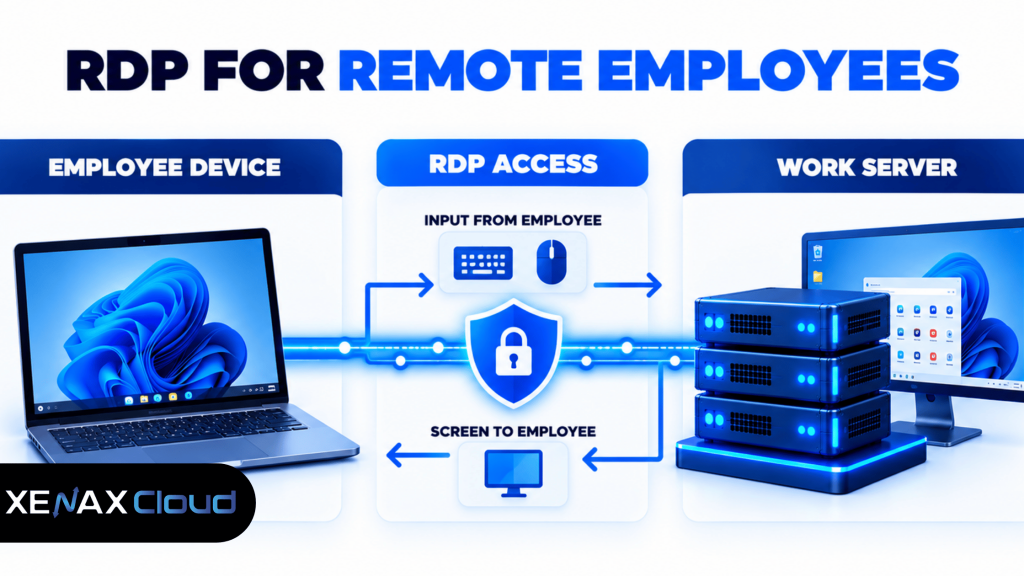
RDP for remote employees gives distributed teams access to a Windows computer hosted on a remote server, allowing staff to run approved applications and work with centralised files from their own devices. Remote Desktop Protocol (RDP) carries keyboard and mouse input to the remote computer and returns the desktop display over a network connection.
For Indian businesses, this arrangement can help employees work from home while keeping business applications on a centrally managed system. The setup still requires appropriate access permissions, suitable server resources, software licences and a reliable network connection.
The key decision is whether your team needs a shared remote desktop environment, separate sessions for individual employees or a different solution for applications that must run directly on local devices.
What Is RDP for Remote Employees and How Does It Work?
RDP for remote employees is a remote-access arrangement that lets authorised staff use a Windows computer hosted away from their physical workplace.
RDP is a Microsoft protocol that communicates between a remote desktop client and a computer accepting remote connections. Applications execute on the remote Windows server, while the employee’s device displays the desktop and sends user input.
A typical business setup contains four parts:
- Employee device: A laptop or desktop used to connect to the remote environment.
- Windows RDP server: The computer that runs business applications and stores working data.
- RDP client: Software used to initiate and manage the remote desktop session.
- Access and security controls: Authentication, network restrictions, user permissions and update policies that protect the environment.
For example, an employee working from home in Lucknow can connect to an authorised Windows server hosting the applications required for daily work. The employee’s laptop handles the display and input, while the remote server performs the application processing.
Remote access does not automatically make every application available to every employee. The business must install the required software, configure accounts and permissions, and confirm that application licensing permits the intended use.
How to Set Up RDP for Work from Home
RDP for work from home requires a correctly configured remote Windows computer, an approved client device and secure authentication.
The server should be prepared before employees begin connecting. Confirm the operating system, remote access permissions, user accounts, application licences and network access rules rather than enabling remote access without a defined policy.
Steps to configure employee access
- Prepare the Windows server and confirm its remote access requirements.
- Create individual employee accounts with appropriate permissions.
- Install the business applications required for each role.
- Restrict network access to approved connection paths and authorised users.
- Share the server address and login instructions through a secure channel.
- Test each account and confirm that required applications open correctly.
- Review access logs, updates, backups and account permissions before rollout.
For the connection procedure, consult Microsoft’s Remote Desktop client documentation. Use the supported client for each device and follow the organisation’s authentication and network policies.
A successful test should confirm more than a working login. Check whether the employee can access only the files and applications required for their role, and verify that disconnected sessions behave according to company policy.
Choosing the right RDP for remote employees depends on the applications your team uses, the number of people connecting at the same time, and the RAM and CPU resources required for daily work. A suitable setup can help employees access their work environment remotely.
Which RDP Configuration Should a Remote Team Use?
The correct RDP configuration depends on the number of active users, application requirements, CPU demand, RAM consumption and storage needs.
Xenax Cloud offers three Windows RDP families on KVM virtualisation: Speed RDP, General RDP and Gold RDP. KVM is a virtualisation technology that allows virtual machines to run on a shared physical host with allocated computing resources.
Xenax Cloud RDP family comparison
| RDP family | Available range | Main characteristic | Consider when |
| Speed RDP | 2–32 vCPU; 4–64 GB RAM | NVMe storage is available in the Speed family | Storage requirements and workload characteristics suit the selected configuration |
| General RDP | 2–16 vCPU; 8–64 GB RAM | More RAM per vCPU | Applications need relatively more memory |
| Gold RDP | 2–32 vCPU; 4–64 GB RAM | High-frequency Xeon Gold processors | Applications benefit from the processor characteristics |
These ranges describe the family endpoints, not every intermediate configuration. Confirm the exact CPU, RAM and storage specifications for the selected plan before ordering.
Xenax Cloud specifies a 500 Mbps network port for its RDP infrastructure, along with administrator access, one IPv4 address and weekly backup inclusion. The port specification is not a guarantee of a particular application response time or throughput for every employee.
For a team running memory-intensive office applications, General RDP may be worth evaluating. Speed RDP is relevant when the selected storage configuration fits the workload, while Gold RDP is an option to investigate when processor frequency matters.
How Much RAM Does RDP for Remote Employees Need?
RDP for remote employees needs enough memory for Windows, background services and the applications running during each working session.
RAM requirements vary considerably. A single employee using a lightweight business application has a different workload from several employees running browsers, spreadsheets, databases and document tools simultaneously.
Use these figures as initial planning estimates, not guaranteed requirements for a particular software product.
| Workload | Suggested starting configuration | What to check |
| One employee using a lightweight application | 2 vCPU, 4 GB RAM | Operating system and application requirements |
| One employee using multiple office applications | 2–4 vCPU, 4–8 GB RAM | Browser tabs, spreadsheets and background services |
| A small team using memory-intensive applications | 4–8 vCPU, 8–16 GB RAM | Concurrent sessions and peak memory demand |
| A larger or more demanding workload | 8+ vCPU, 16+ GB RAM | User concurrency, CPU utilisation and application requirements |
The figures are starting points for capacity planning, not fixed rules. Actual requirements depend on the software, Windows configuration, user activity and whether the server is intended for individual sessions or a properly licensed multi-session environment.
A practical resource decision rule
Choose a configuration using observed resource consumption rather than headcount alone.
- Consider 4 GB RAM for a light workload when the operating system and applications fit comfortably in memory.
- Consider 8 GB RAM when an employee routinely runs several applications together.
- Evaluate 16 GB RAM or more when multiple active sessions or memory-intensive applications create sustained memory pressure.
- Add vCPU capacity when CPU utilisation stays high during normal work and the application can use additional processing capacity.
- Review storage when applications depend on large files, frequent disk operations or significant working-data capacity.
Inside Windows, open Task Manager and inspect the Performance tab while employees run their normal tasks. Persistent high memory use, CPU saturation or disk activity can help identify the limiting resource before you change the configuration.
A larger server is not necessarily the solution if the bottleneck is an application licence, network delay or software that cannot use additional CPU cores. Diagnose the issue first, then select a configuration that addresses it.
Is Remote Desktop for Staff Better Than Company Laptops?
Remote desktop for staff can centralise application execution and data management, while company laptops provide employees with local computing resources and greater independence from a continuous remote connection.
Neither arrangement suits every business. The right choice depends on application compatibility, information security requirements, internet availability and the degree of control the organisation needs over employee devices.
| Factor | Remote desktop for staff | Company laptops |
| Application execution | Runs on the remote Windows server | Runs on the employee’s device |
| Central administration | Applications and server settings can be centrally managed | Device policies and software deployments must be managed across laptops |
| Internet dependence | A network connection is required for interactive access | Many locally installed applications can work offline |
| Hardware responsibility | Provider manages the physical server hardware | Organisation manages or procures employee devices |
| Data handling | Working data can be centralised, depending on application configuration | Data may reside locally unless synchronisation and storage policies prevent it |
Remote desktop can be useful when staff need the same centrally managed application environment from different locations. Laptops may be more appropriate for employees who travel frequently, work in areas with unreliable connectivity or require local access to specialised hardware.
A hybrid model is also possible: employees use company-managed laptops to connect to the remote desktop, while device security policies protect the local endpoint. This approach does not remove the need to secure either the laptop or the server.
How Can You Manage Security for Remote Employees?
RDP access for remote employees should use individual accounts, restricted network access, appropriate authentication and a documented process for revoking access.
A remote desktop server can become a central point of access to business applications and records. That makes account management and security configuration essential, especially when employees work from personal networks or devices outside the office.
Apply these controls before expanding access:
- Use individual accounts: Avoid shared employee credentials so access can be assigned and revoked by person.
- Restrict network exposure: Use a VPN, gateway or suitable network allowlisting where supported, rather than exposing remote access indiscriminately.
- Maintain security updates: Apply Windows security updates and follow a controlled restart policy.
- Use least privilege: Give each employee the minimum permissions required for assigned tasks.
- Review access regularly: Disable accounts when employees leave and remove permissions they no longer need.
- Protect business data: Define backup retention, recovery responsibilities and rules for transferring files between local devices and the server.
Network Level Authentication (NLA) is a Windows remote desktop security feature that authenticates users before establishing a full remote session. Enable it when supported by the server configuration and compatible with the organisation’s connection requirements.
Do not assume that administrator access means every employee should receive administrator privileges. Standard user accounts reduce the risk of accidental system changes and limit the permissions available if an employee’s credentials are compromised.
For important business records, keep a separate backup copy where appropriate and test restoration before relying on the server as the primary working environment. Xenax Cloud includes weekly backups with its RDP infrastructure, but businesses should confirm backup scope and retention and decide whether more frequent recovery points are required.
Worked Example: RDP for a Small Indian Business
A small Indian business should select RDP capacity based on the actual number of concurrent users, application requirements and measured resource demand.
Consider a digital marketing agency in Kanpur with five employees who need a centrally managed Windows environment for office applications, browser-based tools and shared project files. The agency expects all five employees to work at the same time and wants enough memory headroom for normal workload variations.
Suppose an initial assessment establishes a requirement for 8 GB RAM and 2 vCPU, with compatible applications and a suitable licensing arrangement for the intended sessions. Xenax Cloud’s General RDP family is a candidate because its published range begins at 2 vCPU and 8 GB RAM and provides more RAM per vCPU.
A configuration with 4 GB RAM would fall below the agency’s assessed memory requirement, so it should not be selected simply because it has enough CPU cores. However, the 8 GB configuration should not be treated as a guaranteed fit until the agency verifies session support, application licensing, storage capacity and actual performance under concurrent use.
If monitoring shows sustained memory pressure, the agency should evaluate a larger RAM configuration. If CPU saturation is the main issue, it should assess additional vCPU capacity or whether Gold RDP’s processor characteristics suit the applications.
General RDP is not the right choice if the agency’s applications depend heavily on high-frequency processing or a specific storage configuration. In that case, compare Gold RDP or Speed RDP against the actual workload instead of choosing on RAM alone.
What Should You Check Before Ordering RDP for Remote Employees?
Before ordering RDP for remote employees, confirm that the selected server supports the required applications, concurrent sessions, access policies and data recovery process.
Use this checklist to prepare for deployment:
- Confirm the number of employees who need simultaneous access.
- Identify the applications each role requires and verify their remote-use licensing.
- Estimate RAM, vCPU and storage requirements for normal and peak workloads.
- Check the exact plan specifications rather than relying only on the family name.
- Define account creation, password handling and access revocation procedures.
- Establish backup retention and test the recovery process.
- Test connections from the devices and networks employees will actually use.
Xenax Cloud operates a Tier-III data centre in India and provides Windows RDP configurations with administrator access. Billing is in Indian rupees, and support is available around the clock.
Review the Xenax Cloud Indian RDP plans to compare the available families and configuration options. Confirm the exact plan specifications, software requirements and intended session model before completing the order.
Can employees use RDP from their home computers?
Yes, employees can use RDP from compatible home computers when the remote Windows server is configured to accept their authorised connections. The local device needs a supported RDP client and a suitable network connection. Businesses should also set rules for device security, credentials, file transfers and access to confidential records.
Is RDP for work from home secure?
RDP for work from home can be secured through individual accounts, strong authentication, restricted network access, regular patching and appropriate user permissions. Security depends on configuration and ongoing administration, not simply on using a hosted server. Avoid exposing remote access indiscriminately and review access whenever an employee changes role or leaves.
How much RAM does a remote desktop server need for five employees?
A remote desktop server for five employees may need 8 GB RAM or more, depending on applications and simultaneous activity. Five users alone do not establish a reliable memory requirement. Measure application demand, confirm the supported session model and test concurrent workloads before choosing the final configuration.
Can remote desktop for staff run accounting and office applications?
Yes, remote desktop for staff can run compatible accounting and office applications when the server meets their operating requirements and the licences permit remote use. Check whether the software supports multiple concurrent users, where its data is stored and whether additional database or application services are required before deployment.
Should every remote employee have administrator access?
No, most remote employees should use standard accounts with permissions limited to their job responsibilities. Administrator access should be restricted to people who need it for approved maintenance tasks. Separating ordinary work from administrative activity helps reduce accidental configuration changes and limits the damage that a compromised user account could cause.
What happens if an employee’s internet connection drops?
If an employee’s internet connection drops, the remote session may disconnect or become temporarily unresponsive, but the server itself may continue running. The outcome depends on session and application behaviour. Employees should reconnect using approved procedures and confirm that unsaved work was preserved before resuming important tasks.
Which Xenax Cloud RDP family suits a memory-intensive team?
General RDP is a suitable family to evaluate when a team needs more RAM per vCPU. Its available range begins at 2 vCPU and 8 GB RAM and extends to higher-memory configurations. Check application requirements, concurrent sessions and measured resource use before selecting a specific size.
For a team that needs a centrally managed Windows workspace, start by estimating simultaneous users and measuring the RAM and CPU required by their applications. Compare those requirements with Xenax Cloud’s General RDP, Speed RDP and Gold RDP configurations, then order the smallest suitable configuration with enough capacity for normal workload variations.