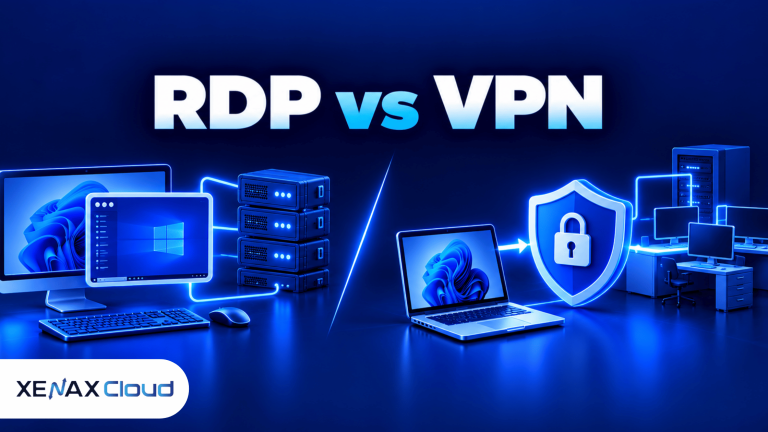
RDP vs VPN for remote work comes down to what employees need to access. Remote Desktop Protocol (RDP) lets a user control a computer over a network, while a virtual private network (VPN) creates an encrypted connection to a private network. Some teams need one; others need both to reach company systems securely.
The distinction matters for Indian businesses with employees working from home, travelling staff, outsourced teams and offices spread across cities. Choosing the wrong setup can leave applications inaccessible, expose internal services or make staff depend on computers that are not configured for remote use.
What Is the Difference Between RDP and VPN for Remote Work?
RDP provides remote control of a computer, whereas a VPN provides a protected network path to resources that the user is authorised to access. They solve related but different problems, so neither is a universal replacement for the other.
Remote Desktop Protocol (RDP) is a remote-access protocol that sends a computer’s screen updates to a client and carries the user’s keyboard and mouse input back to the remote computer. The applications run on that remote machine, which can keep business files and processing there instead of on the employee’s personal device.
A virtual private network (VPN) is a technology that establishes an encrypted connection between a device or network and a private network. After connecting, a user may access authorised internal services such as file shares, intranet pages or business applications, subject to network routing and access rules.
| Requirement | RDP | VPN |
| Main purpose | Control a remote computer | Connect securely to a private network |
| Where applications run | On the remote computer | Usually on the user’s device or an accessed server |
| Typical access | Desktop, software and files available on the remote machine | Permitted internal systems and network services |
| Local device needs | RDP client and a compatible remote host | VPN client or supported built-in VPN configuration |
| Common limitation | Depends on remote host availability and performance | Does not automatically provide a remote desktop |
A useful distinction is that RDP controls a destination computer, while a VPN changes how a device reaches network resources. A VPN can protect the route to an RDP host, but the VPN itself does not supply the Windows desktop.
When Should You Choose RDP or VPN?
Choose RDP when employees need to work inside a centralised desktop, and choose a VPN when they need secure access to private network resources from their own devices.
RDP is often a better fit when staff need the same Windows environment, installed applications, files and settings from different locations. It can also help keep work inside a managed server rather than distributing software and business data across several personal computers.
A VPN is more suitable when an employee’s laptop needs to connect to an office file server, internal web application or other service that is not publicly accessible. The employee continues working on the local device, but traffic to the protected network travels through the VPN connection.
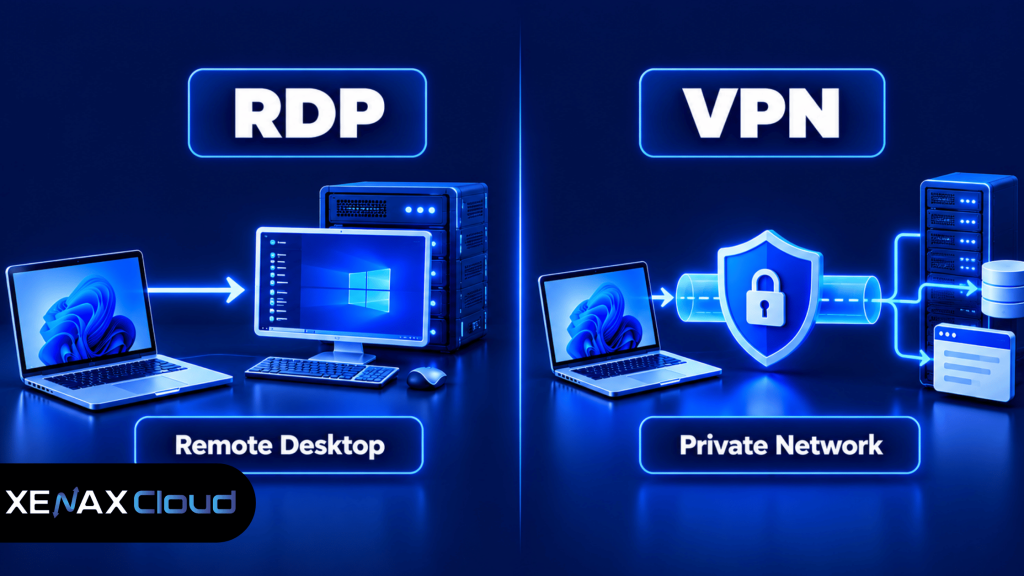
The two approaches can also be combined. For example, a company may require an employee to establish a VPN first and then connect through RDP to a desktop that is reachable only on the internal network. This adds a network access layer, but it still requires secure RDP configuration, account permissions and monitoring.
Is Remote Desktop More Secure Than a VPN?
Neither RDP nor a VPN is automatically more secure; security depends on configuration, authentication, access scope and maintenance.
RDP concentrates work on the remote host, which can simplify control over software and files. However, a compromised remote account may give an attacker access to the desktop and whatever that account can reach. Exposing an RDP service directly to the internet increases the need for careful access restrictions and monitoring.
A VPN encrypts traffic between its endpoints, but it does not guarantee that the user’s device is safe or that every resource behind the VPN is protected. If a compromised laptop can reach many internal systems after connecting, the VPN may provide a path for further unauthorised access.
For either approach, apply these controls:
- Require strong, unique passwords and multi-factor authentication (MFA) wherever supported.
- Give users access only to the computers and services needed for their roles.
- Keep Windows, VPN software and remote-access clients updated.
- Review sign-in logs and remove accounts when staff leave.
- Maintain separate administrative accounts rather than using an administrator account for everyday work.
- Keep tested backups of important files and configuration data.
For RDP, avoid exposing TCP port 3389 to every public IP address. Use a VPN, Remote Desktop Gateway or another properly secured access layer where appropriate, and restrict which users and devices can connect. Microsoft’s Remote Desktop security guidance explains security considerations for Remote Desktop Services.
A VPN is not a substitute for endpoint protection, and RDP encryption is not a substitute for strong identity controls. Businesses should assess the entire access path, including the employee’s device, the authentication method, the remote host and the internal services reachable from that host.
How to Set Up Remote Work Access Safely
A secure remote-work setup begins by identifying the resource employees need, then limiting access to that resource and testing the configuration before deployment.
Follow these steps before giving a team remote access:
- Identify the required applications, files and desktop environment.
- Choose RDP, VPN or a combination based on the resource being accessed.
- Create individual user accounts with only the permissions each person needs.
- Enable MFA where the chosen identity and remote-access systems support it.
- Restrict access using firewall rules, approved IP ranges or a secure gateway.
- Update the host operating system, VPN software and remote-access clients.
- Test access from an authorised external device and confirm that unauthorised resources remain inaccessible.
- Review logs, backups and user permissions on a regular schedule.
For Windows hosts, review Remote Desktop settings in Settings → System → Remote Desktop. Confirm that Remote Desktop is enabled only when required and that only approved accounts are allowed to connect. The exact menu labels may vary by Windows edition.
For a VPN, follow the instructions supplied by the VPN administrator or vendor. Confirm that the intended internal routes and DNS settings work, and verify that the VPN does not grant broader network access than the employee requires.
Before changing firewall rules or remote-access settings, ensure that you have an alternative administrative route to the machine. Keep a current backup and record the previous configuration so that a failed change does not lock the team out or interrupt business operations.
Remote Desktop vs VPN: Which Fits Different Workloads?
Remote desktop vs VPN decisions become clearer when you compare the actual work employees perform, rather than treating both technologies as interchangeable security products.
| Work requirement | Suitable starting point | Reason |
| Use a Windows application installed on a central server | RDP | The application runs on the remote Windows host |
| Open files on an office network from a managed laptop | VPN | The laptop needs a protected route to the file server |
| Access an internal application restricted to office networks | VPN | The VPN can provide authorised network reachability |
| Use a managed desktop while travelling | RDP, optionally over VPN | The work environment remains on the remote host |
| Access sensitive internal services and a centralised desktop | VPN plus RDP | The VPN protects network access while RDP provides the desktop |
These are starting points, not rigid rules. Some applications support their own secure web access, and some organisations use zero-trust network access (ZTNA) or a remote-access gateway instead of a traditional VPN. Choose based on the application’s supported access methods and the organisation’s security requirements.
For teams using RDP, host capacity matters too. CPU, RAM, storage performance and concurrent sessions affect responsiveness. A VPN does not require a remote desktop host by itself, so buying a server solely to create a VPN connection may be unnecessary.
How Much RAM and CPU Do You Need for Remote Desktop?
The required CPU and RAM depend on the operating system, applications and number of simultaneous users, not simply on whether the connection uses RDP.
A single user doing light office work has different needs from several employees running memory-intensive applications. Browser tabs, large spreadsheets, video calls and background processes can all increase memory use. When several people share a host, their workloads compete for the same CPU and RAM.
Xenax Cloud offers three Windows RDP families:
- Speed RDP: eight sizes, from 2 vCPU and 4 GB RAM up to 32 vCPU and 64 GB RAM, for workloads that benefit from NVMe storage.
- General RDP: four sizes, from 2 vCPU and 8 GB RAM up to 16 vCPU and 64 GB RAM, with more RAM per vCPU.
- Gold RDP: eight sizes, from 2 vCPU and 4 GB RAM up to 32 vCPU and 64 GB RAM, using high-frequency Xeon Gold processors.
The RDP families use Windows on KVM virtualisation, provide administrator access and use the same network and backup arrangement as Xenax Cloud VPS. RDP and VPS ports are specified at 500 Mbps; actual application performance also depends on workload, routing, client connection quality and host resource usage.
A practical starting point is to estimate the number of concurrent users, list the applications each user runs and monitor memory and CPU utilisation during normal peak periods. If RAM remains heavily used or CPU queues stay elevated during ordinary work, consider a larger configuration rather than assuming a VPN change will fix a resource bottleneck.
Worked Example: An Indian Agency With Remote Staff
An Indian agency with six employees who need the same Windows applications can use a central RDP host if the applications support that arrangement and the server has enough resources for all six concurrent sessions.
Suppose the team needs browser-based tools, office documents and a shared Windows workspace. The agency should estimate memory per user, include operating-system overhead and test the busiest expected workload. A 2 vCPU and 4 GB RAM configuration may be suitable for a light, single-user workload, but it should not be assumed sufficient for six simultaneous interactive users.
For a six-user deployment, start by assessing the General RDP family because it offers more RAM per vCPU, then choose a size based on measured peak memory use, CPU demand and application requirements. If the smallest General RDP configuration cannot accommodate the combined workload without sustained memory pressure, move to a larger size. The correct size cannot be established from the number of employees alone.
A VPN by itself would not solve this agency’s need for a shared Windows desktop. If employees instead use their own laptops and only need to reach a private office file server, a VPN may be sufficient, and a hosted RDP machine may not be necessary.
Xenax Cloud’s Indian RDP hosting plans are relevant when the team needs a hosted Windows environment with administrator access. Before ordering, confirm application compatibility, the permitted number of simultaneous users, licensing requirements and the resources needed for the busiest workload.
When Is RDP or VPN the Wrong Choice?
RDP is not the right choice when staff only need access to a private network service and do not require a remote desktop; a VPN or an application-specific secure access method may be simpler.
A VPN alone is not the right choice when employees need to run a Windows application that exists only on a central computer and the application has no suitable web or local client. In that situation, RDP or another supported remote application delivery method may be needed.
Neither approach should be selected solely because it is familiar. Consider these factors before deciding:
- Application compatibility: Some applications do not support multi-user remote sessions or remote execution.
- Network conditions: High latency or unstable connectivity can make interactive desktop work uncomfortable, even if the link is encrypted.
- Data handling: A VPN can permit downloads to unmanaged endpoints unless policy and access controls prevent them.
- Licensing: Windows, application and remote-session licensing obligations depend on the deployment and must be checked before rollout.
- Operational capacity: A central RDP host needs patching, access reviews, monitoring and backups.
For sensitive business data, decide where files should be stored and whether users can copy them to personal devices. Remote access should follow the company’s data-retention, privacy and incident-response policies.
Xenax Cloud Windows RDP vs the usual alternatives
| Feature | Xenax Cloud | Typical Indian shared host | Global budget host |
|---|---|---|---|
| Starting price | ₹649/mo | ₹199/mo | ₹149/mo (renews ₹499) |
| Storage | 40 GB SSD storage | 10 GB SSD | 25 GB SSD |
| DDoS protection | 100 Gbps, always on | Basic | Cloudflare only |
| Support | 24×7, in-house engineers | Tickets, business hours | Chat, outsourced |
| Data centre | India (NVMe) | India | Singapore / US |
| Control panel | cPanel / WHM included | cPanel | Custom panel |
Entry-level plans, list prices including GST where shown. Check each provider before buying — prices change.
See Windows RDP plansRDP vs VPN for Remote Work: FAQs
Is RDP the same as a VPN?
No, RDP and a VPN perform different jobs. RDP lets a user interact with a remote computer, while a VPN creates an encrypted connection to a private network. A business can use both together when employees need a remote desktop that should only be reachable through an authorised network connection.
Can I use RDP without a VPN?
Yes, RDP can work without a VPN if the host is reachable through another properly secured access method. However, exposing RDP directly to the public internet requires careful protection, including strong authentication, access restrictions, updates and monitoring. A secure gateway or restricted network path may reduce unnecessary exposure.
Is a VPN enough for working from home?
A VPN is enough when employees only need secure access to permitted internal network services and can run their applications locally. It does not automatically supply a remote Windows desktop. If staff need to use applications installed on a central Windows host, RDP or another remote application solution may also be required.
Can I use RDP and VPN at the same time?
Yes, RDP and a VPN can be used together. The employee first connects to the VPN, then opens an RDP session to an authorised computer reachable through that network. This arrangement can keep the RDP host off the public internet, but the VPN, remote host, accounts and firewall rules must all be configured securely.
Is remote desktop safe on public Wi-Fi?
Remote desktop can be used on public Wi-Fi when the connection is protected by a properly secured access path and strong authentication. Avoid connecting to an exposed RDP host without safeguards. Use a trusted VPN or secure gateway where appropriate, keep the client updated and disconnect when the session is no longer needed.
Which is better for a small business, RDP or VPN?
RDP is better when employees need the same centralised Windows desktop, while a VPN is better when they need to reach private network resources from their own devices. A small business should list its applications and data-access requirements first. If staff need both, a combined setup may be appropriate.
Does a VPN make RDP completely secure?
No, a VPN does not make RDP completely secure. It can protect the network path and limit where the host is reachable, but weak passwords, excessive permissions, unpatched systems and compromised endpoints can still create risk. Use MFA where supported, restrict access and review logs and backups regularly.
If your employees need a shared Windows desktop, assess a Xenax Cloud General RDP configuration against the number of concurrent users and their peak RAM and CPU requirements. If they only need private network access from their own devices, evaluate a VPN before paying for a hosted desktop.