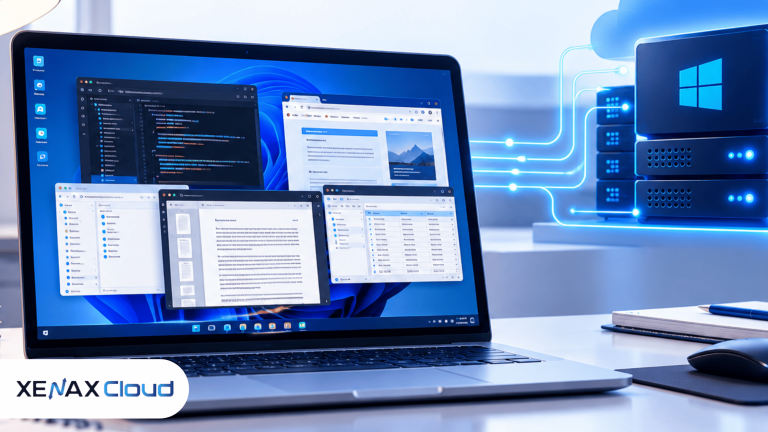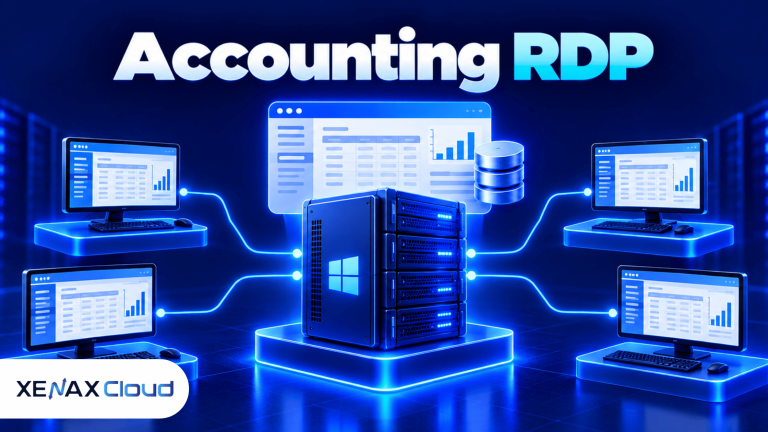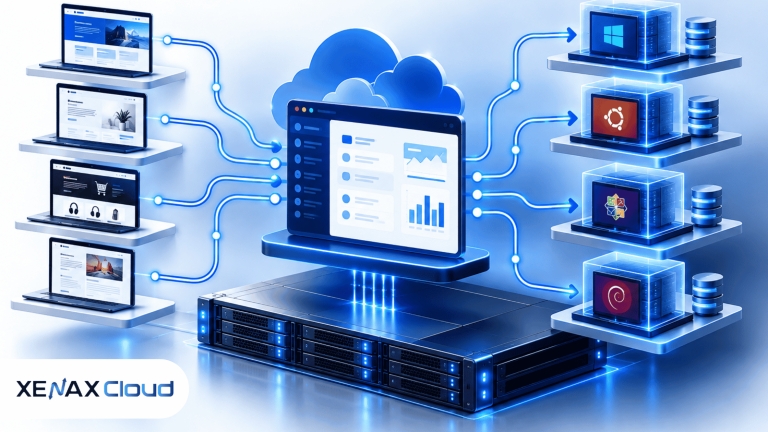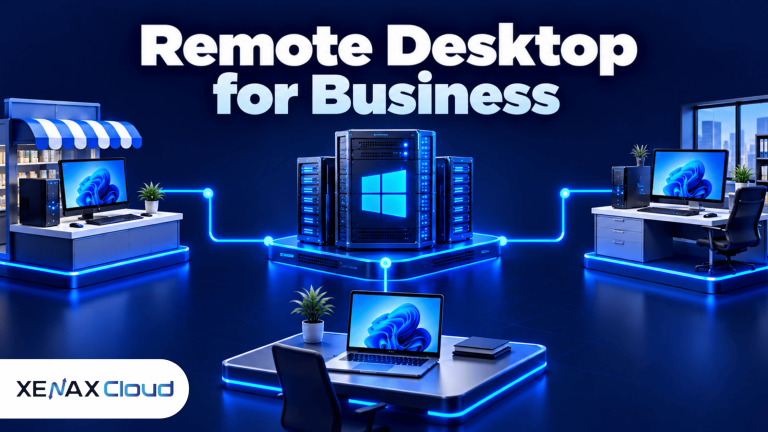
RDP for small business India gives owners and employees remote access to a Windows desktop hosted on a server, so they can work with compatible business applications and files from different locations. The right setup depends on the software you run, the number of simultaneous users, the memory each application needs and how you secure remote connections.
For a small Indian business, a hosted Windows desktop can help keep work applications available when staff use different computers or work away from the office. It can also centralise certain applications instead of requiring each employee to maintain the same software environment locally.
However, RDP is not automatically the right solution for every business. You need to distinguish between accessing one remote computer, hosting multiple independent user sessions and running a website or database that needs a different server configuration.
What Is RDP for Small Business India?
RDP for small business India is a remote computing arrangement that lets authorised users connect to a Windows desktop hosted on a server in India. RDP stands for Remote Desktop Protocol, the Microsoft protocol used to display a remote desktop and transmit keyboard and mouse input over a network.
A hosted Windows RDP server runs on remote hardware rather than solely on an employee’s computer. The employee connects through a Remote Desktop client, authenticates and works within the remote Windows environment.
This arrangement can suit small accountancy firms, agencies, distributors, service companies and businesses with staff working from different locations. Employees can use the same hosted environment, subject to the Windows edition, licensing terms, application compatibility and user-session configuration.
How does hosted RDP differ from a normal office computer?
A normal office computer is a physical device maintained at your premises, whereas hosted RDP runs Windows on a remote server that you access through a network connection.
| Factor | Office computer | Hosted Windows RDP |
| Hardware location | Your office or home | Remote data centre |
| Access | Depends on device and network setup | Available remotely when the server and connection are working |
| Maintenance | Your team maintains the computer | Provider manages the underlying server infrastructure; you manage your permitted Windows environment |
| Software environment | Usually tied to the individual device | Can provide a central environment for compatible applications |
| Main limitation | Local hardware failure can interrupt work | Network issues, server problems or access restrictions can interrupt work |
Hosted RDP does not eliminate the need for backups, endpoint protection or software licences. It changes where the desktop runs and how users access it.
For Indian organisations, data location is another consideration. Xenax Cloud operates one Tier-III data centre in Banda, Uttar Pradesh, India. Its RDP hosting is based in India, rather than a collection of overseas data centres. Actual application responsiveness still depends on the user’s internet connection, routing and server workload.
How Much RAM and CPU Does a Small Business Need for RDP?
A small business should select RDP resources according to its applications and concurrent users, not simply the number of employee accounts. RAM is the memory Windows and applications use while running, and vCPU represents a virtual processor allocated to the server.
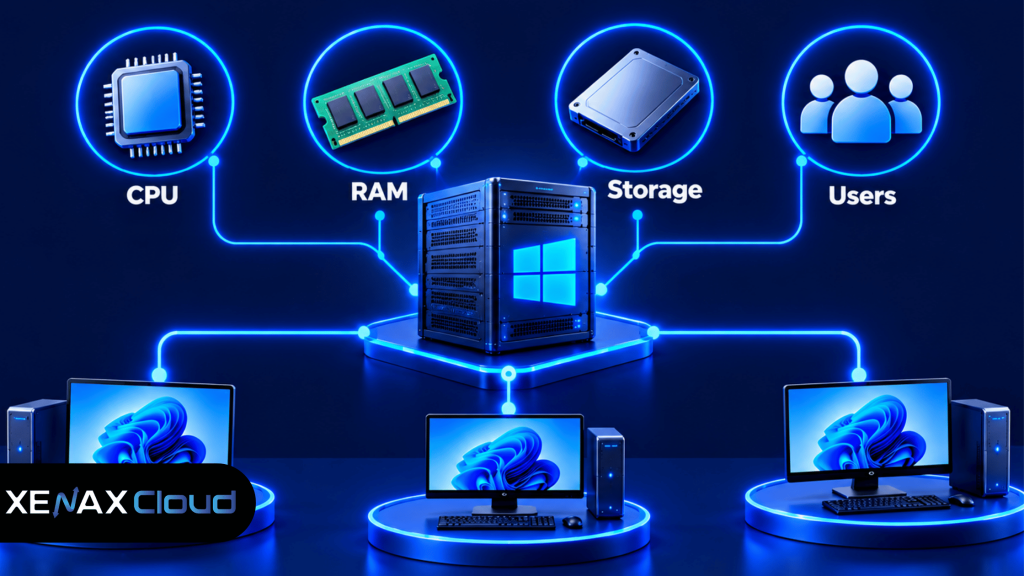
A server with 2 vCPU and 8 GB RAM gives more memory headroom for workloads that need additional RAM. CPU demand and memory demand are different: adding RAM will not necessarily resolve a processor bottleneck, and adding vCPU will not fix an application that runs out of memory.
Match the configuration to the workload
Use these categories as initial sizing guidance, not guaranteed capacity limits. Actual requirements depend on application specifications, the Windows environment and the number of active sessions.
| Business workload | Initial configuration to evaluate | What to check |
| One user with light office applications | 2 vCPU, 4 GB RAM | Memory use and application requirements |
| One or two users with heavier office work | 2 vCPU, 8 GB RAM | Concurrent sessions and background services |
| Several users or memory-heavy applications | More RAM and vCPU as required | Peak memory, CPU utilisation and application limits |
| Large workloads or many concurrent users | Higher-capacity configuration | User-session architecture, licensing and storage demand |
Storage also matters. The operating system, installed applications, temporary files and business data all consume disk space. NVMe storage can help with storage-intensive activity, but it does not compensate for insufficient RAM or an overloaded CPU.
Before purchasing a plan, list the applications you need, their published system requirements and the maximum number of users who will work simultaneously. If you already run the applications on an office computer, use its resource usage as a starting reference, while allowing for the difference between a local desktop and a multi-user server.
How to Set Up Windows RDP for Business
Windows RDP for business can be set up by selecting a compatible server, configuring access, installing authorised applications and testing security before employees start using it. A repeatable setup process reduces the chance of connection failures and accidental data loss.
The following steps apply to a typical hosted Windows environment. Exact menu names and available features depend on the Windows edition and the server provider’s configuration.
- List the applications. Record the software, supported Windows versions, licences and required data locations.
- Estimate concurrent users. Count the people who need to work at the same time, rather than counting every registered employee.
- Select server resources. Match vCPU, RAM and storage to application requirements and expected workload.
- Configure administrator access. Change default credentials where applicable, use unique strong passwords and restrict privileged accounts.
- Secure remote connectivity. Use network restrictions, VPN or a supported remote-access gateway where appropriate, and enable available multi-factor authentication controls.
- Install and update software. Apply Windows updates and install only authorised applications from trusted sources.
- Test and document access. Verify logins, application behaviour, file access, backups and the procedure for revoking a departing employee’s access.
A remote desktop connection should not be treated as secure simply because it requires a password. Use Microsoft’s official Remote Desktop security guidance to review supported security practices and hardening options.
Keep a separate backup of critical business files or verify the provider’s backup scope and restoration process. A backup is useful only if the required data can be recovered, so test a restoration before the server holds important records.
Remote Desktop for Small Office: What Should You Check Before Buying?
Remote desktop for small office use works best when application compatibility, user access, security and recovery requirements are established before the server is ordered. The cheapest resource configuration is not necessarily the most suitable one if it cannot support the required workload.
Check these items with your provider and software vendor:
- Windows edition and sessions: Confirm the operating system and whether the intended number of simultaneous sessions is supported and properly licensed. A Windows desktop edition and Windows Server Remote Desktop Services do not necessarily provide the same multi-user capabilities.
- Application licensing: Confirm that each business application permits installation and use in a hosted or remote environment.
- Data storage: Decide which files belong on the remote server, which must remain on local devices and how data will be backed up.
- Connectivity: Check that users have a reliable internet connection and that company policies allow remote access.
- Security controls: Ask how administrator access, firewall rules, updates and backup recovery are handled.
- Support responsibility: Establish which tasks the provider handles and which remain your responsibility.
For Indian businesses, data residency may also affect the decision. If customer records, financial documents or other sensitive information must remain in India, confirm the server’s actual location and assess the applicable contractual and regulatory requirements.
Xenax Cloud’s Indian RDP service is an option for businesses that want Windows RDP hosted at its Indian data centre. Review the Indian Windows RDP hosting plans to compare the available plan families and configurations.
Which Xenax Cloud RDP Plan Fits Your Business?
Xenax Cloud offers Speed RDP, General RDP and Gold RDP, with different resource configurations for different workloads. All three are Windows RDP plan families running on KVM virtualisation, with administrator access and the same general network and backup arrangement as the provider’s VPS offering.
The plan families differ mainly in their resource emphasis. Speed RDP and Gold RDP have eight sizes, from 2 vCPU and 4 GB RAM up to 32 vCPU and 64 GB RAM. General RDP has four sizes, from 2 vCPU and 8 GB RAM up to 16 vCPU and 64 GB RAM, with more RAM per vCPU.
Speed RDP, General RDP and Gold RDP compared
| Plan family | Resource range | Resource emphasis | Consider it when |
| Speed RDP | 2–32 vCPU; 4–64 GB RAM | NVMe-based storage configuration | You need a range of resource sizes and want to evaluate storage-intensive workloads |
| General RDP | 2–16 vCPU; 8–64 GB RAM | More RAM per vCPU | Applications need additional memory relative to CPU allocation |
| Gold RDP | 2–32 vCPU; 4–64 GB RAM | High-frequency Xeon Gold CPU | Your workload benefits from stronger per-core processor performance |
These specifications describe available configurations, not a promise that a particular number of employees or applications will perform well. Test the actual workload when possible, and use monitoring to identify whether RAM, CPU or storage is limiting performance.
A 500 Mbps network port is provided for the RDP and VPS offerings. That is the port capacity, not a guarantee that every user’s connection will achieve that throughput. Internet service, network routing, protocol overhead and other traffic all affect actual performance.
Worked example: A small accountancy firm in Lucknow
A six-person accountancy firm in Lucknow needs remote access to compatible accounting software, spreadsheets and shared working files. The owner expects four staff members to be active at the same time during busy periods, and the firm wants to avoid keeping its primary working environment on one office computer.
Start by checking the software vendor’s requirements and licensing terms, then measure the firm’s existing workload if possible. If the applications require more memory than a basic configuration can provide, General RDP is worth evaluating because it offers more RAM per vCPU and starts at 2 vCPU and 8 GB RAM.
The firm should not automatically assume that the smallest General RDP configuration will support all four active users. If several employees open large spreadsheets or memory-intensive accounting applications concurrently, a higher-capacity configuration may be necessary. Select the next size only after estimating peak resource use and confirming the software supports the proposed multi-user arrangement.
For a different business, such as a small design agency running CPU-intensive desktop applications, Gold RDP may be worth evaluating because its configurations use high-frequency Xeon Gold processors. Speed RDP may be more appropriate when the workload and storage requirements favour its NVMe-based configuration.
Is RDP Safe for Business Files and Customer Data?
RDP can be used in a business environment, but its security depends on access controls, system updates, network configuration and data protection practices. A remote desktop connection does not, by itself, make stored files safe from ransomware, compromised accounts or accidental deletion.
Use these safeguards before putting business records on a hosted Windows server:
- Protect administrator accounts: Use unique credentials, limit administrator privileges and enable multi-factor authentication where supported.
- Restrict exposure: Avoid leaving remote access open to every internet address when access restrictions, a VPN or an appropriate gateway can be used.
- Maintain updates: Install supported Windows security updates and remove applications or services that are no longer needed.
- Control employee access: Give each user the access they need, review permissions regularly and revoke accounts promptly when staff leave.
- Maintain recoverable backups: Confirm retention, backup scope and restoration procedures. Keep an independent copy of especially important data where practical.
- Review compliance: Assess whether the data you store is subject to contractual, professional or legal requirements, and verify that the hosting arrangement meets them.
A data centre located in India can help meet a requirement for Indian server location, but location alone does not establish regulatory compliance. Your organisation remains responsible for assessing the applicable rules, the data being processed and the controls used to protect it.
One common mistake is treating a remote desktop as a replacement for every other security measure. Endpoint protection on the device used to connect, secure user accounts and a documented recovery plan are still necessary.
How Do You Decide When to Upgrade an RDP Plan?
Upgrade an RDP configuration when measured resource demand repeatedly exceeds available capacity or when the workload changes enough to justify additional resources. Do not upgrade based on a single slow login or an isolated spike without checking the cause.
Use this decision rule as a practical starting point:
- Choose 2 vCPU and 4 GB RAM if one light workload fits the published application requirements and monitoring shows sufficient memory headroom.
- Evaluate 2 vCPU and 8 GB RAM if the application needs more memory or the working environment has several background services.
- Add RAM when memory pressure and paging are recurring problems and the application workload genuinely requires more memory.
- Add vCPU or consider Gold RDP when processor utilisation stays high during normal peak work and the workload can use the additional CPU capacity.
- Consider Speed RDP when storage behaviour is a meaningful part of the workload and an NVMe-based configuration is appropriate.
- Review the architecture rather than only increasing resources if many people need separate simultaneous Windows sessions or the software has specific multi-user licensing requirements.
A sustained period of high resource usage is more useful evidence than one momentary reading. Track CPU utilisation, memory availability, disk activity, session count and application response time during a representative busy period.
A larger server is not always the right fix. If an application is limited by its own design, licensing, network latency or an inefficient database query, allocating additional RAM or CPU may not resolve the underlying problem.
RDP for Small Business India: FAQs
Can I use RDP for small business India with multiple employees?
Yes, but the server configuration, Windows edition, licensing and session architecture must support the intended number of simultaneous users. A standard remote desktop setup does not automatically provide unlimited independent user sessions. Confirm application licensing and Windows Remote Desktop Services requirements before choosing resources for a team.
How much RAM does a small business RDP need?
A light workload can start with 4 GB RAM for evaluation, while applications or concurrent users that need additional memory may require 8 GB RAM or more. The correct amount depends on application requirements, session count and peak memory use. Monitor the workload rather than selecting RAM based only on employee headcount.
Can I access a Windows RDP server from a laptop or home computer?
Yes, you can connect from a compatible device using an appropriate Remote Desktop client, provided the server is reachable and your account is authorised. The client operating system, available features, network policies and authentication configuration determine the exact steps. Secure the connecting device as well as the remote server.
Is Indian-hosted RDP suitable for an accountancy firm?
Yes, Indian-hosted RDP can suit an accountancy firm that needs remote access to compatible Windows applications and wants its server hosted in India. The firm must still check accounting software licensing, user-session support, access controls and backup requirements. Confirm any professional or legal data-handling obligations before storing client records.
What is the difference between Speed RDP and General RDP?
Speed RDP offers NVMe-based storage configurations, while General RDP provides more RAM per vCPU. Speed RDP configurations range from 2 vCPU and 4 GB RAM to 32 vCPU and 64 GB RAM; General RDP ranges from 2 vCPU and 8 GB RAM to 16 vCPU and 64 GB RAM. Choose according to the workload.
Does hosted RDP replace backups for business documents?
No, hosted RDP does not replace a verified backup and recovery plan. Confirm what the provider backs up, how frequently recovery points are created, how long they are retained and what restoration covers. Test recovery before storing important business records, and maintain an independent copy of critical data when appropriate.
Is Windows RDP suitable for every small business application?
No, Windows RDP is suitable only when the application supports the Windows environment, remote access and intended user configuration. Some applications require a dedicated database server, specialised graphics resources, separate licences or a different hosting architecture. Check vendor requirements before purchasing, especially for applications used by multiple employees.
For a small business, start by matching your applications and simultaneous users to the required RAM and CPU, then compare Xenax Cloud‘s Speed RDP, General RDP and Gold RDP configurations. Choose a smaller configuration only when its resources and licensing fit the workload; select a larger one when measured demand justifies it.