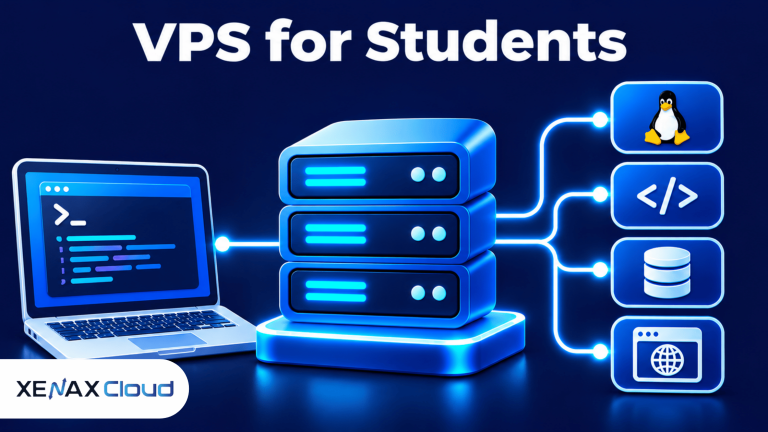
A VPS for students is a virtual private server that gives learners an independent environment to practise Linux, programming, web development and server administration. Instead of relying only on a laptop, students can connect remotely, install supported software, manage services and deploy projects on a running server.
A student studying computer science, IT or software development can use a VPS to practise skills that are difficult to learn from theory alone. It provides access to a real Linux environment where commands, permissions, networking and application deployment work together.
The right configuration depends on what you plan to learn. Basic Linux commands need fewer resources than a development environment running Docker containers, a database and several application services.
What Can Students Learn Using a VPS?
A VPS for students can provide practical experience with operating systems, command-line tools, networking, databases and application deployment. The server gives you an environment where you can practise administration without changing your personal computer’s operating system.
A Virtual Private Server (VPS) is a virtual machine that runs its own operating system with allocated computing resources on a physical host. A KVM VPS is a virtual server that uses Kernel-based Virtual Machine virtualisation to run an independent operating system.
You can use a student VPS for several learning activities:
- Linux administration: Practise directory navigation, file permissions, users, packages, processes and services.
- Programming: Run Python, PHP, Node.js or other supported development runtimes.
- Web development: Deploy a website or API and configure a web server.
- Database learning: Install and practise with supported database systems such as MySQL or PostgreSQL.
- Networking: Understand IP addresses, DNS, ports, SSH and firewall rules.
- DevOps fundamentals: Learn Git-based deployment, environment variables, service management and basic automation.
A VPS is especially useful when a course assignment requires a continuously available application or a server-side environment. You can connect to the same machine from different locations, provided you have an internet connection and the correct login credentials.
A VPS does not replace a local development setup for every task. Large graphical applications, GPU-intensive machine-learning work and software that requires a specific desktop operating system may need different hardware or an appropriate local environment.
How Does a Student VPS Work?
A student VPS works by allocating virtual CPU, RAM, storage and network resources to a server that you control remotely. You access it using SSH from a terminal, then install and manage software according to your learning goals.
Secure Shell (SSH) is a network protocol that provides encrypted remote access to a command-line system. On a Linux VPS, SSH is commonly used for administration, file operations, software installation and deployment.
A typical learning setup connects your laptop to a remote server. You enter commands on your own computer, but those commands execute on the VPS.
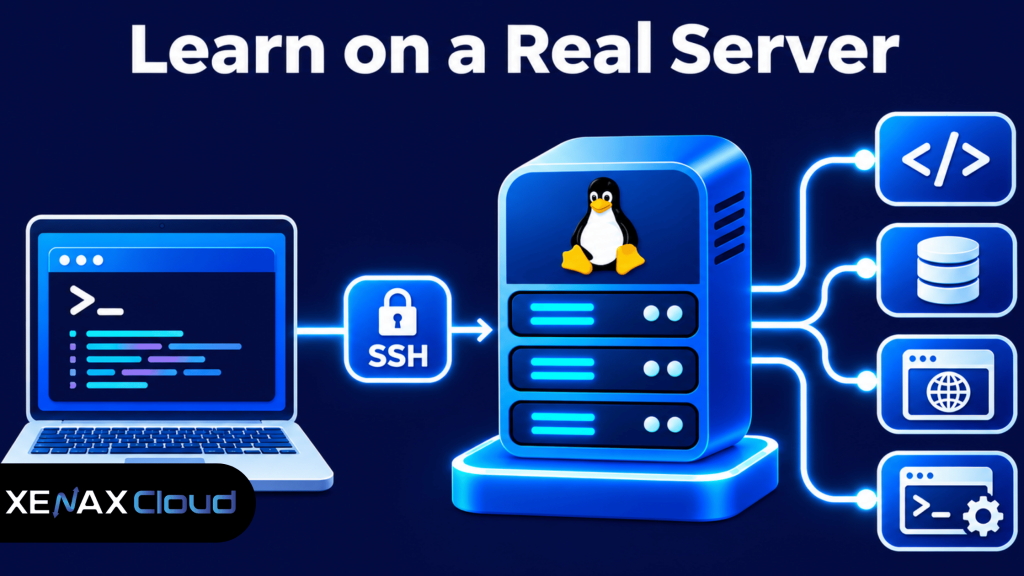
This arrangement lets you practise server-side tasks without keeping your laptop running as the host machine. It also gives you a separate environment for testing configuration changes, although you should still back up important files before making major changes.
A VPS account with root access gives you administrative control over the operating system. That control is useful for learning, but it also means you are responsible for avoiding unsafe commands, securing remote access and keeping the software updated.
Learn Linux on VPS: Which Commands Should You Practise?
You can learn Linux on VPS by practising file management, user administration, package installation, process monitoring and service control. Start with basic commands, then move to networking and application deployment as you become comfortable with the terminal.
A Linux distribution is an operating system built around the Linux kernel and packaged with software, tools and a package manager. The exact commands available can vary by distribution, so first identify the operating system installed on your VPS.
Begin with these commands:
| Learning task | Command | What it does |
| Identify the operating system | cat /etc/os-release | Displays distribution information |
| Check current directory | pwd | Shows your current path |
| List files | ls -lah | Displays files and permissions |
| Check disk space | df -h | Shows filesystem capacity and usage |
| Check memory | free -h | Displays memory and swap information |
| View running processes | top | Shows active processes and resource use |
After learning the basics, practise tasks that resemble real server administration:
- Create a separate Linux user for a project.
- Set file ownership and permissions.
- Install packages using the distribution’s package manager.
- Start, stop and inspect a system service.
- Check listening ports and firewall rules.
- Review system logs when a service fails.
For example, on a system using systemd, you can inspect a service with:
systemctl status nginx
The command displays the service state and related information if Nginx is installed. If the service is not installed, the command will report that the unit cannot be found; install the correct package before trying to manage it.
Ubuntu’s official server documentation is a useful reference for administration topics, including networking, security, storage and services. Follow documentation for the distribution actually installed on your VPS rather than copying commands written for another Linux family.
VPS for Students: How Much RAM, CPU and Storage Do You Need?
The resources required for a VPS for students depend on the number of applications running together, the size of development projects and whether you use containers or databases. A basic command-line learning server needs less capacity than a multi-service development environment.
Use the following as a workload-based planning guide, not as a guaranteed application capacity:
| Student workload | Main resource requirement | Suitable starting consideration |
| Linux commands and SSH practice | Low CPU and RAM demand | Smallest suitable VPS configuration |
| Python scripts and simple APIs | RAM and CPU | Check runtime and process requirements |
| Website with a database | RAM, storage and disk performance | Account for web and database services |
| Docker with multiple containers | Additional RAM and storage | Count container memory requirements |
| Compilation and build tasks | CPU and RAM | Consider CPU-intensive workloads |
Storage planning should include the operating system, packages, source code, dependencies, databases, logs and backups. A project that stores uploaded files or test datasets can consume more disk space than a small application that only handles API requests.
Xenax Cloud offers three Linux VPS families:
- Speed VPS: NVMe storage, with configurations ranging from 2 vCPU, 4 GB RAM and 40 GB storage to 32 vCPU, 64 GB RAM and 200 GB storage.
- General VPS: More RAM per vCPU, with configurations ranging from 2 vCPU and 8 GB RAM to 16 vCPU and 64 GB RAM.
- Gold VPS: High-frequency Xeon Gold processors, with configurations ranging from 2 vCPU and 4 GB RAM to 32 vCPU and 64 GB RAM.
All three VPS families use KVM virtualisation and run Linux in Xenax Cloud’s Indian data centre. They include full root access, one IPv4 address, a 500 Mbps port and weekly backups.
When selecting a VPS for students, consider the software you plan to run and the number of services you need simultaneously. A VPS for students should provide enough RAM and CPU capacity for practical coding, database exercises and Linux administration. Before deploying your first project, follow our guide on how to set up a VPS to prepare your server correctly.
A practical decision rule is to start with the workload:
- Choose Speed VPS with 2 vCPU and 4 GB RAM for Linux practice, small scripts and lightweight projects that fit within its memory capacity.
- Choose General VPS with 2 vCPU and 8 GB RAM if you expect several development services or a database to run together and need more memory per vCPU.
- Consider Gold VPS when CPU frequency is a priority for the workload, such as repeated compilation or processing tasks.
Monitor actual memory and CPU use after deployment. If your normal workload regularly approaches the available RAM, reduce unnecessary services or move to a larger configuration before adding more applications.
How to Set Up a VPS for Students
You can set up a student VPS by selecting a Linux configuration, securing SSH access, updating packages and installing the tools needed for your coursework. Start with a small project and add services only when your learning task requires them.
- Select a configuration. Match CPU, RAM and storage to the software you plan to practise.
- Connect through SSH. Use the server IP address and authorised login credentials.
- Update packages. Install the latest supported security and software updates.
- Create a user. Use a separate account for daily work instead of routine root login.
- Secure access. Configure SSH authentication and restrict unnecessary network ports.
- Install tools. Add Git, a programming runtime, database or web server as required.
- Deploy a project. Run a small application and verify that it responds correctly.
A basic SSH connection from a terminal looks like this:
ssh username@SERVER_IP
Replace username with your Linux account and SERVER_IP with the actual server address. If SSH uses a non-default port, specify the port with the -p option.
After connecting, identify the distribution and update its packages. For an Ubuntu server, the commands are:
sudo apt update
sudo apt upgrade
Do not run commands copied from an unknown tutorial with administrator privileges. Read the command first, understand which files or services it changes, and keep a separate copy of coursework and project files.
Worked Example: A Lucknow Student Building a Web Application
Consider a final-year computer science student in Lucknow who is developing a project with a Node.js API, PostgreSQL database and Redis cache. The student wants to run the services together on a remote Linux server, test API requests and demonstrate the application to a project evaluator.
The expected workload needs more than a terminal for basic Linux commands. The student plans to run several services together, and the estimated combined memory requirement is around 6 GB during development and testing.
Xenax Cloud’s General VPS family is a suitable configuration to evaluate, starting with 2 vCPU and 8 GB RAM. It provides more memory than the smallest Speed VPS configuration, which has 2 vCPU and 4 GB RAM; that smaller configuration would not meet the student’s estimated 6 GB workload requirement without reducing the services running together.
The decision rule is based on the actual project:
- Choose Speed VPS with 2 vCPU and 4 GB RAM if you mainly practise Linux commands, run small scripts or host a lightweight application.
- Choose General VPS with 2 vCPU and 8 GB RAM if your project needs around 6 GB RAM for multiple services running concurrently.
- Consider a larger General VPS configuration if your database, containers and test data cause sustained memory pressure.
- Consider Gold VPS if repeated CPU-intensive tasks make processor frequency a more important constraint than memory capacity.
The student should monitor the server with free -h, top and application-level tools during testing. If memory usage approaches the available capacity, check for unnecessary services and database settings before upgrading.
Explore Xenax Cloud VPS hosting to review the available configurations. Xenax Cloud VPS plans include full root access, one IPv4 address and weekly backups, giving students control over their Linux learning environment.
General VPS is not the right choice if your project needs a Windows-only application or GPU computing; confirm the software requirements and use a compatible environment instead.
Is a Student VPS Safe for Learning and Projects?
A student VPS can be used safely when you protect SSH access, apply updates, restrict network ports and keep separate backups of important work. Root access gives you control, but mistakes in firewall or file-permission settings can make the server inaccessible or expose services.
Follow these practices:
- Use a separate account: Create a normal Linux user for everyday work and use sudo only for administrative tasks.
- Protect SSH: Use strong authentication and SSH keys where possible; disable password authentication only after confirming key-based login works.
- Restrict ports: Allow only the services your project needs, such as SSH and the web ports used by your application.
- Update software: Apply supported security updates to the operating system, runtime and installed packages.
- Protect credentials: Keep database passwords and API keys out of public Git repositories.
- Back up projects: Store another copy of source code, configuration and important data outside the VPS.
A firewall can reduce exposure by limiting which network connections reach the server. On Ubuntu, UFW is a commonly used firewall management tool, but configure the SSH rule before enabling it so you do not accidentally block your own remote connection.
Weekly backups provided with a VPS are useful, but they should not be the only copy of important coursework. Keep source code in a private Git repository and export databases or project files before major experiments, operating system changes or destructive commands.
Students should also avoid storing sensitive personal information or real customer data in practice projects. Use sample datasets and test credentials, particularly when learning database administration and application security.
VPS for Students: FAQs
Is a VPS useful for computer science students?
Yes, a VPS is useful for computer science students who want practical experience with Linux, networking, databases and deployment. You can build projects, configure services and practise remote administration on a running server. It is particularly helpful when coursework requires an application or API to remain accessible online.
Can I learn Linux on a VPS without prior experience?
Yes, you can learn Linux on a VPS without prior server administration experience. Start with navigation, file operations, permissions and package management before changing firewall rules or system services. Keep a separate user account for practice and save important commands so you can understand and repeat each task.
Which Linux distribution should students use on a VPS?
Ubuntu Server is a practical starting point for students because its documentation covers common administration tasks and software installation. However, use the distribution required by your course or project if one is specified. Learning another distribution later will also help you understand differences in package management and system configuration.
Is a VPS better than running Linux on a laptop?
A VPS is better for practising remote administration and hosting applications, while a laptop is convenient for local development and offline work. You can use both together: write code locally, upload it to the VPS and test the application in a separate server environment.
How much RAM does a student VPS need?
A student VPS with 4 GB RAM can suit basic Linux practice and lightweight applications, while 8 GB RAM provides more room for multiple development services. Docker containers, databases and background processes increase memory use. Check actual usage before deciding whether to upgrade.
Can students host college projects on a VPS?
Yes, students can host supported websites, APIs and project applications on a VPS. Check the college project’s software requirements, database needs and access permissions first. Avoid publishing private student information, credentials or real personal records, and keep a backup before changing the deployment.
Is root access necessary for a student VPS?
Root access is useful for learning server administration because it allows you to install packages, manage services and configure system settings. However, use a separate normal account for routine work and elevate permissions only when required. This reduces the risk of accidental system changes.
For Linux learning, small scripts and lightweight projects, evaluate Speed VPS with 2 vCPU and 4 GB RAM. If your coursework runs several services or a database together and needs more memory, consider General VPS with 2 vCPU and 8 GB RAM.