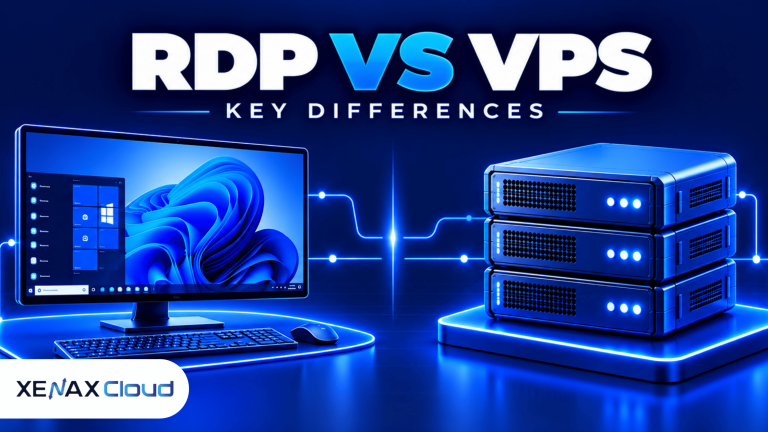
RDP vs VPS difference comes down to the distinction between remote access and server infrastructure. RDP (Remote Desktop Protocol) lets you interact with a remote Windows desktop, while a VPS (Virtual Private Server) is a virtual machine with its own allocated resources and operating system. A Windows VPS can use RDP for remote access.
For an Indian business, the practical decision is usually between a hosted Windows desktop for running desktop applications and a virtual server you configure for websites, software, databases or other workloads. The right choice depends on the operating system, administrator access, applications and resources you need.
What Is the RDP vs VPS Difference?
The RDP vs VPS difference is that RDP is a remote connection protocol, whereas a VPS is the virtual server you connect to and manage.
Remote Desktop Protocol sends the remote display to your device and transmits keyboard and mouse input back to the remote computer. Microsoft documents these remote display and input capabilities in its Remote Desktop Protocol documentation. A VPS provides virtual CPU, RAM, storage, networking and an operating system inside a physical host.
Hosting providers sometimes use “RDP” as shorthand for a Windows server that customers access remotely. In that context, you may actually be purchasing a Windows VPS with Remote Desktop enabled, rather than purchasing a protocol by itself.
| Feature | Windows RDP hosting | Linux VPS | Windows VPS |
| Main purpose | Access a remote Windows desktop | Run Linux applications and services | Run Windows software and services |
| Typical access | Remote Desktop client | SSH or a management console | RDP or a management console |
| Common administration | Windows desktop and administrator tools | Shell commands and configuration files | Windows tools and graphical interface |
| Application compatibility | Windows desktop applications supported by the environment | Linux-compatible software | Windows-compatible software |
| Useful for | Desktop-based work and Windows applications | Websites, APIs, databases and Linux services | Windows applications and server workloads |
These categories can overlap. A Windows RDP hosting plan may itself be a Windows VPS, so compare the resources, access permissions and licensing terms rather than assuming RDP and VPS are mutually exclusive products.
How Does RDP Hosting Work Compared With a VPS?
RDP hosting gives you remote access to a Windows environment, while a VPS gives you a virtual machine whose operating system and workloads depend on its configuration.
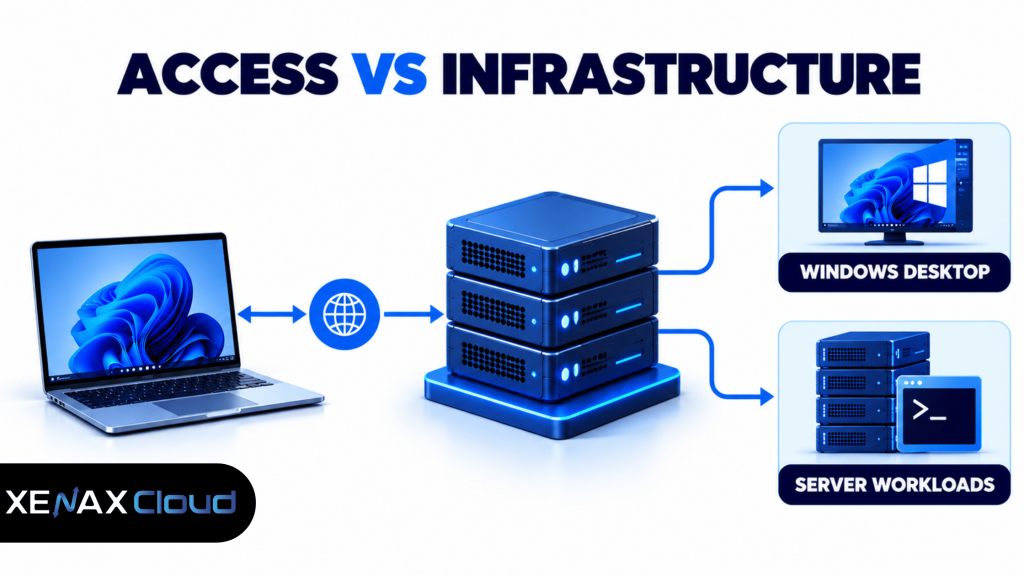
With a VPS, you decide how to use the virtual machine within the provider’s operating-system options and policies. You might install a web server, configure a database, deploy an application or use a Windows desktop if the VPS runs a compatible Windows environment.
RDP or VPS: Which One Should You Choose?
Choose Windows RDP hosting for remote desktop work, and choose a VPS based on the operating system and server workload you need to run.
Use these decision rules before selecting a plan:
- Choose Windows RDP hosting if you need a remote Windows desktop for compatible accounting, office or business applications.
- Choose a Linux VPS if you need to host websites, APIs, Linux-based applications or services managed through SSH.
- Choose a Windows VPS if you need Windows Server capabilities, custom services or software that requires a Windows environment and administrator control.
- Choose a higher-resource configuration if monitoring shows that CPU, RAM or storage is consistently limiting the workload.
- Check multi-user requirements separately if several people need simultaneous desktop sessions. A standard Windows server plan does not automatically provide every required Remote Desktop Services licence.
The key question is not which label sounds better. Identify the software you must run, its operating-system requirements, the number of users and the level of server administration you want to handle.
How to Set Up a Windows RDP Connection
You can connect to a compatible Windows remote server by using the Remote Desktop client and the server credentials supplied for your environment.
- Confirm that the remote Windows environment supports Remote Desktop connections.
- Collect the server address, username and authentication details from your provider.
- Open Remote Desktop Connection on a Windows computer by running mstsc.
- Enter the server address in the Computer field.
- Select Connect and enter the requested credentials.
- Verify that the desktop opens and the expected applications are available.
- Disconnect safely when finished, saving work and following your organisation’s access policy.
If the connection fails, check the server address, credentials, network access, firewall rules and whether Remote Desktop is enabled. Do not expose remote access broadly to the internet without appropriate access controls.
Windows VPS vs Linux VPS: What Is the Difference?
Windows VPS vs Linux VPS is mainly a choice between operating-system compatibility, administration methods and the software you need to run.
A Linux VPS is a virtual server running a Linux distribution, commonly managed through Secure Shell (SSH), configuration files and command-line tools. A Windows VPS is a virtual server running a Windows operating system, often managed through Remote Desktop, Windows administration tools or PowerShell.
Linux is often a suitable choice for web servers, application stacks and services built for Linux. Windows is generally more suitable when your software depends on Windows components, Windows Server features or a graphical Windows environment.
Consider the following before deciding:
- Software compatibility: Verify the vendor’s supported operating systems and dependencies.
- Administration skills: Choose an environment you or your technical team can maintain securely.
- Resource needs: Estimate CPU, RAM and storage from the workload, not just the operating system.
- Licensing: Check operating-system and application licensing requirements, particularly for commercial desktop software and multi-user remote access.
- Maintenance: Account for updates, backups, security configuration, monitoring and recovery procedures.
A Linux VPS is not automatically better for every technical workload, and a Windows VPS is not necessary simply because you use a Windows laptop. Your local computer’s operating system and the server’s operating system can be different.
How Much RAM and CPU Do You Need for RDP or VPS?
The required RAM and CPU depend on the applications, concurrent users and workload running on the server, rather than on the RDP or VPS label.
For a Windows desktop used for light tasks, a smaller configuration may be sufficient if the applications’ requirements permit it. Several business applications, large spreadsheets, browser tabs or multiple users can increase memory and CPU demand. Websites and databases have different usage patterns, so estimate their needs separately.
Use these practical checks:
- Start with the software vendor’s minimum requirements, then allow headroom for the operating system and background services.
- Review RAM usage during a typical busy period; sustained memory pressure is a reason to consider more RAM.
- Check CPU utilisation while applications perform their normal work, not only when the server is idle.
- Estimate storage for the operating system, applications, working files, logs and backups.
- For shared desktop access, calculate the expected concurrent workload and verify licensing before ordering.
Xenax Cloud’s RDP families have different resource profiles. Speed RDP offers eight sizes from 2 vCPU and 4 GB RAM up to 32 vCPU and 64 GB RAM. General RDP offers four sizes from 2 vCPU and 8 GB RAM up to 16 vCPU and 64 GB RAM, providing more RAM per vCPU. Gold RDP offers eight sizes from 2 vCPU and 4 GB RAM up to 32 vCPU and 64 GB RAM, using high-frequency Xeon Gold processors.
These specifications describe the available plan families, not a guarantee that a particular application will perform at a specific speed. Measure the workload and leave capacity for operating-system overhead.
Worked Example: RDP or VPS for a CA Firm in Lucknow
A CA firm in Lucknow should choose Windows RDP hosting if staff need a central Windows desktop for compatible accounting and office applications, or a VPS configured for a different server workload.
Imagine a firm with three staff members who use accounting software, spreadsheets, PDFs and browser-based tax portals during the workday. The firm wants to access the same remote Windows environment from the office and from home, with files stored centrally and administrator access available for software setup.
A reasonable starting point is Xenax Cloud Speed RDP with 2 vCPU and 4 GB RAM, provided the selected accounting software supports the operating system and the workload remains light. The team should test the actual applications and concurrent use before relying on that configuration for daily operations.
If the firm observes sustained memory pressure while running its normal applications, General RDP with 2 vCPU and 8 GB RAM is a sensible next configuration to evaluate because it provides more memory per vCPU. If CPU usage is the bottleneck instead, investigate processor demand before assuming that additional RAM will solve the problem.
This recommendation would not be right for a firm that primarily needs to host a Linux website or API. In that case, a Linux VPS is the more appropriate starting point. For multiple simultaneous Windows desktop users, confirm the required Windows and Remote Desktop Services licensing rather than assuming that one administrator account covers every user.
For a Windows desktop workload, compare the Xenax Cloud Windows RDP plans against your software requirements and measured resource use.
Is RDP Safe, and What Should You Check Before Buying?
RDP and VPS hosting can be administered securely, but safety depends on configuration, access controls, updates, backups and the software running on the server.
Before ordering, verify these items:
- Administrator access: Confirm which permissions are included and which changes you are allowed to make.
- Remote access protection: Use strong, unique credentials, restrict access where possible and enable multi-factor authentication when supported by the environment.
- Firewall rules: Permit only the access required for your users and services.
- Software licensing: Check the licences for Windows, desktop applications and multi-user access.
- Backups: Confirm backup frequency and retention, and maintain an independent copy of critical business data.
- Data location: Check the provider’s stated data-centre location if data residency matters to your business.
Xenax Cloud operates a Tier-III data centre in India and offers 24/7 support. Its RDP plans run Windows on KVM virtualisation and include administrator access, with the same network and backup arrangements as its VPS offerings. These facts help describe the hosting environment, but they do not remove the need to configure access controls or verify application licensing.
A common mistake is treating a remote desktop connection as a separate server resource. RDP is the access method; the remote machine’s allocated resources and configuration determine what work it can perform.
Xenax Cloud Windows RDP vs the usual alternatives
| Feature | Xenax Cloud | Typical Indian shared host | Global budget host |
|---|---|---|---|
| Starting price | ₹649/mo | ₹199/mo | ₹149/mo (renews ₹499) |
| Storage | 40 GB SSD storage | 10 GB SSD | 25 GB SSD |
| DDoS protection | 100 Gbps, always on | Basic | Cloudflare only |
| Support | 24×7, in-house engineers | Tickets, business hours | Chat, outsourced |
| Data centre | India (NVMe) | India | Singapore / US |
| Control panel | cPanel / WHM included | cPanel | Custom panel |
Entry-level plans, list prices including GST where shown. Check each provider before buying — prices change.
See Windows RDP plansRDP vs VPS Difference: FAQs
Is RDP the same as a VPS?
No. RDP is a protocol used to access a remote Windows desktop, while a VPS is a virtual machine with allocated resources and an operating system. A Windows VPS can provide RDP access, which is why providers sometimes use the terms together when describing a hosted Windows desktop.
Can I use RDP on a Linux VPS?
Not as a standard Windows desktop session without additional software and configuration. Linux VPS administration commonly uses SSH, although remote graphical desktop software can be installed where suitable. If you specifically need a Windows desktop for business applications, select a compatible Windows environment instead.
Which is better for hosting a website, RDP or VPS?
A VPS is the relevant infrastructure choice for website hosting. A Linux VPS is often suitable for Linux-based web servers and application stacks, while a Windows VPS can suit software that requires Windows. RDP is only a remote access method and does not determine the website’s hosting requirements.
Is Windows VPS vs Linux VPS mainly about speed?
No. The primary difference is operating-system compatibility and administration, although resource allocation and workload can also affect performance. Compare CPU, RAM, storage, software dependencies and maintenance needs. Select the operating system supported by your application rather than assuming one platform will always be faster.
How much RAM do I need for a Windows RDP server?
The required RAM depends on the Windows environment, applications and number of concurrent users. A light workload may run on a smaller configuration, while several business applications can need more memory. Check software requirements and monitor actual usage before deciding whether to move to a larger plan.
Can multiple employees use one Windows RDP server?
Potentially, but simultaneous sessions depend on the Windows environment, server configuration and applicable Remote Desktop Services licensing. Do not assume that one administrator login permits multiple employees to use the server at the same time. Confirm user access requirements and licensing before deploying a shared work environment.
Which Xenax Cloud plan should I choose for RDP?
Choose Speed RDP as a starting point for general Windows desktop workloads, General RDP when you need more RAM per vCPU, and Gold RDP when its high-frequency Xeon Gold processor family matches your workload. Compare the available CPU and RAM sizes with your applications and verify licensing before ordering.
For the next step, identify whether you need a central Windows desktop or a server for hosting services. For Windows desktop work, compare Xenax Cloud Speed RDP, General RDP and Gold RDP by CPU, RAM and application requirements; for Linux workloads, evaluate a Linux VPS instead.