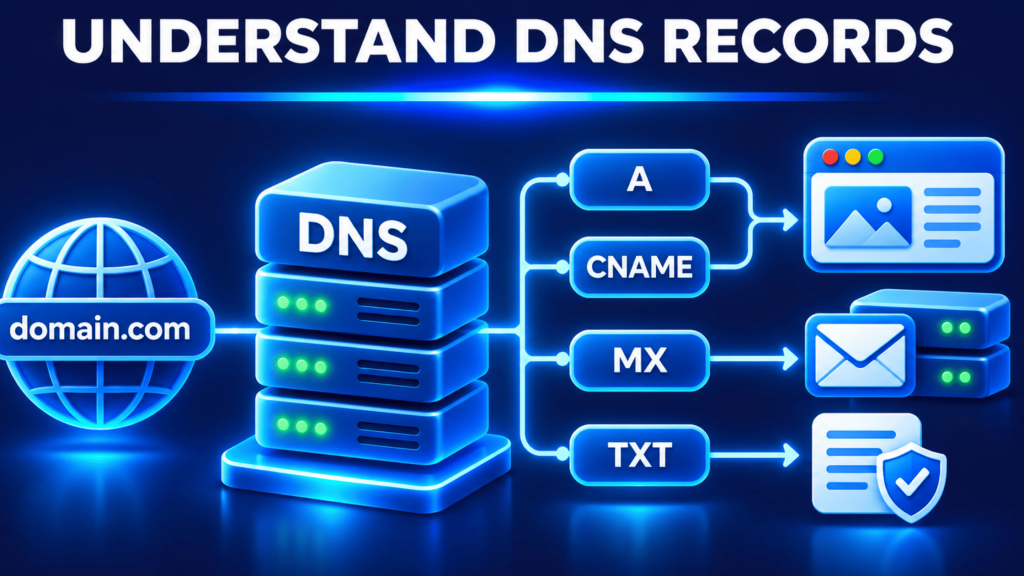
DNS records explained means understanding the instructions that connect a domain name to websites, email servers and other internet services. DNS records are stored in a domain’s DNS zone and tell DNS resolvers where to send requests. The most common types are A, AAAA, CNAME, MX, TXT and NS records.
If you own a business website, manage WordPress hosting or operate a domain for your organisation, you will eventually need to modify DNS records. A wrong entry can make your website inaccessible, interrupt business email or prevent domain verification.
The key is knowing which record controls which service before changing anything. This article explains the main DNS record types, shows practical configurations and covers the mistakes to avoid when managing a domain.
Understanding DNS records explained in practical terms helps website owners identify which records control website access, email delivery and domain verification.
What Are DNS Records and How Do They Work?
DNS records are structured entries in a DNS zone that specify how a domain name should resolve or where particular services should be directed.
DNS stands for Domain Name System. It is the distributed naming system that translates human-readable domain names into information that computers use to locate internet services.
For example, when someone enters example.com in a browser, the DNS resolution process helps the browser discover the IP address associated with that domain. The browser can then establish a connection to the web server.
A clear understanding of DNS records explained through real configurations also helps administrators troubleshoot incorrect IP addresses, broken email routing and domain resolution failures.
A DNS record contains several fields:
- Name: The domain or hostname to which the record applies.
- Type: The record category, such as A, MX or TXT.
- Value: The IP address, hostname or text information stored in the record.
- TTL: The time-to-live value that controls how long DNS information can be cached.
- Priority: An optional field used by certain records, particularly MX records.
A DNS zone is the administrative portion of the DNS namespace containing records managed for a particular domain. Its authoritative nameservers publish the information that resolvers retrieve.
Consider a visitor opening your business website. The browser needs the server address associated with the domain. DNS resolvers obtain the relevant record, follow any necessary aliases and return the answer.
DNS does not host your website files or deliver the website itself. It helps the requesting device discover the correct destination.
A Record, CNAME, MX: What Is the Difference?
A, CNAME and MX records perform different jobs: A connects a hostname to an IPv4 address, CNAME creates a hostname alias, and MX identifies mail servers.
These three DNS records are particularly important when configuring a new website and business email. Confusing them can cause website resolution problems or interrupted email delivery.
A Record
An A record is a DNS resource record that maps a hostname to an IPv4 address.
For example:
| Field | Example value |
| Type | A |
| Name | @ |
| Value | 203.0.113.10 |
| TTL | 3600 |
The @ symbol generally represents the root domain in DNS management interfaces. The example IP address belongs to a documentation-only address range, not a real hosting server.
If your website runs on a hosting server with an IPv4 address, the A record tells DNS resolvers which address to return when someone requests your domain.
You may also create an A record for www if you want that hostname to resolve directly to an IPv4 address.
CNAME Record
A CNAME record is a DNS resource record that makes one hostname an alias of another canonical hostname.
For example:
| Field | Example value |
| Type | CNAME |
| Name | www |
| Value | example.com |
| TTL | 3600 |
With this configuration, www.example.com follows the DNS name example.com to discover its destination.
A CNAME is useful when several hostnames need to follow the same destination without maintaining separate IP address entries.
However, a CNAME cannot normally coexist with other record types at the same owner name. In particular, you should not place an ordinary CNAME at the zone apex alongside records such as SOA and NS.
MX Record
An MX record is a DNS resource record that specifies which mail servers accept email for a domain.
For example:
| Field | Example value |
| Type | MX |
| Name | @ |
| Priority | 10 |
| Value | mail.example.com |
| TTL | 3600 |
The priority determines the preference between mail servers. A lower numerical priority is preferred over a higher numerical priority.
If a domain has multiple MX records, the sending mail server normally tries the preferred destination first and may attempt another destination if delivery fails.
An MX record does not create an email account. You still need an operational mail server, configured mailboxes and the necessary email authentication records
Common DNS Records for Website Configuration
DNS records for website configuration include A, AAAA, CNAME, NS, SOA and TXT records, each serving a different technical purpose.
Although A, CNAME and MX receive the most attention, website owners frequently encounter other record types when connecting hosting services, configuring email or verifying domain ownership.
| Record type | Main purpose | Example use |
| A | Maps hostname to IPv4 | Connecting a website to a server |
| AAAA | Maps hostname to IPv6 | Supporting IPv6 connections |
| CNAME | Creates a hostname alias | Pointing www to another hostname |
| MX | Specifies mail servers | Receiving domain email |
| TXT | Publishes text information | SPF, DKIM and domain verification |
| NS | Identifies authoritative nameservers | Delegating DNS management |
| SOA | Stores zone authority information | DNS zone administration |
| PTR | Maps an IP address to a hostname | Reverse DNS lookup |
AAAA Record
An AAAA record is a DNS resource record that maps a hostname to an IPv6 address.
It performs a similar function to an A record, but the destination is an IPv6 address rather than an IPv4 address.
A website can publish both A and AAAA records if its server and network are configured to support both protocols. Publishing an AAAA record without working IPv6 connectivity can cause connection problems for visitors attempting to use IPv6.
TXT Record
A TXT record is a DNS resource record that stores text information associated with a domain.
TXT records are commonly used for:
- SPF policies that identify authorised email-sending sources.
- DKIM public-key information used for email authentication.
- Domain ownership verification.
- DMARC policies that communicate how receiving systems should handle authentication failures.
For example, a domain verification service may ask you to publish a TXT value containing a unique verification string.
SPF, DKIM and DMARC are separate email authentication mechanisms. Publishing one TXT record does not automatically configure all three.
NS Record
An NS record is a DNS resource record that identifies the authoritative nameservers for a DNS zone.
When you change a domain’s nameservers at the registrar, you are changing which DNS provider is responsible for publishing its authoritative zone information.
This distinction matters because registering a domain and managing its DNS are separate functions. You can register a domain through one company and manage its DNS through another provider.
SOA Record
An SOA record is a DNS resource record that stores administrative information about a DNS zone.
It contains information such as the primary nameserver, the responsible party’s mailbox representation, a serial number and zone refresh-related timers.
The SOA serial number helps secondary DNS servers identify whether the zone has changed and needs an update.
PTR Record
A PTR record is a DNS resource record that maps an IP address to a domain name through reverse DNS.
For example, mail servers may use reverse DNS information when evaluating the identity and configuration of a sending server. PTR records are generally managed by the organisation controlling the relevant IP address range, not simply through ordinary domain DNS settings.
How to Add DNS Records to Your Domain
You can add DNS records through your domain registrar or the DNS hosting provider responsible for your domain’s authoritative nameservers.
The exact menu names vary between providers, but the underlying process is similar.
Steps to Add or Edit DNS Records
- Identify the provider managing your authoritative DNS zone.
- Log in to its domain management dashboard.
- Open the DNS management or DNS zone editor.
- Select the record type required by your hosting or email provider.
- Enter the hostname, destination value and priority where applicable.
- Set an appropriate TTL value according to your provider’s instructions.
- Save the record and verify the result using DNS lookup tools.
Before changing an existing record, save a copy of the current DNS zone information. This gives you a reference for restoring previous settings if the new configuration causes a problem.
These DNS records explained steps apply to most domain management dashboards, although the available settings depend on your DNS provider.
Example: Pointing a Domain to a Website Server
Suppose your hosting provider gives you a server IPv4 address. Your domain’s DNS zone needs an A record pointing the root domain to that address.
A simplified DNS configuration might look like this:
Type Name Value
A @ 203.0.113.10
CNAME www example.com
Replace the example address with the actual IPv4 address provided by your hosting company. The www CNAME allows the www hostname to follow the root domain’s DNS destination.
Do not copy the example IP into a production DNS zone. It is reserved for documentation and examples.
If you are using cPanel, the DNS Zone Editor provides an interface for managing supported DNS records. The menu may be available under Domains, depending on the cPanel version and hosting configuration.
You can also check DNS resolution through command-line tools.
On Linux, macOS or a suitable Windows environment with dig installed:
dig example.com A
dig example.com AAAA
dig example.com MX
dig example.com TXT
dig example.com NS
For a Windows command prompt, use:
nslookup example.com
nslookup -type=MX example.com
nslookup -type=TXT example.com
These commands query DNS information. They do not modify the DNS zone.
If your domain is showing DNS errors or failing to resolve correctly, follow our guide on DNS server not responding and how to fix DNS errors to identify common configuration and connectivity problems.
DNS TTL and Propagation: How Long Do Changes Take?
DNS TTL determines how long a resolver may cache a record before it should consult the authoritative source again.
TTL is measured in seconds. A TTL of 3600 allows the record to be cached for up to 3600 seconds, subject to resolver caching behaviour and applicable policies.
DNS propagation is the gradual appearance of updated DNS information across resolvers and networks. People often describe a DNS change as propagation, but the underlying process involves authoritative updates and the expiration of cached answers.
For example, suppose your old A record points to one server and you change it to another server.
A resolver that already cached the old address may continue returning it until its cached entry expires. Another resolver that has no cached entry may retrieve the new address sooner.
Understanding DNS records explained alongside TTL and caching behaviour makes planned website migrations easier to troubleshoot.
Three factors affect how quickly users see the updated information:
- Previous TTL: Resolvers may retain the old record until its previous cache lifetime expires.
- Resolver behaviour: Different DNS resolvers may refresh and cache information differently.
- Zone configuration: Incorrect nameserver delegation or an unsaved DNS change can prevent the new record from being published correctly.
Changing the TTL immediately before changing an IP address does not necessarily remove existing cached entries. If you are planning a server migration, lower the TTL sufficiently in advance, wait for the previous TTL period to expire, and then make the change.
For a website migration, keep the old server operational until you have verified that the new server receives traffic and the important DNS records resolve correctly.
Worked Example: Configuring DNS for an Indian Business Website
Consider a Jaipur-based accounting consultancy registering a domain for its business website and professional email.
The consultancy uses a hosting server with a supplied IPv4 address and a separate mail service. Its administrator needs to connect the website, support the www hostname and direct incoming email to the correct mail server.
The DNS configuration might contain the following entries:
| Type | Name | Destination | Purpose |
| A | @ | Website IPv4 | Root website |
| CNAME | www | example.com | Website alias |
| MX | @ | mail.example.com | Incoming email |
| TXT | @ | SPF policy | Email sender authorisation |
| TXT | selector1._domainkey | DKIM value | Email authentication |
These values illustrate the configuration structure. The actual MX destination, SPF policy and DKIM value must come from the email provider.
The administrator should also check whether the mail provider requires additional records, including a DMARC TXT record. Email authentication must match the sending service’s actual configuration.
A separate website and email provider can coexist under the same domain because their DNS records serve different purposes. Changing the website’s A record does not automatically require changing the MX record.
For domain registration, Xenax Cloud offers extensions including .com, .org, .net, .com.in, .xyz and .online. Before registering, compare the renewal price with the first-year price, since the two can differ. You can review the available domain registration options before selecting an extension.
DNS Security, Common Mistakes and Troubleshooting
Correct DNS configuration requires checking record values, protecting DNS account access and keeping a recoverable copy of the zone.
A DNS mistake can affect several services simultaneously, especially when website and email records are managed in the same zone.
Common DNS Configuration Mistakes
1. Replacing MX records when changing website hosting
Changing the website’s A record does not normally require changing the MX record. Removing the existing MX records without checking the email configuration can interrupt incoming mail.
2. Creating conflicting records
A CNAME cannot normally coexist with other ordinary record types at the same hostname. Check existing records before adding an alias.
3. Publishing an incorrect AAAA record
An incorrect IPv6 address can create connectivity problems even when the IPv4 A record is correct. Only publish AAAA records when the destination server supports the advertised IPv6 address.
4. Using the wrong nameservers
Adding records at a DNS provider that is not authoritative for the domain will not necessarily change the publicly visible DNS answers. First verify the domain’s active nameserver delegation.
5. Deleting TXT records without checking their purpose
TXT records may contain email authentication policies or ownership verification values. Removing them can affect email delivery checks or third-party service verification.
How to Troubleshoot DNS Problems
Start by identifying which service is failing rather than changing every record in the zone.
If the website is unavailable, check its A and AAAA records. If email is failing, inspect MX, SPF, DKIM and DMARC configuration instead of modifying the website’s IP address.
Use the following diagnostic commands:
dig example.com A
dig example.com CNAME
dig example.com MX
dig example.com TXT
dig example.com NS
DNS Security Practices
DNS configuration should be treated as part of your website’s security administration.
Follow these practices:
- Enable multi-factor authentication on your domain registrar and DNS provider accounts.
- Restrict access to people who actually manage domain infrastructure.
- Keep a backup of the existing DNS zone before major changes.
- Use DNSSEC where supported and correctly configured to help protect DNS responses against certain forms of tampering.
- Publish correct SPF, DKIM and DMARC policies for domain email.
- Review nameserver and DNS changes periodically.
DNSSEC uses cryptographic signatures to help validating resolvers verify the authenticity and integrity of DNS data. It does not encrypt website traffic or replace HTTPS.
For technical reference, the IETF RFC 1035 specification describes the original DNS message format and resource record structure. The IANA DNS parameters registry also maintains the registered DNS record types.
If you are connecting a newly registered domain to a hosting account, read our guide on buying a domain and hosting together to understand nameserver configuration, DNS records and website setup.
dns records explained: FAQs
What is the difference between an A record and a CNAME record?
An A record points a hostname directly to an IPv4 address, while a CNAME points one hostname to another hostname. Use an A record when you have the server’s IPv4 address. Use a CNAME when you need an alias that follows another canonical hostname’s destination.
Do I need an MX record for my website?
No, an MX record is not required to display a website, but it is needed to direct incoming email for a domain to its mail servers. If you use business email, obtain the correct MX values from your email provider and keep them separate from your website’s A record configuration.
Can I have multiple A records for one domain?
Yes, a domain can have multiple A records associated with the same hostname. DNS can return multiple IPv4 addresses, which can support certain distribution and redundancy configurations. However, the addresses must point to correctly configured servers, and multiple records alone do not guarantee reliable load balancing.
How long does DNS propagation take after changing records?
DNS changes can become visible at different times because resolvers cache previous answers according to TTL values. There is no single guaranteed propagation time. Check the authoritative nameservers first, then compare answers from public resolvers before assuming the DNS change has failed.
Are DNS records important for email security?
Yes, DNS records support important email authentication mechanisms. SPF identifies authorised sending sources, DKIM publishes information used to verify message signatures, and DMARC defines policies for handling authentication failures. Configure these records using the exact values supplied by your email service provider.
Is DNSSEC necessary for a business domain?
DNSSEC is a useful security measure for domains where the registrar and DNS provider support it correctly. It helps validating resolvers detect forged or modified DNS responses. However, incorrect DNSSEC configuration can make a domain fail validation, so coordinate DS and DNSKEY settings before enabling or changing it.
Can I manage DNS records without changing my domain registrar?
Yes, you can manage DNS records through a separate DNS provider without transferring domain registration. You must first configure the appropriate nameserver delegation at the registrar. Once delegation is active, make DNS changes in the authoritative provider’s zone editor rather than an inactive DNS dashboard.
For a new business website, choose a suitable domain extension, register it through Xenax Cloud and configure its A, CNAME, MX and TXT records according to your hosting and email requirements. Keep a copy of your original DNS zone before making changes so you can restore the previous configuration if needed.