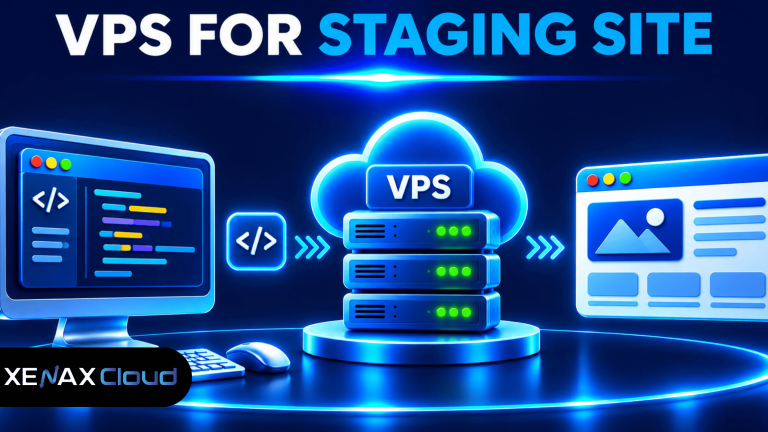
A VPS for staging site development provides an isolated server environment where you can test website updates, plugins, themes, code changes and database modifications before publishing them on your live website. It gives developers control over server resources, software configuration and access permissions without directly changing the production website.
A staging environment is useful for WordPress developers, web agencies, ecommerce businesses and companies maintaining multiple websites. You can identify compatibility problems, test new features and review changes before allowing visitors to access them.
The right VPS configuration depends on the number of staging websites, database size, concurrent developers, application requirements and how closely the staging environment must match production.
What Is a VPS for Staging Site Development?
A VPS for staging site development is a virtual private server that hosts a private copy of a website for testing before changes are deployed to production.
A staging site is a separate version of your website that developers use to check updates and application behaviour without affecting the live website.
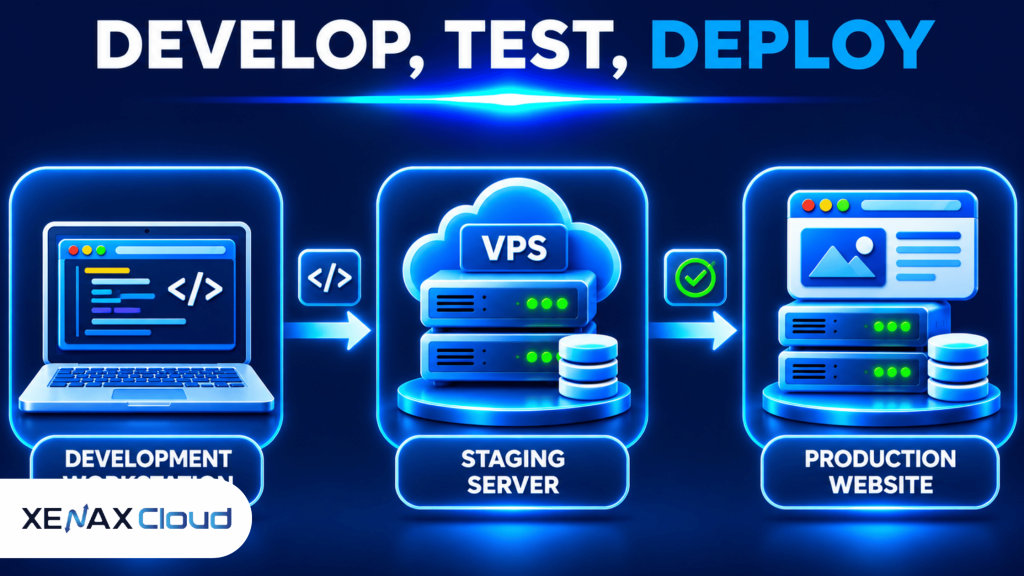
For example, a WordPress agency can maintain three environments:
- Development: Where developers write and modify application code.
- Staging: Where the team tests the completed changes.
- Production: Where visitors access the live website.
A VPS can host the staging environment because it provides root access, configurable software and dedicated virtual server resources.
Unlike a basic local development setup, a remotely hosted staging environment allows multiple authorised team members to access the same test website through a browser.
This is useful when developers, designers and clients need to review the same changes before deployment.
When Does a Staging Server Need a VPS?
A staging server needs a VPS when your testing workload requires independent resources, custom software configuration or remote access for multiple developers.
Shared hosting can support some basic staging requirements, but it may restrict server-level configuration, background processes, custom services and resource allocation.
A VPS provides more control over the operating system, web server, database and application environment.
Common situations where a staging server benefits from VPS hosting include:
- Testing WordPress theme and plugin updates.
- Checking WooCommerce checkout modifications.
- Testing PHP application changes.
- Running database migration scripts.
- Reviewing website redesigns before publication.
- Testing API integrations and background workers.
- Maintaining separate staging copies for different clients.
A VPS is particularly useful when production and staging websites require different software configurations or when several people need access to the same testing environment.
A VPS for staging site development also gives your team control over server-level settings, allowing developers to reproduce production conditions and identify deployment issues before publishing website changes.
What Is the Difference Between Shared Hosting and a Staging VPS?
Shared hosting and VPS hosting can both serve staging websites, but their server access and resource management capabilities differ.
| Requirement | Shared Hosting | Staging VPS |
| Server administration | Limited | Full root access |
| Software configuration | Provider-controlled | Administrator-controlled |
| Resource allocation | Shared account environment | Allocated virtual resources |
| Custom background services | Subject to provider restrictions | Configurable within server limits |
| Multiple test applications | Depends on plan limits | Depends on VPS resources |
Shared hosting can be sufficient for a small WordPress staging copy that uses standard PHP and database features.
A VPS becomes more appropriate when you need custom PHP extensions, independent web server settings, additional background processes or several simultaneous test applications.
How Much RAM and Storage Does a Staging VPS Need?
A staging VPS needs enough RAM, CPU and storage to run the website, database, caching services and testing tools simultaneously.
The required configuration depends on application complexity rather than the number of staging domains alone.
For example, a simple WordPress website with a small database has different resource requirements from a WooCommerce store with extensive product data and multiple background processes.
Consider the following starting points when estimating resources. These are planning guidelines, not guaranteed application requirements.
| Staging workload | Suggested starting RAM | Storage consideration |
| Basic HTML or PHP website | 2–4 GB | Website files and logs |
| Small WordPress website | 4 GB | Files, database and uploads |
| WooCommerce staging | 4–8 GB | Product data and database |
| Multiple WordPress websites | 8 GB or more | Combined website and database size |
| Application with background workers | 8 GB or more | Logs, application files and temporary data |
Storage should include more than the website’s current file size. Allow capacity for database imports, media files, application logs, deployment packages and temporary backup copies.
How Many CPU Cores Does a Staging Website Need?
A staging website needs CPU resources according to the number of simultaneous requests and the amount of application processing.
A simple website used by one developer may operate comfortably with a smaller CPU configuration. Running database imports, PHP workers, automated tests and multiple staging applications at the same time requires additional processing capacity.
Use this practical decision rule:
- Choose 2 vCPU for one or two lightweight staging applications.
- Consider 2 vCPU with 8 GB RAM when database and application memory requirements are higher.
- Consider additional vCPU when parallel testing and background jobs compete for CPU time.
- Increase storage when multiple website copies and database snapshots occupy substantial disk space.
Monitor actual CPU and memory usage during imports, plugin updates and automated testing instead of selecting resources only from the number of websites.
How to Set Up a VPS for Staging Site Development?
You can set up a VPS for staging site development by preparing the operating system, installing the web stack, configuring a staging domain and importing a separate website copy.
Follow these steps:
- Provision a Linux VPS with suitable CPU, RAM and storage.
- Update the operating system and install required security updates.
- Install the web server, PHP and database software.
- Create a separate staging domain or subdomain.
- Import the website files and database into the staging environment.
- Configure HTTPS, database credentials and access restrictions.
- Test application behaviour before approving deployment.
How to Configure a Staging Subdomain?
A staging subdomain provides a separate address for testing without changing the main production domain.
For example:
Production:
example.com
Staging:
staging.example.com
First, create the subdomain in your DNS management interface.
A typical A record configuration looks like this:
Type: A
Name: staging
Value: YOUR_VPS_IPV4
TTL: Provider default
Replace YOUR_VPS_IPV4 with the public IPv4 address assigned to your VPS.
Configure the web server’s virtual host or server block to serve the staging website from its own document root. Keep staging files separate from production files to prevent accidental modifications.
If you use Nginx, a typical configuration structure is:
server {
listen 80;
server_name staging.example.com;
root /var/www/staging;
index index.php index.html;

location / {
    try_files $uri $uri/ /index.php?$args;
}
}
This is an illustrative configuration. PHP processing, HTTPS and other application-specific settings must also be configured according to your installed software.
Before configuring your staging environment, follow our guide on how to set up a VPS securely to prepare the server, configure access and install the required software.
How to Clone a WordPress Website to Staging?
You can clone a WordPress website by copying its files, exporting its database and configuring the staging installation with separate credentials.
The process generally involves:
- Exporting the production database.
- Copying WordPress files to the staging document root.
- Creating a separate staging database and database user.
- Importing the database backup.
- Updating the WordPress database connection settings.
- Replacing production URLs with staging URLs.
- Testing the website before allowing team access.
The WordPress database connection settings are stored in:
wp-config.php
Use separate database credentials for the staging installation rather than reusing the production database user.
For larger WordPress websites, use a migration method that correctly handles serialised data when replacing domain URLs. Simple text replacement can damage serialised WordPress settings.
How Does a Test Environment Server Fit Your Development Workflow?
A test environment server provides a controlled location for checking application changes before those changes reach the production website.
A test environment server can host automated test suites, development APIs, database copies, application builds and temporary testing services.
A typical workflow looks like this:
Developer Workstation
|
v
Version Control
|
v
Development Environment
|
v
VPS Staging Server
|
v
Functional Testing
|
v
Approval and Review
|
v
Production Deployment
Git is commonly used to track code changes and manage development branches.
For example, a developer can maintain a staging branch separately from the production branch. Changes can be reviewed and tested before merging them into the release branch.
Refer to the official Git documentation on branching for information about managing separate development branches.
A staging VPS should also use the same important software versions and configuration values as production. Differences in PHP versions, database behaviour or web server configuration can cause problems that remain hidden during testing.
Should the Staging Environment Match Production?
Yes, a staging environment should match production closely enough to reproduce the behaviour of the live application.
The operating system, PHP version, database engine, application dependencies and web server settings should be consistent wherever practical.
However, staging does not need the same public access or production data. Keep it private, use separate credentials and replace sensitive customer information with test data wherever possible.
For example, if production runs a WordPress website with MySQL and a particular PHP configuration, the staging installation should use compatible versions and settings.
This reduces configuration differences that can cause deployment failures.
How to Secure a Staging Server?
A staging server should use access restrictions, separate credentials and private testing data to prevent unauthorised access and accidental exposure.
Staging websites frequently contain unfinished features, test accounts, database copies and administrative interfaces. Exposing them publicly can create security and privacy problems.
Apply these security measures:
Restrict access: Use HTTP authentication, VPN access or IP allowlisting to limit who can open the staging website.
Enable HTTPS: Configure a valid TLS certificate for the staging subdomain to encrypt connections.
Separate credentials: Use different database users, passwords and application credentials for staging and production.
Prevent search indexing: Add appropriate noindex directives and search engine access restrictions. Remember that robots.txt alone does not provide access control.
Protect customer information: Avoid copying real personal or payment information into staging unless an approved security and privacy process permits it.
Disable external actions: Use test payment gateways, disable production email delivery and prevent staging orders from reaching live fulfilment systems.
Maintain recovery copies: Take a backup before major database imports or deployment changes.
One common mistake is assuming that a staging website is safe because its URL is difficult to guess. A private subdomain is not an authentication mechanism. Apply actual access controls.
Worked Example: Choosing a Staging VPS for an Indian Web Development Agency
A Jaipur-based web development agency with four developers maintains WordPress websites for several Indian business clients.
The team wants a shared staging environment where developers can test theme changes, plugin updates, database modifications and new website features before publishing them.
Its initial requirements are:
- Two WordPress staging websites.
- One separate MySQL database for each website.
- Four developers accessing the environment at different times.
- PHP and Nginx configuration control.
- Enough memory for database imports and plugin testing.
- Separate credentials and restricted website access.
Which Xenax Cloud VPS Configuration Fits?
Xenax Cloud General VPS with 2 vCPU and 8 GB RAM is a suitable starting configuration to evaluate for this workload.
The General VPS family provides more RAM per vCPU than the entry Speed VPS and Gold VPS configurations. The additional memory is useful when WordPress, PHP processes and MySQL are running together during testing.
The smaller Speed VPS and Gold VPS configurations start with 2 vCPU and 4 GB RAM. Although Speed VPS includes NVMe storage and Gold VPS uses high-frequency Xeon Gold processors, their entry configurations provide less memory for concurrent database and application workloads.
Use this decision rule:
- Choose General VPS with 2 vCPU and 8 GB RAM when two staging websites need additional memory for application and database processes.
- Choose Speed VPS with 2 vCPU and 4 GB RAM when NVMe storage is the priority and the workload fits within 4 GB RAM.
- Choose Gold VPS with 2 vCPU and 4 GB RAM when high-frequency CPU performance is the priority and memory requirements remain within the available capacity.
- Choose a larger configuration when monitoring shows sustained CPU or RAM pressure during testing.
General VPS is not the right choice when the workload primarily depends on NVMe storage performance or high-frequency CPU processing. Evaluate Speed VPS or Gold VPS respectively for those requirements.
Xenax Cloud VPS runs on KVM virtualisation and includes full root access, one IPv4 address, a 500 Mbps network port and weekly backups.
The VPS infrastructure operates from a Tier-III data centre in India, with 24/7 support.
The agency can configure its own Linux web stack, create staging subdomains and maintain separate databases according to its application requirements.
You can compare Xenax Cloud KVM VPS hosting plans before selecting a configuration for your staging workload.
Common Mistakes When Running a Staging Website on VPS
The most common staging mistakes involve using production credentials, exposing private test websites and deploying untested changes directly to the live server.
Avoid these problems:
Using the production database: A staging website should use its own database. Directly modifying production records during testing can damage live website information.
Ignoring software version differences: Different PHP, MySQL or application versions can produce behaviour that does not match production.
Allowing public access: Unfinished pages and test login interfaces should not be accessible to unauthorised visitors.
Using real customer information unnecessarily: Test with anonymised or synthetic data wherever practical.
Forgetting email and payment restrictions: Test notifications and checkout processes should not trigger real customer messages or transactions.
Assuming backups are deployment rollback: A backup helps recover data, but you should also maintain version-controlled code and a tested deployment rollback procedure.
Before importing a production database into staging, preserve a verified backup and review the data for sensitive information. Confirm that the staging environment cannot send live customer notifications or process real payments.
vps for staging site: FAQs
What is the best VPS for a staging website?
The appropriate VPS depends on application memory, CPU, storage and concurrent testing requirements. Xenax Cloud General VPS with 2 vCPU and 8 GB RAM is a suitable starting configuration for staging websites that need additional memory for PHP and database processes. Larger workloads may require additional resources.
Can I host multiple staging websites on one VPS?
Yes, you can host multiple staging websites on one VPS using separate domains or subdomains, virtual hosts, document roots and databases. The number of websites depends on available CPU, RAM and storage. Monitor concurrent testing activity before adding more applications.
Is a staging server different from a production server?
Yes, a staging server is used for testing changes, while a production server delivers the live application to visitors. Staging should reproduce important production settings but use separate credentials, databases and access restrictions to prevent test activity from affecting live services.
How much RAM does a WordPress staging VPS need?
A small WordPress staging website can begin with 4 GB RAM, while multiple websites and concurrent database operations may need 8 GB or more. Measure actual memory usage during plugin updates, imports and automated tests before selecting a VPS configuration.
Can I use a VPS for WooCommerce staging?
Yes, a VPS can host a WooCommerce staging website for testing checkout changes, payment integrations, themes and plugins. Use a separate database, test payment configuration and restricted access. Never allow staging orders or payment tests to reach your live fulfilment systems.
Should a staging website be indexed by Google?
No, a private staging website should normally be excluded from search indexing. Use authentication and access restrictions as the primary protection, then apply suitable noindex settings. Robots.txt alone does not prevent visitors or search engines from accessing a publicly available staging website.
Are VPS backups enough to protect a staging environment?
VPS backups provide recovery points, but they should not replace application-level backups and version control. Maintain separate copies of important databases and code, and test restoration procedures before performing large imports or deployment changes.
If you maintain WordPress websites, ecommerce applications or client projects that need controlled testing, evaluate Xenax Cloud General VPS with 2 vCPU and 8 GB RAM when additional memory is your main requirement. Choose Speed VPS for NVMe storage priorities or Gold VPS for high-frequency CPU workloads.