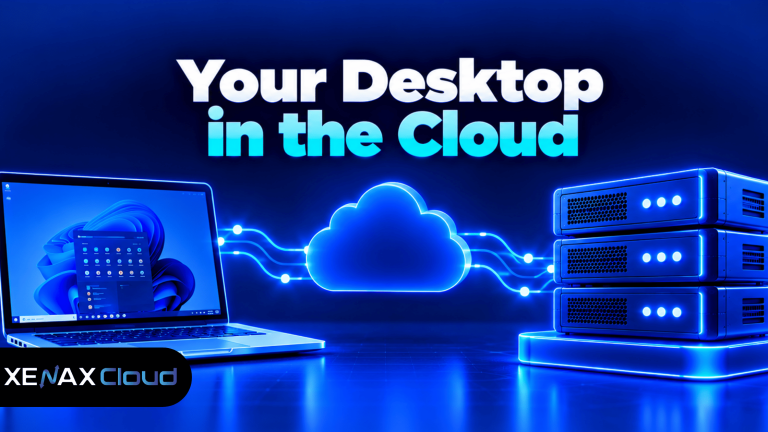
A cloud PC India setup gives you access to a desktop environment hosted on a remote server in India, rather than relying entirely on your local computer. You connect over a network to use Windows applications, store work on the remote system and manage files from compatible devices. The right setup depends on your software, RAM, CPU, storage and remote access requirements.
A cloud PC can help a business keep its desktop environment in one place while staff connect from different locations. It can also suit users who need a persistent Windows environment without running every application on their own laptop.
However, a remote desktop is not automatically a high-performance workstation. Software compatibility, graphics capabilities, internet quality and the server’s assigned resources all affect how well applications perform.
What Is a Cloud PC and How Does It Work?
A cloud PC is a desktop environment hosted on a remote computer that you access through a network connection. The remote server runs the operating system and applications, while your local device sends input and displays the remote desktop.
Remote Desktop Protocol (RDP) is a network protocol that allows a client device to interact with a remote computer’s desktop session. Depending on the service, you may access a Windows desktop using the Remote Desktop client or another supported client application.
The basic workflow is straightforward:
- The hosting provider allocates a remote Windows environment.
- You receive the connection address and login credentials.
- Your local device connects to the remote system.
- Applications run on the remote computer, using its allocated resources.
- Files saved to the remote system remain there until you transfer or synchronise them elsewhere.
This arrangement separates the computer you use from the computer doing the processing. A laptop with modest local hardware can access a remote environment, but the experience still depends on its display, keyboard, network connection and remote desktop client.
A cloud PC can be configured for one user or managed as part of a wider business setup, depending on the provider’s service and licensing terms. Do not assume that a single Windows RDP instance automatically provides independent desktop sessions for an entire team.
How Do You Choose a Cloud PC India Setup?
Choose a cloud PC India setup by matching the remote system’s operating environment and resources to the applications you need to run. Start with software compatibility, then evaluate RAM, CPU, storage, network access and security.

A remote desktop can support office applications, browser-based tools, accounting software and other compatible Windows programs. Before choosing a plan, check the vendor’s operating system requirements, licence conditions and any need for specialised hardware or drivers.
Use this comparison to identify the main resource requirements:
| Requirement | What to assess | Why it matters |
| CPU | vCPU count and processor characteristics | Affects application processing and concurrent tasks |
| RAM | Memory required by the operating system and applications | Limits how many applications can run comfortably |
| Storage | Capacity and storage type | Holds applications, documents, databases and temporary files |
| Network | Latency, stability and bandwidth | Affects responsiveness and file transfers |
| Compatibility | Windows version, licensing and required drivers | Determines whether the application can run correctly |
For example, browser-based office work generally has different resource needs from editing large media files or running a database application. Select resources for your actual workload rather than assuming every cloud PC needs the same configuration.
What Is a Cloud Desktop India Service Best For?
A cloud desktop India service provides remote desktop access from infrastructure hosted in India. It can suit businesses and individuals who need a centrally managed Windows environment and can tolerate the network dependency of remote access.
Common uses include:
- Office work: Run compatible productivity and browser applications in a remote Windows environment.
- Accounting and business software: Access applications that need a persistent Windows desktop, subject to software licensing and compatibility.
- Remote teams: Keep approved work files and applications on a managed system rather than scattering them across personal devices.
- Development tasks: Use a remote Windows environment for compatible tools, testing and administration.
- Access from multiple devices: Connect from a supported laptop or desktop without needing identical application installations on each local device.
The trade-off is that remote access depends on a working internet connection. A slow or unstable network can make typing, scrolling and screen updates feel delayed even when the server has sufficient CPU and RAM.
Xenax Cloud operates one data centre in Banda, Uttar Pradesh, India. Its Windows RDP service uses Windows on KVM virtualisation and provides administrator access, which allows you to manage compatible software and system settings within the permissions of the service.
A cloud desktop India setup is not the right choice if your application requires hardware or drivers that the selected remote environment cannot provide. In that case, choose a compatible workstation or service with the required capabilities instead of increasing CPU and RAM without checking compatibility.
How to Set Up a Virtual Desktop India Environment
To set up a virtual desktop India environment, choose a compatible Windows RDP configuration, connect securely, install authorised applications and test the workflow before moving important work to the remote system.
- List the applications and operating system requirements for your work.
- Choose a remote desktop configuration with suitable CPU, RAM and storage.
- Connect using the address and credentials supplied by the provider.
- Update Windows and review account and security settings.
- Install compatible applications using authorised licences.
- Transfer required files through a secure method.
- Test performance, saving, printing and any required peripheral access.
On a Windows device, open the Remote Desktop Connection application, enter the remote computer’s address and connect using the credentials provided by your host. On other devices, use a compatible remote desktop client supported by the service.
After connecting, update the operating system and install applications from their official sources. Verify activation and licence requirements before using commercial software; administrator access to a remote computer does not include a licence for every application you install.
Before transferring business records or client files, make a separate backup and confirm which directories are included in the provider’s backup service. Test that you can restore important files before depending on the remote environment for business operations.
Which Xenax Cloud RDP Plan Fits Your Work?
The suitable Xenax Cloud RDP family depends on how much memory your applications need, how CPU-intensive they are and whether you need a higher-frequency processor. Compare the published configurations before selecting a size.
| RDP family | Published characteristics | Consider it when |
| Speed RDP | 8 sizes, from 2 vCPU and 4 GB RAM to 32 vCPU and 64 GB RAM | You need a range of CPU and memory configurations |
| General RDP | 4 sizes, from 2 vCPU and 8 GB RAM to 16 vCPU and 64 GB RAM | Your applications need more RAM per vCPU |
| Gold RDP | 8 sizes, from 2 vCPU and 4 GB RAM to 32 vCPU and 64 GB RAM | High-frequency Xeon Gold CPU resources suit your workload |
Xenax Cloud RDP runs Windows on KVM virtualisation and provides administrator access. The RDP service uses the same network and backup approach as VPS hosting, with a 500 Mbps port and weekly backups.
These configurations do not establish that a dedicated GPU is available. If your software depends on graphics acceleration, specialised drivers or USB peripherals, confirm support before ordering.
Review the Xenax Cloud Windows RDP plans and select a configuration based on your application’s requirements. Speed RDP offers a range of resource sizes, General RDP provides more RAM per vCPU, and Gold RDP uses high-frequency Xeon Gold processors.
Worked Example: A Small Business in Lucknow Using Cloud PC
A small business in Lucknow with four staff members needs a remote Windows environment for browser-based office work, document handling and a compatible accounting application. Its choice should reflect the number of users who need access, application memory requirements and whether the service provides separate sessions for each person.
Suppose one person uses the desktop at a time and the workload fits within a modest Windows environment. Speed RDP with 2 vCPU and 4 GB RAM could be a starting configuration to evaluate, provided the software requirements are met and the application performs adequately during a representative test.
If the accounting application and office tools regularly exhaust available memory, General RDP with 2 vCPU and 8 GB RAM is a reasonable next configuration to assess because it provides more RAM per vCPU. The smaller setup is not automatically unsuitable; the decision depends on measured memory use and application behaviour.
Use this decision rule:
- Evaluate Speed RDP with 2 vCPU and 4 GB RAM for a modest workload that meets software requirements.
- Evaluate General RDP with 2 vCPU and 8 GB RAM when memory is the main constraint.
- Consider Gold RDP if the workload benefits from high-frequency Xeon Gold CPU resources.
- Confirm multi-user access separately if four staff members need simultaneous independent desktop sessions.
If the business needs several simultaneous desktop sessions, the single-user setup is not the right choice; confirm a suitable multi-user arrangement and Windows licensing before selecting the service. More RAM does not by itself provide separate user sessions or resolve application licensing limits.
Is a Cloud PC Secure for Business Documents?
A cloud PC can be used for business documents when account access, remote connections, software updates and backups are managed properly. Hosting documents remotely does not remove the need to protect confidential information.
Apply these safeguards before using a cloud desktop for client or company records:
- Protect credentials: Use strong, unique passwords and additional authentication where supported.
- Restrict access: Limit remote desktop access to authorised users and use network restrictions where practical.
- Update software: Apply Windows security updates and keep installed applications current.
- Control file transfers: Decide how files can be copied between the local device and remote desktop.
- Back up important data: Keep a separate copy of critical documents and test restoration.
- Review permissions: Avoid giving every user administrator access if their tasks do not require it.
Xenax Cloud RDP includes weekly backups as part of its hosting arrangement, but verify what data and system state are covered. Keep an independent backup of critical business files before major software changes or migrations, particularly if the files are difficult to replace.
For Indian businesses handling personal or financial information, check applicable contractual and regulatory requirements before choosing where data and backups will be stored. Xenax Cloud’s data centre is in Banda, Uttar Pradesh, India, but you should also verify the location and handling of any external storage or connected services you use.
How Can You Improve Cloud Desktop Performance?
Cloud desktop performance depends on the remote system’s resources and the quality of the connection between the client and the server. Adding more CPU or RAM will not fix every delay, especially if the problem comes from network latency or an application limitation.
Start by identifying when the slowdown occurs. If applications become slow when several are open, inspect memory use and consider a configuration with more RAM. If delays occur mainly during large file transfers, check network stability and available bandwidth before upgrading the server.
Useful checks include:
- Close applications and background processes that are not needed.
- Check CPU and memory use through Windows Task Manager.
- Keep sufficient storage available for application data and temporary files.
- Use a stable network connection and avoid unnecessary heavy downloads during remote work.
- Adjust display effects or resolution if the connection struggles to deliver screen updates.
- Check whether the application requires a specific driver or hardware feature.
Cloud PC India: FAQs
What is a cloud PC in India?
A cloud PC in India is a desktop environment hosted on a remote server in India and accessed through a network connection. The server runs the operating system and applications while your local device displays the desktop. Check application compatibility, network quality and available resources before choosing a service.
Can I use a cloud PC from my laptop?
Yes, you can access a cloud PC from a compatible laptop using a supported remote desktop client. The remote system runs the applications, so your laptop does not need to perform all the application processing itself. A stable internet connection and suitable display settings still affect the experience.
How much RAM does a cloud PC need?
A cloud PC with 2 vCPU and 4 GB RAM is a starting configuration to evaluate for modest workloads, provided the operating system and applications support it. Applications that use more memory may need a larger configuration. Check actual memory use and vendor requirements before selecting a plan.
What is the difference between cloud desktop and virtual desktop?
Cloud desktop and virtual desktop both describe desktop environments accessed remotely, although providers may use the terms differently. The underlying service may be a hosted Windows instance, a virtual machine or a managed desktop platform. Confirm whether the service supports your required user sessions, applications and administrative controls.
Which Xenax Cloud RDP plan should I choose?
Choose Speed RDP for a range of CPU and memory sizes, General RDP when more RAM per vCPU is important, or Gold RDP when high-frequency Xeon Gold processors suit your workload. Check application requirements and test typical tasks before ordering. Confirm multi-user access and licensing separately if several people need simultaneous sessions.
Is a cloud desktop in India suitable for accounting software?
Yes, a cloud desktop in India can suit compatible accounting software that runs on the selected Windows environment. Confirm the software’s operating system, database, printer and licensing requirements first. If multiple staff need access at once, verify the application’s multi-user setup and the remote desktop service’s session limits.
Are backups included with Xenax Cloud RDP?
Xenax Cloud RDP includes weekly backups as part of its hosting arrangement. Before storing important business records, confirm backup coverage and retention with the provider, and maintain an independent copy of critical documents. Test restoration before relying on any backup service for business continuity.
For a modest single-user Windows workload, evaluate Speed RDP with 2 vCPU and 4 GB RAM first. Choose General RDP with 2 vCPU and 8 GB RAM if memory requirements justify it, and confirm multi-user sessions, software licensing and specialised hardware support before ordering.