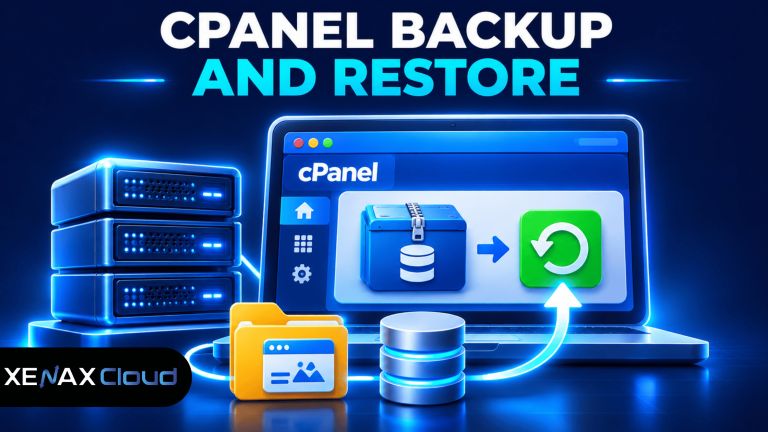
cPanel backup and restore is the process of creating copies of website files, databases, email data and account settings so you can recover a website after accidental deletion, software errors or server problems. cPanel provides backup tools for selected account data and full account archives, while restoration methods depend on the backup type and hosting permissions.
For website owners, developers and Indian small businesses, a backup is an essential part of website maintenance. A WordPress update, incorrect file modification or database change can make a website unavailable or remove important information.
Understanding the difference between full and partial backups helps you select the right recovery method before a problem occurs.
What Is cPanel Backup and Restore?
cPanel backup and restore is a hosting control panel feature that allows users to save website data and recover selected files, databases and account information.
A website backup is a separate copy of important hosting data that can be used to recover information when the original files or database become damaged or unavailable.
A typical cPanel account contains several types of data:
- Website files stored in the home directory.
- MySQL or MariaDB databases.
- Email accounts and mailbox data.
- Email forwarders and filters.
- Domain and subdomain configuration.
- Other account-level settings supported by the backup system.
These components serve different purposes. For example, restoring WordPress files without restoring the corresponding database may not recover the complete website.
A complete recovery process therefore requires identifying which components were affected and selecting compatible backup copies.
How to Back Up Website in cPanel?
You can back up website in cPanel through the Backup or Backup Wizard interface, depending on which features your hosting provider enables.
cPanel provides options for downloading a full account backup or creating separate backups of selected website components.
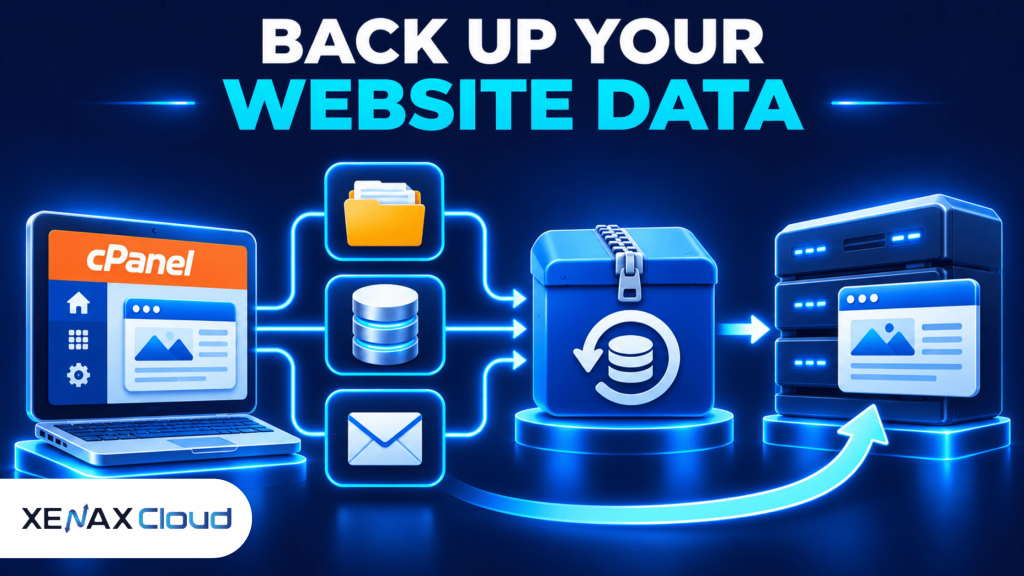
Before creating a backup, check the available disk space and identify which website and databases belong to the account. Keep a separate copy of important backup archives outside the hosting account so that account-level problems do not affect every copy.
How to Create a Full Account Backup?
A full cPanel account backup creates an archive containing the account’s website data and supported configuration information.
Follow these steps:
- Log in to your cPanel account.
- Open the Backup Wizard or Backup interface.
- Select Back Up or Full Backup.
- Choose the destination for the backup archive.
- Enter a notification email address if required.
- Start the backup generation process.
- Download the completed archive to secure storage.
A full backup is useful when you want to preserve an entire cPanel account before changing hosting providers, modifying account configurations or performing major website maintenance.
The archive can contain website files, databases, email data and other supported account information. However, generating a full backup does not mean every cPanel user can restore that archive independently.
Full account restoration generally requires WHM access or assistance from the hosting provider. Check the available restoration permissions before relying on this backup as your only recovery method.
How to Create a Partial cPanel Backup?
A partial cPanel backup saves selected components instead of creating an archive of the entire hosting account.
Use partial backups when you need to preserve or restore a specific website directory, database or email configuration.
The usual cPanel options include:
- Home Directory: Saves files and directories within the hosting account.
- MySQL Databases: Downloads selected database backups.
- Email Forwarders: Saves supported forwarding configuration.
- Email Filters: Saves supported email filtering configuration.
For WordPress websites, download the website files and export the associated database. Both are needed to recover the website properly.
Keep filenames descriptive so you can identify the website, backup date and database when recovery becomes necessary.
What Is the Difference Between Full and Partial cPanel Backups?
Full and partial cPanel backups differ in the amount of account data they preserve and the restoration permissions they require.
| Backup type | Data included | Typical purpose | Restoration method |
| Full account backup | Supported account data | Complete account preservation | WHM or provider assistance |
| Home directory backup | Website and account files | File recovery | cPanel Backup interface |
| MySQL backup | Selected databases | Database recovery | cPanel database restore tools |
| Email backup | Supported email data or settings | Email recovery | Depends on backup format and tools |
A full backup is useful before major account changes or migrations because it preserves more account information in one archive.
A partial backup is more practical when you need to recover one database or a particular group of files without replacing unrelated account data.
Neither method removes the need to verify backup integrity and confirm that the archive contains the required information.
How to Restore Website from Backup in cPanel?
You can restore website from backup by uploading the appropriate backup file or selecting an available recovery point through your hosting provider’s backup system.
The correct method depends on whether you are restoring website files, a database, email information or the complete cPanel account.
Before starting, identify the affected component and select a backup created before the problem occurred.
How to Restore Website Files?
A home directory backup can help recover website files that were accidentally deleted or modified.
For a standard cPanel account, the recovery process generally involves:
- Log in to cPanel.
- Open the Backup interface.
- Locate the appropriate restore option.
- Select the home directory backup file.
- Upload the archive where required.
- Complete the restoration process.
- Check website files and permissions.
The exact restore interface depends on the cPanel version and hosting provider configuration.
If the interface does not provide a home directory restoration option, use the provider’s supported file recovery method or request assistance.
Do not overwrite the current website directory without first preserving the existing files. This allows you to recover newer content if the selected backup turns out to be incomplete.
How to Restore a MySQL Database?
A MySQL database backup can restore website content and application records that are stored separately from website files.
For a supported cPanel database restore interface:
- Open the MySQL database restore section.
- Select the appropriate database backup file.
- Upload the backup.
- Confirm the target database.
- Complete the restoration.
- Check the application database connection.
Some hosting environments require database recreation or administrator assistance before importing a backup.
For a compatible SQL backup, you can also use phpMyAdmin.
The general process is:
cPanel
> Databases
> phpMyAdmin
> Select database
> Import
> Choose SQL backup
> Execute
Check the database name and account permissions before importing. Importing into the wrong database can overwrite information belonging to another website.
How to Restore a WordPress Website?
A WordPress website requires both its application files and database to recover the complete installation.
The files contain themes, plugins, uploads and WordPress core components. The database contains posts, pages, settings, user information and other application records.
For a successful recovery:
- Restore the correct WordPress website directory.
- Restore the corresponding database.
- Verify database credentials in wp-config.php.
- Check the website URL and domain configuration.
- Review file permissions and plugin functionality.
- Test the homepage and administrative login.
If the backup was created before a domain change, check whether WordPress URLs and related configuration values need updating.
For more WordPress recovery details, refer to [ARTICLE LINK: How to Back Up and Restore a WordPress Website].
How Does JetBackup 5 Help With cPanel Backup and Restore?
JetBackup 5 is a backup management system that allows supported hosting accounts to access backup and recovery functions through an integrated interface.
Xenax Cloud Shared Hosting includes JetBackup 5, which provides an additional way to manage available recovery points for supported account data.
The available restore options depend on the hosting provider’s JetBackup configuration and the backup types enabled for the account.
Typical recovery categories may include:
- Home directory files.
- MySQL databases.
- Email accounts.
- Email messages and related data.
- Supported account configurations.
The interface allows users to select an available backup point and choose the data they want to recover, subject to account permissions and provider settings.
Before restoring, check the backup date and the data categories included in the selected recovery point.
A backup created before a website update may be appropriate for recovering damaged files, but it may not contain recent orders, customer registrations or email messages.
For an ecommerce website, consider the impact on transactions and database records before replacing an entire database with an older copy.
A reliable cpanel backup and restore process should include separate copies of website files, databases and email data so you can recover the affected components without replacing unrelated account information.
How Often Should You Back Up a Website?
Website backup frequency should depend on how frequently the website changes and how much recent data your business can afford to lose.
A brochure website with occasional content updates has different recovery requirements from an ecommerce store that receives orders throughout the day.
Use the following planning guidelines:
| Website type | Suggested backup approach | Important data |
| Business website | Before major updates and regular scheduled backups | Pages, media and database |
| WordPress blog | Regular file and database backups | Posts, comments and uploads |
| Ecommerce website | Frequent database protection and scheduled file backups | Orders, customers and products |
| Business email account | Regular email data protection | Mailboxes and messages |
These are planning recommendations, not fixed retention periods or guaranteed backup schedules.
The appropriate frequency depends on the rate of change and the recovery point objective (RPO).
RPO is the maximum amount of recent data a business is prepared to lose after an incident. For example, a business that cannot afford to lose recent orders needs a backup strategy that protects order records more frequently than a website that only publishes occasional articles.
Xenax Cloud Shared Hosting includes JetBackup 5 backups. Check the available backup history and restoration options for your particular hosting account.
If regular recovery points are important for your business, read our guide to web hosting with daily backup to understand backup schedules, retention and restoration options.
Is a cPanel Backup Enough to Protect a Website?
A cPanel backup is an important recovery resource, but one backup copy inside the same hosting account is not a complete disaster recovery strategy.
If the hosting account becomes inaccessible or the underlying server experiences a serious problem, an archive stored only within that account may also become unavailable.
Keep an additional copy in separate secure storage. For business websites, periodically test whether the files and database can actually be restored.
Worked Example: Choosing Shared Hosting for an Indian CA Firm
A Jaipur-based CA firm operates three business websites: its main company website, a tax information blog and a client enquiry website.
The firm uses six email mailboxes across its employees and wants to maintain recoverable website files, databases and email information.
Its requirements are:
- Three hosted websites.
- Six email mailboxes.
- Separate website databases.
- Backup and restoration capability.
- cPanel access for website administration.
Which Xenax Cloud Shared Hosting Plan Fits?
Xenax Cloud Shared Hosting Gold is the suitable configuration for this example because it supports three websites, 15 GB disk storage, 100 GB bandwidth and six mailboxes.
Silver is the smaller plan, but its one-site limit and three-mailbox allocation do not meet the firm’s three-website and six-mailbox requirements.
Platinum provides additional capacity for organisations expecting more websites or higher storage requirements.
Use this decision rule:
- Choose Silver for one website, up to 5 GB disk, 50 GB bandwidth and three mailboxes.
- Choose Gold for up to three websites, 15 GB disk, 100 GB bandwidth and six mailboxes.
- Choose Platinum for up to ten websites, 100 GB disk, 1,000 GB bandwidth and 25 mailboxes.
- Choose Diamond when you need the plan’s unlimited site, disk, bandwidth and mailbox allocations.
Gold is not the right choice if the firm expects to operate more than three websites or needs storage beyond its 15 GB allocation. Evaluate Platinum instead.
Xenax Cloud Shared Hosting uses cPanel and LiteSpeed web server technology, with Let’s Encrypt SSL, DDoS protection and JetBackup 5 backups included.
The hosting infrastructure operates from a Tier-III data centre in India, with 24/7 support.
You can compare Xenax Cloud Shared cPanel Hosting plans before selecting a configuration for your websites.
Common cPanel Backup and Restore Mistakes to Avoid
The most common cPanel backup mistakes involve saving incomplete website data, restoring the wrong database and assuming that a generated archive is automatically recoverable.
Avoid these problems:
Backing up only website files: WordPress and other database-driven websites also require their corresponding databases.
Ignoring email data: Website files and databases do not automatically preserve every mailbox and email message.
Keeping every backup in one location: An account-level problem can make locally stored backup archives inaccessible.
Restoring an old database over recent records: An older database may remove newer orders, enquiries, comments and customer information.
Assuming full backup restoration is available to every cPanel user: Full account restoration generally requires WHM access or hosting provider assistance.
Never testing restoration: A backup archive is useful only if its contents are complete and can be recovered successfully.
Before performing a full restoration, create a separate copy of the current website and database. This protects recent information if the recovery process produces an unexpected result.
cpanel backup and restore: FAQs
How do I back up my entire cPanel account?
You can create a full account backup through cPanel’s Backup or Backup Wizard interface when your hosting provider enables the feature. Select Full Backup, choose the destination and wait for the archive to finish generating. Download a separate copy to secure storage before making major website changes.
Can I restore a full cPanel backup myself?
Not always. Full cPanel account restoration generally requires WHM access or hosting provider assistance. Individual cPanel users can restore supported partial backups through the available Backup interface. Confirm your hosting account’s restoration permissions before depending on a full backup for recovery.
How do I restore a WordPress website from cPanel backup?
Restore the WordPress website files and their corresponding database from compatible backups. Check the database credentials in wp-config.php, verify the domain configuration and test the website after recovery. Preserve the current files and database before replacing them with older backup copies.
Does cPanel backup include emails and databases?
A full account backup can contain supported email and database data, while partial backups allow selected components to be downloaded separately. Check the archive contents and backup type before assuming that every mailbox, database and configuration setting is included.
Is JetBackup 5 included in Xenax Cloud Shared Hosting?
Yes, Xenax Cloud Shared Hosting includes JetBackup 5. The available recovery categories and backup history depend on the provider’s configuration. Check the backup interface for available recovery points and confirm the selected backup contains the data you need before starting restoration.
How often should I back up my website?
Backup frequency depends on how frequently your website data changes and how much information your business can afford to lose. Ecommerce websites need more frequent database protection than static business websites. Keep separate backup copies and periodically verify that restoration works.
Can I restore only one website from a cPanel backup?
Yes, selected website files or databases can be restored without necessarily replacing the entire account, provided the hosting interface supports the required partial restoration. Identify the correct document root and database before restoring so that unrelated websites in the same account remain unchanged.
For a business operating up to three websites and six email mailboxes, Xenax Cloud Shared Hosting Gold with 15 GB disk and 100 GB bandwidth is a suitable starting choice. It includes JetBackup 5 backups and cPanel management for maintaining website data and recovery operations.