To understand how to upload website to cPanel, open your hosting account’s File Manager, locate the correct website directory and upload your website files there. For a typical primary domain, that directory is public_html. Extract compressed files if needed, configure any database connection and test the website before replacing your existing live files.
The exact process depends on how your website was built. A static HTML website may need only its HTML, CSS, JavaScript and image files, while a PHP or WordPress website may also need a database and configuration settings.
Before starting, keep a copy of the original website files and database if you are updating an existing site. Uploading files into the wrong directory or overwriting configuration files can make a working website unavailable.
What Files Do You Need Before Uploading a Website to cPanel?
You need the complete website files and, for a dynamic website, any required database and configuration details. Collect these before opening File Manager so you can upload the correct version of the site.
A website document root is the directory that a web server uses to serve files for a particular domain. In a typical cPanel primary-domain setup, the document root is public_html, although addon domains and subdomains can use different directories.
Prepare the following items:
- HTML files: Your homepage is commonly named index.html or index.php.
- CSS and JavaScript: These control the website’s appearance and browser-side behaviour.
- Images and other assets: Include the folders referenced by your HTML or application code.
- Application files: PHP frameworks and content management systems need their relevant application directories and configuration files.
- Database backup: A dynamic website may need an SQL database export to restore its content.
- Configuration details: Keep database names, usernames, connection settings and application requirements available.
A common mistake is uploading a project folder without checking its contents. If the final path becomes public_html/mywebsite/index.html, the homepage may not appear at the main domain because the file is one directory deeper than expected.
Check the archive before uploading. The main index.html or index.php should be placed at the intended document root unless the website’s design deliberately uses a subdirectory.
How to Upload Website Files to cPanel Using File Manager
File Manager lets you upload website files through the browser without installing a separate transfer application. It is often the simplest method for a small website or a compressed archive.
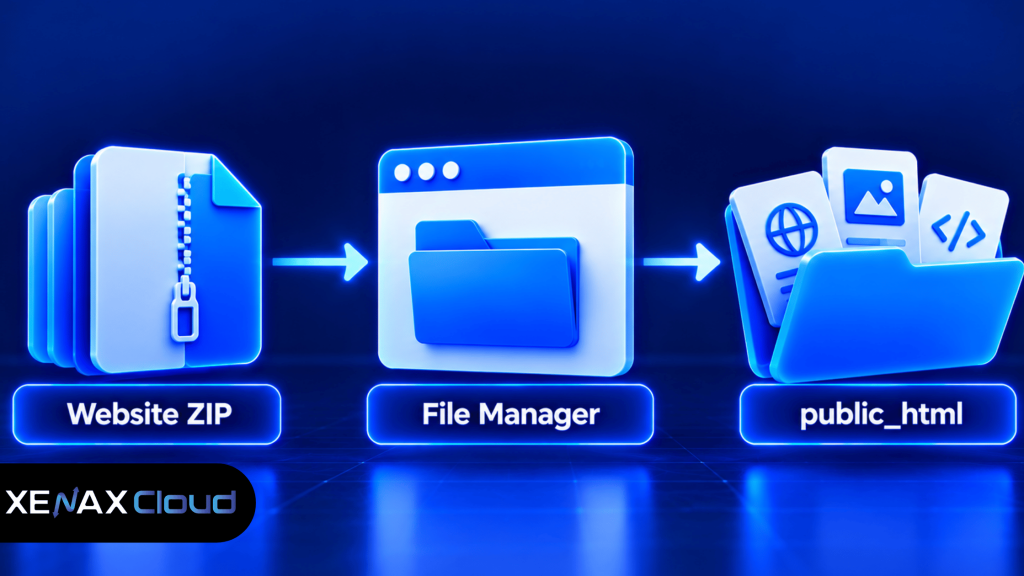
Open cPanel from your hosting account, then find File Manager. Navigate to the document root assigned to your domain before uploading anything; do not assume every domain uses the same folder.
Follow these steps:
- Log in to your hosting account and open cPanel.
- Open File Manager from the cPanel interface.
- Navigate to the document root assigned to your domain.
- Upload the compressed website archive using the upload control.
- Extract the archive into the correct directory.
- Check that the homepage file is in the intended location.
- Visit your domain and test the pages, images and links.
After extraction, inspect the directory structure. If the archive creates an extra nested folder, move the website contents into the correct document root only after confirming which files belong to the website.
Do not delete an existing website just to make room for an upload. First download a backup or create a copy of the current files, then verify the new version before switching over.
How to Upload Website Files to Hosting Using FTP
FTP lets you transfer website files between your computer and your hosting account using a file-transfer client. Your hosting provider must supply the connection details and supported access method.
FTP stands for File Transfer Protocol. Standard FTP does not encrypt credentials and file contents, so use a secure option such as SFTP when supported by the hosting account, or the provider’s explicitly documented secure FTP configuration.
A transfer client such as FileZilla can help you upload multiple files and folders. You generally need the server hostname, username, password or supported authentication method, port and destination directory.
| Method | Best suited for | Main consideration |
| cPanel File Manager | Small sites and ZIP archives | Browser-based workflow |
| FTP client | Many individual files and folders | Confirm the secure connection method |
| SFTP client | Secure file transfers where supported | Requires valid SFTP access details |
| Git-based deployment | Sites maintained in a repository | Requires a compatible deployment workflow |
To use a transfer client, connect with the details provided by your host, open the correct remote directory and upload the website files. Wait for transfers to complete and check the client log for failed files before testing the website.
Never assume that FTP and SFTP use the same port or connection settings. Follow the hosting provider’s instructions, and do not send passwords or private keys to anyone who does not need access.
How to Upload a PHP Website and Connect Its Database
A PHP website may require both application files and a database, so uploading the files alone may not make the site work. You must also configure the database connection and restore the required data if the website depends on MySQL or MariaDB.
A database is an organised collection of information that an application can store and retrieve. Websites use databases for content such as product records, user accounts, orders and settings.
For a PHP website that uses a database, the usual process is:
- Create a database and database user through the available cPanel database tools.
- Assign the necessary permissions to that user.
- Import the SQL backup using the database management tool available in the account.
- Update the application’s database host, name, username and password settings.
- Check that the application uses the correct PHP version and required extensions.
Keep database credentials private. Do not place them in a publicly accessible file or include them in a screenshot shared for troubleshooting.
If the site uses WordPress, the database contains important content and settings, while the uploaded files include WordPress core files, themes, plugins and media. Follow the appropriate migration procedure rather than treating a WordPress site as a collection of static files. See [ARTICLE LINK: How to Upload and Restore a WordPress Website].
If a database import fails, check the error message, database permissions, SQL export format and file-size limits. Avoid repeatedly importing the same backup into a live database without checking whether the previous attempt added duplicate or partial data.
Which cPanel Hosting Plan Fits Your Website?
The right cPanel hosting plan depends on the number of websites, storage required, traffic allowance and mailbox needs. Choose a plan that fits the site’s current requirements while leaving reasonable room for expected growth.
Xenax Cloud’s shared hosting includes cPanel, a LiteSpeed web server, Let’s Encrypt SSL and DDoS protection. The shared hosting plans differ in site limits, disk space, bandwidth and mailboxes.
| Xenax Cloud plan | Websites | Disk space | Bandwidth | Mailboxes |
| Silver | 1 | 5 GB | 50 GB | 3 |
| Gold | 3 | 15 GB | 100 GB | 6 |
| Platinum | 10 | 100 GB | 1,000 GB | 25 |
| Diamond | Unlimited | Unlimited | Unlimited | Unlimited |
These specifications help you decide which plan to evaluate, but they do not guarantee a particular website speed. Your application’s code, database activity, visitors and resource usage also affect performance.
For a simple portfolio or business website that fits within one site and the available storage and bandwidth, Silver may be a suitable starting point. Gold may fit a small business managing several sites, while Platinum provides more storage and bandwidth for a larger collection of websites.
Diamond’s unlimited allowances do not remove every possible resource or acceptable-use restriction. Review the applicable service terms before choosing a plan for a demanding application.
You can review Xenax Cloud shared hosting plans to compare the available configurations. If your website needs root access, custom server software or resources beyond shared hosting, a VPS may be more appropriate than a shared cPanel plan.
Worked Example: Uploading a Website for a Small Business in Lucknow
A small business in Lucknow with one company website can usually begin by identifying the site’s file size, whether it needs a database and how much bandwidth it is expected to use. Those requirements determine whether a shared hosting configuration is suitable.
Suppose the business has one static website with a homepage, service pages, contact information and images. If its total files fit within the Silver plan’s 5 GB disk allowance and expected data transfer stays within its 50 GB bandwidth allowance, Silver is a reasonable option to evaluate.
The Gold plan would not be necessary solely because the business wants to upload its website. Gold becomes relevant if the business needs additional website slots, more disk space or a higher bandwidth allowance. For example, a business planning to host three separate websites may need Gold because Silver supports only one site.
Use this decision rule:
- Choose Silver if you need one website and fit within its 5 GB disk and 50 GB bandwidth limits.
- Choose Gold if you need up to three websites and fit within its 15 GB disk and 100 GB bandwidth limits.
- Choose Platinum if you need up to ten websites and the larger storage and bandwidth allowances.
- Consider VPS hosting if you need root access, custom server services or application-level control that shared hosting cannot provide.
If your website is a large web application with unusual server requirements, the recommended shared hosting plan may not be suitable; evaluate a VPS instead. Before changing a live website, save a backup of the files and database and verify that the backup can be restored.
How Do You Fix Common Website Upload Problems?
Most upload problems come from an incorrect document root, an incomplete transfer, missing application dependencies or incorrect permissions. Checking the exact error and file location is more effective than repeatedly uploading the same archive.
Use these checks when the website does not load:
- Directory listing or default page appears: Check that the homepage file is in the correct document root and that the directory does not contain an unintended nested folder.
- 404 Not Found: Verify the URL, filename spelling, case sensitivity and the location of the requested file.
- 500 Internal Server Error: Check the application’s error log, PHP compatibility and configuration settings.
- Database connection error: Confirm the database name, user, password, host and permissions.
- Images or CSS are missing: Check relative paths and whether all required asset folders were uploaded.
- Permission error: Use the permissions recommended by your hosting provider and application. Avoid setting every file to unrestricted access.
A domain may also show an old website after upload because of browser caching, DNS changes or a different document root. Test the intended hostname, check the domain’s configured destination and use a private browser window to rule out some local cache issues.
For a static website, the browser’s developer tools can help identify missing CSS, JavaScript or image requests. For PHP applications, inspect server-side logs because a browser error alone may not reveal the underlying cause.
How Do You Secure a Website After Uploading It?
After uploading a website, secure the hosting account, remove unnecessary files and confirm that the live application does not expose credentials or backups. A successful upload is not proof that the website is secure.
Complete these checks before sharing the live address:
- Enable HTTPS and confirm that pages load through the secure address.
- Remove installation archives, temporary files and database exports from publicly accessible directories when no longer needed.
- Keep the CMS, plugins, themes and application dependencies updated.
- Use strong account passwords and enable additional account security where available.
- Restrict file and directory permissions according to the application’s requirements.
- Maintain backups of both website files and database contents.
Do not delete files merely because they look unfamiliar. First identify whether they belong to the application, and keep a backup before removing anything that might be needed for recovery.
cPanel and hosting tools vary by provider and account configuration. For official guidance on File Manager and related features, consult the cPanel documentation.
How to Upload Website to cPanel: FAQs
Where should I upload website files in cPanel?
For a typical primary domain, upload website files into public_html, which is commonly the domain’s document root. Addon domains and subdomains may use different directories. Confirm the assigned document root in your hosting settings before uploading, especially if your account hosts multiple websites.
Can I upload a website to cPanel using a ZIP file?
Yes, you can upload a ZIP archive through File Manager and extract it on the server. After extraction, check that the homepage file sits in the intended document root rather than inside an unintended nested folder. Keep the original archive until you confirm that the uploaded website works correctly.
Do I need a database to upload a website?
No, a static HTML website can work without a database. A dynamic PHP application or WordPress website may require a database for content, users and settings. Check your application’s requirements before uploading and restore its database and connection configuration when needed.
Why is my website not opening after uploading files to cPanel?
A website may fail to open because files are in the wrong directory, the homepage filename is incorrect, or the application has a configuration or database error. Check the document root, file paths and error logs first. Also confirm that the domain points to the intended hosting account.
Can I upload website files to hosting using FTP?
Yes, you can transfer website files using a compatible FTP client if your hosting account provides the required access. Prefer SFTP or another secure method supported by your provider because standard FTP does not encrypt credentials and transferred content. Verify the remote directory and confirm that every file transferred successfully.
Which Xenax Cloud shared hosting plan should I choose?
Choose Silver for one website that fits within 5 GB disk space and 50 GB bandwidth. Gold supports up to three websites with 15 GB disk space and 100 GB bandwidth. Platinum and Diamond offer larger allowances for broader requirements, so compare your actual site count and resource needs.
Should I back up my website before uploading a new version?
Yes, back up the existing website files and database before replacing a live version. Keep the backup outside the directory being overwritten and verify that it contains the files and data you need. This gives you a recovery path if the upload is incomplete or the new application fails.
To publish your website, confirm its document root, upload the correct files and test the pages before switching visitors to the new version. If you need cPanel hosting, compare the Xenax Cloud shared hosting plans against your website count, storage and bandwidth requirements.