RDP for Photoshop lets you connect to a remote Windows computer and work with design files from another device. It can help designers access a consistent desktop environment, but Photoshop performance depends on the remote system’s CPU, RAM, storage and supported graphics capabilities. A Windows RDP plan does not automatically provide a dedicated GPU or guarantee every Photoshop feature will work well.
Remote desktop access can be useful when you want to work from different locations, keep project files on a central system or use a Windows environment without relying on your personal computer’s hardware. Your local device still needs a suitable remote desktop client and a reliable network connection.
Before selecting a plan, decide what you will edit. Cropping images and working with smaller graphics have different requirements from handling large layered PSD files, high-resolution composites or GPU-intensive effects.
What Does RDP for Photoshop Actually Provide?
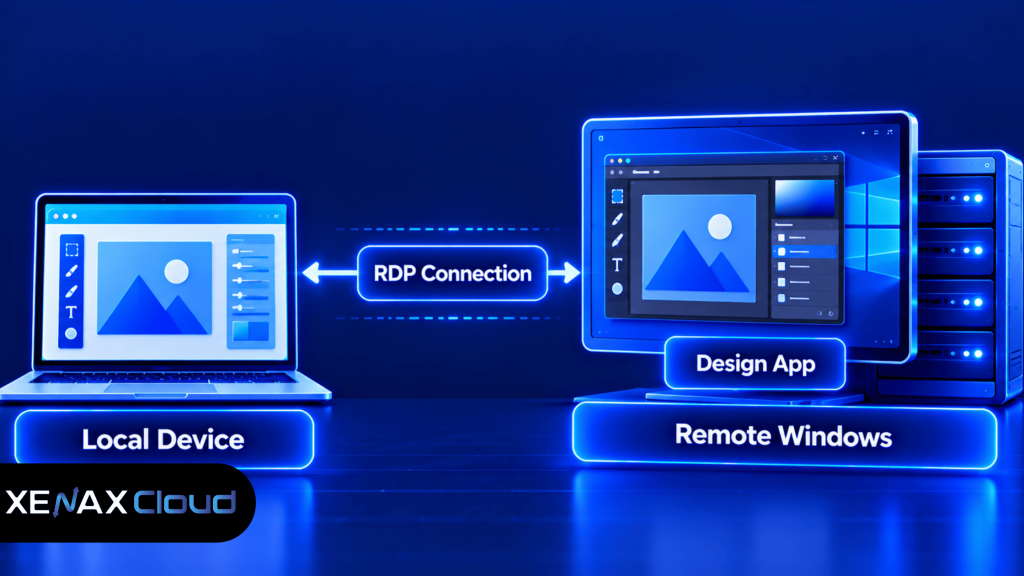
RDP for Photoshop provides remote access to a Windows desktop where compatible design software can be installed and run. Your keyboard and mouse inputs travel to the remote computer, while the desktop display is sent back to your local device.
Remote Desktop Protocol (RDP) is a remote-access protocol that lets a client interact with a computer’s desktop session over a network. In a hosted Windows environment, the remote system performs the application processing while your local device displays the session.
This arrangement separates the device you use from the computer doing the main work. For example, you could connect from a laptop to a remote Windows environment, open a design project stored there and continue editing without transferring the entire project to the laptop first.
RDP does not change Photoshop’s own hardware requirements. The remote computer must still meet the application’s requirements, and the installed Windows edition, graphics support, drivers and licensing must be compatible.
Xenax Cloud’s RDP hosting runs Windows on KVM virtualisation and provides administrator access. Its RDP environment uses the same network and backup approach as its VPS hosting, with a 500 Mbps port and weekly backups. These specifications describe the hosting environment, not a guarantee of Photoshop performance or GPU acceleration.
Can Photoshop Run on a Remote Desktop?
Yes, Photoshop can run on a remote Windows desktop if the operating system, hardware resources, graphics capabilities and software licence meet Adobe’s requirements. Remote access itself does not make an otherwise incompatible computer suitable for Photoshop.
Photoshop uses several system resources at once. RAM holds application data and image content, CPU handles many editing operations, storage provides space for the application and working files, and compatible graphics hardware can accelerate supported features.
Before relying on RDP for regular design work, check Adobe’s current Photoshop system requirements. Compare the requirements with the remote Windows environment, including supported operating system, memory, processor, graphics and available disk space.
How Much RAM and CPU Does Photoshop Need on RDP?
The RAM and CPU needed for Photoshop on remote desktop depend on the size of the documents, the number of layers and the effects you use. A configuration suitable for basic image editing may struggle with large composites or several applications open together.
Use the following as a practical planning guide, not as a substitute for Adobe’s current requirements or a workload test.
| Design workload | Resources to prioritise | What to verify |
| Basic image resizing and web graphics | Adequate RAM, CPU and storage | Application opens and edits common files smoothly |
| Layered PSD files | More RAM and sufficient disk space | Large files and undo history fit comfortably |
| High-resolution composites | RAM, CPU and scratch-disk capacity | Complex edits do not exhaust available memory or disk |
| GPU-dependent effects | Compatible GPU and drivers | Required features are actually accelerated remotely |
RAM requirements rise with document dimensions, bit depth, layers, masks and the number of files open at once. Photoshop may also use scratch disk space when memory is insufficient, so leaving storage headroom is important.
CPU capacity matters for operations that rely heavily on processor performance, but additional vCPU does not automatically make every filter faster. GPU-dependent features require compatible graphics hardware and drivers; a remote desktop plan should not be treated as GPU-enabled unless that capability is explicitly confirmed.
A practical decision rule is to start with the smallest configuration that meets the current Adobe requirements and your typical project workload, then increase resources if measured memory pressure, processing delays or storage limits interfere with work. For large PSD files, assess RAM and scratch-disk capacity before focusing only on CPU count.
How to Set Up Photoshop on a Remote Desktop
To set up Photoshop on a remote desktop, connect to a compatible Windows environment, install the software through an authorised Adobe account and verify that the application recognises the required system resources.
- Choose a Windows RDP configuration that meets the application’s requirements.
- Connect using the remote desktop address and credentials supplied by the hosting provider.
- Update Windows and check the available system resources.
- Install Photoshop using an authorised Adobe account and compatible installer.
- Check graphics settings, drivers and supported acceleration features.
- Transfer project files securely or access them from approved remote storage.
- Test representative files, saving, export and remote-session behaviour.
On a Windows computer, open the Remote Desktop client available for your operating system and enter the remote computer’s address. Use the connection details supplied by your host, and avoid saving credentials on a shared or public device.
Once connected, install Photoshop using Adobe’s official installation process. Do not assume that administrator access to the remote desktop includes a Photoshop licence; software licensing and hosting access are separate matters.
Open a typical project and check the application settings, available scratch disk and performance options. If a required feature depends on GPU acceleration, confirm that the remote environment supports it rather than relying on the fact that Photoshop launches successfully.
Keep a separate copy of important project files before changing system settings or moving files between devices. Remote access is not a backup strategy, and a server backup may not include every file stored outside the configured backup scope.
Which RDP Plan Fits Photoshop Work?
The right RDP plan depends on the design workload, memory requirements and whether the application needs graphics acceleration. Xenax Cloud offers Speed RDP, General RDP and Gold RDP families with different resource configurations.
| RDP family | Published characteristics | Consider it when |
| Speed RDP | 8 sizes, from 2 vCPU and 4 GB RAM to 32 vCPU and 64 GB RAM | You need a choice of CPU and memory sizes |
| General RDP | 4 sizes, from 2 vCPU and 8 GB RAM to 16 vCPU and 64 GB RAM | Your workload needs more RAM per vCPU |
| Gold RDP | 8 sizes, from 2 vCPU and 4 GB RAM to 32 vCPU and 64 GB RAM | High-frequency Xeon Gold CPU configurations are relevant |
Xenax Cloud’s RDP hosting runs Windows on KVM, provides administrator access and uses a 500 Mbps port with weekly backups. The published resource ranges do not establish that a dedicated GPU is available, so confirm graphics requirements before ordering.
For a designer handling regular layered files, General RDP may be worth evaluating if memory capacity is the primary concern. Speed RDP and Gold RDP may suit different CPU and resource preferences, but no family should be selected on the assumption that it guarantees faster Photoshop rendering.
Review the Xenax Cloud Windows RDP plans and match a configuration to the actual software requirements. If your workflow depends on a dedicated GPU or a specific graphics driver that the available RDP configuration cannot provide, a suitable GPU workstation or other compatible system is a better choice.
Worked Example: A Jaipur Designer Editing Layered PSD Files
A freelance designer in Jaipur who edits layered product images and promotional graphics should choose an RDP configuration based on typical file sizes, RAM use and required Photoshop features. The decision should come from the actual workload rather than the assumption that every remote desktop is suitable for design.
Suppose the designer usually opens one or two layered PSD files, uses standard adjustment layers and exports images for a client’s website. A Speed RDP configuration with 2 vCPU and 4 GB RAM could be considered only if it meets the current software requirements and passes a test with representative files; it should not be assumed suitable for every Photoshop release or project.
If memory pressure appears during normal editing, a General RDP configuration with 2 vCPU and 8 GB RAM is a logical next option to evaluate because it provides more RAM per vCPU. The smaller configuration is not automatically inadequate, but it is unsuitable if Photoshop and the working files regularly exceed its available memory or scratch-disk capacity.
Use these decision rules:
- Choose Speed RDP for evaluation when the application requirements are met and the workload is relatively light.
- Evaluate General RDP when RAM is the limiting factor and you want more memory per vCPU.
- Evaluate Gold RDP when high-frequency Xeon Gold CPU resources are relevant to your workload.
- Choose a confirmed GPU-capable workstation instead if a required Photoshop feature depends on graphics hardware that the selected RDP environment does not provide.
Before committing to a setup for client work, test a representative PSD file, save and reopen it, run the effects you use most often, and confirm that exports complete correctly. Keep an independent copy of client files before migrating them to the remote environment.
What Does Design Software on Cloud PC Mean?
Design software on cloud PC means running an application on a remote computer and accessing its desktop through a network connection. The phrase describes a way of accessing software, not a guarantee that the remote computer has the graphics hardware required for every design application.
For Photoshop, the key question is what hardware the cloud PC actually provides. A Windows desktop with CPU and RAM may be suitable for some image-editing work, but GPU-intensive features may require compatible graphics hardware and drivers.
A remote design workflow can help when you want project files and the application environment in one location. It can also make it easier to move between local devices, provided your remote desktop credentials, software licensing and file-access arrangements are managed securely.
Check these points before choosing a design software on cloud PC setup:
- Graphics capability: Confirm whether a compatible GPU is provided and whether the required Photoshop features can use it remotely.
- RAM and CPU: Match the configuration to your typical document sizes and editing operations.
- Storage: Leave enough space for applications, source files, exports and scratch-disk activity.
- Network quality: Check latency and stability from the location where you will work.
- File handling: Decide how project files will be uploaded, downloaded and backed up.
- Software licensing: Confirm that your Adobe account and licence permit the intended installation and use.
Xenax Cloud’s data centre is in Banda, Uttar Pradesh, India. That location may suit users seeking an India-hosted Windows environment, but the actual remote editing experience will also depend on the user’s network path and the resources assigned to the remote system.
How Do You Improve Photoshop Performance Over RDP?
Photoshop performance over RDP improves when the remote system has enough resources, the application uses supported settings and the connection can carry desktop updates reliably. Increasing server resources alone will not fix every delay.
Start with the bottleneck you can observe. If memory is nearly exhausted, close unnecessary applications or evaluate a configuration with more RAM. If the CPU remains heavily occupied during an operation, check whether the task is processor-bound before increasing vCPU allocation.
Useful checks include:
- Close unused applications and unnecessary background processes.
- Keep enough disk space available for Photoshop’s scratch-disk activity.
- Use supported graphics drivers and confirm the application’s GPU status.
- Reduce unnecessary high-resolution previews or oversized working copies when appropriate.
- Use a stable network connection and avoid competing heavy downloads during remote editing.
- Save work regularly and maintain a separate backup of important projects.
The remote desktop client may offer display settings that reduce bandwidth usage, such as lowering visual effects or display resolution. These settings can make a slow connection more manageable, although a lower resolution may be less comfortable for detailed design work.
RDP for Photoshop: FAQs
Is RDP for Photoshop suitable for professional design work?
Yes, RDP for Photoshop can suit professional design work when the remote Windows system meets Adobe’s requirements and supports the features you need. Test actual client files, including layers, effects and exports, before relying on the setup for deadlines. Confirm GPU support separately if your workflow depends on graphics acceleration.
Can I use Photoshop on remote desktop from a laptop?
Yes, you can use Photoshop on remote desktop from a compatible laptop by connecting to the remote Windows computer. The remote system performs the main application work, while the laptop sends input and displays the session. A stable network and suitable display settings help make editing more comfortable.
Does RDP for Photoshop include a dedicated GPU?
Not automatically; RDP access alone does not mean a dedicated GPU is included. Check the selected hosting configuration and confirm the graphics hardware, drivers and remote acceleration support. If Photoshop requires a GPU feature that the environment cannot provide, choose a compatible workstation rather than assuming more CPU or RAM will solve it.
How much RAM is suitable for Photoshop on a remote desktop?
The suitable RAM amount depends on the Photoshop release, operating system and document workload. A configuration with 4 GB RAM may be too limited for some current professional workflows, so check Adobe’s current requirements and test representative files. Large layered documents generally need more memory and sufficient scratch-disk capacity.
Can I install my own Adobe software on Xenax Cloud RDP?
You can use administrator access to manage compatible software on a Windows RDP environment, subject to the provider’s configuration and the software licence terms. Confirm Adobe account access, installation compatibility and any device or activation limits before installing Photoshop. Remote desktop hosting does not supply an Adobe licence by itself.
Is design software on cloud PC good for large PSD files?
Design software on cloud PC can handle large PSD files if the remote system has sufficient RAM, CPU and storage, and supports any required graphics features. Test a representative file with the layers and effects you use. If the workflow depends on unavailable GPU capabilities, select a compatible graphics workstation instead.
Which Xenax Cloud RDP plan should I choose for Photoshop?
Choose a Xenax Cloud RDP family based on memory needs, CPU workload and confirmed application compatibility. General RDP provides more RAM per vCPU, while Speed RDP and Gold RDP offer different configurations. Verify GPU support separately and test your actual files before selecting a plan for regular design work.
For basic remote image editing, shortlist a Windows RDP configuration that meets Adobe’s current system requirements and test it with your own design files. Compare Xenax Cloud’s Speed RDP, General RDP and Gold RDP configurations, and choose another compatible workstation if your Photoshop workflow requires GPU support that the selected plan cannot provide.