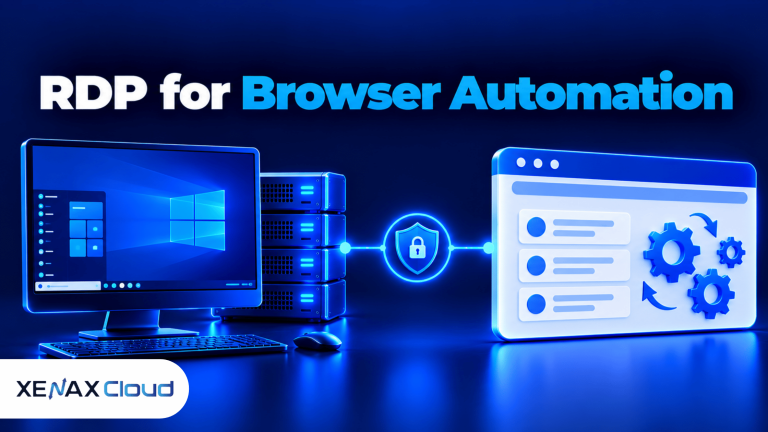
RDP for browser automation is a remote Windows desktop environment that lets you run browser-based tasks and automation scripts on a server instead of keeping them on your personal computer. Developers can use it to run Selenium tests, monitor browser sessions, schedule repetitive workflows and keep automation running on a remote machine.
The right setup depends on whether your scripts need a visible browser, how many sessions run concurrently and which applications or dependencies they require. Xenax Cloud offers Windows-based RDP on KVM virtual machines from its Tier-III data centre in Banda, Uttar Pradesh, India.
This article explains how to set up Selenium, choose server resources, protect browser sessions and decide when a remote desktop is more suitable than a headless automation environment.
What Is RDP for Browser Automation?
RDP for browser automation is a Windows remote desktop environment accessed through Remote Desktop Protocol (RDP) that can host browsers, automation scripts and related tools. RDP provides remote access to the desktop; Selenium or another automation framework performs the browser actions.
This distinction matters because RDP is not itself a browser automation framework. It lets you connect to the remote Windows environment, install dependencies, launch applications, inspect browser behaviour and troubleshoot scripts.
A typical setup contains these components:
- Windows RDP server: The remote Windows environment where scripts and browsers run.
- Automation framework: Selenium WebDriver or another compatible tool that issues browser commands.
- Browser: A supported browser such as Chrome or Firefox, installed and configured on the server.
- Browser driver or automation interface: The component that lets the automation framework communicate with the browser, according to the browser and framework versions.
- Script and dependencies: The code, libraries, test data and configuration required for the task.
- Remote access: RDP for administration, troubleshooting and viewing the desktop when a visible session is useful.
A browser automation server may also run without an interactive desktop session. That can be more suitable for scheduled jobs or continuous integration, while a full RDP desktop helps when you need to observe a browser, troubleshoot visual problems or interact with Windows applications.
How Does RDP for Selenium Work?
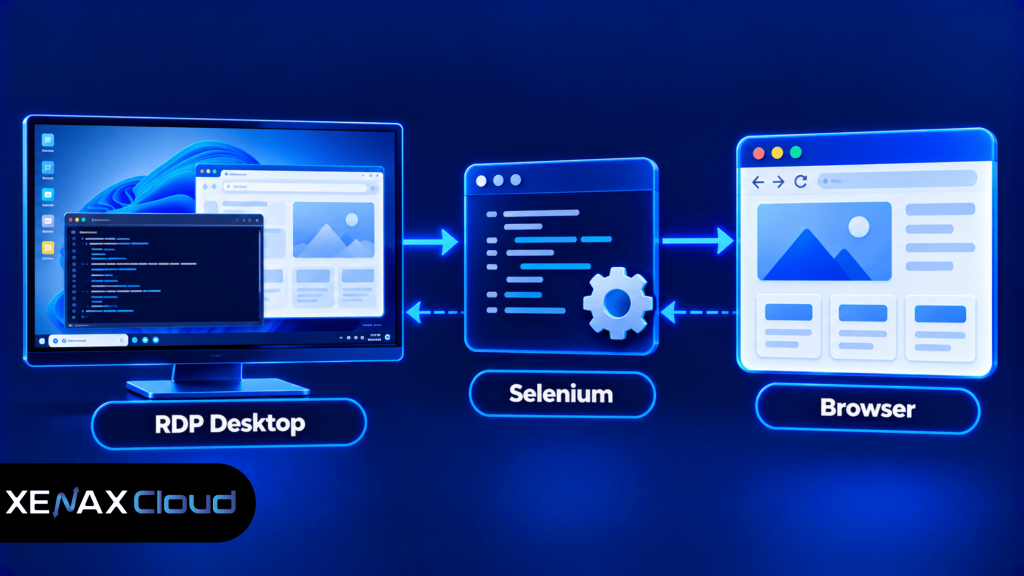
RDP for Selenium gives you a remote Windows machine on which Selenium scripts can launch and control supported browsers. You connect to the machine using RDP, configure the software, and run the scripts locally on that remote machine.
Selenium WebDriver is an automation interface that allows code to control a browser through supported browser-specific mechanisms. It can navigate to pages, locate elements, enter text, click buttons and verify page behaviour, subject to the site, browser and automation configuration.
The basic flow is:
- You connect to the remote Windows desktop.
- Your script starts on the remote machine.
- Selenium sends commands through the supported browser automation interface.
- The browser loads the page and performs the requested actions.
- The script checks the result and records success, failure or diagnostic information.
This architecture keeps the browser process and script execution on the RDP server rather than relying on your local computer to run them. Your local device primarily provides the remote connection and the interface you use to manage the session.
Which Browser Automation Tasks Fit an RDP Server?
An RDP server can support browser tasks such as:
- Testing website forms, navigation and user-interface behaviour.
- Running repeated quality-assurance checks on applications you own or are authorised to test.
- Checking rendering and workflows in a controlled browser environment.
- Running scheduled browser-based administrative tasks where automation is permitted.
- Investigating browser errors by observing the remote desktop.
RDP is not a way to bypass website access controls, CAPTCHAs, rate limits or account restrictions. Only automate websites and workflows you are authorised to use, and respect the target service’s terms, privacy rules and request limits.
How to Set Up Selenium on a Windows RDP Server
You can set up Selenium on a Windows RDP server by preparing the operating system, installing a supported browser and runtime, configuring Selenium and running a small test script. The exact installation steps depend on your programming language, browser and current software versions.
Steps to Prepare the Environment
- Provision a Windows RDP server with enough CPU, RAM and storage.
- Connect using an authorised Remote Desktop account.
- Update Windows and apply the required security updates.
- Install a supported browser and the required programming runtime.
- Configure Selenium and its supported browser automation components.
- Run a small test against a website you own or are authorised to test.
- Record results and configure logs, scheduling and recovery where needed.
Before installing packages, check the current Selenium documentation for the supported browser and driver setup. Modern browser and Selenium releases may manage driver installation differently from older tutorials, so avoid copying a driver version or installation command without checking compatibility.
Example: A Python Selenium Script
Once Python, Selenium and a supported browser are installed and configured, a simple test can open a page and print its title. The example below is intended for a site you own or have permission to test.
from selenium import webdriverdriver = webdriver.Chrome()try: driver.get(“https://example.com”) print(driver.title)finally: driver.quit()
The browser opens on the remote server, not on your local computer. Replace the example address with an authorised test target, and use the Selenium documentation to confirm the correct browser setup for your installed versions.
For production automation, add appropriate exception handling, useful logs, timeouts and clear failure reporting. If the script interacts with authenticated services, keep credentials outside the source code and use protected configuration or a suitable secret-management method.
How Much RAM and CPU Does Browser Automation Need?
Browser automation resource needs depend on the browser, page complexity, script design and number of simultaneous sessions. A single lightweight test can use fewer resources than several browser instances running pages with large scripts, media or complex applications.
The operating system, browser, automation runtime and any supporting services all use memory. CPU demand can rise during page rendering, JavaScript execution, screenshots, file processing and parallel test runs.
Use this table as a starting point for sizing, not as a guaranteed session limit.
| RDP configuration | Possible workload | What to monitor |
| 2 vCPU, 4 GB RAM | Light, single-session automation | Memory headroom and browser responsiveness |
| 4 vCPU, 8 GB RAM | Regular testing or a heavier single session | CPU load, memory use and run duration |
| 8 vCPU, 16 GB RAM | Several concurrent sessions, depending on workload | Per-session resource use and contention |
| 16 vCPU or more, 32 GB RAM or more | Resource-intensive workloads or higher concurrency | Peak load, memory pressure and test stability |
These are illustrative workload categories, not a claim that a given configuration can run a fixed number of browsers. Actual usage varies with the pages being tested, browser settings, extensions, downloads, screenshots and the amount of concurrency.
Xenax Cloud Speed RDP configurations range from 2 vCPU and 4 GB RAM to 32 vCPU and 64 GB RAM. General RDP provides more RAM per vCPU, while Gold RDP uses high-frequency Xeon Gold processors. Check the available configurations against the workload before selecting a plan.
A Practical Resource Decision Rule
Choose 2 vCPU and 4 GB RAM if you run one light browser session and monitoring shows enough memory remains available during a full test. Consider 4 vCPU and 8 GB RAM if a session regularly causes memory pressure or CPU saturation, or if the same machine runs additional applications.
Choose a larger configuration when several independent sessions need to run at once and testing confirms that the current server is constrained. If you need many isolated workers, a distributed automation setup may be more appropriate than putting every browser process on one desktop.
RDP for Browser Automation vs a Headless Browser Server
RDP is useful when you need an interactive Windows desktop, while a headless browser server runs browser automation without displaying a normal visible browser window. The better choice depends on how you operate, observe and troubleshoot the automation.
An interactive desktop makes it easier to inspect pop-ups, view browser rendering and diagnose steps that behave differently from expectations. A headless environment can be more suitable for unattended jobs where graphical interaction is not required.
| Requirement | Windows RDP desktop | Headless browser server |
| Observe a visible browser | Suitable | Usually not visible by default |
| Debug visual or desktop issues | Convenient | May require screenshots, logs or remote debugging |
| Run scheduled unattended tasks | Possible with careful session design | Often a natural fit |
| Operate Windows desktop applications | Suitable where supported | Usually not the main purpose |
| Manage multiple isolated workers | Possible, but resource use must be planned | Often easier to design as separate workers |
A visible desktop does not guarantee that every automation job will work. Browser permissions, session state, Windows updates, pop-up behaviour and login requirements can still affect execution.
If you need a browser automation server that runs reliably without someone watching the desktop, design the process around scheduled jobs, process supervision, logging and recovery. For visual debugging or workflows tied to Windows applications, an RDP desktop can be easier to operate.
For official technical details, consult the Selenium documentation, which explains WebDriver, supported browsers and automation setup.
When Should You Use a Browser Automation Server?
A browser automation server is a remote machine or service that executes browser automation workloads independently of your everyday computer. It is useful when jobs need a consistent environment, scheduled execution or access to resources that should remain on a server.
A dedicated automation environment can separate test dependencies from your personal computer and make it easier to manage logs, access permissions and scheduled runs. It also means you must maintain the server, update browser components and protect any stored credentials or session data.
Use a browser automation server when:
- Scripts need to run on a predictable schedule.
- Your local computer must remain available for other work.
- Browser tests require a consistent Windows environment.
- You need to collect logs and results centrally.
- Several automation jobs need planned resource allocation.
A single RDP server can be sufficient for a small workload. If jobs require different browser versions, isolated environments or high concurrency, consider separate virtual machines or workers rather than sharing one desktop environment among every task.
How to Keep Browser Automation Secure
Browser automation can interact with logged-in accounts and sensitive pages, so server access and script permissions need careful handling.
- Use strong credentials and restrict RDP access to authorised users.
- Apply Windows security updates and keep browsers and automation dependencies current.
- Store passwords and API credentials outside scripts and source repositories.
- Avoid placing session cookies, downloaded customer data or screenshots in publicly accessible folders.
- Review scheduled tasks and remove unnecessary permissions.
- Keep logs useful for troubleshooting without recording secrets or sensitive personal information.
Before testing an authenticated website, use an account and test data that you are authorised to use. Back up important scripts and configuration before changing the environment, and check that automated actions cannot unintentionally submit transactions, delete records or alter production data.
Worked Example: An Indian QA Team Running Selenium Tests
Consider a software agency in Lucknow with three QA staff who need to run browser tests against a staging website. They want a shared Windows environment for debugging and repeatable test runs, rather than depending on one employee’s laptop.
The team can begin by evaluating a Xenax Cloud Speed RDP configuration with 4 vCPU and 8 GB RAM if its tests use a browser plus the normal Windows desktop and development tools. This gives the team more CPU and memory headroom than the smallest Speed RDP configuration, which has 2 vCPU and 4 GB RAM.
The smaller configuration may still work for one light test session. However, if the three staff members need independent browser sessions at the same time, the team must test concurrency rather than assume that a single desktop has enough capacity for everyone.
Use this decision rule:
- One light browser session: Start by evaluating 2 vCPU and 4 GB RAM.
- Regular testing with development tools: Evaluate 4 vCPU and 8 GB RAM.
- Several concurrent browser sessions: Measure peak CPU and RAM use, then move to a larger configuration if the current one becomes constrained.
- Many isolated workers or separate browser environments: Consider multiple RDP servers or a dedicated automation architecture instead of relying on one shared desktop.
These are sizing recommendations, not guaranteed session counts or performance results. Xenax Cloud’s Speed RDP, General RDP and Gold RDP families provide different resource configurations, so compare their specifications with the test workload.
Review the Xenax Cloud Indian RDP hosting options when you need a remote Windows environment with administrator access. Xenax Cloud’s RDP infrastructure is hosted in India, at its Tier-III facility in Banda, Uttar Pradesh.
RDP for Browser Automation: FAQs
Can I run Selenium on a Windows RDP server?
Yes, Selenium can run on a compatible Windows RDP server when the required programming runtime, browser and automation components are installed correctly. Connect to the remote desktop, configure the environment and run a test against an authorised website. Check Selenium’s current documentation for supported browser setup and version compatibility.
Is RDP for Selenium better than running Selenium locally?
RDP for Selenium is useful when scripts need to run on a remote Windows machine independently of your personal computer. Local execution may be simpler for development on one device, while RDP can help centralise scheduled tasks and provide a consistent environment. The choice depends on access, maintenance and workload requirements.
How much RAM do I need for browser automation?
A light browser automation workload can be evaluated on a server with 4 GB RAM, but heavier pages and concurrent sessions can require substantially more memory. Monitor total Windows and browser memory use during representative runs. Increase RAM when the workload regularly creates memory pressure or causes unstable execution.
Can browser automation run without an RDP desktop?
Yes, browser automation can run in a headless environment without a normal visible desktop. This is useful for unattended jobs and automated testing pipelines. A visible RDP session is more convenient for observing browser behaviour and diagnosing visual issues, so select the environment that fits your debugging and operating needs.
Is a browser automation server safe to use?
A browser automation server can be operated securely when access, credentials, updates and stored data are managed properly. Restrict remote access, use protected secret storage, update the browser and operating system, and avoid logging sensitive information. Automate only websites and accounts you are authorised to access, following their applicable rules.
Can I run multiple Selenium sessions on one RDP server?
Yes, multiple Selenium sessions can run on one RDP server if the operating system, browser processes and automation workload have sufficient resources. There is no universal session limit. Start with a controlled test, measure CPU and RAM under concurrency, and use separate workers if sessions interfere with one another.
What should I choose for scheduled browser automation?
Choose a Windows RDP environment if the workflow needs a visible desktop or Windows-specific applications. For unattended browser jobs, a headless browser automation server may be easier to schedule and supervise. In either case, configure logging, error handling, protected credentials and a recovery process before relying on the automation.
For a light browser workflow, evaluate Xenax Cloud Speed RDP with 2 vCPU and 4 GB RAM; for regular Selenium testing with additional tools, consider 4 vCPU and 8 GB RAM. If several browser sessions must run concurrently, use measured CPU and memory demand to choose a larger RDP configuration or a separate browser automation architecture.