If you run MetaTrader 5 from a laptop that must stay switched on, an RDP server can give you a separate Windows environment that remains available remotely. For Indian traders comparing rdp for forex trading, the practical questions are usually RAM, CPU, Windows access, network location, backup and monthly cost.
This article explains how to size an RDP for MT5, how to connect to it, and where the available Xenax Cloud RDP plans fit. The goal is to help you choose a configuration based on your number of MT5 terminals and other applications rather than simply buying the largest server.
Why RDP for Forex Trading Works for MT5
RDP for forex trading works by running MT5 on a remote Windows server while you control that Windows desktop from your own computer.
RDP means Remote Desktop Protocol, the Microsoft technology used to access a Windows computer remotely. The trading application runs on the remote machine, while your local device displays and controls the session. Microsoft documents RDP as the protocol used for communication between a Remote Desktop client and server.
This setup can be useful when you need MT5 to remain running while your personal computer is shut down. It also separates the trading software from your everyday laptop, so you can connect to the same Windows environment from another supported device.
For an MT5 workload, CPU and RAM matter more than simply looking at the RDP label. A terminal with multiple charts, indicators, Expert Advisors and market-data activity can use more resources than a basic desktop session.
An RDP server also does not automatically make a trading strategy profitable or eliminate trading risk. Its job is to provide the remote Windows environment in which your software operates.
How Much RAM Does MT5 Need on an RDP?
The RAM you need for MT5 depends mainly on how many terminals, charts, Expert Advisors and other Windows applications run at the same time.
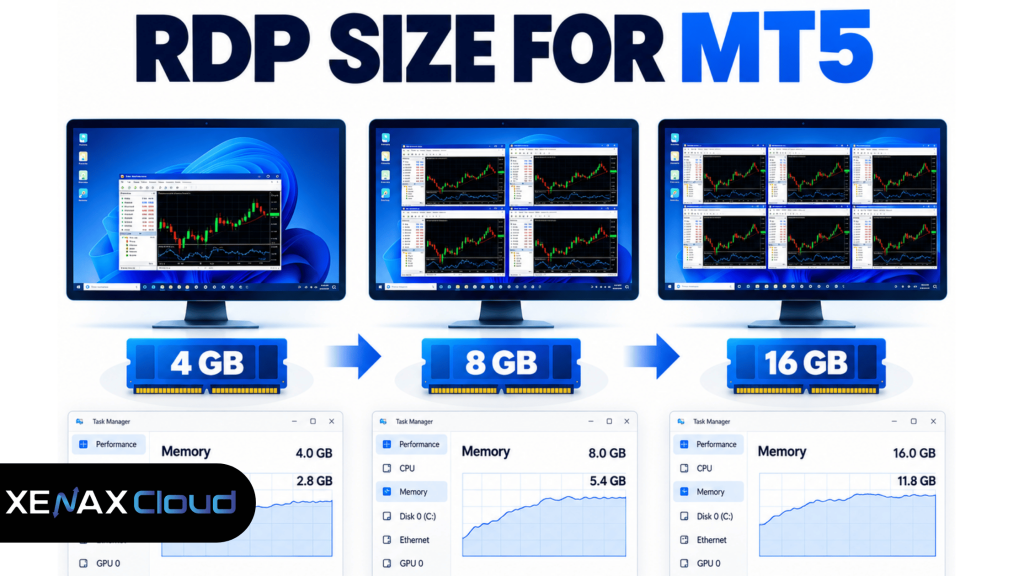
A useful starting point is to treat 4 GB as a light configuration and move to 8 GB or more as the number of concurrent applications increases. RAM is working memory, so insufficient memory can affect the responsiveness of Windows and applications running together.
| Workload | Practical starting point | Xenax Speed RDP option |
| One light MT5 terminal | 4 GB RAM | Rs 649/month |
| MT5 plus additional charts/apps | 8 GB RAM | Rs 949/month |
| Several heavier workloads | 16 GB RAM | Rs 1,599/month |
| Larger multi-application setup | 24 GB RAM | Rs 2,199/month |
These are configuration starting points, not guaranteed MT5 performance figures. The actual requirement depends on the software, chart count, Expert Advisors, indicators and other processes running on Windows.
Xenax Cloud’s Speed RDP range uses Windows on KVM, with a 500 Mbps port, weekly free backup and one IPv4. The listed configurations range from 2 vCPU and 4 GB RAM to 32 vCPU and 64 GB RAM.
RDP for Forex Trading: What Should You Pay?
For a single MT5 workload, the listed Speed RDP plans provide a clear starting range from Rs 649 to Rs 1,599 per month for 4 GB to 16 GB RAM.
The 4 GB Speed RDP plan costs Rs 649 per month and includes 2 vCPU. The 8 GB plan costs Rs 949, while the 16 GB plan costs Rs 1,599. Larger options continue through 24 GB, 32 GB, 40 GB, 48 GB and 64 GB configurations.
For buyers who want more memory at the same time, Normal RDP starts at Rs 749 for 2 vCPU and 8 GB RAM. Its next listed configuration is Rs 1,149 for 4 vCPU and 16 GB RAM.
Gold RDP also starts at Rs 749 with 2 vCPU and 4 GB RAM and uses the Gold VPS/RDP family specifications. The available configurations increase through 64 GB RAM.
For an Indian buyer, the important point is to compare the actual CPU and RAM configuration rather than comparing only the product name.
For RDP hosting details and the available configurations, see Indian RDP hosting.
A Jaipur Trader Running Three MT5 Terminals
A Jaipur trader running three MT5 terminals alongside normal Windows applications would have a stronger starting case for 16 GB RAM than the 4 GB configuration.
Consider a trader who keeps three MT5 terminals open, uses multiple charts and indicators, and also keeps a browser and spreadsheet application running. A 4 GB server may leave less memory headroom for the combined Windows workload, so the Rs 649 Speed RDP plan would not be the sensible starting configuration for this particular workload.
The Rs 1,599 Speed RDP configuration provides 8 vCPU and 16 GB RAM. At that listed monthly price, the annual service cost before any applicable policy adjustment would be:
Rs 1,599 × 12 = Rs 19,188 per year.
The cheaper Rs 949 plan provides 4 vCPU and 8 GB RAM. It costs Rs 11,388 for twelve months, but it provides half the listed RAM and CPU resources of the 16 GB configuration.
That does not mean every three-terminal MT5 setup needs 16 GB. If the terminals are light and other applications are minimal, 8 GB may be sufficient. The correct decision depends on actual resource usage.
A useful rule is to check Windows Task Manager while the complete workload is running. If memory stays close to the available limit or Windows begins relying heavily on the page file, moving to a higher-memory configuration is worth considering.
Forex RDP India: What You Get at the Server Level
Forex RDP India buyers should check the underlying virtualisation, network port, backup and Windows environment rather than focusing only on the monthly price.
Xenax Cloud’s RDP plans run Windows on KVM, with the same network and backup characteristics listed for its VPS range. The stated port is 500 Mbps, and weekly free backup is included.
KVM is a virtualisation technology that allows a physical server to run isolated virtual machines. For an RDP customer, this means the Windows environment is provided as a virtual machine rather than as a shared desktop session on the host operating system.
The Xenax Cloud facility is a Tier-III data centre in India. There are no Xenax Cloud servers in the US, Singapore, Europe or other overseas locations.
That location matters when your main requirement is an India-hosted Windows environment. It does not by itself determine how a broker’s trading servers will respond, because the route between the RDP server, broker infrastructure and market-data services also affects network behaviour.
How to Connect MT5 Through Windows RDP
The basic connection process is to open the Windows Remote Desktop client, enter the server address, authenticate, and then install or open MT5 inside the remote Windows session.
Microsoft’s current documentation supports Remote Desktop connections through its Windows Remote Desktop client and Windows App across supported devices.
- Open Remote Desktop Connection on your Windows computer.
- Enter the RDP server IP address or hostname.
- Enter the Windows username supplied for the server.
- Authenticate and open the remote Windows desktop.
- Install MT5 inside the remote Windows environment if it is not already installed.
- Sign in to your MT5 account using the credentials supplied by your broker.
- Configure only the charts, indicators and Expert Advisors you actually need.
- Open Task Manager > Performance and observe CPU and memory usage while the complete workload is active.
- If memory remains consistently close to the limit, consider moving to a higher-RAM configuration.
Microsoft recommends keeping Network Level Authentication enabled where possible because it requires authentication before a remote session is established.
For a trading workstation, also use a strong unique Windows password and restrict access to authorised users. Do not install unrelated software simply because the remote machine has spare capacity.
When 4 GB, 8 GB or 16 GB Makes Sense
Choose 4 GB for a light single-terminal setup, 8 GB when several applications share the desktop, and 16 GB when the combined workload needs more memory headroom.
The following rule keeps the decision simple:
- 4 GB: one light MT5 terminal with limited background applications.
- 8 GB: MT5 plus several charts and ordinary Windows applications.
- 16 GB: multiple MT5 terminals, heavier Expert Advisors, browsers or other applications running concurrently.
- 24 GB and above: larger workloads where monitoring shows sustained memory pressure or several resource-intensive applications need to remain active.
CPU should be considered alongside RAM. If CPU usage repeatedly reaches a high level during your actual workload, adding memory alone may not solve the problem.
For example, moving from 4 GB to 8 GB changes the available memory, but it does not automatically solve a CPU-bound Expert Advisor. Conversely, adding more CPU does not help much if Windows is constrained by insufficient RAM.
What Happens If Your MT5 Workload Grows?
If MT5 begins using more CPU or RAM as you add terminals and applications, upgrading the RDP configuration is preferable to running an overloaded Windows session.
A practical upgrade path is to move from 4 GB to 8 GB, then to 16 GB or higher when monitoring shows the additional capacity is required. Xenax Cloud lists Speed RDP configurations up to 32 vCPU and 64 GB RAM, giving room for larger Windows workloads.
The same principle applies if your requirements change from one MT5 terminal to several. Size the server around concurrent usage rather than the total number of applications you might install.
The Rs 1 trial can also be relevant if you are unsure whether the Windows environment suits your workload before purchasing. The listed RDP trial provides 4 vCPU, 8 GB RAM, 50 GB SSD, 100 Mbps and Windows Server 2022; it is fixed configuration, requires KYC, runs until midnight on the same day and all data is deleted afterwards.
Frequently Asked Questions
Can I run multiple MT5 terminals on one RDP?
Yes, multiple MT5 terminals can run in one Windows RDP session, but the required resources increase with each additional terminal, chart, indicator and Expert Advisor. Start by monitoring CPU and memory in Task Manager, then increase the RDP configuration if the combined workload approaches the available limits.
How much does an RDP for forex trading cost?
The listed Speed RDP range starts at Rs 649 per month for 2 vCPU and 4 GB RAM. The 8 GB configuration costs Rs 949 and the 16 GB configuration costs Rs 1,599 per month, with larger configurations available for higher workloads.
Does the RDP stay available when my laptop is switched off?
Yes, the Windows RDP server continues running independently of your local laptop, provided the server itself remains active. You can disconnect your local session and reconnect later, allowing applications running on the remote Windows environment to remain available.
Can I test an RDP before buying?
Yes, the listed Rs 1 trial includes an RDP configuration with 4 vCPU, 8 GB RAM, 50 GB SSD, 100 Mbps and Windows Server 2022. It is a same-day trial with KYC, and all trial data is deleted at midnight that day.
Can I upgrade if my MT5 workload needs more RAM?
Yes, the available RDP families include configurations with progressively higher RAM and CPU resources. For example, Speed RDP ranges from 4 GB to 64 GB RAM, so you can move to a larger configuration when monitoring shows that your current resources are insufficient.
If you are unsure about the required configuration, start by measuring the complete MT5 workload in Windows Task Manager or use the fixed Rs 1 trial to assess the Windows environment before committing to a regular plan.
LINKS USED
Product page linked: Indian RDP hosting — used where the reader is ready to review the available Windows RDP configurations.