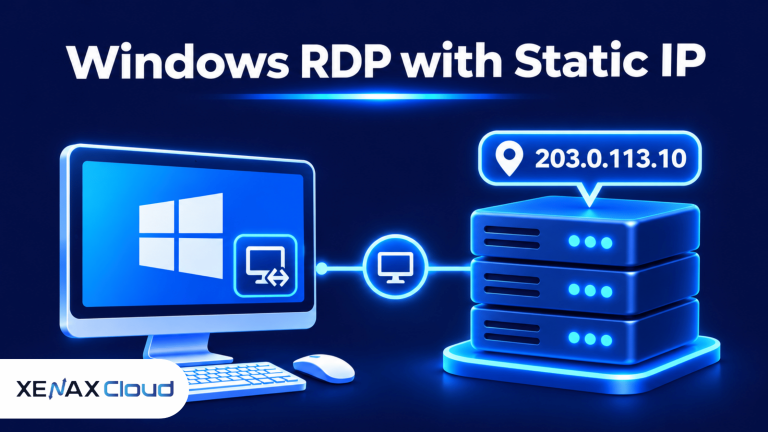
Windows RDP with static IP gives you a remote Windows desktop that can be reached through a consistent public IP address. This is useful when you manage business software remotely, connect from approved networks, or configure IP-based access rules. The key is confirming that the address is genuinely static and assigned for your use.
A remote desktop can remain accessible even when your office internet connection changes its public IP. A dedicated address also makes it easier to identify your server in firewall rules, access policies and network records.
However, a static IP does not automatically make a Windows server secure. You still need appropriate authentication, firewall restrictions, Windows updates and account permissions. The following sections explain what to check before ordering an RDP server.
What Is Windows RDP with Static IP?
Windows RDP with static IP is a remote Windows desktop service that uses a public IP address intended to remain unchanged. You connect to the server using Microsoft Remote Desktop, its IP address and valid login credentials.
Remote Desktop Protocol (RDP) is a Microsoft protocol that allows a user to interact with a remote Windows computer through a network connection. The remote computer processes applications and stores files, while your local device displays the desktop and sends keyboard and mouse input.
A static IP address is an internet address that remains assigned to a connection instead of changing periodically. A dedicated IP address is an address allocated for the use of one customer or server rather than shared among unrelated customers.
These terms describe different properties. Static refers to whether the address changes; dedicated refers to whether the address is shared. A dedicated address is commonly configured as static, but you should confirm both properties with the provider.
For example, a business may need its remote desktop to be reachable from an office firewall that permits connections only from approved public IP addresses. If the server address changes, the firewall rule may stop matching. A stable address avoids repeatedly updating that rule.
How Does a Dedicated IP Help with Remote Desktop?
An RDP with dedicated IP gives your server an identifiable public address that is not shared with unrelated customers. This can simplify access management, firewall configuration and connections from approved networks.
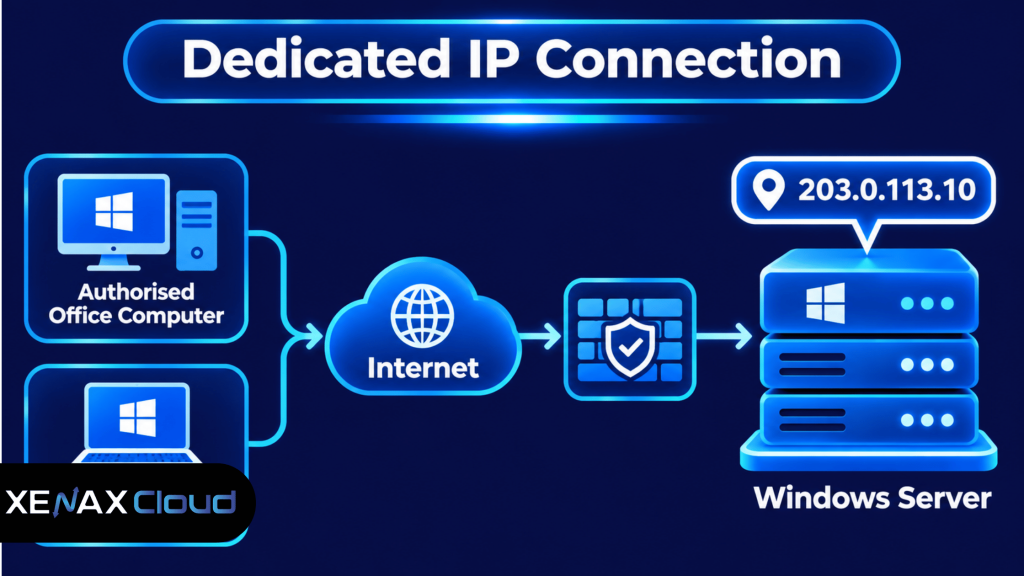
A consistent address is particularly useful when a business maintains an allowlist. An allowlist is a set of approved IP addresses or devices permitted to access a service. You can configure a firewall to accept remote connections only from the public addresses your organisation trusts, where the network and provider configuration support that arrangement.
A dedicated address can also make troubleshooting clearer. If several unrelated customers share one public address through network address translation, identifying which customer or connection caused a problem can be more complicated. With a dedicated address, the server has its own identifiable public endpoint.
There are limits. A static address does not encrypt every application, prevent password attacks or stop malware. It also does not guarantee that a remote desktop will be reachable if the server is offline, a firewall blocks the connection or the provider has a network issue.
Static IP Remote Desktop vs Shared or Dynamic IP
Static IP remote desktop is easier to manage when you need a consistent server address, while a dynamic address can be suitable for temporary or changing connections. The right choice depends on how your applications and security rules identify the remote server.
| Address arrangement | What it means | Main advantage | Main limitation |
| Static dedicated IP | One customer or server uses an address intended to remain unchanged | Stable endpoint and simpler allowlisting | Confirm allocation and replacement policy |
| Dynamic IP | The address can change over time | Suitable for connections that do not require a fixed endpoint | Address changes can interrupt IP-based rules |
| Shared public IP | Multiple customers use the same public address | Provider can share address resources | Less direct address identification |
| Private IP | Address is used inside a private network | Useful for internal communication | Not directly reachable from the public internet without routing or a gateway |
A fixed public IP is useful when a third-party application requires an approved source address. It is also helpful when administrators connect to the same remote server from multiple locations and want to avoid updating connection details after address changes.
A shared or dynamic address may be sufficient if you only connect through a managed gateway, VPN or another service that provides a stable endpoint. Do not pay for a dedicated address without identifying the actual requirement that makes it necessary.
The distinction matters during ordering. Ask the provider whether the address is public or private, static or dynamic, dedicated or shared, and whether it remains assigned after a server upgrade or reinstall. These are separate questions, not interchangeable descriptions.
How to Set Up Windows RDP with Static IP
You can set up Windows RDP with static IP by confirming the server address, enabling remote access, securing authentication and testing the connection from an authorised device.
- Confirm the IP allocation. Ask the provider whether your server receives a public static IPv4 address dedicated to your service.
- Collect connection details. Keep the server IP address, administrator username and initial password in a secure password manager.
- Open Remote Desktop Connection. On your Windows computer, search for Remote Desktop Connection from the Start menu.
- Enter the server address. Put the public IP address in the Computer field.
- Authenticate securely. Enter the assigned Windows credentials and verify the server identity before accepting the connection.
- Review Windows security. Keep Network Level Authentication enabled and apply current Windows security updates.
- Restrict incoming access. Where possible, allow RDP connections only from approved source IP addresses or through a VPN or Remote Desktop Gateway.
The usual Remote Desktop port is TCP 3389, although administrators can configure a different port or use a gateway-based design. Changing the port alone is not a substitute for authentication and firewall restrictions. Microsoft advises caution when exposing a computer directly to the internet and recommends using a VPN where appropriate.
For the official Windows instructions, see Microsoft’s guide to enabling Remote Desktop. It explains how to enable access, connect using an IP address and use Network Level Authentication.
Before changing firewall rules on a production server, retain an alternative recovery route through the provider’s management console or support process. A rule that blocks your own public IP can lock you out of the remote desktop.
A dedicated IP alone does not protect your Windows server from attacks. To secure your remote desktop properly, follow these Windows RDP security settings and protection steps, including Network Level Authentication, firewall restrictions, strong passwords and login monitoring.
Which Xenax Cloud RDP Configuration Should You Choose?
The right Xenax Cloud RDP configuration depends on the workload’s CPU demand, memory use and storage activity. A static IP requirement should be confirmed separately with the provider before you place an order.
Xenax Cloud provides Windows RDP on KVM virtualisation with administrator access. Its RDP range includes Speed RDP, General RDP and Gold RDP, with different resource configurations for different workloads.
| RDP family | Resource approach | Suitable workload |
| Speed RDP | SSD storage with configurations from 2 vCPU and 4 GB RAM to 32 vCPU and 64 GB RAM | Applications with frequent storage activity |
| General RDP | More RAM per vCPU, from 2 vCPU and 8 GB RAM to 16 vCPU and 64 GB RAM | Memory-heavy office applications and multitasking |
| Gold RDP | High-frequency Intel Xeon Gold processors, from 2 vCPU and 4 GB RAM to 32 vCPU and 64 GB RAM | Workloads that benefit from higher CPU frequency |
All three families use Windows on KVM and follow the RDP infrastructure and backup arrangement described by Xenax Cloud. The RDP network port is 500 Mbps. Do not assume that a particular public IP allocation is static or dedicated until the service details confirm it.
For a closer look at available configurations, review Xenax Cloud’s Windows RDP plans. Ask support to confirm the public IPv4 allocation, whether it is static and dedicated, and what happens to the address if you upgrade or rebuild the server.
Worked Example: Which RDP Fits a Small CA Office?
A small CA office with six staff members needs a Windows server for accounting applications, document work and remote access. The correct RDP size depends on whether the staff work in one shared session or require separate simultaneous Windows sessions.
Suppose the office runs one main accounting application, a browser, PDF tools and document software. The workload needs sufficient memory for the application and its supporting processes, while CPU demand depends on how many tasks run at the same time.
A General RDP configuration is a reasonable starting point to evaluate because that family provides more RAM per vCPU. Its entry configuration has 2 vCPU and 8 GB RAM. If the office runs several memory-heavy applications concurrently or experiences sustained memory pressure, a larger General RDP configuration may be more appropriate.
The smaller configuration is not automatically sufficient just because six employees use the office. Windows Server licensing and Remote Desktop Services configuration determine how many users can have simultaneous remote sessions. A standard administrative RDP setup should not be treated as a licensed multi-user desktop environment.
For a six-person office that genuinely requires six concurrent desktop sessions, confirm the Windows Server licensing and Remote Desktop Services requirements before choosing the server size. If the application is CPU-intensive rather than memory-intensive, compare Gold RDP instead of selecting more RAM by default.
How Should You Secure a Static IP Remote Desktop?
A static IP remote desktop should use strong authentication, restricted incoming connections and regular Windows maintenance. A fixed address makes access rules easier to manage, but it does not replace security controls.
Start with Network Level Authentication (NLA). NLA requires a user to authenticate before a full remote desktop session is established. Keep it enabled where the Windows server and client support it.
Use separate named accounts for staff instead of sharing the administrator password. Give each account only the permissions required for its work, and remove access when an employee no longer needs it.
Apply these controls as part of routine administration:
- Use unique, strong passwords and store them in a password manager.
- Enable multi-factor authentication through a compatible access solution where available.
- Restrict incoming RDP connections to approved source IP addresses or a suitable VPN or gateway.
- Keep Windows Server security updates current.
- Review Windows Firewall inbound rules and sign-in logs.
- Maintain a separate backup and recovery process for business data.
A common mistake is assuming that an IP address becomes safe simply because it is dedicated. Attackers can still discover exposed remote desktop services, attempt password attacks and exploit unpatched software. The address identifies the server; authentication and access controls determine who can use it.
Another mistake is changing firewall rules without checking the administrator’s current public IP. If you remove the address from the allowlist while connected remotely, your next connection may be blocked. Keep a recovery route available before applying restrictions.
When Do You Actually Need RDP with a Dedicated IP?
You need RDP with a dedicated IP when a business application, firewall or access policy requires a stable public address assigned to your server. If your work does not depend on IP-based identification, a standard remote access arrangement may be enough.
Use this decision rule:
- Choose a static dedicated IP if a third-party service requires a fixed server address or you maintain source-IP allowlists.
- Choose a static IP if administrators and business applications need the same public endpoint over time.
- Consider a VPN or Remote Desktop Gateway if you want a controlled access layer instead of exposing RDP directly.
- Consider a shared or dynamic arrangement if you do not need a fixed public endpoint and the provider’s access method meets your requirements.
A static address is not necessary for every remote worker. For example, an employee connecting to a company server through a properly configured VPN may not need the server’s public IP to be dedicated to that employee.
A dedicated address also does not provide a separate Windows user account or additional simultaneous RDP sessions. Those are separate technical and licensing requirements. Confirm them independently before ordering.
Xenax Cloud’s RDP range is intended for customers who need a hosted Windows environment with administrator access and KVM-based resources. If you need a fixed public endpoint, confirm the IP allocation details with support before selecting a configuration. If your workload is mainly memory-heavy, General RDP is worth evaluating; for storage-intensive applications, compare Speed RDP; for CPU-frequency-sensitive work, consider Gold RDP.
If your work requires an Indian public IP address, remember that IP location and IP allocation are two different things. Read our guide on choosing an RDP server with an Indian IP address to understand what to check before selecting your remote desktop server.
Windows RDP with Static IP: FAQs
Is a static IP necessary for Windows RDP?
No, a static IP is not necessary for every Windows RDP connection. You can connect using a changing public address or a hostname that updates when the address changes. A static address becomes useful when a firewall, business application or access policy requires the same public endpoint.
What is the difference between a static IP and a dedicated IP?
A static IP is an address intended to remain unchanged, while a dedicated IP is assigned for one customer’s or server’s use. The terms describe different properties. Before ordering RDP with dedicated IP, confirm that the address is both dedicated and static, and ask about its reassignment policy.
Can I access Windows RDP with static IP from different locations?
Yes, you can connect from different locations if the server is reachable and your account is authorised. Your office, home or laptop can use the same server address. If the server firewall restricts source IP addresses, each connecting location must be permitted or use an approved VPN or gateway.
Is RDP with a dedicated IP more secure?
A dedicated IP does not automatically make RDP more secure. It can help administrators restrict access to known source addresses, but strong passwords, Network Level Authentication, Windows updates and firewall rules remain necessary. Avoid exposing Remote Desktop directly to the internet without suitable access controls.
Can I use a static IP remote desktop for business applications?
Yes, a static IP remote desktop can support business applications that run on Windows, provided the software permits remote use and the server meets its requirements. Check application licensing, RAM, CPU, storage and concurrent-user limits before choosing an RDP configuration.
How much RAM do I need for a Windows RDP server?
The required RAM depends on the applications and the number of concurrent sessions. Xenax Cloud General RDP starts with 2 vCPU and 8 GB RAM, while Speed RDP starts with 2 vCPU and 4 GB RAM. Monitor actual memory use before deciding whether to upgrade.
Does a dedicated IP guarantee uninterrupted RDP access?
No, a dedicated IP does not guarantee uninterrupted access. The server must be running, the network route must be available and firewall rules must permit the connection. Keep business data backed up and maintain an alternative recovery method for situations where remote access is unavailable.
If your application needs a stable public endpoint, choose a Windows RDP configuration that fits its CPU, RAM and storage requirements, then confirm the static dedicated IPv4 allocation with Xenax Cloud before ordering. Evaluate General RDP for memory-heavy office work, Speed RDP for storage activity and Gold RDP for workloads that benefit from higher CPU frequency.