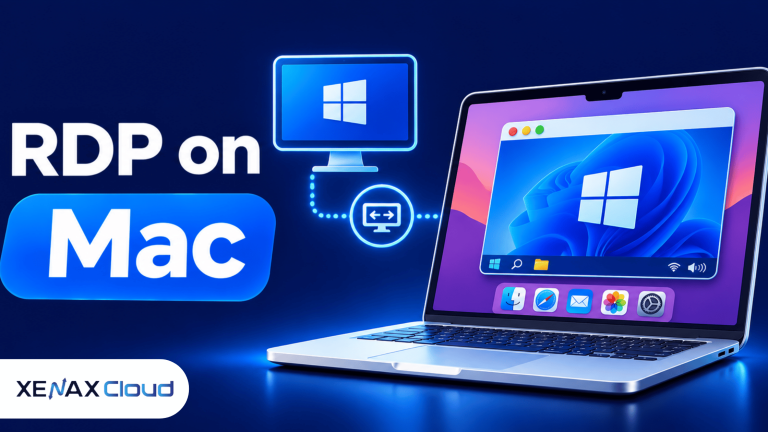
How to use RDP on Mac depends on having a remote Windows computer, its connection address and valid login credentials. Install Microsoft’s Windows App on macOS, add the remote PC using its hostname or IP address, enter the account details and open the desktop to use Windows applications from your Mac.
This setup is useful when a Mac user needs Windows-only business software, a separate testing environment or access to files and applications stored on a remote Windows machine. Your Mac handles the connection, while the remote computer runs the Windows applications.
The steps below explain the Windows App setup, connection settings, file access and the RDP configuration that fits different workloads.
What Does RDP on Mac Do?
RDP on Mac lets you control a remote Windows computer through a graphical desktop displayed on macOS. RDP, or Remote Desktop Protocol, is a Microsoft protocol that sends screen updates from the remote computer to your Mac and transfers your keyboard and mouse input back to Windows.
The Mac acts as the client device; it does not need to run Windows locally. The remote computer runs the operating system, applications and processes, so its CPU, RAM and storage handle the main workload.
This arrangement is useful for several tasks:
- Windows-only applications: Open business or technical software that does not have a suitable macOS version.
- Browser testing: Use Windows browsers to check website behaviour in a separate environment.
- Remote office work: Access documents and applications stored on an authorised Windows computer.
- Development and testing: Use Windows development tools without setting up a separate physical PC.
- Centralised work environments: Keep applications and working files on a remote machine rather than moving them between local devices.
A remote desktop connection does not turn macOS into Windows. The Windows environment remains on the remote computer, and the Mac displays and controls that environment over the network.
How to Use RDP on Mac with Windows App
You can use RDP on Mac through Microsoft’s Windows App, which supports connections to remote PCs and Windows services. For a direct remote PC connection, you need the computer’s hostname or IP address, a user account and network access to the remote machine.
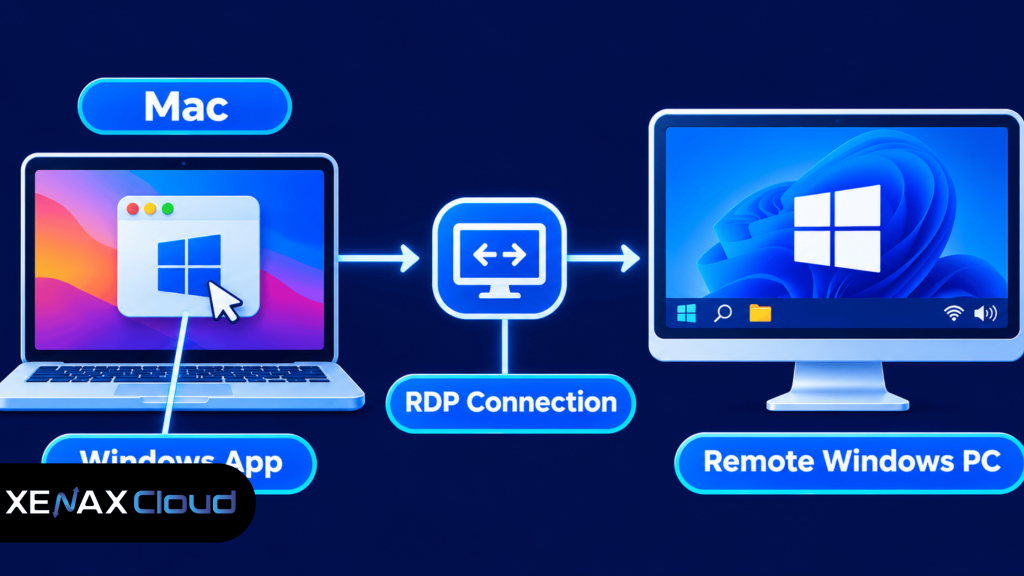
The current Microsoft client for Mac is called Windows App. Microsoft documents the direct PC connection flow through the Devices tab and Add PC option. The app is available through the Mac App Store, and Microsoft’s documentation lists macOS 12.0 or later as a requirement for the Mac connection workflow.
Microsoft Learn+1
How to Set Up Windows App on macOS
Follow these steps to create a remote PC connection:
- Download Windows App from the Mac App Store.
- Install the app and open it on your Mac.
- Open the Devices tab in Windows App.
- Select the plus (+) icon and choose Add PC.
- Enter the remote computer’s hostname or IP address.
- Add the Windows user account if you want to save its login details.
- Save the PC entry and select it to connect.
Use the exact address and credentials supplied by the administrator or hosting provider. If the remote PC uses a non-standard connection port, confirm the required connection format with the provider rather than guessing it.
Once connected, Windows App displays the remote Windows desktop. You can open applications, use the keyboard and mouse, and work with the remote environment according to the permissions assigned to your Windows account.
What Details Do You Need for a Remote Desktop from Mac?
A remote desktop from Mac needs a reachable Windows computer, its connection address, a valid account and network access. Missing or incorrect connection details are common reasons a connection cannot be established.
| Required detail | What it means | Where to get it |
| PC name or IP address | Identifies the remote Windows computer | Hosting provider or system administrator |
| Username | Identifies the Windows account | Provider or administrator |
| Password | Authenticates the account | Supplied securely by the account owner |
| Connection port | Identifies the remote access service when a custom port is used | Provider or administrator |
| Network access | Allows the Mac to reach the remote computer | Network and server configuration |
For a Xenax Cloud RDP server, use the connection address and login details provided with the Windows RDP service. The server runs Windows on KVM and provides administrator access, so you can manage supported applications and Windows settings that require elevated permissions.
Before connecting, check that the Mac has a working internet connection and that the remote Windows server is running. If the address or password has changed, update the saved PC entry rather than repeatedly trying old credentials.
If you are unsure which details belong in Windows App, ask the person who manages the remote server to confirm the hostname or IP address, username and any custom port information.
How to Configure Windows App for Mac RDP
Windows App for Mac RDP lets you adjust connection preferences such as the display, account and device redirection settings. These options affect how the remote desktop appears and which local Mac resources can be made available to the Windows session.
After adding a PC, open its connection settings before connecting. Review the available display options and choose a resolution that is comfortable on your Mac’s screen; a very high resolution can make interface elements difficult to read or require more screen space.
Check the device and audio redirection options if you need access to local resources. Depending on the available settings and remote environment, these can include clipboard, folders, audio or other supported devices. Enable only the access you need, especially when working with confidential business documents.
If the remote desktop looks too small, adjust the display settings in the saved PC entry. If the keyboard behaves differently from your Mac’s usual layout, check the app’s keyboard preferences and the Windows keyboard layout.
A useful starting configuration is to keep the display at a readable resolution, save the correct account details securely and enable only the required local device access. Change one setting at a time if you are troubleshooting an issue, so you can identify which change affected the connection.
What Can You Do with Windows App on Mac?
Windows App on Mac lets you use supported Windows applications through a remote desktop without installing those applications directly on macOS. The applications run on the remote computer, so compatibility depends on the remote Windows environment and the software’s system requirements.
Common examples include:
- Office applications: Work with Windows-based versions of business applications when your organisation has the required software licences.
- Windows browser checks: Test pages and web applications using browsers installed on the remote PC.
- Accounting and business tools: Access supported Windows software that is not available in a suitable Mac version.
- Development utilities: Run Windows-specific tools, command-line utilities and development environments on the remote system.
The phrase windows app mac rdp refers to using Windows App on macOS as the RDP client. It does not mean that every Windows application will work perfectly over a remote session. Software that depends on specialised hardware, local peripherals, graphics features or unsupported drivers may need a different setup.
For example, a Windows application that needs a local USB device may require device redirection, if supported by the client and remote environment. Confirm the application’s requirements before relying on a remote desktop for that workflow.
For additional context on transferring documents between devices, see how to transfer files to RDP. This is useful when the application runs remotely but the source files begin on your Mac.
Worked Example: Which RDP Configuration Fits a Mac User?
A Mac user who runs several Windows applications remotely should choose an RDP configuration based on the combined memory and CPU requirements of those applications. The Mac’s own RAM does not replace the memory required by the remote Windows server.
Consider a design and QA professional in Pune who uses a MacBook for everyday work but connects to Windows to run an IDE, two browser profiles and a local test service. The remote workload reaches about 6 GB of memory use during normal testing, so the user needs additional headroom for Windows and background processes.
General RDP with 2 vCPU and 8 GB RAM is the suitable starting configuration for this workload. Speed RDP’s entry configuration of 2 vCPU and 4 GB RAM would be too constrained for the stated memory requirement, while Gold RDP’s high-frequency Xeon Gold processor does not solve a shortage of RAM.
Use this decision rule:
- Choose Speed RDP with 2 vCPU and 4 GB RAM for one or two light applications and basic remote desktop tasks that fit within the available memory.
- Choose General RDP with 2 vCPU and 8 GB RAM when the remote workload includes an IDE, multiple browser profiles or local supporting services.
- Choose a larger General RDP configuration if monitoring shows sustained memory pressure or the applications require more than 8 GB RAM.
- Consider Gold RDP when CPU-sensitive tasks are the main constraint and the workload does not primarily need additional memory.
Xenax Cloud offers Speed RDP, General RDP and Gold RDP configurations on Windows running on KVM. The RDP service includes administrator access, a 500 Mbps port, one IPv4 address and weekly backups.
General RDP is not the right choice if your workload mainly needs higher CPU frequency rather than additional memory per vCPU. In that case, compare Gold RDP; if you need a Windows desktop for only light applications, Speed RDP may be sufficient.
Is RDP from Mac Safe for Business Work?
RDP from Mac can be used for business work when the remote Windows server, account credentials and network access are managed securely. The connection itself does not remove the need for strong passwords, controlled permissions and safe handling of company files.
Follow these precautions:
- Protect credentials: Use a unique password for the remote Windows account and do not share administrator login details.
- Limit access: Allow only authorised users to connect to the remote server.
- Review redirection: Enable local folder, clipboard or device access only when the work requires it.
- Update Windows: Apply security updates and restart the server when required.
- Separate data: Avoid copying sensitive business records to personal devices unless company policy permits it.
- Keep recovery copies: Confirm that important files and application data have an appropriate backup process.
A remote desktop password alone is not a complete security policy. The server’s firewall, account permissions and access controls should also be configured appropriately, and the remote access service should not be exposed more broadly than necessary.
Xenax Cloud RDP includes weekly backups, but backups should not be treated as the only copy of important business data. Keep separate copies of essential files and check that the recovery process meets your organisation’s requirements.
What Should You Do If RDP on Mac Does Not Connect?
If RDP on Mac does not connect, check the server address, credentials, network reachability and remote access configuration before changing advanced settings. A connection error can come from an incorrect hostname, an unavailable server or a network rule blocking access.
Use this troubleshooting sequence:
- Check that the Mac has an active internet connection.
- Verify the hostname or IP address against the provider’s connection details.
- Confirm the username and password, including the correct Windows account.
- Check whether the remote Windows server is running and accepting connections.
- Review firewall and network access rules with the administrator or provider.
- Update the saved PC entry if the address, account or port has changed.
- Reconnect after correcting the issue and record any error message that remains.
If Windows App reports that the credentials are incorrect, confirm that you are using the Windows account for the remote server rather than your Mac login or a personal Microsoft account. If the connection times out, ask the provider to check server availability and the remote access network path.
If the desktop opens but the screen freezes or responds slowly, check the Mac’s network connection and reduce unnecessary display features. A remote session depends on network quality as well as the server’s available resources.
How to Use RDP on Mac: FAQs
How to use RDP on Mac without installing Windows?
You can use RDP on Mac without installing Windows by installing Microsoft’s Windows App on macOS. Add the remote PC using its hostname or IP address, enter the Windows account credentials and connect. Windows runs on the remote computer, while your Mac displays and controls its desktop.
Is Windows App available for Mac?
Yes, Windows App is available for macOS through the Mac App Store. Microsoft’s documentation lists macOS 12.0 or later for its Mac connection workflow. Install the app, open the Devices tab and use Add PC to create a direct remote computer connection.
Can I access Windows files from my Mac through RDP?
Yes, you can work with files stored on the remote Windows computer through the desktop session. Local folder or device redirection may also be available, depending on the client and server settings. Enable only the access you need, and follow your organisation’s rules for transferring confidential files.
Do I need a Windows computer beside my Mac to use RDP?
No, you do not need a physical Windows computer beside your Mac if you have access to a remote Windows server. The server runs Windows applications and processes, while the Mac acts as the client. You still need a reachable server, valid credentials and a working network connection.
Which Xenax Cloud RDP plan should I choose for a Mac?
Choose Speed RDP for lighter workloads that fit within its entry 2 vCPU and 4 GB RAM configuration. Choose General RDP starting at 2 vCPU and 8 GB RAM when you run several applications together. Consider Gold RDP when high-frequency CPU performance is the main requirement.
Is RDP on Mac suitable for regular office work?
Yes, RDP on Mac can support regular office work when the required Windows applications, licences and remote resources are available. The remote server handles the applications, so check its memory, CPU and storage requirements. Network quality also affects how responsive the session feels.
For a Mac user running an IDE, multiple browser profiles and a local test service, Xenax Cloud General RDP with 2 vCPU and 8 GB RAM is a sensible starting point. Choose Speed RDP for lighter tasks or Gold RDP when CPU frequency is the main requirement, then connect through Windows App using the supplied server details.