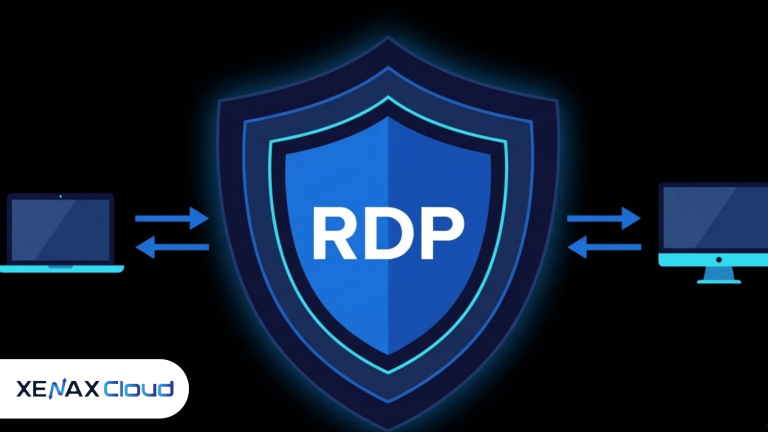
If you need an application to keep running after you close your laptop or lose your internet connection, RDP to run software 24×7 can be a practical setup. The software runs on a remote Windows machine while you connect to that machine through Remote Desktop Protocol (RDP).
The key point is that RDP itself doesn’t make software run continuously. The remote Windows server needs to stay powered on, and its Remote Desktop session must be configured so that disconnecting from the server doesn’t terminate the work. Microsoft documents that disconnected Remote Desktop sessions can keep running programs active on the server.
For Xenax Cloud, the RDP infrastructure is hosted at its single data centre in Banda, Uttar Pradesh, India. So this setup makes sense for users who want a remotely accessible Windows environment hosted in India. It isn’t an overseas server.
RDP to Run Software 24×7: How It Works
RDP, or Remote Desktop Protocol, lets you control a Windows computer remotely as if you were sitting in front of it. Your keyboard, mouse and display are transmitted between your local device and the remote Windows system.
For continuous software execution, the important part is the server, not the RDP window.
For example, suppose you’ve installed a Windows application that needs to stay open overnight:
- You install the application on the remote Windows environment.
- You configure its settings and start the required process.
- You disconnect from RDP instead of shutting down the server.
- The Windows session remains available.
- You reconnect later and continue from the same environment.
Microsoft’s documentation states that applications running when an RDP session is disconnected continue running when the session remains active.
That distinction matters because disconnecting and logging off are not the same thing.
If you log off, Windows ends the user session and applications may close. If you simply disconnect, the session can remain on the server.
Run software 24 hours on RDP without keeping your PC on
The main reason people run software 24 hours on RDP is to move the workload away from their personal computer.
Your laptop doesn’t need to stay switched on just because an application needs to run overnight. The remote server handles the workload while your device is only used to connect when you need to check something.
A simple setup looks like this:
Your laptop → Internet → RDP → Windows server → Application
You can connect from a Windows PC and, depending on the available RDP client, other supported devices as well.
Once the application is running, you can disconnect the RDP session. Microsoft specifically documents that disconnected sessions can keep running programs active.
However, this doesn’t mean every application is automatically suitable for unattended operation. Some programs require an interactive desktop, periodic confirmation, a logged-in user, or their own background-service configuration.
Disconnect instead of signing out
This is one of the most important practical differences.
If you click Disconnect, the session can remain active. If you choose Sign out, Windows ends that session.
Microsoft’s tsdiscon documentation explicitly states that applications running when the session is disconnected remain running and can be available when the session is reconnected.
For software that needs to keep running, use the application’s own documentation to determine whether it can operate unattended, then disconnect the RDP session rather than logging off.
Always on Windows server: what it means
An always on Windows server is simply a Windows-based remote machine that remains powered and connected so workloads can continue without your local computer being online.
The phrase doesn’t mean the server can never experience maintenance, a restart, a network problem or an operating-system update. It means the server is intended to remain available rather than being switched off after you finish using it.
For 24-hour software, check three separate things:
| Requirement | Why it matters |
| Server remains powered on | Your software can’t run if the machine is shut down |
| Application supports unattended operation | Some programs stop when their interactive session ends |
| RDP session policies allow the required behaviour | Session timeouts can disconnect or terminate sessions |
Windows Remote Desktop Services has policies for active, idle and disconnected sessions. Administrators can configure limits that disconnect or terminate sessions, so these settings matter for long-running workloads.
This is why simply buying remote access isn’t enough. The Windows environment and the application both need to support the way you intend to use them.
How to set up RDP for a 24-hour application
Start by choosing a Windows-based remote environment with enough CPU, RAM and storage for the application.
Xenax Cloud’s RDP plans start from ₹649/month. You can review the available configuration on the Indian RDP page.
After provisioning the server, the general workflow is:
1. Connect through Remote Desktop
On Windows, open Remote Desktop Connection and enter the server address supplied with your service.
Authenticate with the credentials associated with the remote Windows environment.
2. Install the required software
Install the application just as you would on a normal Windows machine.
Check its documentation for licensing requirements, background execution and automatic startup.
3. Configure automatic startup if required
If the software needs to start again after a server restart, configure its supported startup mechanism.
For applications that provide a Windows service, scheduled task, or built-in startup option, use the method recommended by the software vendor.
4. Test a disconnected session
Start the application and begin the workload.
Then disconnect from RDP rather than signing out. Reconnect later and verify that the application continued as expected.
5. Check restart behaviour
A 24-hour workload should also be tested after a controlled reboot.
If the application doesn’t automatically start again, you may need to configure Windows startup or the application’s own service mechanism.
This test is more useful than assuming that an RDP server automatically means 24×7 application execution.
What can stop your software from running continuously?
Several different things can interrupt a supposedly continuous workload.
RDP session timeout
Windows can be configured with session limits. An administrator can set maximum idle, active or disconnected periods. Microsoft documents that these policies can cause sessions to disconnect or terminate.
If your application depends on an interactive RDP session, check these policies before relying on it for a long-running task.
Application-specific restrictions
Some software isn’t designed to run unattended. It may require a visible desktop, periodic interaction, an active license session or another component to remain open.
RDP cannot remove those application-level requirements.
Server restart
Operating-system updates, maintenance or administrative restarts can interrupt a workload. If the software supports automatic startup, configure it accordingly and test it.
Application crash
A remote server can remain online while the application itself stops. For critical workloads, use the application’s own logging, restart or monitoring features where available.
Resource exhaustion
CPU, memory or storage pressure can affect application performance. The server should be sized according to the actual software requirements rather than simply choosing a plan because it supports RDP.
Is RDP better than running the software on your own PC?
It depends on what you’re trying to avoid.
If the application only needs to run while you’re using your computer, local execution may be simpler. RDP becomes more useful when you want the workload to continue after you close your laptop, leave the office or disconnect from the internet.
A remote Windows environment also gives you a consistent place to install the software and access its files.
The important distinction is that RDP provides remote access, while the server provides the computing environment where the application actually runs.
For workloads that need Linux rather than Windows, a VPS may be more appropriate. Xenax Cloud’s VPS plans start from ₹599/month, but the operating-system and application requirements should determine which product fits.
How to make a 24-hour RDP setup more reliable
Before putting an important workload on the server, use a small checklist:
- Confirm that the application officially supports unattended or long-running operation.
- Check whether it needs an active logged-in Windows user.
- Disconnect from RDP rather than signing out when appropriate.
- Review Windows session timeout policies.
- Configure the application to start after a restart if supported.
- Keep enough RAM and CPU available for the workload.
- Check storage space if the application continuously creates files or logs.
- Test the complete workflow before relying on it for an important process.
For software that runs as a background service, consider whether it actually needs an interactive RDP session at all. A properly configured Windows service can be a better architecture than keeping a visible application window open.
RDP vs an always on Windows server
These terms are related but aren’t interchangeable.
RDP is the remote-access protocol. It gives you a way to interact with the Windows machine.
An always on Windows server is the remote computing environment that stays available to run your applications.
You can therefore think of the setup as:
Windows server = where the software runs
RDP = how you access it
This distinction helps when troubleshooting. If your RDP window closes but the session remains active, the application may continue running. Microsoft documents this behaviour for disconnected Remote Desktop sessions.
If the Windows server itself shuts down, however, RDP can’t keep the application running.
FAQs
Can I close my laptop while software is running on RDP?
Yes, provided you disconnect from the RDP session rather than shutting down the remote server or signing out. The application can continue running in the disconnected session when the Windows configuration permits it.
Does RDP itself guarantee that software will run 24×7?
No. RDP provides remote access. Continuous execution depends on the Windows server remaining available, the application’s behaviour, session policies and the resources available to it.
What happens if my internet connection drops?
A lost connection can disconnect your RDP session without necessarily ending the session on the remote server. Microsoft documents that a disconnected RDS session can remain running on the server.
Can every Windows application run unattended on RDP?
No. Some applications require an interactive user session or have their own licensing and background-execution restrictions. Check the software vendor’s requirements before deploying it for continuous operation.
What is the starting price for Xenax Cloud RDP?
Xenax Cloud’s Speed KVM RDP starts at ₹649/month. The server is hosted at Xenax Cloud’s single data centre in Banda, Uttar Pradesh, India.
Xenax Cloud Windows RDP vs the usual alternatives
| Feature | Xenax Cloud | Typical Indian shared host | Global budget host |
|---|---|---|---|
| Starting price | ₹649/mo | ₹199/mo | ₹149/mo (renews ₹499) |
| Storage | 40 GB SSD storage | 10 GB SSD | 25 GB SSD |
| DDoS protection | 100 Gbps, always on | Basic | Cloudflare only |
| Support | 24×7, in-house engineers | Tickets, business hours | Chat, outsourced |
| Data centre | India (NVMe) | India | Singapore / US |
| Control panel | cPanel / WHM included | cPanel | Custom panel |
Entry-level plans, list prices including GST where shown. Check each provider before buying — prices change.
See Windows RDP plansWhat to do next
If your application supports unattended Windows execution, start by checking its CPU, RAM, storage and restart requirements. Then choose an RDP configuration that gives it enough resources and test the workload through a disconnect/reconnect cycle before relying on it continuously.
Xenax Cloud‘s RDP plans include a 15-day money-back window, so the setup can be evaluated against the application’s actual requirements.