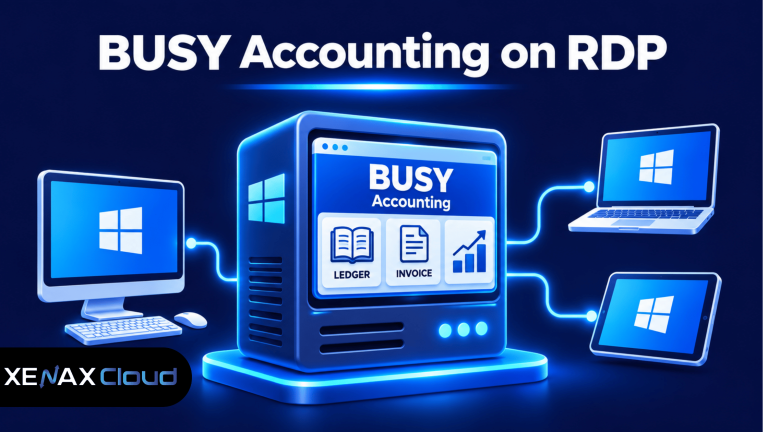
RDP for busy accounting software gives accountants, business owners and finance teams remote access to BUSY through a centrally hosted Windows server. Instead of keeping accounting data on one office computer, you can install BUSY on a remote Windows environment and connect through Remote Desktop Protocol (RDP) from an authorised device.
This arrangement is useful for CA firms, distributors, wholesalers, retailers and businesses that need to access accounting records outside their office. Your accounting application and database remain on the server while your local computer displays the remote Windows desktop.
The important decision is choosing enough CPU, RAM and storage for your BUSY installation, the number of simultaneous users and your database size.
What Is RDP for BUSY Accounting Software?
RDP for BUSY accounting software is a remote Windows desktop arrangement that lets users operate BUSY on a centrally hosted Windows server through an internet connection.
Remote Desktop Protocol (RDP) is a Microsoft networking protocol that transmits desktop display information, keyboard input and mouse input between a remote computer and a client device.
BUSY is a Windows-based accounting and business management application that handles financial accounting, inventory, billing, taxation and business reports. Running BUSY on a remote Windows server allows authorised users to work with the application without keeping the main installation on an office computer.
How does the arrangement work?
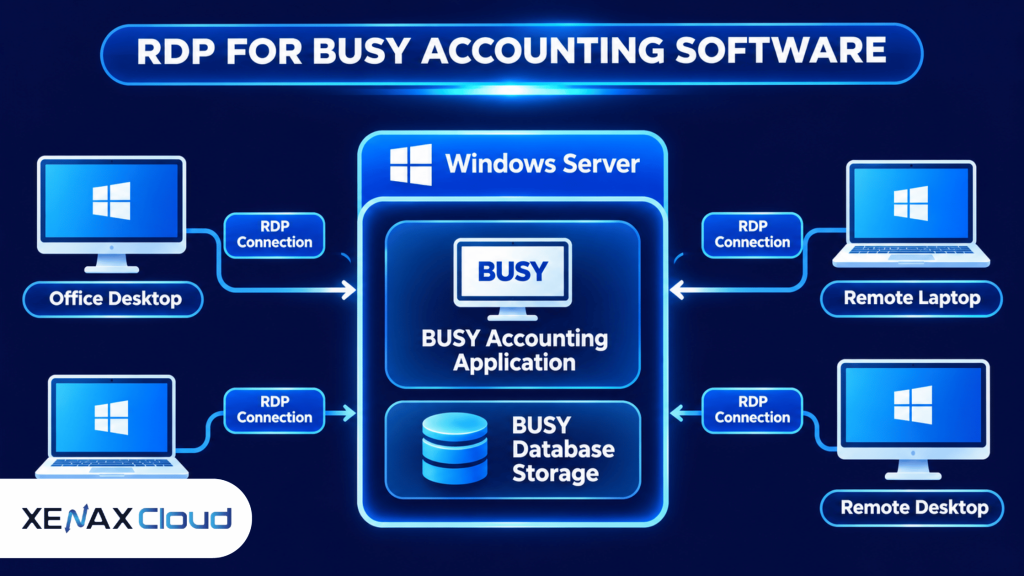
The architecture has three main components:
- Windows RDP server: Hosts the BUSY application and provides the remote desktop environment.
- BUSY application and database: Stores and processes the accounting records on the designated server or database location.
- Remote client device: A desktop, laptop or tablet that connects to the server and displays the Windows desktop.
The connection works through an encrypted remote desktop session when properly configured. Users enter their server credentials, open the Windows desktop and launch BUSY.
Unlike a conventional local installation, the application processing happens on the remote server. Your local device mainly handles the display and user input.
This is particularly useful when an accountant needs to access business records while travelling or when employees work from different locations.
BUSY Software on Cloud vs Traditional Office Installation
BUSY software on cloud moves the working environment from an office computer to a remotely accessible Windows server.
The difference is not necessarily the accounting application itself. The difference is where BUSY runs, where its database resides and how authorised users access it.
| Feature | Office installation | BUSY on RDP |
| Application location | Office computer or local server | Remote Windows server |
| Remote access | Requires additional configuration | Through RDP |
| Data location | Local computer or office network | Hosted server storage |
| Computer dependency | Depends on office hardware | Uses remote server resources |
| Multiple locations | Requires network arrangements | Users connect over the internet |
| Administration | Office-based management | Centralised server management |
An office installation can be perfectly suitable for a business with one location and one primary computer. Moving BUSY to RDP becomes more useful when employees need access from different locations or when maintaining an office computer as the central system becomes inconvenient.
However, cloud hosting does not automatically make every BUSY installation a multi-user system. Your BUSY licence, database configuration and Windows environment must support the way your team intends to work.
For businesses managing multiple company accounts, RDP for BUSY accounting software provides a central Windows environment for daily accounting operations. With RDP for BUSY accounting software, authorised employees can access the same working environment from different locations without depending on a single office computer.
What happens to accounting data?
In an RDP arrangement, BUSY processes accounting information inside the remote Windows environment. This reduces the need to transfer database files between individual employee computers.
For example, an accountant working from home can connect to the same hosted environment used by an office employee. Both users can work with the centrally maintained accounting installation when the application and database are configured for concurrent access.
Keep a separate backup of the BUSY database before changing the installation or moving company records.
How Much RAM and CPU Does BUSY Need on RDP?
A BUSY RDP server needs sufficient RAM and CPU capacity for the accounting application, database operations and simultaneous user sessions.
BUSY’s published system requirements provide a starting point, but the minimum requirements for an individual workstation should not be treated as the recommended configuration for a shared remote server.
Consider the following sizing guidance when selecting a Windows RDP configuration:
| Workload | Suggested starting configuration | Suitable situation |
| Light usage | 2 vCPU, 4 GB RAM | One user, smaller accounting workload |
| Regular usage | 4 vCPU, 8 GB RAM | Small accounting team |
| Growing workload | 6 vCPU, 12 GB RAM | Multiple users and larger records |
| Heavy workload | 8 vCPU, 16 GB RAM | Higher concurrency and demanding operations |
These are practical starting configurations, not guaranteed BUSY performance requirements. Actual resource consumption depends on database size, BUSY configuration, concurrent sessions, Windows background services and other installed applications.
Which resources matter most?
RAM: Windows maintains separate processes and working sessions for connected users. Insufficient memory can cause paging, slower application switching and delayed report generation.
CPU: BUSY database queries, calculations, report generation and multiple simultaneous operations compete for processing resources. More vCPU capacity helps when several employees perform resource-intensive tasks together.
Storage: Database operations depend on storage responsiveness. NVMe storage can help with workloads involving frequent database reads and writes.
Network: A stable internet connection matters because RDP continuously exchanges screen updates and user input. A poor connection can make the desktop feel delayed even when the server has sufficient CPU and RAM.
Do not select a server based only on the number of vCPU advertised. A configuration with more RAM per vCPU may be a better fit for memory-intensive accounting workloads.
How to Set Up BUSY Accounting Software on RDP
You can set up BUSY on a hosted Windows RDP server by preparing the server, installing the application, configuring the database and testing remote access.
Follow these steps:
- Select a Windows RDP configuration based on concurrent users and database size.
- Connect to the server using the Remote Desktop Connection application.
- Install BUSY using the authorised installation package.
- Configure the BUSY database and application directories.
- Activate the BUSY licence according to its licensing conditions.
- Create authorised Windows user accounts and access permissions.
- Test accounting operations, printing, backups and remote connectivity.
Step 1: Connect to the Windows server
On a Windows computer, press Win + R and enter:
mstsc
Enter the server’s IP address or hostname in the Computer field. Select Connect and provide the authorised Windows credentials.
You should now see the remote Windows desktop.
Step 2: Install BUSY
Download the appropriate BUSY installation package from its official source. Install the application inside the remote Windows environment and follow the software’s activation instructions.
Do not install an unauthorised or modified BUSY package. Confirm that your licence permits the intended server installation and user arrangement.
Step 3: Configure the database
Keep the BUSY database in the designated server-side data directory. Configure the application to use the correct database location.
For multi-user configurations, follow BUSY’s supported client-server architecture and database requirements rather than allowing employees to create independent copies of company data.
Step 4: Configure Windows access
Create individual Windows accounts for employees wherever the server configuration supports them. Apply appropriate permissions to application folders and accounting data.
Avoid sharing one administrator password among the entire accounting team. Individual accounts make access management and troubleshooting easier.
Step 5: Test the complete workflow
Before moving actual accounting operations, test:
- Opening existing company records.
- Generating invoices and accounting reports.
- Inventory updates and voucher entries.
- Concurrent access by authorised users.
- Printing and exporting reports.
- Database backup and restoration.
Only move active company records after verifying that the backup can be restored successfully.
Busy Accounting Remote Access: Security and Data Protection
Busy accounting remote access needs controlled Windows accounts, protected RDP connectivity, database backups and appropriate application licensing.
Accounting databases can contain sensitive information, including customer details, supplier records, invoices, transaction histories and financial reports.
A remotely accessible server should therefore be configured as a business system rather than an ordinary personal computer.
Businesses using RDP for BUSY accounting software should also understand how to protect their remote Windows environment. Read our guide on How to Secure a Remote Desktop Connection to learn about Network Level Authentication, firewall rules, strong passwords and safer remote access settings.
Security measures to implement
Use strong passwords: Give each employee an individual account and enforce strong authentication credentials.
Restrict remote access: Avoid exposing RDP directly to the public internet without appropriate protection. Use a VPN or another controlled access method where suitable.
Enable Network Level Authentication: NLA requires authentication before a remote desktop session is fully established.
Configure Windows Firewall: Restrict access to the necessary remote desktop services and permitted source networks.
Keep Windows updated: Install relevant security updates for the operating system and remote access components.
Maintain independent backups: Keep separate copies of BUSY company databases and test restoration procedures.
Does RDP automatically back up BUSY data?
No. Remote desktop access and database backup are separate functions.
A server backup can protect against certain infrastructure failures, but it should not replace application-level database backups. A backup that cannot be restored is not a dependable recovery plan.
Before migrating BUSY, create a fresh database backup and retain an additional copy outside the remote server.
What about multiple users?
Multiple users need a properly configured Windows Server environment, compatible BUSY licensing and the appropriate remote desktop access licensing.
Microsoft distinguishes between Windows Server access licensing and Remote Desktop Services Client Access Licences (RDS CALs). Organisations must check the licensing requirements applicable to their deployment instead of assuming that a Windows administrator connection automatically permits a multi-user business deployment.
Microsoft explains the requirements in its Remote Desktop Services licensing documentation.
Which Xenax Cloud RDP Plan Should You Choose for BUSY?
Xenax Cloud offers three Windows RDP families: Speed RDP, General RDP and Gold RDP.
All three use Windows on KVM virtualisation, provide administrator access and use the same general network and backup arrangements as the VPS infrastructure. RDP plans have a 500 Mbps network port and weekly backups included.
The three families address different resource requirements.
Speed RDP
Speed RDP uses NVMe storage and offers eight configurations ranging from 2 vCPU with 4 GB RAM to 32 vCPU with 64 GB RAM.
Choose Speed RDP when storage responsiveness is a priority, particularly for accounting workloads involving frequent database operations.
General RDP
General RDP provides more RAM per vCPU, with four configurations ranging from 2 vCPU with 8 GB RAM to 16 vCPU with 64 GB RAM.
Choose General RDP when you need additional memory relative to processing capacity, especially when several employees use Windows applications concurrently.
Gold RDP
Gold RDP uses high-frequency Intel Xeon Gold processors and offers eight configurations ranging from 2 vCPU with 4 GB RAM to 32 vCPU with 64 GB RAM.
Choose Gold RDP when CPU frequency is a priority for workloads involving frequent calculations, report generation and processing operations.
Before selecting a remote desktop server, it is also important to understand the benefits of using an Indian IP address. Read our article on RDP with Indian IP to understand Indian server locations, IP addresses and important considerations when choosing an RDP hosting provider.
Worked example: A CA firm with six employees
Consider a CA firm in Lucknow with six employees who need BUSY access for accounting entries, GST-related records, invoices and financial reports.
The firm expects four employees to work simultaneously during busy office hours. Its accounting database contains several company records, and employees occasionally generate detailed reports while others enter vouchers.
A 2 vCPU and 4 GB RAM configuration would be a restrictive starting point for this workload because four simultaneous Windows sessions must share memory and processing capacity.
A General RDP configuration with 4 vCPU and 16 GB RAM would provide a more suitable starting point when memory capacity is the primary concern. It gives the Windows environment more memory headroom for concurrent sessions and background processes.
If report generation and CPU-intensive operations become the bottleneck, the firm should evaluate Gold RDP instead. If database storage responsiveness becomes the limiting factor, Speed RDP is another option.
The firm should monitor actual CPU and memory usage after deployment and adjust the configuration if resource utilisation consistently approaches capacity.
When should you choose something other than RDP?
RDP is not the right choice if your requirement is only to host a public-facing website or an application that runs on Linux without a Windows desktop.
For those workloads, a KVM Linux VPS may be more appropriate. Similarly, a business requiring substantial dedicated hardware resources, specialised infrastructure or hardware-level customisation should discuss dedicated server options instead.
You can explore Xenax Cloud Windows RDP hosting plans to compare the available RDP families and configurations.
How to Decide Which RDP Configuration Fits Your Accounting Team
The right RDP configuration depends on concurrent users, application workload and measured resource consumption rather than the total number of employees on your payroll.
Use these practical decision rules:
- Choose 2 vCPU and 4 GB RAM for an initial single-user, light-duty workload.
- Choose 4 vCPU and 8 GB RAM or above when several employees need concurrent access.
- Consider 16 GB RAM or more when multiple sessions, background processes and larger datasets consume substantial memory.
- Choose Speed RDP when NVMe storage responsiveness is a priority.
- Choose General RDP when memory capacity relative to CPU is the main requirement.
- Choose Gold RDP when higher-frequency Xeon Gold processing is important.
These thresholds are selection guidance, not fixed performance guarantees. Monitor Windows Task Manager, CPU utilisation, memory consumption and disk activity during actual working hours before deciding whether an upgrade is necessary.
A common mistake is selecting an RDP server based only on the number of employees. Six employees who connect occasionally do not create the same resource demand as six employees generating reports and processing transactions simultaneously.
Another mistake is assuming that more vCPU automatically solves every performance issue. If the server is running out of RAM or waiting on database storage operations, adding CPU cores alone may not solve the underlying problem.
rdp for busy accounting software: FAQs
Can I use BUSY accounting software from home through RDP?
Yes, you can use BUSY from home through an authorised Windows RDP server. The BUSY application runs on the remote server, while your home computer displays its desktop. You need an internet connection, valid server credentials and a BUSY licence that supports your installation arrangement.
Is BUSY software on cloud suitable for CA firms?
Yes, BUSY software on cloud can suit CA firms that need centralised accounting access across multiple locations. The appropriate configuration depends on concurrent users, company databases and report-generation workloads. A firm should also verify BUSY licensing, Windows access licensing and database compatibility before deployment.
How many users can access BUSY through one RDP server?
The number of users depends on the Windows Server configuration, available hardware resources, remote desktop licensing and BUSY licence conditions. A server with sufficient RAM and CPU does not automatically grant unlimited simultaneous sessions. Calculate peak concurrent users and verify the supported deployment before ordering.
Is BUSY accounting remote access secure?
Yes, BUSY accounting remote access can be secured using individual Windows accounts, strong authentication, Network Level Authentication, firewall restrictions and controlled network access. However, RDP alone does not guarantee security. Protect the accounting database with independent backups and regularly review authorised user permissions.
Can multiple employees work on the same BUSY database?
Yes, BUSY supports server-based multi-user functionality when configured according to its supported client-server architecture and licensing conditions. Employees must access the correct shared database rather than maintaining separate copies. Test concurrent voucher entries and report generation before moving your complete accounting operation.
Which Xenax Cloud RDP plan is suitable for BUSY?
General RDP is a reasonable starting choice when your BUSY workload needs additional RAM per vCPU. Speed RDP is suitable when NVMe storage is a priority, while Gold RDP suits workloads prioritising higher-frequency CPU processing. Select the configuration using concurrent users and actual resource requirements.
Can I access BUSY from a mobile phone using RDP?
Yes, you can connect to a compatible Windows RDP environment using a mobile remote desktop client. However, BUSY’s accounting interface is designed primarily for Windows desktop use. A laptop or desktop generally provides a more practical experience for detailed accounting entries, reports and invoice management.
For a BUSY accounting workload, start by assessing concurrent users and database size, then select General RDP for memory-heavy usage, Speed RDP for storage-focused workloads or Gold RDP for CPU-intensive processing. Choose the appropriate vCPU and RAM configuration based on your actual requirements before ordering.