Where to buy RDP depends on what you need the Windows server to do, how much CPU and RAM the workload requires, and how the remote environment is managed. A suitable RDP provider should clearly specify the Windows environment, administrator access, server resources, network capacity and data-centre location before you purchase.
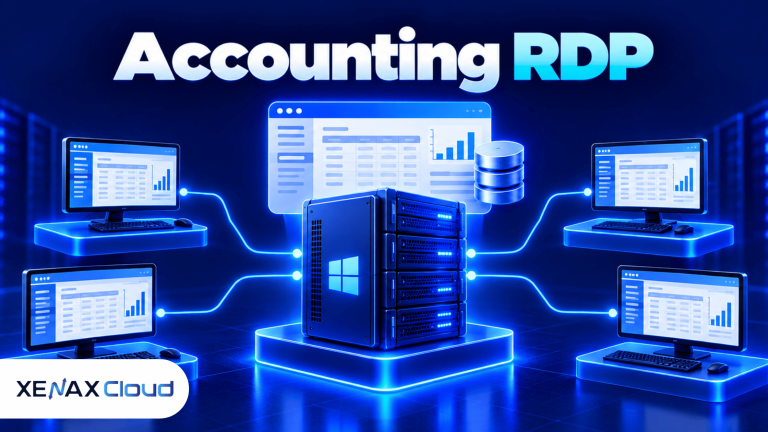
RDP, or Remote Desktop Protocol, is a Microsoft protocol that lets you interact with a remote Windows computer through a network connection. The application runs on the remote server, while your local computer displays the remote Windows desktop.
For an Indian business, developer or remote worker, the server’s physical location can also matter. Xenax Cloud operates one Tier-III data centre in Banda, Uttar Pradesh, India, so its RDP infrastructure is hosted in India rather than in overseas facilities.
Where to Buy RDP: What Should You Check First?
Before you buy RDP, verify the server resources, administrator access, operating environment, network capacity and provider location.
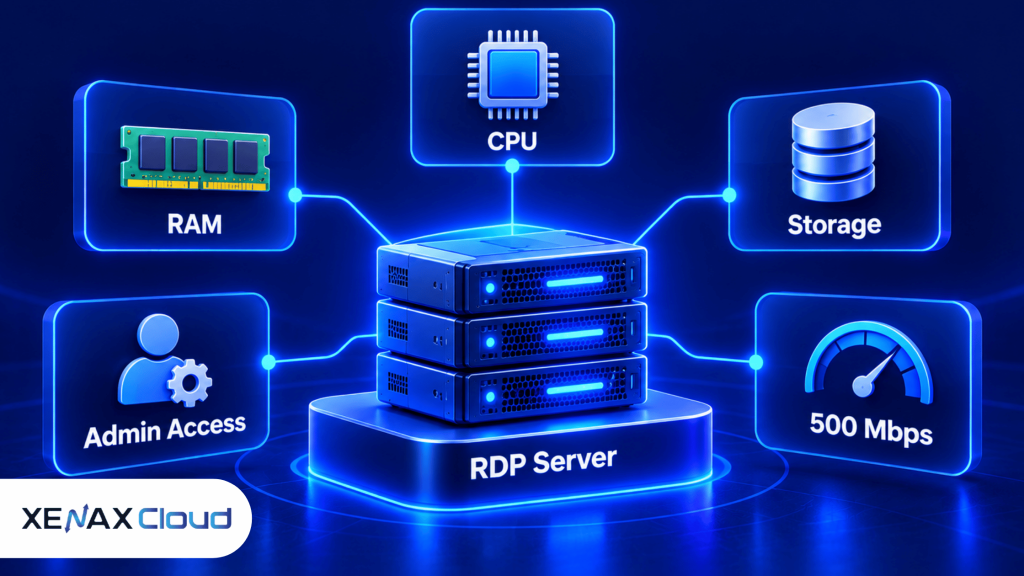
An RDP service is not simply a username and password for a remote desktop. The remote Windows machine needs enough resources for the software you intend to run.
Check these five areas before placing an order:
| Requirement | What to verify | Why it matters |
| CPU | vCPU count and processor family | Determines available processing capacity |
| RAM | Allocated memory | Affects applications and concurrent processes |
| Storage | Disk type and capacity | Determines where Windows, software and data can reside |
| Access | Administrator privileges | Determines how much you can configure |
| Network | Port capacity | Affects remote access and data transfer |
A provider should also explain where the server is hosted. Xenax Cloud’s RDP infrastructure uses Windows on KVM virtualisation, administrator access, a 500 Mbps port and the same network and backup infrastructure as its VPS environment.
RDP is useful for remote application access, but it does not automatically make every Windows application suitable for unattended operation. Check the software vendor’s licensing and system requirements before deployment.
The same checks also help you compare providers without relying on vague claims. If a workload needs administrator-level configuration, a restricted remote desktop account may not be sufficient.
What Is RDP Purchase Actually Giving You?
An RDP purchase gives you remote access to a Windows environment where applications, files and system processes run on the remote server.
Remote Desktop Protocol separates the computer you use from the computer doing the actual processing.
For example, you can connect from a laptop, open a Windows application on the remote machine and work with that application while its files remain on the server.
This can be useful when you need:
- A Windows environment that can be accessed from different locations.
- Centralised software and project files.
- Administrator access for installing supported applications.
- A remote desktop that doesn’t depend on your local computer’s hardware.
- A consistent Windows environment for a team or individual user.
The distinction between RDP and the server itself is important. RDP is the remote-access protocol; the Windows server is the environment where the workload actually runs.
Microsoft documents Remote Desktop Services as a Windows Server technology for providing remote access to Windows applications and desktops. The official Microsoft Learn Remote Desktop Services documentation is the appropriate reference for the technology.
RDP Purchase: Which Resources Should You Select?
The correct RDP configuration depends on the application’s CPU, RAM, storage and concurrent-user requirements.
Xenax Cloud provides three RDP families:
| RDP family | Resource approach | Available range |
| Speed RDP | Balanced resources | 2 vCPU / 4 GB RAM up to 32 vCPU / 64 GB |
| General RDP | More RAM per vCPU | 2 vCPU / 8 GB RAM up to 16 vCPU / 64 GB |
| Gold RDP | High-frequency Xeon Gold | 2 vCPU / 4 GB RAM up to 32 vCPU / 64 GB |
Speed RDP is a sensible starting point for workloads that need a balance between CPU and memory.
General RDP is more appropriate when memory is the limiting resource. For example, software that keeps several large applications or datasets in memory may benefit from the higher RAM-per-vCPU configuration.
Gold RDP uses high-frequency Xeon Gold processors and is relevant when processor frequency is more important to the workload.
The RDP environment uses KVM virtualisation, administrator access, a 500 Mbps port and the same network and backup infrastructure as Xenax Cloud’s VPS environment.
Purchase RDP: How Do You Set It Up?
You can set up purchased RDP by connecting to the Windows server, securing administrator access and installing only the software you need.
- Receive the server credentials and confirm the Windows server address.
- Open Remote Desktop Connection on your Windows computer.
- Enter the server address and authenticate with the supplied credentials.
- Change the administrator password if the deployment process requires it.
- Apply Windows updates before installing production software.
- Install required applications according to their vendor documentation.
- Configure the Windows firewall so only required services are accessible.
- Test the complete workload before using the server for important business tasks.
On a Windows client, Remote Desktop Connection can be opened by searching for:
Remote Desktop Connection
You can then enter the remote server address and authenticate.
After connecting, treat the remote Windows environment like a server rather than an ordinary personal computer. Avoid installing unrelated software, keep administrator credentials private and review which services are exposed to the network.
Worked Example: A Lucknow Agency Needs Remote Windows Software
A small Lucknow agency with two users should select an RDP configuration based on the applications each user actually runs rather than simply choosing the largest server.
Suppose two employees need to access the same Windows environment for administrative software, document processing and browser-based work. The applications are not known to require large amounts of RAM, and the agency wants administrator access for software installation.
A balanced Speed RDP configuration is the logical family to evaluate first.
If monitoring later shows that memory remains close to the available limit while CPU utilisation stays moderate, moving to a General RDP configuration makes more sense because that family provides more RAM per vCPU.
If the workload instead shows sustained CPU demand and benefits from processor frequency, Gold RDP becomes the family to evaluate.
The decision rule is simple:
Choose Speed RDP when CPU and RAM requirements are balanced. Choose General RDP when memory is the bottleneck. Choose Gold RDP when high-frequency Xeon Gold CPU resources suit the application.
The smaller configuration is not automatically wrong. It becomes wrong when measured workload requirements consistently exceed its available resources.
Is RDP Safe for Business Work?
RDP can be used for business workloads when the Windows server and remote-access configuration are secured properly.
The main risk isn’t the existence of RDP itself. The risk comes from exposing remote access unnecessarily, using weak credentials, leaving outdated software installed or giving excessive privileges to users and applications.
For an administrator account, use a strong unique password and restrict access to the people who actually need administrative control.
A practical security checklist includes:
- Keep Windows security updates current.
- Use strong administrator credentials.
- Disable unnecessary Windows services.
- Allow only required firewall ports.
- Avoid sharing administrator credentials between users.
- Keep important business data backed up.
- Review installed applications regularly.
- Monitor unexpected login activity.
Administrator access is useful because it lets you install and configure software, but it also increases the consequences of a configuration mistake.
If the server contains sensitive business files, keep a separate backup copy before making major operating-system or application changes.
Can You Use RDP From Different Devices?
You can access an RDP server from supported remote-desktop clients on different devices, provided the device and network can establish the connection.
The important part is that the Windows workload remains on the remote server.
You might connect from a Windows desktop at the office, a laptop while travelling or another supported client device. The exact interface and available features depend on the RDP client and operating system.
This arrangement is different from installing the same application on every local device. The application stays installed on the remote Windows environment, while the client provides remote access.
For businesses, this can simplify administration because the application environment remains centralised rather than being separately configured on several computers.
When Should You Not Purchase RDP?
RDP is not the right choice when the application requires Linux, specialised physical hardware or resources that the selected Windows environment cannot provide.
A Windows RDP server is appropriate for software designed to run on Windows. A Linux application may be better suited to a KVM VPS.
Likewise, a workload that requires physical CPU, very large memory capacity or specialised hardware may be better suited to a dedicated server.
Xenax Cloud offers Linux KVM VPS environments separately from Windows RDP. The choice should therefore follow the operating system and resource requirements of the software rather than the remote-access method alone.
RDP is also not a substitute for application-specific licensing. If software requires a particular licence, user count or server configuration, those requirements still apply after you purchase the remote server.
What Should You Check After RDP Purchase?
After an RDP purchase, verify connectivity, resources, security and application behaviour before moving important work to the server.
Use this short validation sequence:
- Confirm the Windows version and server identity.
- Check CPU and RAM against the application’s requirements.
- Check available storage before installing large applications.
- Apply security updates before production use.
- Test RDP reconnection after disconnecting.
- Test the application with a normal workload.
- Verify backups for important files and application data.
A successful RDP login does not prove that the server is correctly configured for your workload. The application itself should be tested under the conditions in which you expect to use it.
For example, if two users will work simultaneously, test two concurrent sessions before depending on the server for daily operations.
Where to Buy RDP for Different Requirements?
The right place to buy RDP is a provider that clearly matches the Windows environment, administrator access and resource configuration to your workload.
For a general Windows remote environment, evaluate the Speed RDP family first when CPU and RAM requirements are balanced.
For workloads that need more RAM relative to CPU, General RDP is the more relevant family.
For applications that benefit from high-frequency Xeon Gold processors, evaluate Gold RDP.
Xenax Cloud’s Windows RDP hosting provides the relevant RDP product range, with Windows on KVM, administrator access and a 500 Mbps port.
The infrastructure is located at Xenax Cloud’s single Tier-III data centre in Banda, Uttar Pradesh, India.
Where to Buy RDP: FAQs
Where to buy RDP for Windows software?
You should buy RDP from a provider that clearly states the Windows environment, CPU, RAM, storage, administrator access and network capacity. Xenax Cloud provides Windows RDP on KVM infrastructure with administrator access and multiple resource configurations.
What should I check before an RDP purchase?
Check the application’s Windows requirements first, then compare CPU, RAM, storage, administrator access and network capacity. Also verify the physical server location and understand who is responsible for Windows and application administration.
Is purchase RDP suitable for two users?
Yes, an RDP environment can support multiple users when the Windows configuration, software licensing and server resources support concurrent sessions. Test the actual applications with both users before using the environment for important work.
Which RDP family should I purchase?
Choose Speed RDP for balanced CPU and RAM requirements, General RDP when memory is the main constraint, and Gold RDP when high-frequency Xeon Gold CPU resources fit the workload.
Can I install my own software after an RDP purchase?
Yes, administrator access allows supported software to be installed and configured on the Windows server. Application licensing, Windows compatibility and the server’s available CPU, RAM and storage still determine whether the software is suitable.
Is where to buy RDP determined by server location?
Server location is one useful selection factor because it affects where the physical infrastructure and stored data are located. Xenax Cloud’s RDP infrastructure is hosted at its single data centre in Banda, Uttar Pradesh, India.
Can I use RDP for business files?
Yes, provided the Windows environment is secured and the application supports the setup. Keep administrator credentials private, restrict unnecessary network access and maintain separate backups of important business data.