Keep RDP session running after disconnect means allowing your Windows remote desktop session to remain active on the server even after you close the Remote Desktop client. Windows normally preserves disconnected sessions and their running applications, provided session time limits or administrator policies do not terminate them.
This is useful when you are running accounting software, downloading files, processing reports, compiling code or handling other long-running tasks on a remote Windows server. You can disconnect your computer, leave the remote applications running and reconnect later.
However, disconnecting and signing out are two different actions. Understanding their behaviour and checking the server’s session policies will help you avoid accidentally closing important applications.
What Happens When You Disconnect an RDP Session?
An RDP disconnect closes the remote connection while leaving the user’s Windows session and running applications active on the server.
Remote Desktop Protocol (RDP) is Microsoft’s protocol for accessing a Windows desktop over a network. When you connect to a remote Windows server, Windows creates or reconnects you to a user session where your applications execute.
When you disconnect, the client stops displaying the remote desktop, but the server can retain that session in a disconnected state.
For example, suppose you open Excel, start a report calculation and disconnect your RDP client. Excel can continue processing on the remote server even though your local computer is no longer connected.
The same principle applies to other applications, provided they do not require continuous interaction with the disconnected client.
A disconnected session can retain:
- Open application windows and documents.
- Running background processes associated with the session.
- Application memory and session-specific settings.
- Unsaved work that remains in the application’s memory.
The last point requires care. A disconnected session does not automatically save documents. If the server restarts, an application crashes or an administrator logs off the session, unsaved work can be lost.
Microsoft documents the disconnected session state as one in which the user’s connection has ended while the session remains on the server. The applications can remain available when the user reconnects.
RDP Disconnect vs Sign Out: What Is the Difference?
RDP disconnect preserves the remote Windows session, while signing out ends the user’s session and closes its running applications.
This distinction is the most important part of managing long-running tasks on a Windows RDP server. Selecting the wrong option can terminate an application that you intended to leave running.
| Action | Remote session | Running applications | Reconnection |
| Disconnect | Preserved | Continue running | Resume existing session |
| Sign out | Terminated | Closed | New session required |
| Close RDP window | Usually disconnected | Usually continue | Reconnect if session remains |
| Restart server | Sessions end | Processes stop | New session required |
Disconnect
Disconnecting is the correct choice when you want to keep RDP session running after disconnect.
You can disconnect using the Start menu, the Remote Desktop connection bar or the client window’s close control. The exact behaviour depends on the client and how the connection is closed.
Sign Out
Signing out ends the Windows user session. Windows closes the applications running within that session, so this is not suitable when you need an application to continue processing.
Lock
Locking the remote Windows session protects the interactive desktop by requiring authentication before someone can use it again. Locking does not mean signing out, and applications generally continue running.
A locked session and a disconnected session are different states. You can lock a session and then disconnect from it if you need both access protection and continued application execution.
How to Keep RDP Session Running After Disconnect in Windows
You can keep RDP session running after disconnect by checking the Remote Desktop Services session timeout policies and setting the disconnected-session limit appropriately.
Windows Server provides Group Policy settings that determine how long disconnected sessions remain on the server. These settings are particularly important for users who regularly run applications remotely.
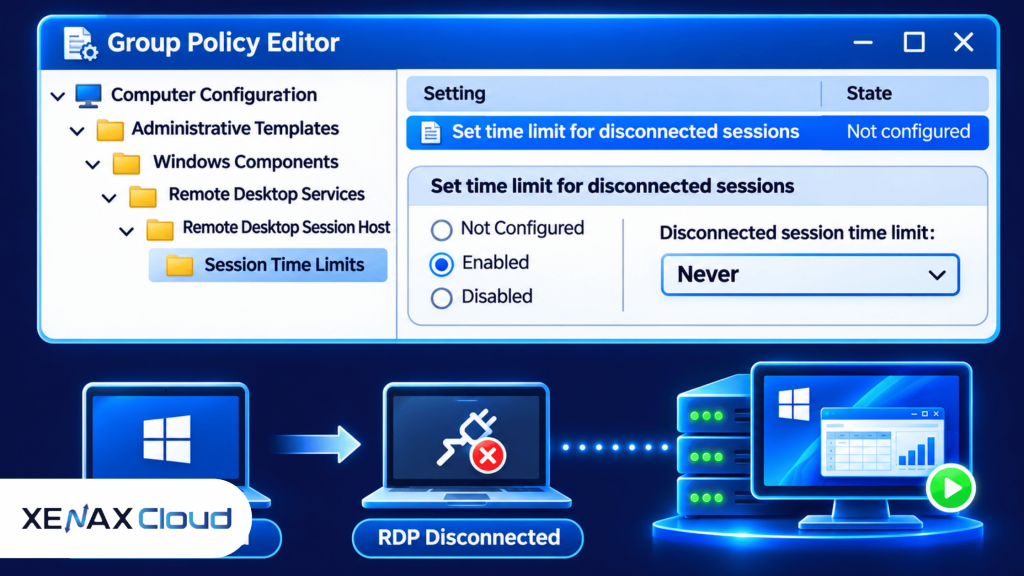
Steps to Configure Disconnected Session Timeout
- Log in to the Windows server using an administrator account.
- Open the Local Group Policy Editor using gpedit.msc.
- Navigate to the Remote Desktop Services session policies.
- Open Set time limit for disconnected sessions.
- Select Enabled and choose Never from the available options.
- Apply the policy and close the editor.
- Verify the session remains available after disconnecting.
Use this Group Policy path:
Computer Configuration
> Administrative Templates
> Windows Components
> Remote Desktop Services
> Remote Desktop Session Host
> Session Time Limits
Open:
Set time limit for disconnected sessions
Choose:
Enabled
Time limit: Never
Click Apply and OK.
The Never setting means Windows does not terminate the disconnected session through this particular timeout policy. It does not override every possible administrative restriction, server shutdown or application failure.
If the server is domain-joined, a domain Group Policy Object may override the local configuration. Check the effective policy rather than assuming that a local change will take precedence.
You can refresh Group Policy from an elevated Command Prompt:
gpupdate /force
Then verify the session behaviour by disconnecting and reconnecting.
How to Run Program After Closing RDP?
You can run program after closing RDP by leaving the application inside a disconnected Windows session instead of signing out.
The application executes on the remote server, not on your local computer. Closing your laptop or disconnecting its network connection does not automatically terminate the server-side process.
For example, you can start a large file download, an Excel calculation or a software installation inside your remote desktop session and disconnect after confirming that the task has started.
However, not every application is suitable for this method.
Some applications pause when their interactive desktop is unavailable. Others require user interaction, an active network connection, a logged-in profile or access to a particular desktop session.
If you need applications to continue running for extended periods, read our guide on using RDP to run software 24×7 for additional session settings and server requirements.
Applications That Can Continue Running
Examples include:
- Long-running Excel calculations.
- File downloads using applications that support background processing.
- Software installations that do not require interactive confirmation.
- Code compilation and development tools.
- Data processing applications.
- Long-running administrative scripts.
Before disconnecting, check the application’s status and save important files. A progress window appearing on the desktop does not guarantee that the application will finish successfully.
Running Tasks Independently of an RDP Session
If a program must run even after the user signs out, consider Windows Task Scheduler or a Windows service instead of relying on a disconnected interactive session.
A Windows service is a background process managed by the Service Control Manager. It can operate independently of a particular user’s interactive desktop session.
Task Scheduler can also execute configured tasks using an appropriate account and security context. This is useful for scheduled backups, scripts and automated maintenance.
Do not convert an ordinary desktop application into a service without checking its compatibility. Applications that require interactive desktop access may not work correctly in a non-interactive service environment.
Which Windows Session Settings Can Automatically Disconnect RDP?
Windows Remote Desktop Services has separate policies for disconnected sessions, idle sessions and active session limits.
Changing only one setting may not solve the problem if another policy is responsible for disconnecting or ending the session.
| Policy | What it controls | What to check |
| Disconnected session limit | How long a disconnected session remains | Set to Never if appropriate |
| Active session limit | Maximum duration of an active session | Check configured limit |
| Idle session limit | Maximum idle time before action | Check inactivity restrictions |
| End session when time limits are reached | Whether timed-out sessions are ended | Review administrator policy |
Disconnected Session Limit
This policy controls how long a disconnected user session remains available. If a specific duration is configured, Windows can terminate the session after that duration expires.
Selecting Never prevents this particular timeout from ending the disconnected session.
Idle Session Limit
An idle session is different from a disconnected session. A user may remain connected to RDP without keyboard or mouse activity, and an administrator may configure a limit for such inactivity.
If you are experiencing unexpected disconnections while still connected, check this policy separately.
Active Session Limit
An active session limit controls the maximum duration of a connected session. Depending on the configuration, Windows may disconnect or end the session when the limit is reached.
End Session When Time Limits Are Reached
This policy determines whether Windows ends a session after a configured time limit rather than merely disconnecting it.
If this setting is enabled, reaching a configured limit can terminate the session and its running applications.
The Microsoft documentation for Remote Desktop Services session time limits explains these policy settings and their effects.
Worked Example: Keeping Accounting Software Running on an Indian RDP Server
Consider a Kanpur-based accounting firm with three employees using a Windows RDP server to access business applications.
One employee starts a lengthy accounting report, another processes spreadsheet data, and the third performs administrative work. The employees need to disconnect their local computers without terminating their remote applications.
For this workload, the firm should consider the number of simultaneous users, the memory consumption of its applications and the CPU demand during report processing.
Xenax Cloud offers three RDP families:
- Speed RDP: NVMe storage, with sizes ranging from 2 vCPU and 4 GB RAM to 32 vCPU and 64 GB RAM.
- General RDP: More RAM per vCPU, with sizes ranging from 2 vCPU and 8 GB RAM to 16 vCPU and 64 GB RAM.
- Gold RDP: High-frequency Xeon Gold processors, with sizes ranging from 2 vCPU and 4 GB RAM to 32 vCPU and 64 GB RAM.
All three families provide Windows on KVM, administrator access, a 500 Mbps port and the same network and backup arrangement as their VPS counterparts.
Which RDP Size Should You Select?
Choose Speed RDP with 2 vCPU and 4 GB RAM as a starting point for a light single-user workload that fits within its available resources.
For the Kanpur firm with three simultaneous employees, do not assume the entry-level configuration is sufficient. Multiple active desktop sessions and accounting applications consume additional memory and CPU resources.
General RDP is worth considering when the applications need more memory per vCPU. Gold RDP is relevant when the workload benefits from high-frequency Xeon Gold processors.
Use this decision rule:
- Choose 2 vCPU and 4 GB RAM for a light single-user workload.
- Consider 2 vCPU and 8 GB RAM when memory demand is higher.
- Consider larger configurations when multiple users or concurrent workloads require additional CPU and memory.
- Review actual resource consumption before selecting a larger configuration.
The entry-level Speed RDP configuration is not the right choice if three employees regularly run memory-intensive applications simultaneously. Select a suitable larger configuration instead.
The important point is that keeping a session disconnected does not itself require a larger RDP plan. Hardware requirements depend on the applications and number of simultaneous sessions.
Common Reasons an RDP Session Does Not Stay Running
An RDP session may end unexpectedly because of configured time limits, administrator actions, server restarts or application-specific behaviour.
Check these causes before changing unrelated Windows settings.
Windows Automatically Logs Off Disconnected Sessions
An administrator may have configured a disconnected-session timeout. Inspect the Group Policy path under Session Time Limits and check the effective configuration.
Another Group Policy Overrides Your Settings
A domain controller can apply policies that override local settings. Run the following command to generate a Group Policy report:
gpresult /h C:\gp-report.html
Open the generated report and inspect the Remote Desktop Services session policies.
You Are Selecting Sign Out Instead of Disconnect
Sign Out terminates the session. Use Disconnect when you want the existing applications to remain active.
The Server Restarts or Shuts Down
A Windows restart terminates existing sessions and their running applications. A disconnected session does not protect a program from server maintenance or unexpected shutdowns.
Your Application Requires an Interactive Session
Some desktop applications cannot continue their work when their interactive environment is unavailable. Use a supported background execution method where appropriate.
If your remote connection also fails or drops unexpectedly, follow our RDP not connecting troubleshooting guide to check Windows settings, firewall rules and network connectivity.
Xenax Cloud Windows RDP vs the usual alternatives
| Feature | Xenax Cloud | Typical Indian shared host | Global budget host |
|---|---|---|---|
| Starting price | ₹649/mo | ₹199/mo | ₹149/mo (renews ₹499) |
| Storage | 40 GB SSD storage | 10 GB SSD | 25 GB SSD |
| DDoS protection | 100 Gbps, always on | Basic | Cloudflare only |
| Support | 24×7, in-house engineers | Tickets, business hours | Chat, outsourced |
| Data centre | India (NVMe) | India | Singapore / US |
| Control panel | cPanel / WHM included | cPanel | Custom panel |
Entry-level plans, list prices including GST where shown. Check each provider before buying — prices change.
See Windows RDP planskeep rdp session running after disconnect: FAQs
Does closing the Remote Desktop window stop running programs?
No, closing the Remote Desktop window normally disconnects the client while leaving the remote Windows session active. Running applications can continue on the server if the session has not reached an administrator-configured timeout. The exact behaviour depends on the client, server policies and how you close the connection.
Can I download files after disconnecting from RDP?
Yes, a download can continue after RDP disconnects if the download application and its network connection remain operational on the remote server. Start the download, verify its progress and disconnect without signing out. Check the application after reconnecting to confirm that the download completed.
How do I reconnect to the same RDP session?
Connect to the same Windows server using the same authorised user account. Windows can reconnect you to the existing disconnected session if it has not expired or been terminated. If a new session appears, check the server’s session management policies and whether the original session still exists.
Does locking RDP keep applications running?
Yes, locking a Windows remote session normally leaves its applications running. Locking protects the interactive desktop by requiring authentication to access it again. It does not replace disconnected-session timeout configuration, so check those policies if you also intend to close the RDP connection.
Can I keep RDP running after closing my laptop?
Yes, applications can continue running on the remote server after you close your laptop, provided the RDP session remains active and the server stays operational. Closing the laptop may disconnect the client or interrupt its network connection, but it does not automatically sign out the remote Windows user.
Why does my RDP session log off automatically?
An RDP session may log off automatically because of disconnected-session limits, idle-session policies or an administrator-configured end-session policy. Server maintenance and administrator actions can also terminate sessions. Check Group Policy and the effective server configuration before changing the client-side Remote Desktop settings.
Can RDP applications continue running without a logged-in user?
Some background programs can run independently through Windows services or scheduled tasks, but ordinary desktop applications generally depend on an interactive user session. If an application must continue after sign-out, use a supported service or Task Scheduler configuration rather than relying on a disconnected desktop session.
To keep long-running applications available, configure the Windows disconnected-session policy, use Disconnect instead of Sign Out and verify that no higher-level administrator policy overrides your settings. For a dedicated Windows environment, review Xenax Cloud’s Speed RDP, General RDP and Gold RDP configurations according to your application’s CPU and memory requirements.