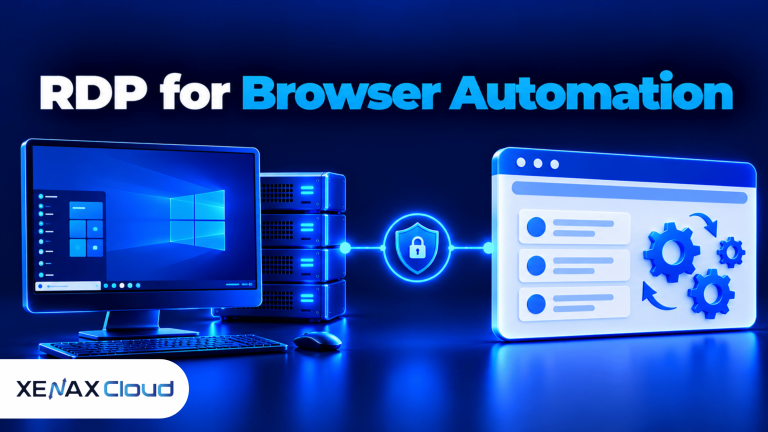
RDP for Selenium automation provides a remote Windows environment where developers can run browser tests, execute automation scripts and manage web testing without keeping their personal computers running. A Windows RDP server can host Selenium WebDriver, supported browsers and browser drivers for scheduled or manually initiated testing tasks.
This setup is useful for developers, QA engineers, web agencies and businesses that repeatedly test websites, web applications and browser-based workflows. You can administer the server remotely, install the required software and organise automated testing independently of your local workstation.
The right configuration depends on the number of simultaneous browser sessions, application complexity, browser type, RAM consumption and whether your scripts require an interactive desktop.
What Is RDP for Selenium Automation?
RDP for Selenium automation is a remote Windows server environment used to execute Selenium browser automation scripts and manage testing processes.
RDP stands for Remote Desktop Protocol, a Microsoft technology that lets you access a remote Windows computer through a graphical desktop session.
Selenium is a browser automation framework that allows programs to interact with web browsers. Selenium WebDriver provides an interface for controlling browser actions such as opening pages, entering text, clicking buttons and checking application responses.
For example, a development agency can use a Windows RDP server to run automated login tests against its client’s website without executing every test on a developer’s personal computer.
A typical automation environment contains:
- Windows Server operating system.
- Python, Java or another supported programming language.
- Selenium WebDriver.
- Chrome, Edge or another supported browser.
- The appropriate browser driver or supported driver management mechanism.
- Test scripts and supporting libraries.
- A scheduling or test execution process.
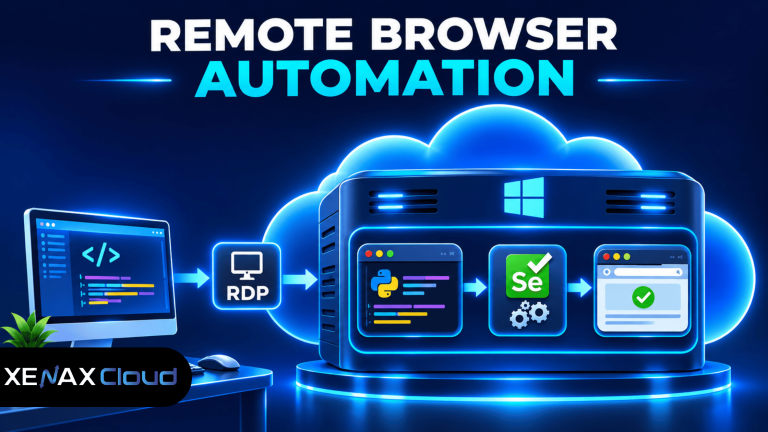
The RDP connection is used to administer the Windows environment. Selenium executes the actual browser automation.
This distinction matters because RDP does not perform browser automation itself. You install and configure Selenium separately on the remote server.
How Does Automation RDP Work With Selenium WebDriver?
Automation RDP provides remote access to a Windows environment where Selenium WebDriver communicates with a browser to execute automated actions.
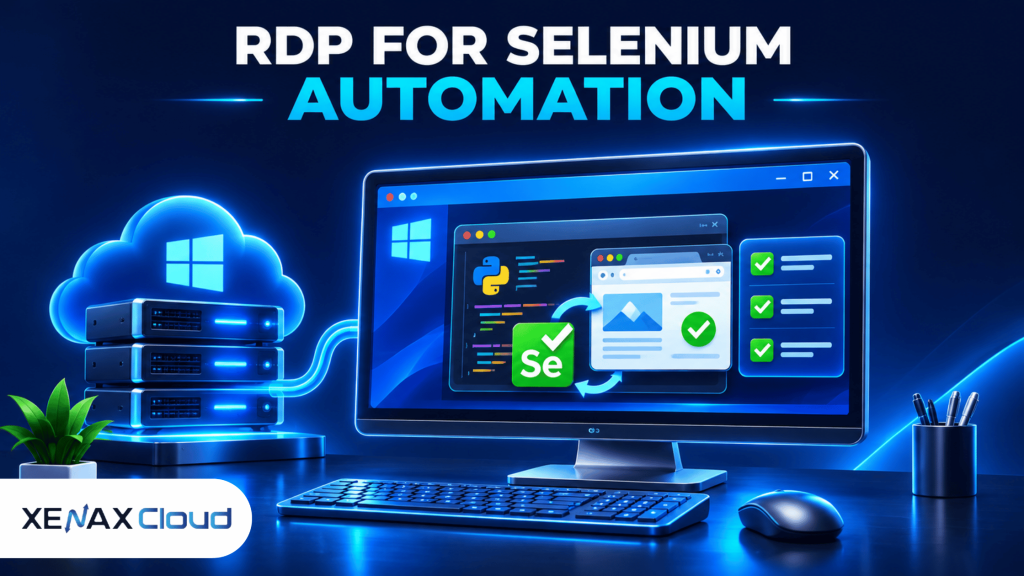
The automation process starts when a script sends commands through Selenium WebDriver. WebDriver communicates with the selected browser using its supported automation interface.
For example, a Python script can open a website, locate a login form, enter test credentials and verify whether the expected page appears.
A typical execution flow looks like this:
Developer Computer
|
| RDP Connection
v
Windows RDP Server
|
v
Python / Java Script
|
v
Selenium WebDriver
|
v
Chrome / Edge Browser
|
v
Website Under Test
The browser and automation software run on the remote Windows server. Your local computer provides the interface for managing and monitoring that environment.
For broader testing requirements, explore our guide to setting up a remote Windows test environment for browser checks, application testing and repeatable QA workflows.
What Is the Difference Between RDP and Selenium?
RDP and Selenium perform different jobs in an automation environment.
| Component | Main purpose | Typical use |
| RDP | Remote desktop access | Administer Windows Server |
| Selenium | Browser automation | Execute website tests |
| WebDriver | Browser control interface | Send browser commands |
| Chrome or Edge | Web browser | Load and interact with websites |
RDP is useful when you need to install software, inspect browser behaviour or troubleshoot an automation process.
Selenium is responsible for executing the actual browser instructions. You can also run Selenium in headless mode, where the browser operates without displaying its graphical interface.
How to Set Up RDP for Selenium Automation?
You can set up RDP for Selenium automation by preparing Windows, installing a supported browser and configuring the programming environment and WebDriver.
Follow these steps:
- Connect to your Windows RDP server.
- Update Windows and install required system updates.
- Install Python or Java for your automation scripts.
- Install Chrome or Microsoft Edge.
- Configure Selenium and the required browser dependencies.
- Create your browser automation script.
- Execute a test and inspect the results.
Install Python and Selenium on Windows
Python is a practical choice for Selenium automation because it supports browser testing scripts and commonly used automation libraries.
Open Command Prompt on your Windows RDP server and check Python:
python –version
If Python is installed, create a separate virtual environment for your automation project:
mkdir C:\selenium-project
cd C:\selenium-project
python -m venv venv
venv\Scripts\activate
Install Selenium:
pip install selenium
Using a virtual environment keeps project dependencies separate from other Python applications running on the server.
Configure Chrome and WebDriver
Install a supported version of Chrome or Edge on the Windows server.
Modern Selenium installations can use Selenium Manager to assist with locating or obtaining compatible browser drivers. Check browser and driver compatibility when diagnosing startup failures.
Create a Python file named:
test_browser.py
Add this example:
from selenium import webdriver
from selenium.webdriver.common.by import By
driver = webdriver.Chrome()
try:
driver.get(“https://example.com“)
print("Page title:", driver.title)

assert "Example Domain" in driver.title
finally:
driver.quit()
Run the script:
python test_browser.py
The script opens Chrome, loads the example website, checks its title and closes the browser.
Replace the example URL and assertion with the website and expected result for your own testing project.
For browser automation setup, driver management and supported language bindings, refer to the official Selenium documentation.
How Much RAM Does RDP for Selenium Automation Need?
RDP for Selenium automation needs enough RAM for Windows, browser processes, WebDriver, automation scripts and other applications running simultaneously.
Browser memory consumption varies according to the website, number of open tabs, extensions, page complexity and automation workload.
Use these configurations as planning starting points rather than guaranteed capacity limits:
| Automation workload | Suggested starting RAM | Consideration |
| One lightweight browser session | 4 GB | Limited concurrent applications |
| One or two browser sessions | 8 GB | More memory headroom |
| Multiple parallel sessions | 16 GB or more | Depends on browser workload |
| Complex testing and background services | 16 GB or more | Monitor actual consumption |
CPU requirements also matter. Browser automation involves page rendering, JavaScript execution, network requests and browser process management.
For multiple simultaneous browser sessions, additional CPU capacity may be necessary alongside RAM.
Should You Run Selenium in Headless Mode on RDP?
Yes, Selenium can run in headless mode on a Windows RDP server without displaying the normal browser window.
Headless mode is useful for scheduled tests and background automation where you do not need to observe every browser interaction.
For Chrome, configure the browser using:
from selenium import webdriver
from selenium.webdriver.chrome.options import Options
options = Options()
options.add_argument(“–headless”)
options.add_argument(“–window-size=1920,1080”)
driver = webdriver.Chrome(options=options)
try:
driver.get(“https://example.com“)
print(driver.title)
finally:
driver.quit()
Headless mode does not remove the browser’s CPU or memory requirements. Websites still need to load, JavaScript still executes and WebDriver still manages browser commands.
Use headed mode when you need to inspect visual behaviour, troubleshoot rendering problems or interact with browser interfaces that require a visible desktop.
How to Run RDP for Scripts Without Keeping Your Computer On?
You can run RDP for scripts on a remote Windows server so that automation processes execute independently of your personal computer.
The server must remain powered on, connected to the network and configured to run the required automation process.
Disconnecting your RDP client does not automatically stop every background process. However, GUI-based automation can behave differently depending on Windows session state, application requirements and how the automation is launched.
For scheduled automation, consider using Windows Task Scheduler.
A typical workflow is:
- Save the Python script on the server.
- Open Task Scheduler.
- Create a scheduled task.
- Select the appropriate execution trigger.
- Configure the correct Windows account.
- Set the Python executable and script path.
- Review task history and execution logs.
For example, a task can execute:
Program:
C:\selenium-project\venv\Scripts\python.exe
Arguments:
C:\selenium-project\test_browser.py
Start in:
C:\selenium-project
Use the correct working directory because scripts may depend on relative file paths, configuration files and output folders.
If your automation requires an interactive desktop, do not assume that disconnecting an RDP session will preserve the same graphical environment. Test the session behaviour before relying on unattended execution.
For headless browser tests, a scheduled non-interactive process can be more suitable than depending on a continuously visible desktop.
Is RDP Safe for Selenium Automation?
RDP can be used for Selenium automation securely when remote access, Windows accounts, browser credentials and automation permissions are properly managed.
Automation servers may contain login credentials, API tokens, session cookies and test data. Unrestricted remote access can expose these resources to unauthorised users.
Apply these security practices:
- Use strong, unique Windows account passwords.
- Restrict RDP access through firewall rules or trusted source IP addresses.
- Use individual accounts for different administrators.
- Avoid storing passwords directly inside Python scripts.
- Keep Windows, browsers and Selenium dependencies updated.
- Store automation credentials in protected configuration or secret management systems.
- Use test accounts instead of real customer accounts.
- Review browser profiles and session cookies after testing.
Do not expose an automation server’s administrative desktop to the public internet without appropriate access controls.
If Selenium tests interact with payment systems, customer records or production applications, use authorised test environments and test credentials. Avoid automating actions that could unintentionally create real transactions or modify live customer data.
Worked Example: Choosing RDP for Selenium Automation for an Indian Web Agency
A Pune-based web development agency with three developers manages website testing for four business clients.
The agency wants a central Windows automation server to run two Selenium browser sessions at the same time, execute Python scripts and allow developers to inspect failed tests through RDP.
Its requirements are:
- Two simultaneous browser automation sessions.
- Python and Selenium installation.
- Chrome browser testing.
- Separate project folders for four clients.
- Centralised test logs.
- Remote administrative access for three developers.
Which Xenax Cloud RDP Configuration Fits This Workload?
Xenax Cloud General RDP with 2 vCPU and 8 GB RAM is a suitable starting configuration to evaluate for this workload.
The two browser sessions, Windows processes, Python environment and supporting applications need memory at the same time. General RDP provides more RAM per vCPU than the entry Speed RDP and Gold RDP configurations.
The entry Speed RDP and Gold RDP configurations start with 2 vCPU and 4 GB RAM. That smaller memory allocation provides less headroom for simultaneous browser processes and Windows background services.
Use this decision rule:
- Choose General RDP with 2 vCPU and 8 GB RAM when two browser sessions need additional memory headroom.
- Choose Speed RDP with 2 vCPU and 4 GB RAM when NVMe storage is the priority and the automation workload fits within available memory.
- Choose Gold RDP with 2 vCPU and 4 GB RAM when high-frequency Xeon Gold CPU performance is the priority and memory requirements remain within the available capacity.
- Choose a larger configuration when additional browser sessions, CPU utilisation or memory consumption exceed the selected size.
General RDP is not the right choice if your scripts primarily require high-frequency CPU processing or NVMe storage performance. Evaluate Gold RDP or Speed RDP respectively for those requirements.
Xenax Cloud RDP runs Windows on KVM virtualisation and includes administrator access, one IPv4 address, a 500 Mbps network port and weekly backups. Its infrastructure operates from a Tier-III data centre in India with 24/7 support.
You can compare the available Windows RDP hosting plans in India before selecting a configuration for your Selenium workload.
Common Mistakes When Running Selenium on RDP
The most common Selenium RDP mistakes involve using incompatible browser drivers, running too many browser sessions and assuming that a disconnected desktop will preserve every GUI process.
Avoid these problems:
Ignoring browser compatibility: An incompatible browser and driver combination can prevent WebDriver from starting correctly. Check compatibility and driver configuration.
Running too many browser sessions: Each browser process consumes CPU and RAM. Start with a limited number of concurrent sessions and increase only after monitoring resource usage.
Using the same browser profile everywhere: Separate browser profiles help prevent cookies, authentication data and browser settings from overlapping between testing projects.
Depending entirely on an active RDP desktop: GUI-based automation may behave differently after session disconnection. Test whether your scripts require an interactive desktop or can run headlessly.
Hardcoding passwords: Credentials stored directly in scripts can be exposed through source code, logs or shared project folders.
Ignoring test logs: Record failed assertions, browser errors and execution details so developers can identify why a test stopped.
Before running automation against production websites, verify that the scripts use authorised accounts and do not perform unintended data changes.
rdp for selenium automation: FAQs
Can I run Selenium on a Windows RDP server?
Yes, Selenium can run on a Windows RDP server with a supported programming language, browser and WebDriver configuration. Install Python or Java, configure Chrome or Edge and execute your scripts through the server. RDP provides remote administration, while Selenium performs the browser automation.
How many Selenium browser sessions can one RDP server run?
The number of simultaneous Selenium sessions depends on available CPU, RAM, browser workload and website complexity. A 2 vCPU and 8 GB RAM configuration is a reasonable starting point to evaluate for two lightweight browser sessions, but actual capacity must be measured.
Can Selenium run after disconnecting from RDP?
Yes, Selenium processes can continue running after an RDP disconnection, depending on how they were launched and whether they require an interactive desktop. Headless automation and properly configured scheduled tasks are generally more suitable for unattended execution than GUI-dependent scripts.
Is headless Chrome suitable for RDP automation?
Yes, headless Chrome is suitable for many automated browser tests because it runs without displaying the normal browser interface. It still consumes CPU and RAM, and some visual or interactive testing scenarios may require headed browser execution.
Which Windows RDP plan is suitable for Selenium automation?
General RDP with 2 vCPU and 8 GB RAM is a suitable starting configuration when two browser sessions need additional memory headroom. Speed RDP suits workloads prioritising NVMe storage, while Gold RDP suits workloads prioritising high-frequency CPU performance.
Can I use Python scripts on a Windows RDP server?
Yes, Python scripts can run on a Windows RDP server using the installed Python interpreter and required libraries. Create a separate virtual environment for each project, install Selenium and configure the browser dependencies. Windows Task Scheduler can also execute scripts at scheduled times.
Is RDP for Selenium automation suitable for multiple clients?
Yes, a central RDP server can host separate Selenium projects for multiple clients when resources and access permissions are managed properly. Use separate folders, browser profiles, test credentials and configuration files to prevent project data from overlapping.
For a development agency running two simultaneous Selenium browser sessions, evaluate Xenax Cloud General RDP with 2 vCPU and 8 GB RAM as the starting configuration. Choose Speed RDP for NVMe storage priorities or Gold RDP for high-frequency CPU workloads.