To run n8n reliably in production, the best vps for n8n typically requires at least 2 vCPU and 4 GB of RAM. This ensures that the Node.js environment and the underlying database can handle concurrent workflow executions and webhooks without crashing or experiencing significant latency.
This guide explains the exact server specifications you need, provides a step-by-step Docker installation process, and shows how to secure your automation environment for business use.
What Are the Minimum Server Requirements for n8n on a VPS?
The minimum requirements for a production n8n instance are 2 vCPU, 4 GB of RAM, and 20 GB of SSD storage. While n8n can run on smaller machines, production environments require this baseline to prevent the service from restarting during memory-intensive data transformations.
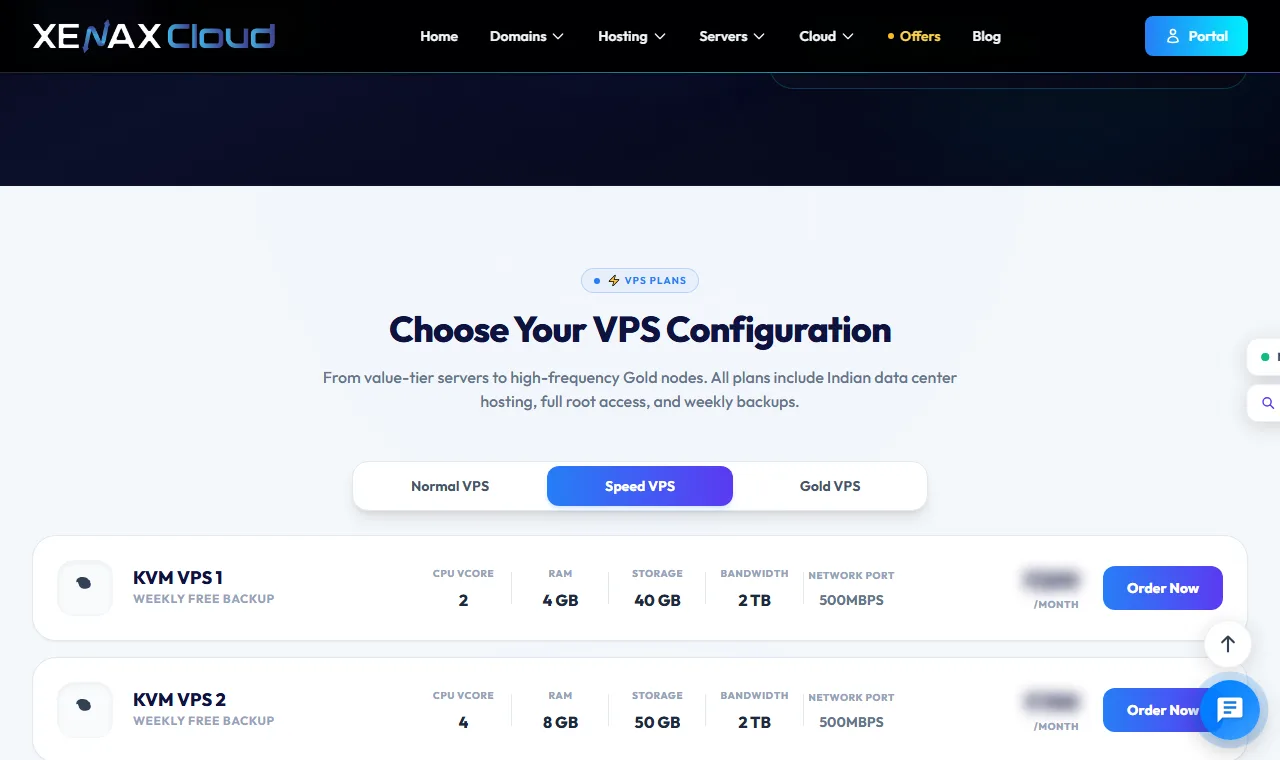
To help you choose the right hardware, here is how the baseline requirements align with our standard KVM VPS specifications:
| Resource | Minimum Requirement | Speed KVM VPS 1 Spec | Suitability |
|---|---|---|---|
| vCPU | 2 Cores | 2 vCPU | Ideal for small workloads |
| RAM | 4 GB | 4 GB RAM | Baseline for stability |
| Storage | 20 GB SSD | 40 GB SSD | Ample for logs and DB |
| Network | 100 Mbps | 500 Mbps port | High-speed webhook response |
RAM and Memory Allocation
RAM is the most critical resource for n8n because it is a Node.js application. Every time a workflow executes, n8n loads the data into memory. If you are processing large JSON files or thousands of rows from a Google Sheet, memory usage spikes quickly.
We recommend allocating at least 4 GB of RAM to avoid “Out of Memory” (OOM) errors. If you plan to run complex AI nodes or heavy data manipulation, you should scale up to 8 GB or 16 GB. You can check your current memory usage in real time using this command:
free -hThe output shows your total, used, and available memory. If the “available” column drops below 500 MB during a workflow, your server is under-provisioned.
SSD Storage and Database Performance
n8n uses a database (SQLite by default, or PostgreSQL for production) to store workflow history and binary data. SSD storage is essential here because database read and write speeds directly impact how fast your workflows trigger.
Using NVMe or SSD storage reduces the latency of execution logs. For a medium-sized setup, 40 GB of storage is usually sufficient to hold the OS, Docker images, and several months of execution history.
Why Choose a Dedicated KVM VPS for Workflow Automation?
A dedicated KVM VPS is the best choice for n8n because it provides isolated hardware resources that prevent other users from slowing down your automation. Unlike shared environments, KVM virtualization ensures that your CPU and RAM are reserved exclusively for your workflows, guaranteeing that webhooks trigger instantly.
Dedicated Resources vs Shared Hosting
Shared hosting is unsuitable for n8n because the platform requires a persistent Node.js process and often relies on Docker, both of which are typically blocked on shared plans. In a shared environment, a “noisy neighbour” consuming all the CPU can cause your n8n instance to lag or crash, leading to missed API calls and failed business processes.
Consider a Jaipur handicraft shop that syncs Shopify orders with a PostgreSQL database and sends WhatsApp notifications. During a festive sale, they might process 50 orders per minute. On a shared server, this spike could trigger a resource limit, killing the process. On a Speed KVM VPS, the dedicated vCPU handles these bursts without interruption.
| Feature | Shared Hosting | KVM VPS (Xenax Cloud) | Impact on n8n |
|---|---|---|---|
| Resource Isolation | None (Shared) | Full (Dedicated) | Prevents workflow crashes |
| Docker Support | No | Yes | Simplifies n8n deployment |
| Root Access | Limited | Full | Allows custom OS tuning |
| Port Control | Restricted | Open | Required for custom webhooks |
Full Root Access and Custom Environments
Full root access allows you to configure the underlying Linux kernel and install specific dependencies that n8n needs for advanced integrations. You can optimize the system for database performance or set up a reverse proxy like Nginx to handle SSL certificates.
When you have root access, you can use the htop command to monitor exactly which n8n workflow is consuming the most CPU. If you see a specific process spiking, you can adjust the Node.js memory limit using the N8N_METRICS environment variable to stabilize the system. This level of control is why professionals prefer KVM VPS over restrictive hosting options. You can also explore our cPanel hosting for traditional web applications or check out VPS hosting India for localized infrastructure.
How to Install n8n on a VPS Using Docker
Installing n8n on an Ubuntu VPS using Docker is the most reliable method for production environments because it isolates the application and its dependencies. You can deploy a stable instance in minutes by setting up the official Docker container alongside a reliable reverse proxy.
Installing Docker and Docker Compose
To begin the installation, update your package list and install Docker on your Ubuntu server. Run these commands in your terminal to set up the repository and install the engine:
sudo apt update && sudo apt install -y apt-transport-https ca-certificates curl software-properties-common
curl -fsSL https://download.docker.com/linux/ubuntu/gpg | sudo gpg --dearmor -o /usr/share/keyrings/docker-archive-keyring.gpg
echo "deb [arch=$(dpkg --print-architecture) signed-by=/usr/share/keyrings/docker-archive-keyring.gpg] https://download.docker.com/linux/ubuntu $(lsb_release -cs) stable" | sudo tee /etc/apt/sources.list.d/docker.list > /dev/null
sudo apt update && sudo apt install -y docker-ce docker-ce-cli containerd.io docker-compose-plugin
Verify that Docker is running correctly by checking its service status with sudo systemctl status docker. The output should display an active state, confirming that the container runtime is ready for your n8n deployment.
Configuring the n8n Docker Compose File
Create a dedicated directory for your automation stack and write a docker-compose.yml file to manage the n8n container. Using a persistent volume ensures your workflows and credentials remain safe during server reboots or system updates.
Create the project folder and open the configuration file:
mkdir -p ~/n8n && cd ~/n8n
nano docker-compose.yml
Paste the following configuration into the file, adjusting the domain and environment variables to match your setup:
version: '3.8'

volumes:
  n8n_storage:

services:
  n8n:
    image: n8nio/n8n:latest
    restart: always
    ports:
      - "5678:5678"
    environment:
      - N8N_HOST=your-domain.com
      - WEBHOOK_URL=https://your-domain.com/
      - VUE_APP_SERVER_ADDRESS=https://your-domain.com/
    volumes:
      - n8n_storage:/home/node/.n8n
Save the file and start your container in detached mode by running sudo docker compose up -d. You can check resource consumption and container health using vps server SSD storage optimization tips to ensure fast read and write speeds for your execution logs.
How Much RAM Does an n8n Production VPS Need?
A production n8n instance typically requires a minimum of 4 GB of RAM to handle the Node.js runtime and basic workflow executions without crashing. For businesses running complex integrations or high-volume webhooks, 8 GB to 16 GB of RAM is recommended to ensure stability.
Calculating Workload Demands
To determine the best VPS for n8n, you must calculate the memory overhead of your specific tasks. Consider a Jaipur handicraft shop that syncs Shopify orders with a PostgreSQL database and sends WhatsApp notifications. Their workload looks like this:
- Base n8n OS and Docker overhead: 1.5 GB
- Average workflow execution (5-10 nodes): 200 MB per concurrent run
- Peak festive sale (10 concurrent webhooks): 2 GB
- Database caching and system buffer: 500 MB
- Total estimated peak requirement: 4.2 GB
In this scenario, a server with only 2 GB of RAM would trigger the Linux Out-Of-Memory (OOM) killer, crashing the automation during the shop’s busiest sales period. To avoid this, we recommend a plan with at least 4 GB of dedicated RAM.
Scaling Resources as Workflows Grow
As you add more complex AI nodes or process larger JSON payloads, your memory usage will climb. You can monitor real-time usage with the free -m command.
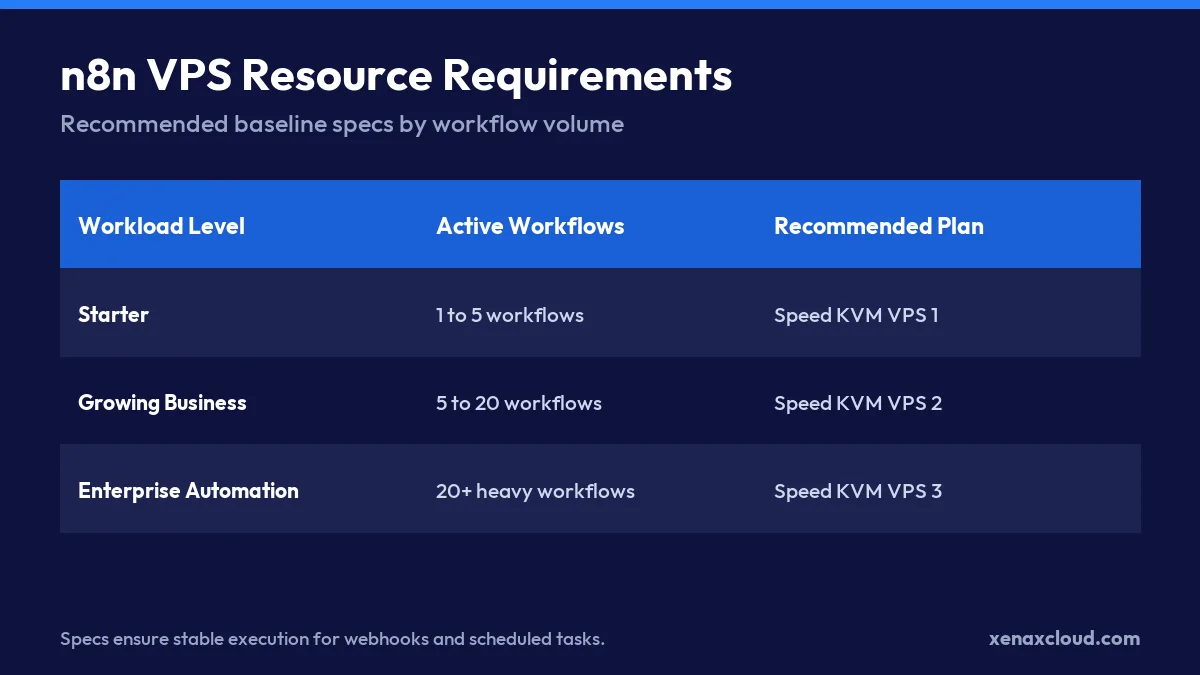
free -mIf the “available” column drops below 500 MB consistently, it is time to scale. Based on the Speed KVM VPS specifications, here is how to match your growth:
| Workflow Volume | Recommended RAM | Suggested Xenax Plan |
|---|---|---|
| Low (1-5 simple flows) | 4 GB | Speed KVM VPS 1 |
| Medium (10-30 complex flows) | 8 GB | Speed KVM VPS 2 |
| High (50+ flows / AI agents) | 16 GB+ | Speed KVM VPS 3 |
Upgrading to a higher tier ensures that your automation remains responsive even when processing large data batches.
How to Secure Your n8n VPS Against Unauthorized Access
Securing your n8n VPS requires a multi-layered approach that combines network firewalls, encrypted access, and SSL termination to protect your automation credentials. By implementing these three steps, you can prevent brute-force attacks and ensure your webhooks are transmitted over encrypted channels.
Configuring Firewalls and SSH Keys
The first step is to lock down the network. Use the Uncomplicated Firewall (UFW) to close all ports except those strictly necessary for your automation.
sudo ufw default deny incoming
sudo ufw allow 22/tcp
sudo ufw allow 80/tcp
sudo ufw allow 443/tcp
sudo ufw allow 5678/tcp
sudo ufw enable
After enabling the firewall, disable password-based SSH access to stop automated bots. Edit your /etc/ssh/sshd_config file and set PasswordAuthentication no. This forces the use of SSH keys, which are virtually impossible to be guessed.
Setting Up a Reverse Proxy with SSL
n8n does not handle SSL certificates natively. To secure your traffic, you must install a reverse proxy like Nginx. This allows you to route traffic from port 80/443 to the internal n8n port 5678.
Follow this checklist to harden your production environment:
- Install Nginx and Certbot for Let’s Encrypt SSL.
- Create an Nginx server block for your n8n domain.
- Configure
proxy_passtohttp://localhost:5678. - Create a strong admin password within the n8n owner account settings.
- Set
N8N_ENCRYPTION_KEYin your Docker environment variables.
For reliable workflow automation, we recommend deploying a Speed KVM VPS for dedicated resources, full root access, and stable performance.
Xenax Cloud VPS Hosting vs the usual alternatives
| Feature | Xenax Cloud | Typical Indian shared host | Global budget host |
|---|---|---|---|
| Starting price | ₹599/mo | ₹199/mo | ₹149/mo (renews ₹499) |
| Storage | 40 GB SSD storage | 10 GB SSD | 25 GB SSD |
| DDoS protection | 100 Gbps, always on | Basic | Cloudflare only |
| Support | 24×7, in-house engineers | Tickets, business hours | Chat, outsourced |
| Data centre | India (NVMe) | India | Singapore / US |
| Control panel | cPanel / WHM included | cPanel | Custom panel |
Entry-level plans, list prices including GST where shown. Check each provider before buying — prices change.
See VPS Hosting plansVPS for N8n: FAQs
What is the best vps for n8n production workloads?
The best choice for production is a dedicated KVM VPS because it provides isolated CPU and RAM resources. This isolation prevents other users from causing latency in your webhooks or crashing your Node.js processes. For reliable automation, see the live price in the plan box below to choose a suitable Speed KVM VPS.
How much RAM does n8n need on a virtual private server?
A production n8n instance typically requires at least 4 GB of RAM to handle the Node.js runtime and basic workflows. If you are running complex AI nodes or high-volume webhooks, we recommend scaling to 8 GB or 16 GB of RAM. You can see the live price in the plan box to find a plan that matches your memory requirements.
Can I run n8n on a VPS using Docker?
Yes, running n8n on a VPS using Docker is the most reliable method for production environments. Docker isolates the application and its dependencies, making it easier to manage updates and system stability. Our KVM VPS plans provide the full root access needed to install Docker and manage containers.
Is my workflow data secure when self-hosting n8n on a VPS?
Self-hosting on a VPS is highly secure if you implement a multi-layered defense strategy. You should use UFW firewalls, disable password-based SSH access in favor of SSH keys, and use a reverse proxy like Nginx for SSL encryption. This setup ensures your automation credentials and data remain protected.
How do I update n8n when running on a Linux VPS?
If you are using Docker, updating n8n is a simple process of pulling the latest image and restarting your container. You can run docker compose pull followed by docker compose up -d to deploy the new version. Always ensure you have a recent backup of your persistent volumes before performing any updates.