Windows Server 2016 end of support is on 12 January 2027. On that date Microsoft releases the last free security update for every edition of Windows Server 2016, and after it new security holes stay open. If your RDP server, Tally server or office file server still runs Server 2016, plan the move to Windows Server 2019 or 2022 now.
This guide explains what the date changes, how to check which version you run, what your options are, and how a small business can move a Windows server in one planned weekend.
What does Windows Server 2016 end of support mean?
The end of support means Microsoft stops publishing security updates, bug fixes and free technical help for the product. The server keeps starting and your software keeps opening, but every weakness found after January 2027 stays unpatched.
Microsoft announced the date on its Windows Server blog and in its lifecycle pages. Mainstream support already ended in January 2022; what ends now is extended support, the last phase. Microsoft sells paid Extended Security Updates for up to three more years through its own cloud management service, but those cover only critical and important security fixes, with no new features and no technical support.
For a small business, the practical meaning is simple: a Server 2016 machine that is reachable over Remote Desktop becomes an easier target every month after January 2027.
Which Windows Server versions are still supported?
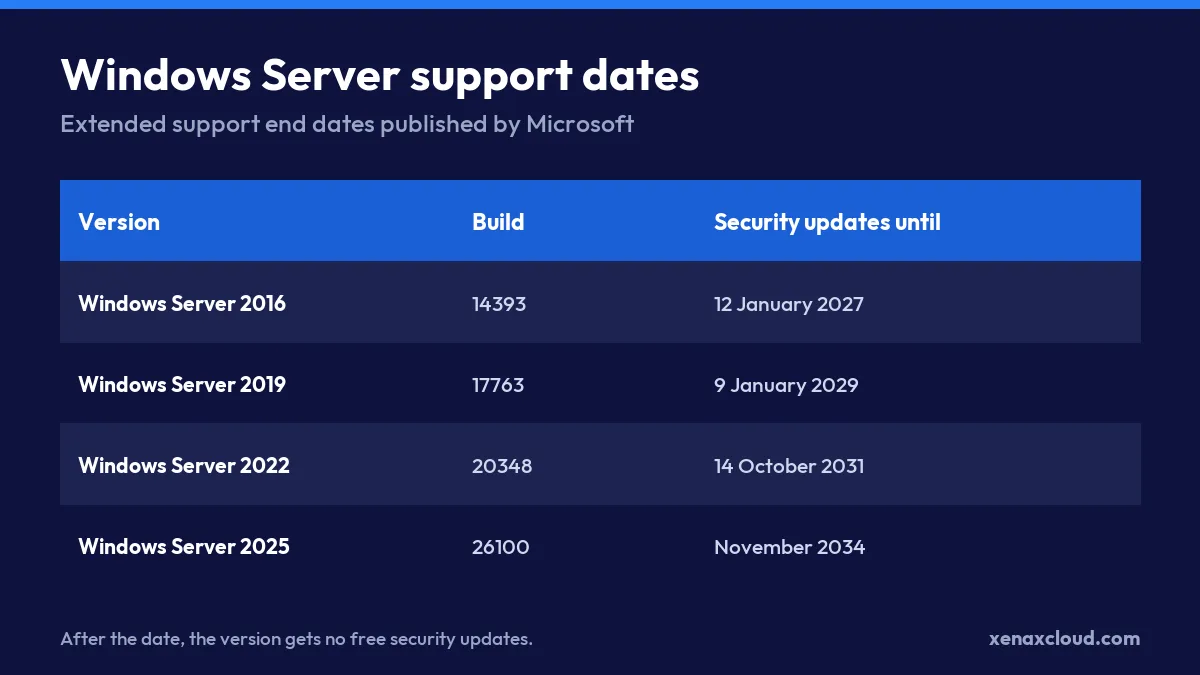
Windows Server 2019, 2022 and 2025 are still supported. Each gets security updates until its own extended support date, so choosing the newest version your software supports buys you the longest runway.
Server 2022 is the safest default for most Indian business software today: Tally Prime, Busy, Marg, Microsoft Office and most ERP clients list it as supported. Server 2025 is newer and supported the longest, but check that each of your programs lists it before you choose it.
How do I check which Windows Server version I am running?
You can check your Windows Server version in ten seconds. Press Windows + R, type winver and press Enter; the window shows the version and the build number. Build 14393 is Server 2016.
To check from PowerShell, which also works on a remote server:
Get-CimInstance Win32_OperatingSystem | Select-Object Caption, Version, BuildNumberThe output shows a line such as Microsoft Windows Server 2016 Datacenter 10.0.14393 14393. If the build number is 14393, the server is on the 2016 end-of-support list. Builds 17763 (2019), 20348 (2022) and 26100 (2025) are fine.
What are your options before January 2027?
You have three options before January 2027: move to a new server running 2019 or 2022, upgrade the existing server in place, or pay for extended updates. For most small businesses, a fresh server is the cleanest route.
| Option | What it involves | Good for | Watch out for |
|---|---|---|---|
| New server on 2022 | Build a fresh server, move data and software | Most offices and RDP users | Needs a planned weekend |
| In-place upgrade | Upgrade Windows on the same machine | Simple servers with few programs | Old drivers and leftovers come along |
| Paid extended updates | Keep 2016 and buy security fixes | Software that cannot move yet | Ongoing cost, no new features |
A fresh build also clears out years of leftover programs, old user accounts and full disks. If you rent your server, ask your provider whether they can give you a new server alongside the old one for the move, so nothing is switched off before the new one is tested.

How to move a Windows server in one weekend
Moving a Windows server is a project of five steps, and the first three can happen during the working week without disturbing anyone.
- List what runs on it. Programs, their licence keys, shared folders, printers, scheduled tasks and every user account. Our guide to Windows RDP for multiple users shows how to list who logs in.
- Check compatibility. Confirm each program supports Windows Server 2022. Ask vendors for new installers where needed.
- Build the new server. Install Windows updates, create the user accounts, install the programs and apply security settings.
- Move the data over the weekend. Take a final backup of the old server, copy data and company files, and re-activate licences as each vendor requires.
- Test, then switch. Have two staff members work a full morning on the new server. Keep the old one off but intact for two weeks.
Do not leave security for later on the new machine. Account lockout, a firewall rule for Remote Desktop and regular updates should be in place before staff log in; our how to secure an RDP server guide lists them.
What about Windows 10 office PCs?
Windows 10 itself stopped getting free security updates on 14 October 2025, so many offices now face two old systems at once: an old server and old desktops. A cloud desktop on a current Windows Server version lets staff keep their existing PCs as screens while the work runs on a supported, patched machine. We explain the approach in what is VDI.
A checklist before you switch off the old server
Keep the old server intact until the new one has proved itself, then shut it down in a fixed order so nothing is lost.
- Every user has logged in to the new server and opened their usual files.
- Printing, scanning to folder and email from inside programs all work.
- Tally, Busy or ERP reports match the figures from the old server.
- Scheduled tasks such as backups and data exports run on the new server.
- A full backup of the old server is stored in a second place.
- The old server’s Remote Desktop port is closed, so nobody keeps using it by habit.
After two quiet weeks, cancel or wipe the old server. If you rent it, ask your provider to delete the disk so old company data does not linger.
Windows Server 2016 end of support: FAQs
What is the exact end-of-support date for Server 2016?
Extended support ends on 12 January 2027. Microsoft lists lifecycle dates in Pacific Time, so some pages in Asia show 13 January. The January 2027 security update is the last free one.
Will my Windows Server 2016 stop working after January 2027?
No. It keeps running, but it gets no new security fixes, so every newly found weakness stays open.
Should I choose Windows Server 2019 or 2022?
Choose 2022 unless a program you depend on only supports 2019. Server 2022 is supported until October 2031, more than two years longer than 2019.
Do I need new Tally or Busy licences when I move?
Usually not. You re-install and re-activate your existing licence on the new server as the vendor’s process describes. Confirm with the vendor before the move.
Can I keep Windows Server 2016 if it is not on the internet?
A server with no internet and no Remote Desktop exposure carries less risk, but most business servers today are reachable remotely. Moving is the safer choice.
If your RDP or office server shows build 14393, rent a Xenax Cloud Windows RDP server on Windows Server 2022, move your data over one weekend, and keep the old machine off but intact until the new one has run for two weeks.