Instant cPanel hosting is a web hosting service designed to make a hosting account available quickly so you can manage website files, databases, email accounts and security settings through cPanel. The actual activation time depends on payment verification, account provisioning and provider checks. Once the account is ready, you can begin configuring your website.
For a small business, freelancer or website owner, waiting for hosting access can delay a launch, migration or business website update. However, quick activation does not automatically mean a finished website is live. You still need to configure your domain, upload or install your website, check security settings and confirm that visitors can reach the correct server.
This article explains what instant activation means, how to assess a hosting provider, which Xenax Cloud Shared Hosting plan suits different website requirements, and what to check before publishing your site.
What Is Instant cPanel Hosting?
Instant cPanel hosting is a hosting service intended to provide access to a cPanel-managed hosting account soon after the order has been processed. It gives website owners a graphical interface for common hosting tasks without requiring every operation to be performed through command-line tools.
cPanel is a web hosting control panel that lets users manage files, databases, email accounts, domains and other hosting features through a browser. It reduces the need to administer routine hosting tasks manually, although some technical knowledge is still useful for troubleshooting.
The word instant describes the intended speed of account activation, not a guarantee that every website will be online immediately. A provider may need to verify payment, provision server resources or review an order before granting access.
What can you do after the hosting account is activated?
A ready cPanel account can help you perform tasks such as:
- Upload website files through File Manager or an FTP client.
- Create and manage MySQL or MariaDB databases when supported by the account.
- Configure domain settings and subdomains.
- Create email mailboxes within the plan’s limits.
- Check SSL certificate status and security settings.
- Review available storage usage and other account resources.
- Install compatible applications through an available installer, if the provider offers one.
These tools help you manage a website from one interface. They do not replace the need for suitable website code, correct DNS records, secure passwords or regular backups.
How Does Instant Hosting Activation Work?
Instant hosting activation depends on the provider’s provisioning process, payment confirmation and any additional account checks. Automated provisioning can reduce manual work, but the exact sequence differs between providers.
A typical order follows a process like this:
- Choose a plan. Select a hosting package that supports your website’s software, storage and email needs.
- Enter account details. Provide the required billing, contact and domain information accurately.
- Complete payment. Use an available payment method and wait for the transaction to be confirmed.
- Wait for provisioning. The provider creates or assigns the hosting account and enables its available services.
- Check the welcome email. Find the account access details, nameservers and relevant setup instructions.
- Connect the domain. Update nameservers or DNS records if the domain is managed elsewhere.
- Publish and test. Install or upload the website, configure SSL and check important pages before sharing the URL.
A provider may complete some steps automatically while requiring assistance for others. Do not assume that an order confirmation means the hosting account has already been created. Check the account dashboard or welcome email for confirmation.
Instant hosting activation versus website launch
Instant hosting activation means your hosting account is ready to use. Website launch means your domain, website application and related services are configured correctly and accessible to visitors.
The difference matters when you are working towards a launch deadline. For example, a cPanel account might be active while the domain still points to an old server. Likewise, a WordPress installation may be accessible but display a configuration error because its database credentials are incorrect.
Before announcing a launch, confirm that the hosting account works, the domain resolves correctly, HTTPS loads, forms function and any required email services are configured.
How to Choose Instant cPanel Hosting for Your Website
Choose instant cPanel hosting by checking the account’s website limits, storage, bandwidth, mailboxes, security features and activation process. The fastest activation is useful only when the selected plan can support your actual workload.
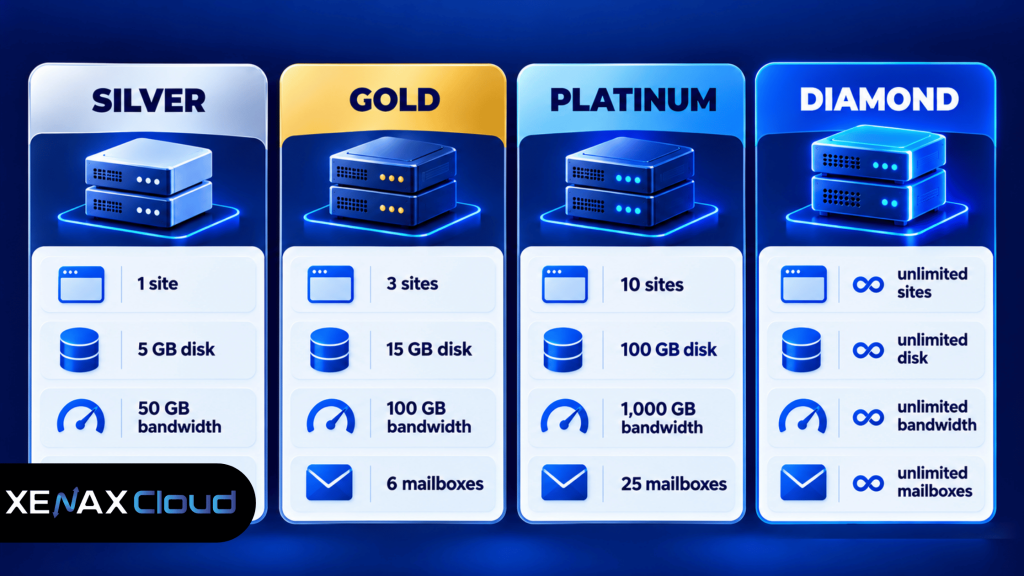
The following comparison outlines the published Xenax Cloud Shared Hosting plan specifications relevant to website selection.
| Plan | Websites | Disk space | Bandwidth | Mailboxes |
| Silver | 1 | 5 GB | 50 GB | 3 |
| Gold | 3 | 15 GB | 100 GB | 6 |
| Platinum | 10 | 100 GB | 1,000 GB | 25 |
| Diamond | Unlimited | Unlimited | Unlimited | Unlimited |
All four plans include cPanel, LiteSpeed web server, Let’s Encrypt SSL and DDoS protection. JetBackup 5 backups are also included with Shared Hosting.
These limits should guide your decision. A website with large media files may need more disk space than a lightweight company website, while a business with several branded email addresses may need more mailboxes.
The word unlimited on the Diamond plan describes the listed plan allowance. It should not be interpreted as a promise of unlimited processing capacity, memory, CPU resources or protection against every possible usage restriction. Review the provider’s current terms before ordering.
The table can help you shortlist a plan, but it does not replace checking your application’s requirements. A content management system, ecommerce site and static portfolio can consume resources differently, even when their file sizes appear similar.
What Does Hosting Setup in Minutes Actually Include?
Hosting setup in minutes means completing the account and initial configuration steps quickly, where the provider’s systems and your domain setup allow it. It does not mean every website is automatically ready for visitors.
For a straightforward site, the process may involve receiving cPanel access, uploading files or installing a content management system, connecting a domain and enabling HTTPS. A migration, custom application or database-heavy website can require additional work.
The phrase hosting setup in minutes is most useful when you break the setup into specific tasks rather than treating the whole launch as a single operation.
What should you prepare before ordering?
Prepare these details to reduce avoidable delays:
- Domain access: Know where the domain is registered and whether you can change its DNS records.
- Website files: Keep a verified copy of your site files and database export if you are migrating.
- Application requirements: Confirm the required PHP version, database type and extensions for your website.
- Email requirements: List the mailboxes you need and check whether your selected plan supports them.
- SSL requirements: Identify whether the website needs HTTPS and confirm the certificate status after setup.
- Backup copy: Keep a separate backup before changing DNS or moving production files.
These preparations make it easier to distinguish provider activation delays from issues caused by missing website files, incorrect domain settings or incompatible software.
How to Set Up Your cPanel Hosting Account
You can prepare a basic cPanel website by checking account access, connecting your domain, uploading or installing the application, enabling HTTPS and testing the finished site. The precise menu names depend on the cPanel configuration and any software the provider makes available.
Follow these steps after your hosting account is activated.
- Open cPanel. Use the access link and credentials provided for your hosting account.
- Check the domain. Confirm the correct domain is associated with the account.
- Upload website files. Use File Manager or an FTP client and place the files in the correct document root.
- Create a database. If your application needs one, create the database and user using the available database management tools.
- Install or configure the application. Follow the application’s official installation instructions and enter the correct database details.
- Enable HTTPS. Check the SSL/TLS status and follow the provider’s certificate instructions.
- Test the website. Open important pages, test forms and check that internal links and images load correctly.
If you use WordPress or another content management system, confirm that its software requirements match the hosting environment before installation. An application that requires a newer PHP release or an unavailable extension may fail even when the hosting account itself is functioning.
For HTTPS, cPanel’s SSL/TLS Status documentation explains how the interface reports certificate status and related domain information. Certificate availability and installation behaviour depend on the server’s configuration.
What if the domain does not open after activation?
A domain may not display the new website immediately because DNS records still point to another server or changes have not propagated through the relevant DNS resolvers.
Check the domain’s nameservers and A record first. Confirm that the A record points to the correct server IP address, and make sure the website files are in the right document root. If the domain resolves to the correct server but the page still fails, check application errors, file permissions and SSL configuration.
If you are migrating a live business site, keep the old hosting account and a verified backup available until you have tested the new website. Avoid deleting the old files simply because the new hosting account has been activated.
Which Xenax Cloud Shared Hosting Plan Fits Your Needs?
The appropriate Xenax Cloud Shared Hosting plan depends on how many websites you operate and the storage, bandwidth and email capacity those websites require. Choose by actual resource needs rather than by the promise of quick activation alone.
Xenax Cloud offers four Shared Hosting plans:
- Silver: Suitable for one website that fits within 5 GB of disk space, 50 GB of bandwidth and three mailboxes.
- Gold: Suitable for up to three websites within 15 GB of disk space, 100 GB of bandwidth and six mailboxes.
- Platinum: Suitable for up to ten websites within 100 GB of disk space, 1,000 GB of bandwidth and 25 mailboxes.
- Diamond: Suitable for projects needing the plan’s listed unlimited website, disk, bandwidth and mailbox allowances, subject to applicable terms.
The plans include cPanel, LiteSpeed web server, Let’s Encrypt SSL, DDoS protection and JetBackup 5 backups. The features can help you manage a website and maintain copies of hosting data, but backups should not be treated as a substitute for keeping an independently controlled copy of important files.
A worked example: an Indian consultancy launching a business website
Consider a consultancy in Lucknow launching one company website with a contact page, service descriptions, a small image library and three email mailboxes. Assume its website files and expected traffic fit within the Silver plan’s published limits.
Silver is the reasonable starting choice for this example because it supports one website, 5 GB of disk space, 50 GB of bandwidth and three mailboxes. Gold would provide more capacity, but the stated requirements do not establish a need for that additional allowance.
Now suppose the consultancy also needs a second website and four mailboxes in total. Silver would not meet the stated website and mailbox limits. Gold supports up to three websites and six mailboxes, so it is the closer fit, provided the combined websites remain within its storage and bandwidth allowances.
These examples illustrate plan matching, not a performance guarantee. Actual requirements can change as traffic grows, applications are added or media files accumulate.
For current specifications and ordering information, visit Xenax Cloud Shared cPanel Hosting.
When is shared hosting not the right choice?
Shared hosting may not be suitable for applications that require root access, custom server-level software, unusual system services or control over the server operating system. Those requirements may call for a VPS or a dedicated server instead.
For example, a developer who needs to install custom system packages or manage services outside the permissions available in cPanel should assess a VPS. A high-resource application with specific hardware requirements may need a more suitable server configuration.
Do not upgrade solely because a website has a short traffic spike. First check available resource metrics, application logs, caching and the cause of the slowdown. Moving to a larger hosting environment makes sense when the current environment cannot meet the application’s actual requirements.
How Safe Is Instant cPanel Hosting?
Instant cPanel hosting can support a secure website when the provider supplies appropriate controls and the site owner maintains good account security. Quick provisioning by itself does not guarantee that a website is protected from every threat.
Xenax Cloud Shared Hosting includes Let’s Encrypt SSL and DDoS protection. SSL helps encrypt traffic between a visitor’s browser and the website when HTTPS is configured correctly, while DDoS protection is intended to help mitigate certain denial-of-service attacks. Neither feature prevents every form of compromise.
Take these practical steps after activation:
- Set a strong, unique cPanel password and secure the email account used for password recovery.
- Enable multi-factor authentication if the hosting account supports it.
- Keep your CMS, plugins, themes and application dependencies updated.
- Remove unused applications, test accounts and unnecessary files.
- Use HTTPS and check that visitors are redirected to the secure version of the site.
- Keep an independent backup of important website files and databases.
- Restrict access to administrative accounts and review access permissions regularly.
JetBackup 5 backups are included with Xenax Cloud Shared Hosting, but you should still confirm the backup schedule, retention and restore process. Before a major update or migration, create a current copy of the site and database that you can access independently.
Instant cPanel Hosting: FAQs
Does instant cPanel hosting mean my website will be live immediately?
No, instant cPanel hosting does not guarantee that a complete website will be live immediately after an order. Account provisioning, payment verification, domain DNS changes, application installation and SSL configuration are separate steps. Check the hosting account status first, then test the domain and website before sharing the link publicly.
How long does instant hosting activation take?
The activation time depends on the provider’s provisioning system, payment confirmation and any required account checks. Some services automate most of the process, while others require manual review. Check the provider’s stated activation policy and welcome email rather than assuming that every order follows the same timeline.
Can I install WordPress on instant cPanel hosting?
Yes, you can install WordPress when the hosting plan supports its technical requirements and the necessary installation method is available. Check the supported PHP version, database compatibility and storage allowance before installing. If an application installer is provided, follow its instructions; otherwise, use the official WordPress installation documentation.
Is instant cPanel hosting suitable for a small business website?
Yes, shared cPanel hosting can suit a small business website when its resource requirements fit the chosen plan. Xenax Cloud Silver supports one website, 5 GB of disk space, 50 GB of bandwidth and three mailboxes. Sites requiring more capacity or additional websites should compare the Gold and Platinum allowances.
Can I use my existing domain with instant cPanel hosting?
Yes, an existing domain can generally be connected to a new cPanel hosting account by updating its nameservers or the relevant DNS records. Keep access to your domain registrar, verify the required records with your hosting provider and allow for DNS changes to propagate. Check email-related DNS records separately if your business uses domain email.
Does cPanel hosting include SSL and backups?
Xenax Cloud Shared Hosting includes Let’s Encrypt SSL and JetBackup 5 backups. SSL still needs to be available and configured for the relevant domain, while backup schedules and restoration procedures should be checked before you rely on them. Keep an independent backup before changing website files, updating applications or migrating a live site.
How do I choose between Silver, Gold and Platinum hosting?
Choose Silver for one website that fits within its listed storage, bandwidth and mailbox limits. Choose Gold when you need up to three websites or greater capacity, and consider Platinum when you need up to ten websites with more storage and bandwidth. Confirm the combined resource requirements of all sites before selecting a plan.
If you are launching one small business website within Silver’s published limits, start by reviewing Xenax Cloud Silver Shared Hosting. If you need several websites, more storage or additional mailboxes, compare Gold and Platinum before ordering, then complete the domain, SSL and website checks after account activation.