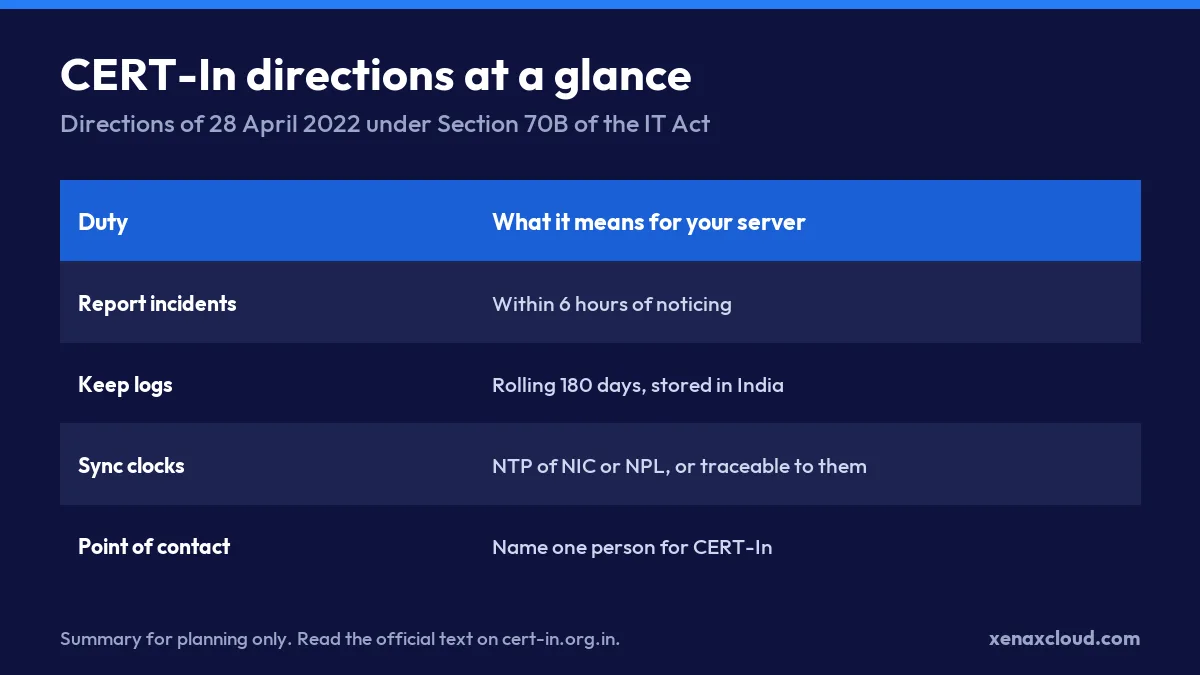
CERT-In directions are rules from India’s national cyber security agency that apply to service providers, data centres and body corporates, which covers most companies running servers. They require you to report certain cyber incidents to CERT-In within six hours, keep logs of your IT systems for a rolling 180 days in India, and sync server clocks with Indian time sources.
The directions were issued on 28 April 2022 under Section 70B of the IT Act. This guide explains what they mean for a business that runs a website, VPS or Windows server, and how to set up logs and time sync in an afternoon. It is a technical guide, not legal advice.
Who do the CERT-In directions apply to?
The CERT-In directions apply to service providers, intermediaries, data centres, body corporates and government organisations. A private limited company, an LLP or a firm running its own website or servers counts as a body corporate, so most businesses with a server are in scope.
Hosting companies, VPS providers and cloud providers carry extra duties, such as keeping customer records. Your own duties as a customer are the reporting, logging and time-sync duties described below. Read the official text on the CERT-In website, cert-in.org.in, before relying on any summary.
What has to be reported within six hours?
Cyber incidents listed in the directions must be reported to CERT-In within six hours of noticing them. The list is broad and includes compromise of systems, unauthorised access, website defacement, malicious code such as ransomware, attacks on servers, data breaches and data leaks, among others.
For a small business, the practical steps are:
- Name one person who decides whether something is a reportable incident.
- Keep CERT-In’s incident reporting details where that person can find them at night.
- Know how to get logs and snapshots from your hosting provider quickly.
- Write down what you saw and when; the six hours start when you notice.
If personal data is involved, separate duties under the DPDP Rules may also apply; see our DPDP compliance checklist.
How do I keep 180 days of logs on a Linux VPS?
Keep logs for at least 180 days by telling the system logger and log rotation to keep that much history. On Ubuntu, two settings cover most of it.
For the system journal, set a size large enough for six months and keep it on disk. Edit /etc/systemd/journald.conf:
[Journal]
Storage=persistent
MaxRetentionSec=200day
SystemMaxUse=2G
Then restart the journal with sudo systemctl restart systemd-journald and check its size with journalctl --disk-usage.
For text logs such as the web server and auth logs, set log rotation to keep enough copies. A daily rotation that keeps 200 files covers more than 180 days:
/var/log/nginx/*.log {
    daily
    rotate 200
    compress
    missingok
    notifempty
}
Keep an eye on disk space after the change, because six months of logs on a busy site can grow large. Check the oldest entry once a month with journalctl --list-boots | head -3 or by looking at the oldest rotated file, so you know the history really reaches back six months.
How do I keep logs on a Windows server?
On Windows Server, increase the size of the Security, System and Application event logs so they hold six months, or export them on a schedule to a separate folder. Event Viewer lets you set the maximum size under each log’s Properties.
From PowerShell, you can raise the Security log size to 2 GB:
wevtutil sl Security /ms:2147483648
wevtutil gl Security
The second command prints the log settings so you can confirm the new maxSize. Remote Desktop logins appear in the Security log, which is the log most useful after an incident. Our guide on how to secure an RDP server shows which events to watch.
What should you do in the first hour of an incident?
In the first hour, contain the damage, keep the evidence and start the clock on reporting. Panic usually destroys exactly the logs you need, so follow a short routine.
- Write down the time you noticed and what you saw: a defaced page, a ransom note, strange logins, files that will not open.
- Do not wipe or reinstall yet. Take a snapshot or backup of the affected server first, so the logs and files are preserved.
- Cut access, not evidence. Change passwords, disable suspicious user accounts and close the Remote Desktop or SSH port to everyone except your own IP.
- Check other machines. Look for the same signs on other servers and on office PCs that share folders with the affected one.
- Report within six hours if the incident is one of the listed types, and keep a copy of what you sent.
- Restore only from a clean backup, after you know how the attacker got in.
A server you can snapshot and restore quickly makes steps 2 and 6 far easier; our guide on how to back up a server shows a simple routine. Old, unpatched systems are a common way in, so also check whether any of your servers still run Windows Server 2016, which loses security updates in January 2027, as covered in Windows Server 2016 end of support.
How do I sync my server clock with NIC or NPL?
The directions ask you to sync system clocks with the NTP servers of the National Informatics Centre (NIC) or the National Physical Laboratory (NPL), or with servers traceable to them. Accurate time makes logs from different systems line up during an investigation.
On Ubuntu with chrony, add an NIC time server to /etc/chrony/chrony.conf:
server samay1.nic.in iburstRestart chrony with sudo systemctl restart chrony and check with chronyc sources; the NIC server should appear in the list.
On Windows Server:
w32tm /config /manualpeerlist:"samay1.nic.in" /syncfromflags:manual /update
w32tm /resync
w32tm /query /status
The last command shows the time source the server now uses.
A short CERT-In checklist for your servers
Use this checklist to cover the main CERT-In directions for a small business:
- Logs of web, application, login and firewall activity kept for 180 days, in India.
- Server clocks synced with NIC or NPL time servers.
- One named contact person and a written six-hour reporting routine.
- Backups and snapshots you can reach quickly during an incident.
- Hosting in India, which keeps logs in Indian jurisdiction without extra work.
Xenax Cloud servers run in a Tier-III data centre in India, so logs you store on them stay in India.
CERT-In directions: FAQs
Do CERT-In directions apply to a small company?
Yes, if it is a body corporate running IT systems. The directions name service providers, intermediaries, data centres, body corporates and government organisations.
How soon must an incident be reported?
Within six hours of noticing it, for the incident types listed in the directions.
How long must logs be kept?
For a rolling period of 180 days, and they must be kept within Indian jurisdiction.
Which time servers should I use?
The NTP servers of NIC or NPL, or servers traceable to them. On Linux and Windows this is one configuration line.
Does my hosting provider handle CERT-In compliance for me?
Your provider handles its own duties as a provider. Logs, time sync and reporting for your own systems remain your responsibility, so set them up on your server.
If you run a website or business software, set up 180-day log retention and NIC time sync on a Xenax Cloud VPS or Windows server in India this week, and write down who reports an incident and how.