How to transfer files to RDP depends on your remote desktop client, Windows settings and the security policies applied to the remote server. You can use drive redirection, clipboard support, a shared network folder or a dedicated transfer protocol such as SFTP when the required services are configured.
Remote Desktop Protocol (RDP) is a Microsoft protocol that lets you interact with a remote computer through a graphical desktop session. File transfer is a separate capability within that connection, so connecting successfully does not guarantee that every transfer method is enabled.
Learning how to transfer files to RDP makes it easier to move documents, images and project folders between your local computer and a remote Windows desktop. You can use drive redirection for regular file transfers, while SFTP is useful for repeated transfers when the service is configured. Always verify the destination and confirm that important files have copied correctly.
If you use a Windows RDP server for business applications, website administration or everyday remote work, choose a method that suits the file size, destination and security requirements. Xenax Cloud provides Windows RDP servers with administrator access, allowing authorised users to configure supported server settings.
What Are the Ways to Transfer Files to RDP?
The main ways to transfer files to RDP are local drive redirection, clipboard transfer, shared network folders and dedicated file-transfer protocols. The appropriate method depends on the client software, server configuration and whether you control both computers.
| Method | Best suited for | Main requirement | Important limitation |
| Drive redirection | Documents and folders | RDP client supports redirected drives | Must be allowed by client and server policy |
| Clipboard | Small copy-and-paste tasks | Clipboard redirection is enabled | File copying may not work in every client |
| Shared network folder | Repeated transfers between computers | Reachable network share and permissions | Network access and authentication are required |
| SFTP | Secure transfers to a configured server | SFTP service and client credentials | Not enabled automatically on every Windows server |
| Browser or cloud storage | Files shared through an approved service | Internet access and authorised account | Depends on service limits and data policies |
For most Windows-to-Windows remote sessions, drive redirection is a practical first method to try because it exposes selected local drives inside the remote session. For recurring automated transfers or environments where RDP redirection is blocked, a properly configured transfer service may be more appropriate.
Before transferring important files, make sure your remote desktop connection is configured correctly and that your Windows account has the required permissions. Read our guide on how to set up Windows RDP to learn more about accessing a remote Windows environment and managing your connection.
What Is RDP File Transfer?
RDP file transfer is the process of moving files between your local device and a remote computer using features or services available alongside a Remote Desktop connection. It may use redirected drives, clipboard functionality or a separate protocol such as SFTP.
RDP itself does not mean that every connected computer automatically shares all its files. Access depends on the settings selected in the remote desktop client, server-side policies, permissions and any security controls enforced by an organisation.
Before transferring business documents, verify the destination path and confirm that the remote account has permission to write to it. If you are connecting to a server managed by an employer or client, follow its file-handling policy rather than enabling extra transfer features without approval.
How to Transfer Files to RDP Using Drive Redirection
Drive redirection lets a compatible Remote Desktop client expose selected local drives to the remote Windows session. Once enabled and permitted by the server, you can open the redirected drive from File Explorer and copy files as you would between folders.
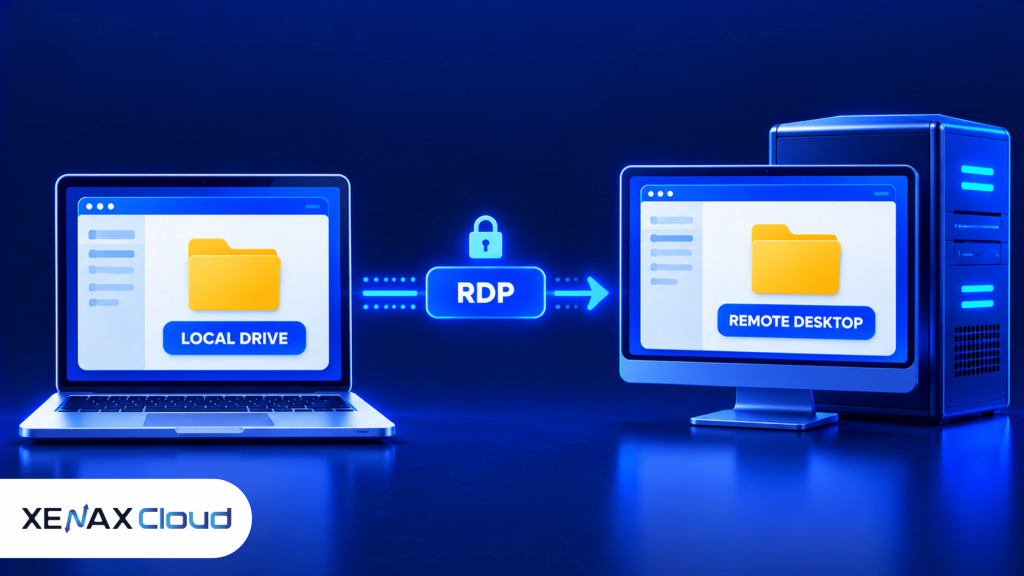
Steps to Transfer Files Using Drive Redirection
- Open the Remote Desktop client on your local computer.
- Expand the connection options if using the classic Windows client.
- Select the Local Resources tab.
- Open the local device and resource settings.
- Choose the drives you want to make available remotely.
- Connect to the remote Windows computer.
- Open File Explorer on the remote desktop and locate the redirected drive.
In the classic Windows client, the path is generally Show Options > Local Resources > More, where you can select supported local drives. Newer Remote Desktop applications may use different menus or support different redirection features.
After connecting, open File Explorer on the remote computer and look under This PC for redirected drives. Their displayed names vary by client, but they may identify the local computer or drive.
Open the relevant drive, locate the source file and copy it to the intended folder on the remote server. To transfer a file back to your local computer, copy it from the remote location into the redirected local drive, provided the client and server permit that direction.
How to Copy Files to Remote Desktop Using Clipboard?
You can copy files to remote desktop using clipboard features when the RDP client and server support file clipboard redirection and the relevant settings are enabled. Basic text copying may work even when copying files through the clipboard does not.
For a Windows remote session, first check whether clipboard redirection is enabled in the client and allowed by the server’s policy. Some remote desktop clients support copying files with keyboard shortcuts, while others support only text or a different set of clipboard operations.
To test the feature:
- Connect to the remote desktop.
- Select a small, non-sensitive test file on your local computer.
- Copy the file using the method supported by your client.
- Try pasting it into a permitted folder in the remote session.
- Confirm that the destination file exists and opens correctly.
If text copies but files do not, the client may not support file clipboard transfer, or file redirection may be disabled by policy. Try drive redirection if it is permitted, or ask the server administrator to review the applicable Remote Desktop settings.
Avoid repeatedly pasting large files when the client provides no clear transfer progress. Use a method that allows you to confirm completion, file size and the final destination.
What Should You Do If RDP File Transfer Is Not Working?
RDP file transfer usually fails because drive or clipboard redirection is disabled, the client does not support the feature, a policy blocks it or the destination lacks permissions or storage. Check these causes in order before changing server-wide settings.
- No redirected drive appears: Disconnect and inspect the client’s local resource settings before reconnecting.
- Clipboard works for text but not files: Check whether the client supports file clipboard redirection and whether server policy permits it.
- Access is denied: Confirm that the remote account can write to the destination folder.
- The transfer stops: Check available disk space, network stability and whether the client reports an error.
- Redirection is blocked: Ask the administrator whether a Group Policy setting or organisational security rule disables it.
- Only one direction works: Review client capabilities, server policy and the permissions of the source and destination.
On a Windows server you administer, Remote Desktop redirection policies can be managed through Group Policy. Policy changes may affect multiple users, so confirm the intended scope and organisational requirements before applying them.
Do not disable security controls or expose additional network services just to make one file transfer work. If redirection is prohibited, use an approved alternative such as an authorised network share or SFTP service.
How to Transfer Large Files to RDP Securely
Large file transfers are easier to manage when you use a method that supports progress monitoring, clear permissions and verification after copying. Drive redirection may be sufficient for occasional transfers, while a dedicated transfer service can be more suitable for repeated or automated jobs.
For large files, check the following before starting:
- Confirm the destination has enough disk space for the file and any temporary copies.
- Use a stable connection and avoid interrupting the session while a transfer is in progress.
- Keep the original file until you verify the copied version.
- Compare file sizes and, for important files, calculate a checksum on both systems.
- Avoid transferring confidential files through personal cloud accounts or unapproved storage services.
For repeated transfers, Secure File Transfer Protocol (SFTP) is a file-transfer protocol that uses SSH to protect the connection between a client and a configured server. SFTP is not automatically available just because Windows RDP is enabled; an appropriate server service and access permissions must also be configured.
A network share is another option when both computers can reach an approved network location. Use authenticated access and limit permissions to the users and folders that need them.
When Should You Use SFTP Instead of RDP Redirection?
Use SFTP when you need a separate, scriptable file-transfer method and the remote server has an authorised SFTP service configured. Use RDP drive redirection for simpler interactive transfers when the client and server permit it.
SFTP can be useful for scheduled deployments, repeated uploads or moving files without opening a graphical desktop session. However, setting up an SFTP service requires appropriate configuration, authentication, firewall rules and ongoing maintenance.
Microsoft documents Remote Desktop device and resource redirection in its official Remote Desktop Services documentation. Check the relevant guidance for your Windows environment and client before changing server policy.
Worked Example: Copying Files to a Windows RDP Server
Consider a web designer in Lucknow who needs to upload a folder containing website images and project documents from a local Windows PC to a remote Windows desktop. For an occasional transfer, drive redirection is a reasonable first choice because it avoids configuring a separate file-transfer service.
The designer selects the local drive in the RDP client before connecting, opens File Explorer on the remote computer, finds the redirected drive and copies the required folder to a designated project directory. After the copy finishes, the designer checks the file count and opens a few files to confirm they arrived correctly.
If the folder is too large for a convenient interactive transfer, the designer can split the work into manageable batches or use an approved SFTP service if one is configured. If the remote account cannot write to the destination folder, the correct next step is to request appropriate permissions rather than changing security settings broadly.
Choose drive redirection for occasional manual transfers when it is allowed. Choose SFTP or an approved shared storage location for repeatable transfers that need a separate workflow. If your work requires a Windows desktop with administrator access, compare the available Windows RDP hosting plans against your application and resource needs.
How to Keep File Transfers Safe on a Remote Desktop
Safe remote file transfers require restricted access, approved transfer methods and verification of the files after copying. Enabling redirection for every drive or user can expose more data than the task requires.
Follow these practices:
- Share only what is needed: Redirect the specific drive or folder required for the task instead of exposing all local storage.
- Use authorised accounts: Keep credentials private and give users only the permissions they need.
- Verify files: Check file size, open important files and compare checksums when integrity matters.
- Protect sensitive data: Use approved encrypted transfer methods and avoid public links for confidential documents.
- Review policies: Follow your organisation’s restrictions on clipboard, drive redirection and removable storage.
- Maintain backups: Keep a separate copy of important source files before replacing or moving them.
For critical files, do not delete the original immediately after copying. Verify the destination and confirm that the application can use the transferred files before removing the source.
How to Transfer Files to RDP: FAQs
How to transfer files to RDP from a Windows PC?
You can transfer files to RDP from a Windows PC by enabling drive redirection in a compatible Remote Desktop client, connecting to the server and copying files from the redirected drive in File Explorer. The server must permit redirection, and the remote account needs write permission for the destination folder.
Can I copy files to remote desktop using copy and paste?
Yes, you can copy files to remote desktop using clipboard transfer when the client supports file copying and the relevant redirection settings are enabled. Some clients support only text clipboard operations. If file paste does not work, check client capabilities and server policy or use drive redirection instead.
Why is my RDP file transfer not working?
RDP file transfer may fail because drive redirection or clipboard access is disabled, the client does not support the feature, the destination lacks permissions or the remote disk is full. Check client settings, reconnect after permitted changes and test with a small file before retrying a larger transfer.
Can I transfer large files through RDP?
Yes, you can transfer large files through RDP if the selected client feature and server policy support the transfer and the destination has sufficient space. For very large or recurring transfers, consider an approved SFTP service or shared storage. Verify file integrity before deleting the original.
Is RDP file transfer secure?
RDP file transfer can be used securely when access is restricted, the connection is properly protected and only necessary drives or resources are redirected. Security also depends on account permissions, server configuration and organisational policy. Avoid exposing sensitive local drives to remote sessions that do not require access.
Can I transfer files if drive redirection is disabled?
Yes, you may be able to transfer files through an approved network share, SFTP service or authorised storage platform if those methods are available. Drive redirection being disabled does not automatically enable another method. Ask the server administrator which transfer options are permitted before configuring a new service.
Where do transferred files appear on the remote desktop?
Files copied through drive redirection usually appear in the destination folder you select on the remote computer, while the local drive itself may appear under This PC. Clipboard transfers use the folder active when you paste. Always check the destination path before transferring sensitive or important files.
For occasional file transfers to a Windows remote desktop, start with drive redirection and copy only the folders you need. If you transfer files regularly or handle large project folders, use an approved SFTP or shared-storage workflow and verify each completed transfer.