Buy private RDP services when you need remote access to a Windows environment that remains available independently of your personal computer. A private RDP server lets you connect over the Remote Desktop Protocol (RDP), use supported applications and manage files in a remote Windows session. The right configuration depends on your software, memory requirements, processing workload and security needs.
For an Indian business owner, developer or remote worker, the main decision is not simply which provider offers RDP. You need to determine whether the server has sufficient RAM, CPU capacity, storage and network connectivity for your daily tasks.
Xenax Cloud offers Windows RDP on KVM virtualisation, with administrator access and several plan families. Understanding the differences between these configurations helps you choose a suitable environment without paying for resources your applications do not need.
When you buy private RDP, compare the available Windows configurations based on your applications, memory usage and processing requirements. Checking these details before ordering can help you choose a server that fits your remote work needs.
What Is a Private RDP Server?
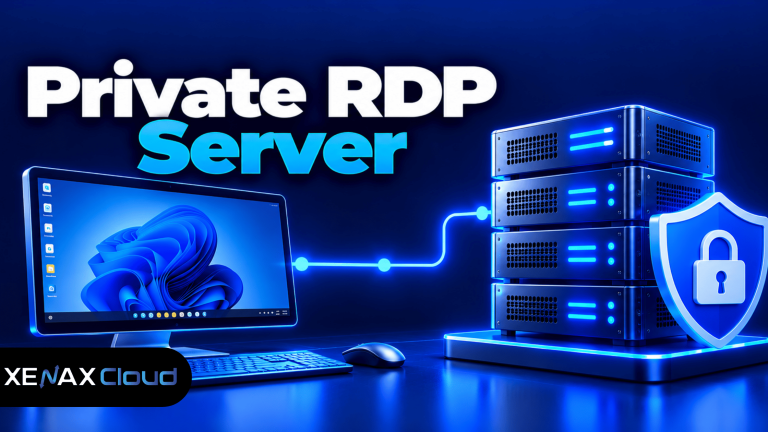
A private RDP server is a remotely hosted Windows environment that you access through Microsoft’s Remote Desktop Protocol rather than running the entire workload on your local computer.
RDP transmits the remote desktop display and user input between your device and the server. Applications execute on the remote machine, while your local computer acts as the device used to control that session.
A private RDP environment can be useful for:
- Running Windows applications from different locations.
- Keeping work files and applications on a remote machine.
- Accessing a consistent desktop environment from a laptop or desktop.
- Performing administrative tasks on a Windows server.
- Running compatible development, office or browser-based workloads remotely.
The word private needs careful interpretation. It generally refers to an individually allocated remote environment, not necessarily an entire physical server reserved for one customer. A virtual RDP server can run on a physical host shared with other virtual machines while maintaining its own allocated configuration and isolation.
Before you buy private RDP, confirm what the provider means by private access, which operating system is supplied, whether administrator access is available and what resource limits apply.
A private RDP server is also not automatically anonymous or completely secure. Your connection, applications, credentials and network configuration still need appropriate protection.
What Should You Check Before You Buy Private RDP?
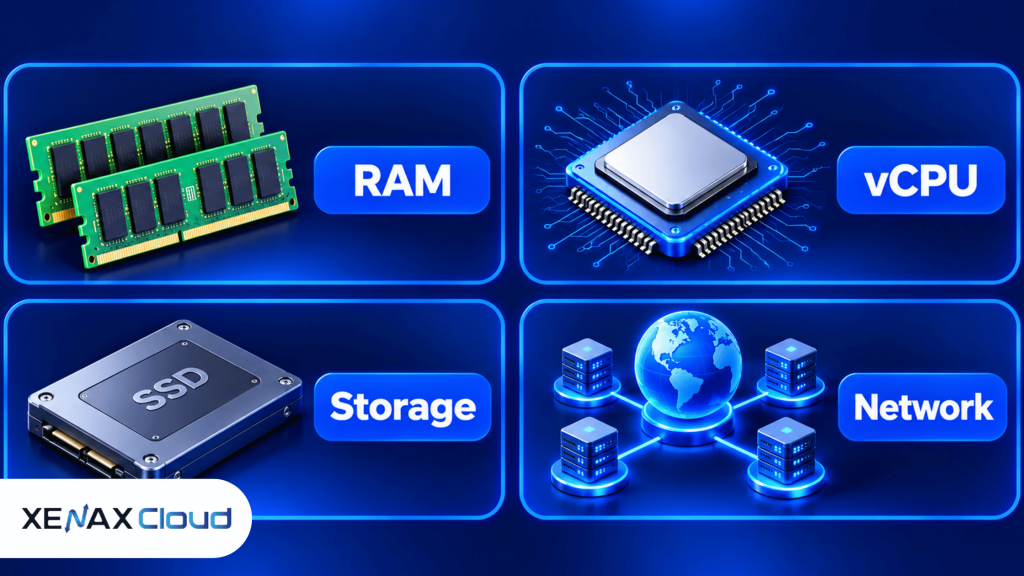
Before buying private RDP, compare the server’s RAM, virtual CPU cores, storage, network capacity, administrator access, backup policy and supported operating system.
These specifications affect different parts of your workload. RAM determines how much working data applications can keep in memory, while virtual CPU cores provide processing capacity. Storage holds the operating system, installed software and files.
| Specification | What it affects | What to check |
| RAM | Applications running simultaneously | Memory required by your software |
| vCPU | Processing and multitasking | Core requirements and workload intensity |
| Storage | Windows, software and user files | Available capacity and storage type |
| Network port | Potential network transfer capacity | Port speed and provider limits |
| Administrator access | Software installation and system settings | Whether full administrative permissions are supplied |
| Backups | Recovery after data loss or system problems | Backup frequency and restoration process |
A high vCPU count does not compensate for insufficient memory. Likewise, more RAM does not automatically make a CPU-intensive application run faster. Choose the configuration based on the application’s requirements and monitor actual resource usage after deployment.
Also check the operating system and software compatibility before ordering. Some Windows applications require specific Windows components, administrator permissions or supported hardware features. A server with suitable specifications may still be unsuitable if the application cannot run in its operating system environment.
Dedicated RDP vs Private RDP: What Is the Difference?
Dedicated RDP usually describes a remote desktop environment marketed for an individual user, but the term does not by itself prove that an entire physical server is reserved for that customer.
A private RDP server can be a virtual machine with its own operating system and allocated resources. A dedicated physical server is different: its physical hardware is allocated to a customer rather than being divided among multiple virtual machines.
| Feature | Private virtual RDP | Dedicated physical server |
| Infrastructure | Virtual machine on a physical host | Physical machine allocated to the customer |
| Operating system | Windows environment supplied for the plan | Operating system selected or installed according to the service |
| Resource allocation | Defined virtual CPU and memory configuration | Physical hardware specifications |
| Administration | Depends on the provider’s access policy | Depends on the provider’s access policy |
| Suitable use | Remote desktop and compatible Windows applications | Workloads needing dedicated physical hardware or specific configurations |
Do not assume that a product labelled “dedicated RDP” includes dedicated physical hardware. Ask the provider to clarify whether the service is a virtual machine or a physical server and what resource allocation applies.
For ordinary remote desktop work, a virtual RDP configuration can be sufficient. A physical dedicated server may make more sense when an application needs specific hardware, substantial resources or a level of physical isolation that a virtual RDP plan does not provide.
Xenax Cloud’s RDP offerings run Windows on KVM virtualisation. They provide administrator access, and their network and backup arrangements follow the stated RDP specifications. These are virtual server configurations, not a claim that each RDP customer receives an entire physical machine.
Which Xenax Cloud RDP Plan Should You Buy?
Choose a Xenax Cloud RDP family according to whether your workload needs a balanced configuration, more memory relative to CPU cores or high-frequency Xeon Gold processing.
Xenax Cloud provides three RDP families: Speed RDP, General RDP and Gold RDP. All are Windows environments running on KVM, with administrator access.
| RDP family | Configuration characteristic | Consider it for |
| Speed RDP | Eight sizes, from 2 vCPU and 4 GB RAM up to 32 vCPU and 64 GB RAM | Workloads that fit its available CPU and memory configurations |
| General RDP | Four sizes, from 2 vCPU and 8 GB RAM up to 16 vCPU and 64 GB RAM | Workloads that need more RAM relative to vCPU capacity |
| Gold RDP | Eight sizes, from 2 vCPU and 4 GB RAM up to 32 vCPU and 64 GB RAM, with high-frequency Xeon Gold CPUs | Workloads that may benefit from high-frequency CPU processing |
The best family depends on the application, not just its name. For example, an application that keeps large datasets in memory may benefit more from a RAM-oriented configuration, while a workload sensitive to CPU frequency may be a better candidate for Gold RDP.
Xenax Cloud RDP plans use a 500 Mbps network port and include weekly backups. A network port’s stated capacity is not a guarantee that every application will achieve that transfer speed, because actual performance also depends on network conditions, workload and other limits.
For plan details and available configurations, review Xenax Cloud Windows RDP plans.
Worked example: A remote worker in Lucknow
Consider a remote worker in Lucknow who needs a Windows environment for office applications, multiple browser tabs and a lightweight business application. The worker wants to connect from a laptop and keep the applications running on the remote machine.
A starting configuration of 2 vCPU and 4 GB RAM may be worth evaluating for a light workload if the applications’ published requirements fit and memory usage remains controlled. If the worker regularly runs several memory-heavy applications together, a configuration with 8 GB RAM may be a more suitable candidate to test.
Xenax Cloud General RDP offers configurations starting at 2 vCPU and 8 GB RAM, while Speed RDP and Gold RDP offer configurations starting at 2 vCPU and 4 GB RAM. The appropriate choice depends on the workload, and the smaller configuration should not be rejected without checking the actual application requirements.
Before selecting a plan, list the applications you will run, check their minimum and recommended specifications, and allow additional memory for Windows and background services. If the workload needs more CPU capacity or a specialised server configuration, compare the next suitable size rather than relying on a generic user-count estimate.
How to Buy Private RDP and Connect Securely
You can buy private RDP by selecting a compatible Windows server configuration, checking access and backup terms, ordering the plan and connecting with a supported Remote Desktop client.
- List the applications and tasks you need to run remotely.
- Check the required Windows environment, RAM, vCPU and storage.
- Compare the available RDP families against those requirements.
- Review administrator access, network capacity and backup arrangements.
- Order the configuration that fits your workload.
- Collect the server address and login credentials through the provider’s approved process.
- Connect using a supported Remote Desktop client and verify access.
On a Windows computer, open the Remote Desktop Connection application, enter the server address supplied by the provider and authenticate using the assigned credentials. The exact connection steps may vary by Windows version and the provider’s network configuration.
For Microsoft’s official instructions, consult the Remote Desktop connection documentation. It explains the client options used to connect to remote Windows environments.
What security settings should you check?
Secure remote access starts with controlling who can connect and protecting the credentials used to sign in.
- Use a strong, unique administrator password.
- Enable multi-factor authentication where the environment supports it.
- Keep Windows and installed applications updated.
- Restrict remote access to authorised users and networks where possible.
- Avoid exposing Remote Desktop directly to the public internet without appropriate security controls.
- Keep backups separate from the only working copy of important files.
- Log out or lock the remote session when you finish.
Do not send administrator credentials through public chats or reuse the same password across multiple servers. If credentials may have been exposed, change them promptly and review account access.
Weekly backups help with recovery, but they do not replace your own data-management plan. Before performing a major update or changing system settings, verify that a recent backup exists and understand how restoration works.
Is a Private RDP Server Safe for Business Work?
A private RDP server can support business work when the operating system, access controls, applications and data-handling practices are configured appropriately.
The server’s isolation does not protect it from every threat. Weak passwords, unpatched software, malicious downloads, excessive permissions and exposed remote access can still create security risks.
For business use, decide which files should be stored on the remote machine and who needs access to them. If the server contains customer data, financial documents or confidential business files, establish access policies and backups before using it for routine work.
A remote desktop environment is also not a replacement for every type of hosting. If you need to publish a website, run a public-facing API or host a Linux application, a web hosting plan or Linux VPS may be more appropriate than Windows RDP.
Choose RDP when the workload needs an interactive Windows desktop or compatible Windows software. Choose a different server or hosting product when the main requirement is running a website, hosting a service or deploying software that does not need a remote Windows desktop.
Buy Private RDP: FAQs
How much RAM do I need for a private RDP server?
The required RAM depends on the operating system and applications running at the same time. A light workload may fit a configuration with 4 GB RAM, while memory-heavy software or multiple concurrent applications may need 8 GB or more. Check software requirements and monitor actual memory usage before increasing the server size.
Can I install software on a private RDP server?
Yes, you can install compatible software when your RDP plan provides the required administrator permissions. Xenax Cloud RDP includes administrator access, but application compatibility, licensing and operating system requirements still apply. Check the software vendor’s documentation before installing business-critical applications or making system-level changes.
Is dedicated RDP the same as a dedicated physical server?
No, the term dedicated RDP does not automatically mean that the customer receives an entire physical server. Some providers use the term for an individual virtual desktop environment. Confirm whether the service uses a virtual machine or dedicated physical hardware and check the resources and isolation that are actually included.
Can I access private RDP from a laptop?
Yes, you can access a compatible Windows RDP environment from a laptop using a supported Remote Desktop client. You need the server address, valid credentials and network connectivity. Use an updated client, protect your login details and follow the provider’s connection instructions rather than exposing remote access settings unnecessarily.
Does Xenax Cloud RDP include backups?
Yes, Xenax Cloud RDP plans include weekly backups according to the stated service specifications. A weekly backup may not include the most recent changes if data loss occurs between backup runs. Keep additional copies of critical files and verify the provider’s restoration procedure before relying on the service for important work.
When should I choose General RDP instead of Speed RDP?
Consider General RDP when your workload needs more memory relative to virtual CPU capacity. Its configurations begin at 2 vCPU and 8 GB RAM, while Speed RDP configurations begin at 2 vCPU and 4 GB RAM. Compare the application’s memory and processing requirements before selecting either family.
Is a private RDP server suitable for running a website?
A private RDP server can be used for compatible Windows-based development or administration tasks, but it is not automatically the right environment for public website hosting. A website usually needs an appropriate web server, domain and application configuration. Choose a hosting plan or VPS based on the site’s software and deployment requirements.
To order a suitable configuration, begin with the applications you plan to run and their RAM and CPU requirements. Compare Xenax Cloud’s Speed RDP, General RDP and Gold RDP options, then choose the smallest configuration that meets those needs with reasonable capacity for background services and future workload changes.