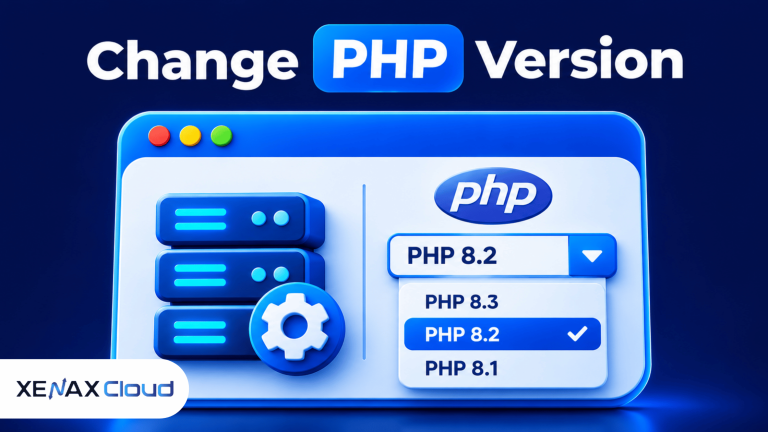
Changing the PHP version in cPanel lets you run a website on a PHP release supported by its content management system, theme and plugins. To change PHP version in cPanel, open the available PHP management tool, select a compatible version for your domain or account, apply the setting and test the website.
The correct procedure depends on your hosting configuration. Some cPanel accounts provide MultiPHP Manager, while others use Select PHP Version, also known as PHP Selector.
Changing the setting without checking compatibility can cause errors in WordPress, contact forms, shopping carts or custom scripts. The steps below explain how to prepare, make the change, verify the active version and recover if something stops working.
What Does Changing the PHP Version in cPanel Do?
Changing the PHP version changes the runtime environment that processes PHP files on your website. PHP is a server-side scripting language that generates dynamic web pages and handles application functions such as logins, forms and database operations.
A website’s PHP version affects how its code runs. Newer releases can introduce language improvements and security fixes, but older themes, plugins or custom scripts may not support every release.
For example, a WordPress website depends on several components working together:
- WordPress core files.
- The active theme and its functions.
- Plugins that add forms, payment options, search or other features.
- Custom PHP code added by a developer.
- Server-side PHP extensions required by the application.
If one component uses an outdated function or an incompatible coding method, changing PHP can produce warnings, blank pages or fatal errors. That is why you should check the complete website rather than relying only on the WordPress version.
Why Does a Website Need a Different PHP Version?
A website may need a different PHP version because its software requires a newer release or because an older application has not been updated to support newer PHP behaviour.
Common reasons include:
- CMS compatibility: Your content management system may recommend a particular PHP release.
- Plugin requirements: A plugin may require functions or language features available only in a newer version.
- Theme compatibility: An older theme may contain code that no longer works correctly on a newer release.
- Security maintenance: Unsupported PHP releases may no longer receive security updates from the PHP project.
- Application errors: A developer may ask you to use a specific PHP version while investigating a compatibility issue.
Do not select the newest version automatically. Choose a release supported by your website’s software and available in your hosting account.
How to Change PHP Version in cPanel Step by Step
You can change PHP version in cPanel through MultiPHP Manager or Select PHP Version, depending on the tools enabled by your hosting provider.
Before opening either tool, prepare a backup of your website files and database. A backup gives you a recovery point if the website develops errors after the change.
When you change PHP version in cPanel, always check the version currently assigned to your domain before selecting another release. This helps you identify the original configuration if your website develops compatibility issues after the update.
After you change PHP version in cPanel, test your website’s homepage, contact forms, login page and important plugins. A successful update in the control panel does not automatically confirm that every website feature is working correctly.
Step 1: Identify Your Current PHP Version
Log in to cPanel and look under the Software section for a PHP management option. The available tool names can differ between hosting environments.
If you see MultiPHP Manager, you can usually manage the PHP version assigned to individual domains. If you see Select PHP Version, your hosting account may use PHP Selector to manage the account’s PHP configuration.
Record the current version before making any changes. This gives you a reference point if you need to restore the previous setting.
Step 2: Back Up Your Website
Create a backup of your website’s files and database before changing the PHP version. A file backup alone may not preserve WordPress posts, product records, customer details or other database content.
You should preserve:
- Website files, including the application directory and configuration files.
- The database connected to the website.
- Custom scripts and any manually edited configuration.
- A note of the current PHP version and enabled extensions.
For WordPress, you can also use your existing backup system or hosting backup facility. Check that the backup is complete and accessible before continuing.
Step 3: Open the Correct PHP Management Tool
The location of the PHP setting depends on the hosting configuration. Open cPanel and check the Software section.
If MultiPHP Manager is available, use it to select a PHP version for the relevant domain. If Select PHP Version is available, open that tool and check its current account configuration.
The following steps show the common MultiPHP Manager procedure. The exact labels and available versions depend on the server configuration.
Step 4: Select the Domain and PHP Version
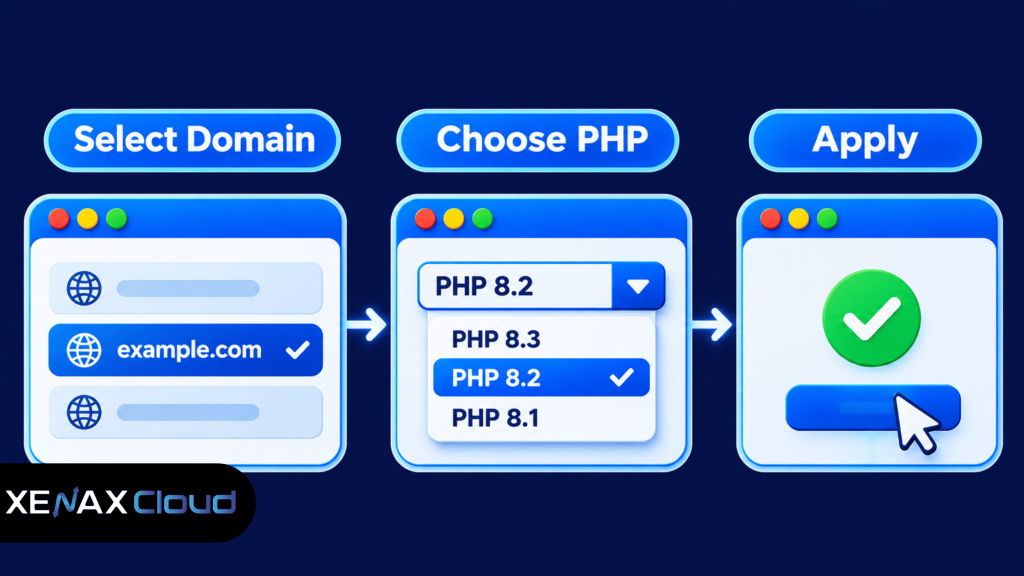
In MultiPHP Manager, locate the domain you want to update. Select its checkbox, open the PHP Version dropdown and choose a compatible version from the available list.
If your cPanel account hosts multiple websites, confirm that you have selected the correct domain. Applying a change to the wrong domain can affect a different website.
Step 5: Apply the Change and Check the Result
After selecting the required version, click Apply. Wait for the interface to confirm the change, then open the website in a separate browser tab.
Do not assume the website is working correctly just because the cPanel interface accepted the setting. Check the homepage, WordPress dashboard, important forms and any business-critical functions.
The official cPanel MultiPHP Manager documentation explains how to assign PHP versions to domains and notes that the available choices depend on the server’s installed PHP versions.
cPanel & WHM Documentation
PHP Version cPanel Tools: MultiPHP Manager vs Select PHP Version
The two common PHP management tools serve related purposes, but their behaviour can differ. MultiPHP Manager generally assigns PHP versions by domain, while Select PHP Version may manage the PHP version and extensions for the cPanel account.
| Feature | MultiPHP Manager | Select PHP Version |
| Main purpose | Assign a PHP version to a domain | Manage PHP version and extensions |
| Domain control | Can manage individual domains | May apply account-wide settings |
| Extensions | Depends on server configuration | Often provides an extensions tab |
| PHP options | Depends on available settings | May include configurable PHP options |
| Availability | Enabled by hosting provider | Depends on PHP Selector setup |
When Should You Use MultiPHP Manager?
Use MultiPHP Manager when you need to assign a specific PHP version to one domain without intentionally changing the version used by other domains.
For example, suppose your cPanel account hosts a business website and a separate development website. If the business website requires a different PHP release, MultiPHP Manager may let you configure that domain separately.
However, domains that share a document root or inherit PHP settings can have linked behaviour. Check the domain configuration before applying changes to several websites.
When Should You Use Select PHP Version?
Use Select PHP Version when your hosting provider has enabled PHP Selector and you need to manage the account’s PHP version, extensions or configurable options.
The interface may include tabs such as:
- Extensions: Enable or disable available PHP modules.
- Options: Adjust supported PHP configuration values.
- Current PHP Version: Select the PHP release assigned to the account.
The exact tabs and controls depend on the hosting environment. If both tools are visible, do not change settings in both without understanding which tool controls the domain.
How to Select PHP Version for WordPress and Other Websites
To select PHP version correctly, check the requirements of your CMS, theme, plugins and custom application before applying a new setting.
PHP compatibility is not determined by WordPress alone. A website can have an updated CMS but still depend on an older plugin that does not support the PHP release you want to use.
Use this compatibility checklist:
- Check the PHP requirements published by your CMS.
- Review the PHP requirements of your active theme.
- Confirm that essential plugins support the target release.
- Inspect custom code for deprecated or removed PHP functions.
- Back up the website files and database.
- Select the compatible PHP version in cPanel.
- Test the website’s main functions after applying the change.
Before making hosting changes, understand how your domain and hosting account work together. Read our article on the difference between domain and hosting to understand which service manages your website address and which stores its files.
Which PHP Version Should You Choose?
Choose a PHP release that is supported by your application and still receives security maintenance. The newest available option is not automatically the right choice if your website’s code is incompatible.
For WordPress, review the official requirements and compatibility information before making the change. For a custom PHP application, ask the developer which release and extensions the code requires.
You should also distinguish between the PHP version and PHP extensions. A PHP extension is a module that adds functionality, such as database connectivity, image processing or internationalisation. A website may use a compatible PHP version but still fail if a required extension is disabled.
What If Your Required PHP Version Is Missing?
A missing PHP version usually means that the hosting provider has not installed it, has restricted it for your account or does not expose it through the available PHP management tool.
Do not try to force an unavailable version by editing server configuration files. On shared hosting, PHP installations and server-level settings are generally controlled by the hosting provider.
Contact support and provide:
- Your domain name.
- The PHP version currently assigned to the domain.
- The PHP version required by your application.
- The name of the CMS, plugin or script that needs it.
- Any error message shown by the website.
This information helps the hosting team identify whether the requested version is available and whether the account can use it.
Worked Example: Changing PHP for an Indian Business Website
Consider a hypothetical Jaipur business that operates a WordPress website for its main company, a separate catalogue website and a development site.
The owner receives a plugin update notice stating that the plugin requires a newer PHP release. The owner wants to update the main website without disrupting the other two domains.
The correct approach is to check the plugin’s compatibility information, confirm that the WordPress core and active theme support the target PHP release, and then use MultiPHP Manager if the hosting account exposes domain-level settings.
The owner should select only the main business domain, apply the compatible version and test the plugin, website forms and administration dashboard. The catalogue and development websites should remain on their existing settings unless their own compatibility checks show that they also need an update.
For hosting capacity, the example business has three websites and needs storage for website files, media and databases. Xenax Cloud’s Shared Hosting Gold plan supports three websites, 15 GB disk space, 100 GB bandwidth and six mailboxes. Silver supports one website, so it would not meet the three-site requirement.
This example shows why PHP compatibility and hosting capacity are separate decisions. The PHP version must match the website’s software, while the hosting plan must provide the required number of sites and resources.
Xenax Cloud provides cPanel hosting with LiteSpeed web server, Let’s Encrypt SSL included, DDoS protection and JetBackup 5 backups on Shared Hosting plans. Its data centre is a Tier-III facility in Banda, Uttar Pradesh, India, and support is available around the clock. You can review the available shared cPanel hosting plans to compare the site, storage, bandwidth and mailbox limits.
Common PHP Version Problems and How to Fix Them
PHP version changes can expose compatibility problems in themes, plugins and custom code. The right fix depends on the error and the part of the website that has stopped working.
Website Shows a Blank Page After Changing PHP
A blank page can indicate a PHP fatal error, an incompatible plugin or a theme that uses unsupported code.
Start by checking the website’s error log through the hosting control panel, if available. If the problem began immediately after the PHP change, restore the previous PHP version temporarily and check whether the website returns to normal.
Do not repeatedly switch between versions without identifying the cause. If the error log names a plugin or theme file, update that component or ask its developer to confirm compatibility.
WordPress Shows a Critical Error
A WordPress critical error can occur when a plugin or theme contains code that is incompatible with the active PHP version.
If you can access the WordPress dashboard, deactivate the component named in the error or use the recovery process provided by WordPress. If the dashboard is unavailable, use your backup or ask a developer to investigate the affected files.
For a related explanation of server-side configuration, see [ARTICLE LINK: how to install SSL in cPanel].
A Required PHP Extension Is Missing
Some applications need extensions such as mysqli, curl, mbstring, zip or gd. If an extension is unavailable, the application may display a warning or fail to perform a specific task.
If your account has Select PHP Version, inspect the Extensions tab and check whether the required module is available. Enable only the extensions your application needs. If the module is not listed, contact the hosting provider.
The PHP Version Does Not Change
A PHP version may appear unchanged if the wrong domain was selected, the setting was not applied or another PHP management tool controls that domain.
Check the domain name and the PHP version displayed in MultiPHP Manager. If the domain uses PHP Selector or an inherited configuration, ask support to confirm which setting takes priority.
A Practical Decision Rule for PHP Version Changes
Choose your PHP management method according to the scope of the change and the tools visible in your cPanel account.
- Choose MultiPHP Manager if you need to set a different PHP version for one domain and the tool is available.
- Choose Select PHP Version if your hosting account uses PHP Selector to manage its PHP version and extensions.
- Keep the current version temporarily if your theme, plugins or custom code have not been confirmed as compatible with the target release.
- Contact hosting support if the required version is missing or the available tools give conflicting results.
- Use VPS hosting instead of shared hosting if your application requires root-level control, custom PHP binaries or server-wide configuration changes.
Shared hosting is not the right choice for applications that require unrestricted control over server software or custom system-level PHP configuration. In that situation, a managed or self-managed VPS environment may be more suitable, depending on your administration skills.
For more background on hosting resources and limits, see [ARTICLE LINK: shared hosting resource limits]. If you are planning to move a website to another hosting environment, review [ARTICLE LINK: hosting vs domain] to understand why domain registration and web hosting are separate services.
Change PHP Version in cPanel: FAQs
How do I change PHP version in cPanel for one website?
You can change the PHP version for one website through MultiPHP Manager if your hosting provider has enabled it. Log in to cPanel, open MultiPHP Manager, select the required domain, choose a compatible PHP version and click Apply. Test the website afterwards to confirm that its pages and features work correctly.
Does changing PHP version affect all websites in cPanel?
No, not always. MultiPHP Manager can assign a PHP version to an individual domain, while Select PHP Version may manage the account-wide PHP configuration. The result depends on your hosting setup and domain configuration. Check which tool controls each website before making changes to avoid affecting other domains.
Is it safe to change the PHP version?
Yes, changing PHP versions is generally safe when the website’s software supports the selected release and you have a working backup. Problems can occur if a theme, plugin or custom script uses incompatible code. Back up the files and database, apply the change and test important website functions.
How do I check the PHP version used by WordPress?
You can check the PHP version used by WordPress from the administration dashboard. Open Tools, select Site Health, choose the Info tab and expand the Server section. You can also use the PHP management interface in cPanel to check the version assigned to the domain.
Why is Select PHP Version missing in cPanel?
Select PHP Version may be missing because the hosting provider has not enabled PHP Selector for your account. Some servers provide MultiPHP Manager instead, and others expose different PHP management options. Check the Software section in cPanel or contact your hosting provider to confirm which tool is supported.
Can I change the PHP version without affecting my database?
Yes, changing the PHP version does not normally rewrite database records, but incompatible application code can prevent the website from reading or processing them correctly. Back up the database before making the change. After applying the new version, test login, search, forms, orders and other database-dependent features.
What should I do if my website stops working after a PHP update?
Restore the previous PHP version temporarily if the problem started immediately after the update. Then check the error log, identify the incompatible plugin, theme or script and confirm its PHP requirements. Keep the backup available until the website works correctly on the selected version.
Before ordering shared hosting, list the number of websites you need to host and estimate their storage and bandwidth requirements. Choose the Xenax Cloud Shared Hosting tier that meets those limits, then select a PHP version c