
Web hosting with daily backup means a hosting service creates a recoverable copy of website data on a daily schedule. A useful backup should protect the files and databases needed to restore the website, with clear information about retention, restore access and recovery limitations.
A backup matters when a plugin update breaks a WordPress site, an employee deletes important files, a database is damaged or a security incident changes website content. Without a usable recovery copy, fixing the problem may require rebuilding data manually.
However, the phrase “daily backup” does not tell you everything. You need to check which data is included, how long copies are retained, whether you can restore individual files and whether the provider actually runs backups every day.
What Does Web Hosting with Daily Backup Actually Include?
Web hosting with daily backup should create a recoverable copy of the website’s important files and databases at least once per day.
A website backup is a separate copy of website data that can be used to recover information after deletion, corruption or an unsuccessful update. Depending on the backup configuration, it may include website files, databases, email data and account settings.
A website is not just the files visible in its public directory. A WordPress installation, for example, stores themes, plugins, uploads and core files alongside content, user accounts and settings in a database.
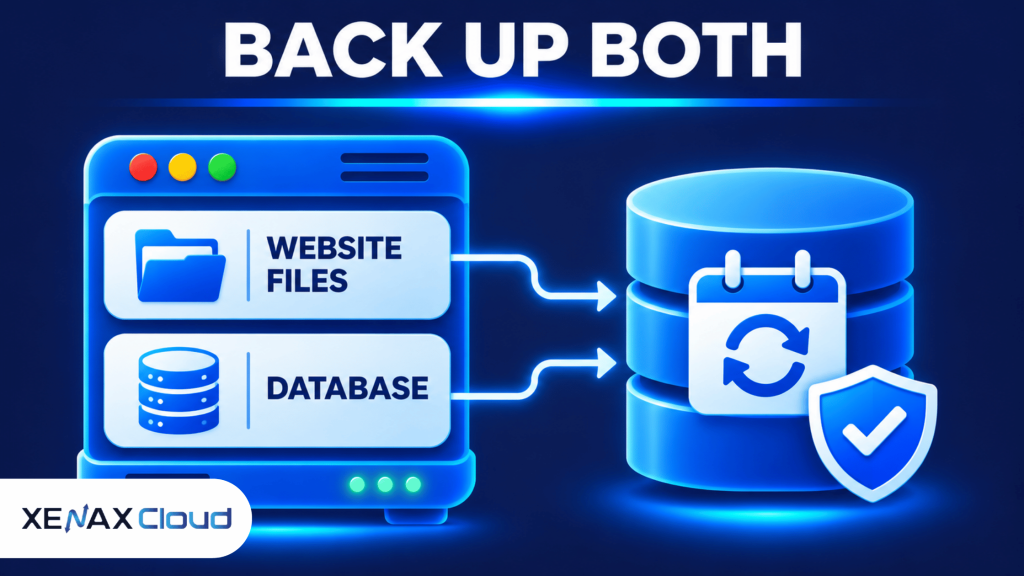
A backup that contains only website files may not restore the latest posts, orders or customer records. A database-only backup will not restore missing images, themes or application code. You should therefore check whether the backup covers both components.
A useful hosting backup policy should explain:
- Frequency: How often new backup copies are created.
- Coverage: Which files, databases, email accounts and settings are included.
- Retention: How long older backup copies remain available.
- Storage location: Whether backups are stored separately from the live website data.
- Restore access: Whether you can restore a complete account or selected items.
- Recovery process: Whether restoration is self-service or requires support assistance.
The word “daily” describes frequency, not the quality of the entire backup service. A provider may create a daily copy but retain it for a limited period or exclude particular data, so read the actual policy before choosing a plan.
Why Do Hosting Backups Need Files and Databases?
Hosting backups need both website files and databases because many websites depend on these two components to reproduce their current content and behaviour.
A database backup is a copy of structured information stored by an application, such as WordPress posts, user accounts, product details and order records. Website files contain the code, images, themes, plugins and other resources that work with that information.
For a WordPress website, the database and files work together. Restoring an old database while keeping newer files, or restoring old files with a newer database, can create compatibility problems.
You should also check whether email accounts, DNS settings, cron jobs and other account data are included. These items may be managed separately from website files, depending on the hosting platform and backup configuration.
Before changing hosting settings or troubleshooting a website, make sure you understand the resources available in your hosting account. Our article on Instant cPanel Hosting explains how cPanel hosting features work and what to check when managing a website. Keep a separate backup before making major changes, and verify that the restored website, database and forms work correctly.
Hosting with Backups: Which Backup Features Matter?
Hosting with backups should provide clear information about frequency, retention, coverage, restore controls and storage separation.
A backup feature is useful only when it can recover the data you actually need. Compare providers using the same questions rather than relying on a badge or a short statement that says backups are included.
| Backup feature | What to check | Why it matters |
| Frequency | Daily, weekly or another schedule | Determines how recent the latest copy may be |
| Retention | Number of days or copies retained | Determines how far back you can recover |
| File coverage | Website files and uploaded media | Restores application code and content files |
| Database coverage | Application databases | Restores posts, orders and user data |
| Restore access | Full or selective restoration | Helps recover only the affected components |
| Storage separation | Backup destination and server separation | Reduces dependence on the live website storage |
Retention is the period for which a provider keeps backup copies before removing older versions. A daily schedule with short retention may not help if you discover a problem after the available recovery window has passed.
Storage separation is another important question. If the live website and its only backup copy are stored on the same affected storage system, a serious storage failure could affect both. Ask the provider where backups are stored and what protection exists if the primary hosting environment becomes unavailable.
For JetBackup 5 functionality and its restore options, consult the official JetBackup 5 Restore and Download documentation. The documentation describes restoring or downloading selected account and directory backup items; the options available to an individual customer depend on the provider’s configuration.
When choosing web hosting with daily backup, check whether the provider runs backups every night and how long those copies are retained. Xenax Cloud’s Shared Hosting with cPanel article explains the hosting features and backup tools available with cPanel. You should also keep an independent copy of important website files and databases instead of relying only on your hosting provider’s backups.
How to Check and Restore a Website Backup in cPanel
You can check available hosting backups through the backup interface provided by your hosting company and select a suitable recovery point when restoration is needed.
The exact menu names and available categories depend on the provider’s cPanel configuration. If JetBackup 5 is enabled for your account, use the following process as a starting point.
- Sign in to your cPanel account.
- Open JetBackup 5 from the available tools.
- Review the backup dates listed for your account.
- Select the relevant backup category.
- Choose the required files or database.
- Check the selected recovery items before proceeding.
- Start the restore and monitor its status.
Do not restore an entire account if only one file or database needs recovery. A full restore can replace newer content and settings that were created after the selected backup date.
Before starting a restore, download or separately copy the current version of the affected data if it still exists. This gives you another recovery point if the selected backup contains older or incomplete information.
For a WordPress website, check the front end, admin login, important pages, media uploads and database-driven features after restoration. For an online store, verify recent orders and customer records before accepting new transactions.
Website Backup Hosting: Is Daily Backup Enough?
Website backup hosting with a daily schedule is useful, but daily backups alone do not guarantee that every recent change can be recovered.
A daily backup can leave a recovery gap between the last successful backup and the moment a problem occurs. If an online store receives orders after the backup completes, those later transactions may not appear in that backup copy.
Consider the type of website you operate:
- Business brochure website: A daily copy may be suitable if content changes are limited and you can recreate recent edits.
- Blog or news website: Frequent publishing makes database recovery points more important.
- WooCommerce store: Orders, customer information and stock changes can occur throughout the day, so assess whether daily recovery is sufficient.
- Membership website: New registrations, profile updates and user activity may be lost if the recovery point is too old.
- Custom application: Check database consistency, uploaded files, background jobs and application-specific data.
A daily backup should not be treated as a substitute for database replication, transaction logging or a tested disaster recovery process where the application needs more frequent recovery points.
If your business cannot tolerate losing a full day’s transactions, ask about more frequent backups or configure an additional backup process. The right recovery schedule depends on how much recent data your business can afford to recreate.
Worked Example: A Varanasi Online Store Choosing Shared Hosting
Consider a Varanasi-based clothing business running one WordPress and WooCommerce website. The store has product images, customer accounts and online orders, and its owner wants backup protection before updating plugins and changing the website design.
The business needs hosting that supports one website, provides enough disk space for its files and includes a backup system. Xenax Cloud Shared Hosting Silver supports one site, 5 GB disk space, 50 GB bandwidth and three mailboxes, with JetBackup 5 backups included.
Silver is the suitable starting point for this example because the business operates one website and its stated storage requirement fits within the plan’s 5 GB disk limit. The next plan, Gold, supports three sites and 15 GB disk space, which is unnecessary if the business has no additional websites or storage requirement.
The backup inclusion is useful, but the supplied plan details do not specify a daily backup schedule or retention period. The owner should confirm the backup frequency, available recovery points, database coverage and restore process with Xenax Cloud before treating the service as daily backup hosting.
Use this decision rule:
- Choose Silver for one website requiring up to 5 GB disk space and within 50 GB bandwidth.
- Choose Gold when you need up to three websites, 15 GB disk space and 100 GB bandwidth.
- Choose Platinum when you need up to ten websites, 100 GB disk space and 1,000 GB bandwidth.
- Choose Diamond when your requirements call for its stated unlimited sites, disk, bandwidth and mailboxes.
Silver is not the right choice if the store needs more than 5 GB disk space or multiple websites; compare Gold or Platinum against the actual requirements instead. If the store cannot tolerate losing recent orders between backup points, arrange a more frequent database backup process rather than relying on a daily schedule alone.
Xenax Cloud Shared Hosting includes JetBackup 5 backups, cPanel, LiteSpeed web server technology, Let’s Encrypt SSL and DDoS protection. You can review the Xenax Cloud Shared Hosting plans and confirm the backup schedule and retention details before selecting a plan.
How to Make Your Website Backup Strategy Safer
A safer website backup strategy combines the hosting provider’s backup facility with an independent copy and a tested restoration process.
A restore test is a practical check that confirms backup data can be recovered and the restored website works as expected. A backup file that cannot be restored is not a dependable recovery solution.
Follow these practices:
- Keep an independent copy of important website files and databases.
- Store the additional copy separately from the live hosting account.
- Take a fresh backup before major plugin, theme or application updates.
- Export important databases before making structural changes.
- Restrict access to backup files because they may contain customer information.
- Test restoration on a separate environment before replacing a live website.
- Record the date and result of each restore test.
For WordPress, a backup should include the database and the required files, particularly wp-content, configuration and uploaded media. Keep database credentials and recovery information secure, and do not place publicly accessible backup archives inside the website’s public directory.
A hosting provider’s backup service and your independent backup should not depend on the same account credentials or storage location. This reduces the chance that one compromised account or storage failure affects both copies.
Web Hosting with Daily Backup: FAQs
Does web hosting with daily backup save the entire website?
It depends on the provider’s backup configuration. A complete website recovery normally needs both website files and databases, while email and account settings may be handled separately. Check the backup coverage list and confirm that the data your application depends on is included before relying on it.
Is daily backup enough for a WooCommerce website?
Daily backups may not be enough for a WooCommerce store that receives orders throughout the day. Orders placed after the latest backup may be missing from the restored database. Ask about more frequent database backups or maintain an additional recovery process for order and customer data.
Does Xenax Cloud Shared Hosting include daily backups?
Xenax Cloud Shared Hosting includes JetBackup 5 backups, but the supplied plan information does not specify a daily schedule or retention period. Confirm those details with Xenax Cloud support before choosing the service specifically for a daily backup requirement.
Can I restore only one file instead of the entire website?
Yes, selective restoration is possible when the hosting provider enables the relevant JetBackup 5 restore options. You can select an individual backup category or directory item where available. Check the current version of the file first because restoration may replace existing data.
Are website files and databases backed up separately?
Backup systems can expose website files and databases as separate restore categories. This allows you to recover one component when appropriate, but the two must remain compatible. Before restoring a WordPress site, identify whether the issue affects its files, database or both.
Should I keep my own website backup if hosting includes backups?
Yes, keeping an independent copy is sensible even when your hosting provider includes backups. Store the additional copy separately and test that it can be restored. This gives you another recovery route if your hosting account, provider backup access or primary storage becomes unavailable.
If you run one website within 5 GB disk space and 50 GB bandwidth, review Xenax Cloud Shared Hosting Silver. If you need multiple websites or more storage, compare Gold and Platinum, and confirm the exact backup frequency and retention policy before ordering specifically for daily backups.