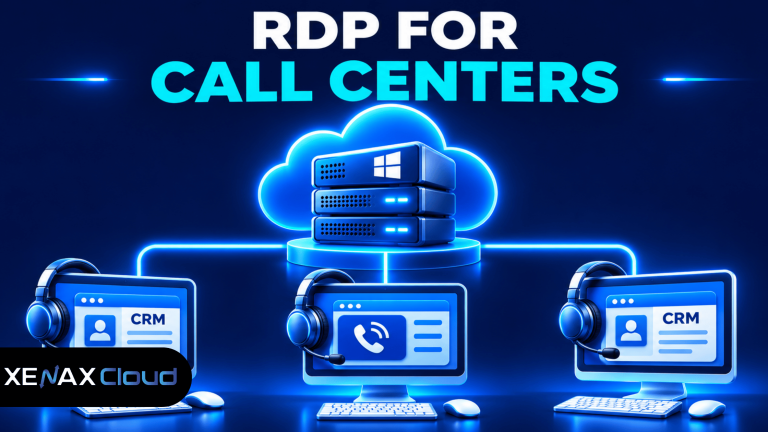
RDP for call center operations provides a centrally managed Windows desktop environment that agents can access remotely to use CRM applications, customer support tools and business communication software. It allows administrators to manage application installations, user permissions and server resources from one location while agents work from authorised devices.
For Indian businesses operating customer support teams, remote desktops can simplify software management across different locations. However, a server configured for one administrator is not automatically ready for multiple call centre agents.
You need to consider concurrent user sessions, Windows Remote Desktop Services licensing, CPU and RAM requirements, voice application compatibility and network quality before selecting an RDP configuration.
What Is RDP for Call Center Operations?
RDP for call center operations is a remote Windows desktop setup that allows authorised agents to access business applications hosted on a central server.
RDP stands for Remote Desktop Protocol, a Microsoft protocol that transmits desktop display information and user input between a remote computer and a client device.
A call centre can use remote desktops to give agents access to CRM software, customer databases, ticketing systems, browser-based applications and other approved business tools. Instead of installing and maintaining every application independently on multiple computers, administrators can manage the remote environment centrally.
However, RDP is not a dialler, VoIP platform or automatic call distribution system. You still need compatible telephony software, SIP services or a cloud contact centre platform to manage customer calls.
What Can Call Centre Agents Do Through RDP?
Agents can use applications installed on their authorised Windows desktop, subject to the permissions and software compatibility of the server.
Common activities include:
- Opening CRM records and customer profiles.
- Updating customer enquiries and support tickets.
- Accessing order management applications.
- Using browser-based customer support dashboards.
- Working with approved call scripts and documentation.
- Generating reports through authorised business applications.
For example, a customer support agency in Lucknow can provide agents with separate remote desktops while administrators maintain application installations and access permissions centrally.
Why Use Remote Desktop for Call Center Teams?
Remote desktop for call center operations gives businesses a centralised Windows environment for managing agent applications, access permissions and desktop configurations.
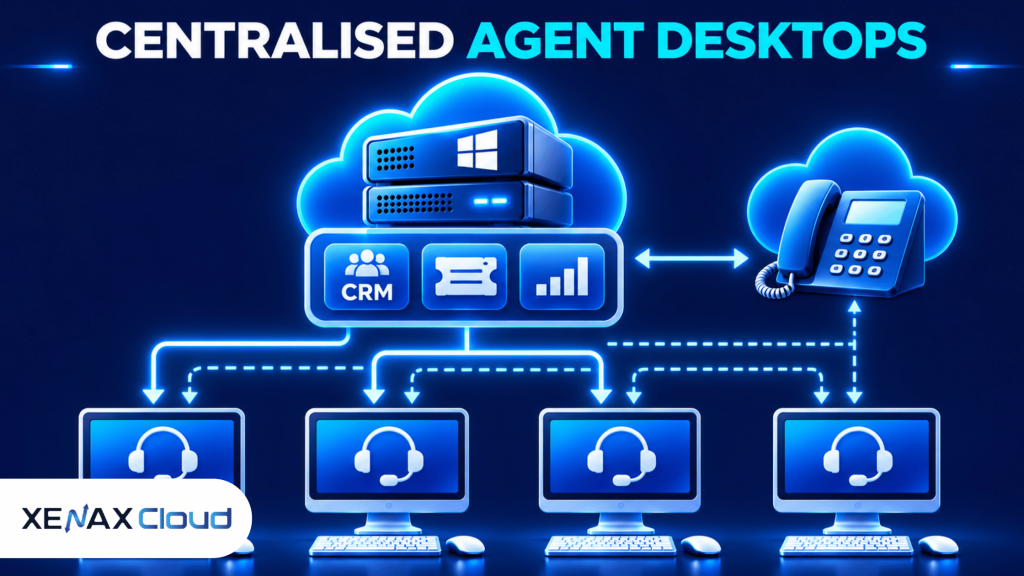
A centrally managed desktop environment can reduce differences between agent workstations. Administrators can control installed applications, user accounts, file access and approved configuration settings.
The approach is useful when agents work from different offices or approved remote locations. It also gives IT administrators a consistent place to maintain the applications used by the support team.
Which Call Center Tasks Benefit From RDP?
RDP is particularly useful for tasks that depend on Windows applications or centrally managed business software.
| Call centre task | RDP suitability | Important requirement |
| CRM management | Suitable | Compatible CRM application |
| Customer ticketing | Suitable | Browser or desktop access |
| Order processing | Suitable | Application permissions |
| Reporting | Suitable | Sufficient CPU and RAM |
| VoIP calling | Conditional | Audio and telephony compatibility |
| Automated dialling | Conditional | Supported dialler and telephony integration |
The distinction between application access and voice communication matters. A CRM application may work correctly over RDP while a softphone experiences audio delay or device redirection problems.
Test the complete calling workflow before moving an operational team to remote desktops.
How Many CPU Cores and GB of RAM Does a Call Center Need?
A call centre RDP configuration needs enough CPU and RAM to support the number of active agent sessions and their applications.
Browser-based CRM software, multiple open tabs, reporting tools and background processes all consume server resources. A lightweight ticketing application has different requirements from a desktop CRM application running several background services.
Use these configurations as initial planning references, not guaranteed agent capacity limits.
| Workload | Starting configuration to evaluate | Consideration |
| One agent with basic CRM | 2 vCPU, 4 GB RAM | Lightweight applications |
| One agent with multiple applications | 2 vCPU, 8 GB RAM | Additional memory headroom |
| Multiple agents on separate desktops | Separate instances or a properly licensed RDS design | Independent resource allocation |
| Shared multi-user session host | Based on measured concurrent workload | RDS licensing and session capacity |
Why Does RAM Matter for Call Center RDP?
RAM matters because every active Windows session and application consumes memory.
For example, an agent running a CRM application, several browser tabs, reporting software and a softphone may consume considerably more memory than an agent using only a basic browser application.
Monitor actual memory consumption during peak working hours. Do not calculate server capacity from the number of registered agents alone.
CPU is equally important when several applications process data simultaneously. Sustained high CPU utilisation can make application interactions slower, even when sufficient memory remains available.
Should You Use One RDP Server for All Agents?
Not automatically. A shared Windows Server session host and separate Windows RDP instances are two different deployment models.
A shared Remote Desktop Services environment allows multiple authorised users to work in separate sessions on a Windows Server. It requires the appropriate RDS roles, licensing and application compatibility.
Separate RDP instances give each agent an independent operating system environment, but increase the number of servers that administrators must maintain.
For a small team, separate desktops can be easier to isolate. For a larger operation, a properly designed RDS deployment may provide more efficient centralised session management.
How to Set Up RDP for Call Center Agents?
You can set up RDP for call center agents by preparing Windows, creating individual accounts, installing approved applications and configuring remote access controls.
Follow these steps:
- Select a Windows RDP configuration based on application requirements.
- Connect to the server using administrator credentials.
- Create individual Windows accounts for authorised agents.
- Install CRM, ticketing and approved business applications.
- Configure application permissions and user access.
- Test audio, microphone and headset functionality.
- Review security settings before allowing agents to connect.
How to Create Separate Windows User Accounts?
Individual Windows accounts help administrators identify users and control access to business applications.
On Windows Server, open:
Server Manager
> Tools
> Computer Management
> Local Users and Groups
> Users
Create a separate account for each authorised user.
You can also use PowerShell to create a local account:
$Password = Read-Host -AsSecureString “Enter password”
New-LocalUser -Name “agent01” `
-Password $Password `
-Description “Call centre agent”
Add an appropriate user to the Remote Desktop Users group:
Add-LocalGroupMember `
-Group “Remote Desktop Users” `
-Member “agent01”
Repeat the process for other authorised agents. Do not share one Windows administrator account among the entire team.
For a production RDS deployment, configure domain accounts and access groups according to your organisation’s identity management requirements.
How to Install Call Center Software on RDP?
Call center software on RDP should be installed according to the application’s supported Windows environment and concurrent user requirements.
Before installation, confirm:
- Windows Server compatibility.
- Database and application dependencies.
- Supported browser versions.
- Required microphone and audio devices.
- CRM and telephony integration requirements.
- Application licensing conditions.
If your CRM is browser-based, test it in the supported browser on the remote desktop. For desktop applications, check whether the vendor supports installation on Windows Server and multi-user environments.
For softphones, test microphone access, speaker output, audio redirection and call handling with the actual agent equipment.
Do not assume that an application designed for one Windows desktop automatically supports several simultaneous Windows Server sessions.
Can Call Center Software Run on RDP Without Audio Problems?
Call center software can run on RDP, but successful voice communication depends on the softphone, audio configuration, network conditions and device redirection support.
A CRM dashboard and a voice calling application have different technical requirements.
RDP can redirect supported local audio devices to a remote Windows session. However, audio redirection settings alone do not guarantee suitable voice quality.
Check these components before deployment:
- Microphone and speaker redirection.
- Headset compatibility.
- Softphone support for Windows Server.
- SIP registration and connectivity.
- Firewall and network configuration.
- Voice latency, jitter and packet loss.
- Echo cancellation and audio processing.
A common alternative is to keep the softphone or browser-based voice application running locally while using RDP for CRM and customer records. This separates voice processing from the remote desktop session.
The right arrangement depends on the telephony provider’s requirements. Ask the provider to confirm whether its software supports RDP audio redirection before deploying it to agents.
Is Internet Speed the Only Requirement for Good Call Quality?
No, call quality also depends on latency, jitter, packet loss and network stability.
A high-bandwidth connection can still produce poor voice quality if packets arrive late or inconsistently.
For a call centre, evaluate the complete network path between the agent, remote desktop, telephony platform and SIP infrastructure. Test calls during actual working conditions rather than relying only on a speed test.
For more information about remote Windows access security, read [ARTICLE LINK: How to Secure a Windows RDP Server].
How to Secure a Remote Desktop for Call Center?
A remote desktop for call center operations should use individual accounts, restricted network access, strong authentication and controlled application permissions.
Call centre desktops may contain customer names, contact information, order records and support histories. Unrestricted access can expose sensitive business information.
Apply these security practices:
Use individual accounts: Give every agent a separate login and disable accounts when access is no longer required.
Restrict RDP access: Allow connections only from approved IP addresses or through a suitable VPN or Remote Desktop Gateway.
Enable Network Level Authentication: Require authentication before a remote desktop session is established.
Use strong credentials: Apply appropriate password policies and multi-factor authentication where supported.
Limit administrator access: Agents should not have administrator permissions unless their work requires them.
Control clipboard and drive redirection: Restrict local file transfers when customer data protection policies require it.
Maintain updates: Keep Windows, browsers, CRM software and other applications updated.
Review session activity: Monitor login events, failed authentication attempts and account changes.
For a shared RDS deployment, use Microsoft-supported licensing and configuration rather than relying on the two administrative sessions intended for server administration.
Microsoft explains the required Remote Desktop Services client access licensing in its official RDS licensing documentation.
Before allowing agents to access customer information, review these secure remote desktop settings to configure Network Level Authentication, firewall restrictions, strong passwords and individual user permissions.
Worked Example: Choosing RDP for a Call Center in Lucknow
Consider a Lucknow-based customer support company with four agents handling customer enquiries through a browser-based CRM.
The company wants agents to access customer records from separate Windows desktops while a supervisor manages application installations and account permissions.
Its requirements are:
- Four authorised agents.
- One browser-based CRM application per agent.
- Separate Windows accounts and desktop environments.
- Centralised application administration.
- A stable connection to the company’s telephony platform.
Which Xenax Cloud RDP Configuration Should the Company Evaluate?
For this arrangement, Xenax Cloud General RDP with 2 vCPU and 8 GB RAM is a sensible starting configuration to evaluate for each agent’s separate desktop, assuming the CRM workload fits within those resources.
General RDP provides more RAM per vCPU than the entry Speed RDP and Gold RDP configurations. That makes it worth evaluating when Windows and business applications need additional memory headroom.
The entry Speed RDP and Gold RDP configurations start with 2 vCPU and 4 GB RAM.
Use this decision rule:
- Choose General RDP with 2 vCPU and 8 GB RAM when an agent runs a CRM alongside multiple browser tabs and business applications.
- Choose Speed RDP with 2 vCPU and 4 GB RAM when the workload fits within 4 GB RAM and NVMe storage is the priority.
- Choose Gold RDP with 2 vCPU and 4 GB RAM when high-frequency Xeon Gold CPU performance is the priority and memory requirements remain within capacity.
- Evaluate larger configurations when applications show sustained CPU or memory pressure.
For four separate desktops, evaluate four independent instances rather than assuming one 2 vCPU and 8 GB server can comfortably support four simultaneous agents.
If the company wants four agents sharing one Windows Server session host, it needs a properly designed Remote Desktop Services deployment, compatible applications and appropriate licensing. General RDP’s entry specifications alone do not establish that shared-session capacity.
General RDP is not the right choice when the workload primarily requires high-frequency CPU processing or NVMe storage performance. Consider Gold RDP or Speed RDP respectively.
Xenax Cloud RDP runs Windows on KVM virtualisation and includes administrator access, one IPv4 address, a 500 Mbps network port and weekly backups. Its infrastructure operates from a Tier-III data centre in India, with 24/7 support.
Compare the available Windows RDP hosting plans in India before selecting the configuration for your agent desktops.
Common Mistakes When Using RDP for Call Center Operations
The most common RDP deployment mistakes involve confusing administrator access with multi-user hosting, ignoring voice compatibility and sharing agent credentials.
Avoid these problems:
Using administrator sessions for agents: Administrative RDP access is not a substitute for a properly licensed multi-user RDS environment.
Sharing Windows accounts: Shared accounts make it difficult to identify individual activity and control permissions.
Ignoring telephony compatibility: A CRM can work correctly while a softphone fails to redirect audio or access the required microphone.
Underestimating memory: Several browser tabs and desktop applications can consume more RAM than expected.
Exposing RDP directly: Publicly accessible remote desktop services increase the attack surface. Apply network restrictions and suitable authentication controls.
Skipping a pilot deployment: Test one agent desktop, one CRM workflow and one complete voice call before configuring the entire team.
rdp for call center: FAQs
Can multiple call center agents use one RDP server?
Yes, multiple agents can share a Windows Server through a properly configured Remote Desktop Services deployment. However, standard administrative remote access is not designed for general multi-agent desktop hosting. You must configure the required RDS roles, application compatibility and applicable user or device licensing.
How much RAM does RDP for call center operations need?
A basic individual desktop can be evaluated with 4 GB RAM, while a CRM workload involving several applications may benefit from 8 GB RAM. Shared multi-user environments require capacity planning based on concurrent sessions, application memory usage and Windows Server overhead.
Can I run a softphone on Windows RDP?
Yes, a compatible softphone can run on Windows RDP, provided its vendor supports the operating environment and required audio devices. Test microphone redirection, speaker output, SIP connectivity and call quality before deploying the application to all agents.
Is remote desktop for call center suitable for work from home?
Yes, remote desktop for call center operations can support authorised home-based agents who have suitable devices and reliable internet connections. Restrict access through approved networks, use individual accounts and apply customer data protection controls to prevent unauthorised access.
Does call center software on RDP support CRM applications?
Yes, call center software on RDP can work with compatible browser-based and Windows CRM applications. Check the application’s Windows Server support, session compatibility, database connectivity and licensing conditions before installation. Test customer record access and reporting with a separate agent account.
Can I use RDP for call center agents without installing software locally?
Yes, many business applications can run entirely inside the remote Windows desktop. Agents still need an RDP client or compatible remote access application on their devices. Local headset and microphone requirements depend on the selected voice communication setup.
Which Xenax Cloud RDP plan is suitable for call center agents?
General RDP with 2 vCPU and 8 GB RAM is a useful starting configuration to evaluate for an agent running CRM and multiple browser applications. Choose Speed RDP for NVMe storage priorities or Gold RDP for high-frequency CPU workloads. Confirm session and licensing requirements separately.
For a small call centre using separate agent desktops, evaluate Xenax Cloud General RDP with 2 vCPU and 8 GB RAM per agent. For shared multi-user hosting, confirm RDS licensing and application compatibility before deployment.