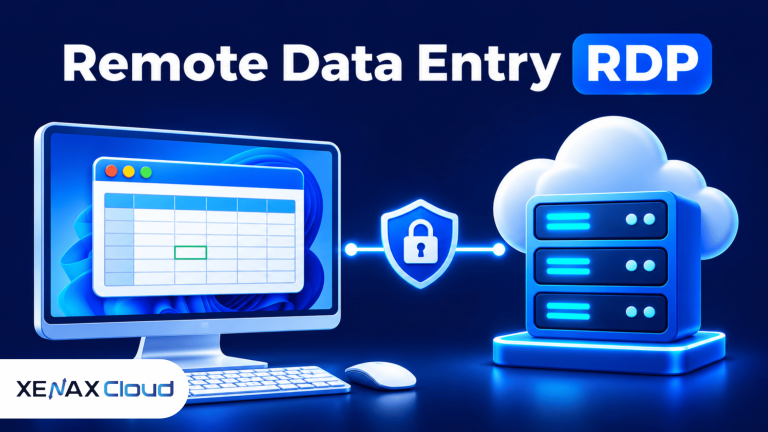
RDP for data entry work gives operators remote access to a Windows desktop hosted on a server, allowing them to use spreadsheets, browser-based forms and business applications from different locations. The server stores the working environment centrally, while operators connect through a Remote Desktop client using an authorised account.
This arrangement can help a business keep its data entry software and working files in one managed environment instead of relying on several unrelated office computers. It does not automatically make a workflow secure or support unlimited simultaneous users; access, licensing, storage and backup arrangements still need attention.
Before ordering a server, identify the applications your operators use, how many people need access at the same time and whether they need separate desktops or one shared workstation.
What Is RDP for Data Entry Work?
RDP for data entry work uses Microsoft’s Remote Desktop Protocol to let an operator interact with a Windows computer hosted on a remote server. The operator sees the remote desktop on a local device, while applications run on the server rather than locally.
Remote Desktop Protocol (RDP) is a network protocol that transmits a remote computer’s display and input between a server and a client device. A Remote Desktop client is the application used to connect, such as the built-in Remote Desktop Connection client on Windows.
A data entry RDP setup commonly includes:
- A Windows server with the required data entry applications.
- An authorised Windows user account for each permitted operator.
- A stable internet connection at the operator’s location.
- A Remote Desktop client on each device.
- A defined location for working files, exports and backups.
- Security controls such as strong passwords, restricted access and Network Level Authentication.
The main benefit is centralised application access. For example, an operator can connect from a home computer and work in the same server-hosted spreadsheet or business application used by the office, subject to the application’s file-sharing and user-access design.
RDP is not the same as a cloud-based spreadsheet. With RDP, the application runs inside the remote Windows environment. With a browser-based spreadsheet, the application generally runs through a web service and the browser is the access point.
How Does a Data Entry RDP Setup Work?
A data entry RDP setup connects an operator’s device to a Windows server, authenticates the user and displays the remote desktop session. Keyboard and mouse input travel to the server, while the server sends screen updates back to the client.
A typical workflow has four parts: the operator’s device, the internet connection, the Windows server and the application or files being used. The server performs the application processing, so its CPU, RAM and storage matter more than the specifications of a basic client device.
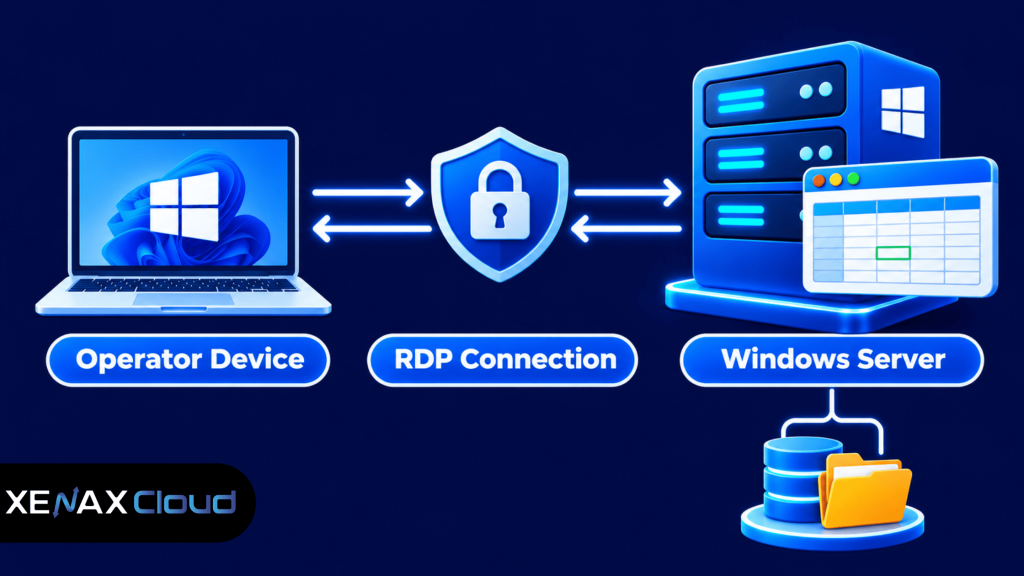
The operator does not need to install every business application on the local computer if the application is installed on the remote server and its licence permits remote use. However, the local device still needs a compatible client, an internet connection and suitable security controls.
A centralised desktop also needs a clear file-handling policy. Decide whether operators save work to a shared folder, individual user folders or an application database, and restrict permissions so users cannot accidentally overwrite another operator’s files.
Data Entry RDP vs Local Computers: Which Setup Fits?
Data entry RDP is useful when staff need a consistent Windows workspace from different locations, while local computers suit work that depends on local hardware or offline access. The right arrangement depends on application compatibility, access control and how files are shared.
| Requirement | Data entry RDP | Local computers |
| Application location | Runs on remote Windows server | Runs on each computer |
| Access location | Can connect from supported remote devices | Usually tied to the installed device |
| Software updates | Can be managed centrally on the server | Managed on individual computers |
| Internet dependency | Required for remote access | May work offline if software allows |
| File management | Can use central server folders and permissions | Files may be spread across devices |
RDP can simplify software maintenance because an administrator can manage applications in one server environment. It does not remove the need to test updates, maintain backups or manage each user’s permissions.
Local computers may be preferable if operators use scanners, specialised USB devices or software that does not support remote sessions. Check device redirection and application compatibility before moving such a workflow to RDP.
How to Set Up RDP for Data Entry Work
You can set up RDP for data entry work by preparing the Windows server, creating user access, installing approved applications and testing the complete workflow before staff begin entering live records.
- Select a Windows RDP server with enough CPU, RAM and storage for the workload.
- Create individual user accounts with permissions suited to each operator’s role.
- Install the required spreadsheet, browser and data entry applications.
- Configure Remote Desktop access and restrict connections through security controls.
- Organise working folders and define read, write and export permissions.
- Test login, application performance, file saving and session disconnection.
- Document backup, recovery and account-removal procedures before production use.
On a Windows Server, an administrator can review Remote Desktop settings through Server Manager or Windows Settings, depending on the installed edition and configuration. The firewall should permit remote access only from approved networks or through a properly secured gateway; exposing the service broadly increases the number of systems that can attempt to connect.
Microsoft explains how to enable Remote Desktop and recommends safeguards such as Network Level Authentication (NLA), strong passwords and limiting access to trusted networks in its Remote Desktop access guidance.
Before staff use the server, test with a non-production account and sample records. Confirm that files save to the intended location, that users cannot access restricted folders and that the session behaves correctly when the network disconnects.
Remote Desktop for Data Entry Team: Users, RAM and Storage
A remote desktop for data entry team needs enough memory for the applications and active sessions, sufficient storage for working files and a user-access design that matches the team’s schedule. Do not estimate server capacity from headcount alone.
A browser with several open tabs, a large spreadsheet and an accounting or CRM application can use more memory than a basic form-filling workflow. The number of simultaneous sessions matters because each active Windows session consumes resources, and multiple operators may open the same applications at once.
Use these practical starting considerations:
- One operator: A basic spreadsheet and browser workflow may need fewer resources than a workflow with several large workbooks or multiple business applications.
- Two to four operators: Estimate memory for each concurrent session, then add room for Windows services and administrator tasks.
- Larger teams: Test the actual applications and session pattern, and assess whether separate servers or a properly licensed multi-session architecture is needed.
- Large datasets: Check storage capacity, database performance and the time required to open, filter and export records.
- Frequent file imports: Check temporary storage needs and confirm that the import process does not overwrite existing files.
The number of Windows sessions is not determined by RAM alone. Windows edition, Remote Desktop Services configuration, licensing and the hosting provider’s permitted usage all affect whether multiple people can connect concurrently. Confirm those details before ordering; do not assume that one RDP plan automatically grants a particular number of simultaneous user sessions.
Storage planning should include the operating system, installed applications, user profiles, active files, exports and temporary data. Keep a separate backup copy of important records rather than treating the live server’s disk as the only copy.
When selecting RDP for data entry work, check how much memory each operator’s applications consume during an active session. RAM requirements vary with browser tabs, spreadsheet size and other running software. Read our guide on how much RAM a VPS needs to understand how workload affects server memory planning.
Worked Example: A Four-Person Data Entry Team in Lucknow
A four-person data entry team in Lucknow that works in shifts on one shared Windows workstation can consider General RDP with 2 vCPU and 8 GB RAM as an initial configuration, provided the applications fit and only the permitted number of users access the desktop at a time.
Assume the team enters customer records into a browser-based portal, checks details in spreadsheets and exports completed records at the end of each shift. The team uses one shared workstation rather than four separate concurrent desktops, and its files are stored in controlled folders on the server.
General RDP is the relevant Xenax Cloud family to evaluate because it provides more RAM per vCPU than the Speed RDP family. Its entry configuration has 2 vCPU and 8 GB RAM. The entry Speed RDP configuration has 2 vCPU and 4 GB RAM, so it offers less memory for a workflow that keeps a browser, spreadsheets and supporting applications open together.
This example is a sizing starting point, not a guarantee of capacity. The team should test its actual application, spreadsheet size and user schedule, and confirm Windows licensing and permitted session access with the provider before placing an order.
Xenax Cloud provides Windows RDP on KVM with administrator access. The RDP families include Speed RDP, General RDP and Gold RDP; all use the same network and backup arrangements as the VPS service. The RDP port is 500 Mbps, and the data centre is the Tier-III facility in Banda, Uttar Pradesh, India.
Review the Xenax Cloud Windows RDP plans and compare the available configurations. General RDP is not the right choice if your application depends on high-frequency CPU performance; consider Gold RDP instead, after checking the workload and session requirements.
Data Entry RDP Security, Backups and Daily Management
Data entry RDP security depends on controlling who can connect, limiting what each account can access and maintaining recoverable copies of business records. A remote desktop should be treated as a business system containing sensitive information, not as an ordinary shared computer.
Apply these controls before production use:
- Use a separate Windows account for each operator; avoid shared administrator credentials.
- Give standard operators only the folder and application permissions they need.
- Use strong, unique passwords and enable multi-factor authentication through a supported Remote Desktop Gateway or identity setup where available.
- Enable Network Level Authentication where supported and keep Windows security updates current.
- Restrict inbound RDP access to trusted IP addresses or a secure gateway.
- Disable clipboard, drive and printer redirection when the workflow does not require them.
- Review login events and remove accounts when staff leave the team.
- Maintain backups and periodically test restoring a file or database.
A backup is useful only if it can be restored. Schedule backups according to the business’s acceptable data-loss window, keep an independent copy of important records and test recovery before relying on the server during an incident.
Xenax Cloud includes weekly backups with its RDP service, but a team that changes records throughout the day should consider whether weekly recovery points are sufficient. Export critical application data more frequently if the software supports it, and store the exports separately from the live server.
RDP for Data Entry Work: FAQs
Is RDP suitable for data entry work?
Yes, RDP is suitable for data entry work when the required applications run correctly on the remote Windows server and users have appropriate access. It can centralise software and files, but you must plan user permissions, session capacity, backups and licensing before moving live records.
How much RAM is needed for data entry RDP?
The required RAM depends on the number of simultaneous sessions and the applications each operator opens. A basic single-user workflow may need less memory than a session using large spreadsheets, several browser tabs and business software. Test the real workload before selecting a configuration.
Can multiple data entry operators use one RDP server?
Multiple operators can use a Windows server only when its edition, Remote Desktop Services configuration, licensing and provider permissions support the required concurrent sessions. Do not assume that creating several Windows accounts permits simultaneous desktop sessions. Confirm the supported user arrangement before deploying a team workflow.
Is data entry RDP safe for customer information?
Data entry RDP can be used for customer information when access, authentication, network exposure and storage are properly controlled. Use individual accounts, restricted firewall rules, updates and tested backups. Also check the data protection obligations that apply to the information your business collects and processes.
Can I use Excel and web-based data entry software on RDP?
Yes, Excel and browser-based data entry software can run in an RDP session if the Windows environment meets their requirements and their licences permit remote use. Test file imports, exports, browser extensions, printing and any required integrations before moving the team’s daily work.
Which Xenax Cloud RDP plan is suitable for data entry?
General RDP is worth evaluating for memory-heavy data entry workflows because its configurations provide more RAM per vCPU. Its entry size has 2 vCPU and 8 GB RAM. Choose another family if your software needs higher-frequency CPU performance or a different resource balance.
What happens if the internet connection drops during data entry?
A dropped connection interrupts control of the remote desktop, but it does not necessarily mean that the server has stopped running. The application may remain open until the session times out or is disconnected. Operators should save records frequently and confirm how their application handles interrupted sessions.
For a single shared workstation used by a small team in shifts, evaluate General RDP with 2 vCPU and 8 GB RAM first if the applications fit that configuration. For separate simultaneous desktops or CPU-intensive software, confirm the session licensing and workload requirements before selecting a larger Speed RDP or Gold RDP configuration.