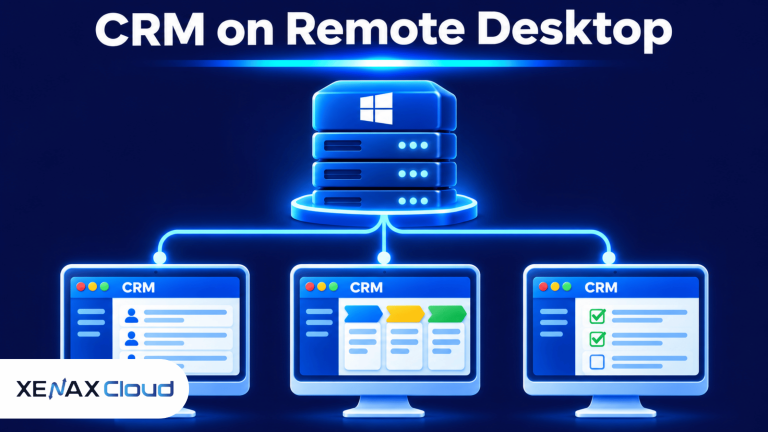
RDP for CRM software lets a sales team access a Windows-based customer relationship management application installed on a central remote server. Employees connect through Remote Desktop Protocol, use the same hosted application environment and work with centrally stored records from authorised devices.
This arrangement can suit Indian businesses that use desktop CRM applications, need access from multiple offices or want staff to work with a consistent Windows environment. The important decisions are application compatibility, concurrent users, server resources, licensing and secure access.
A remote desktop does not automatically make every CRM application suitable for hosting. Check the software vendor’s deployment requirements first, particularly database support, multi-user access and remote-use licensing.
What Is RDP for CRM Software?
RDP for CRM software is a remote Windows desktop arrangement that allows authorised employees to run a CRM application hosted on a remote server. The application processes data on the server while users interact with its desktop through their local devices.
Remote Desktop Protocol (RDP) is a Microsoft protocol that transmits desktop display information and user input between a remote Windows computer and a client device. The CRM application runs in the remote Windows environment rather than being processed entirely on each employee’s computer.
Customer relationship management (CRM) software is an application that stores and organises customer information, sales activities, communication history and business opportunities. Depending on the product, it may also manage quotations, follow-ups, reporting, support tickets and sales forecasts.
A hosted CRM setup generally contains four components:
- Windows server: Provides the operating system and environment where the CRM runs.
- CRM application: Handles customer records, sales activities and business workflows.
- Database: Stores the CRM’s customer and transaction information according to the application’s architecture.
- Remote users: Sales representatives and managers who connect using authorised Windows accounts.
For a desktop CRM application, this arrangement can reduce the need to install and maintain the same application environment on every employee’s workstation. It also gives administrators a central place to manage application updates, user permissions and server-side files.
However, RDP is an access method, not a CRM product. You still need a compatible CRM application, the appropriate software licence and a supported database configuration.
How Does Desktop CRM on Cloud Work?
Desktop CRM on cloud works by installing a compatible Windows CRM application on a remotely hosted Windows server and allowing authorised users to access it through RDP.
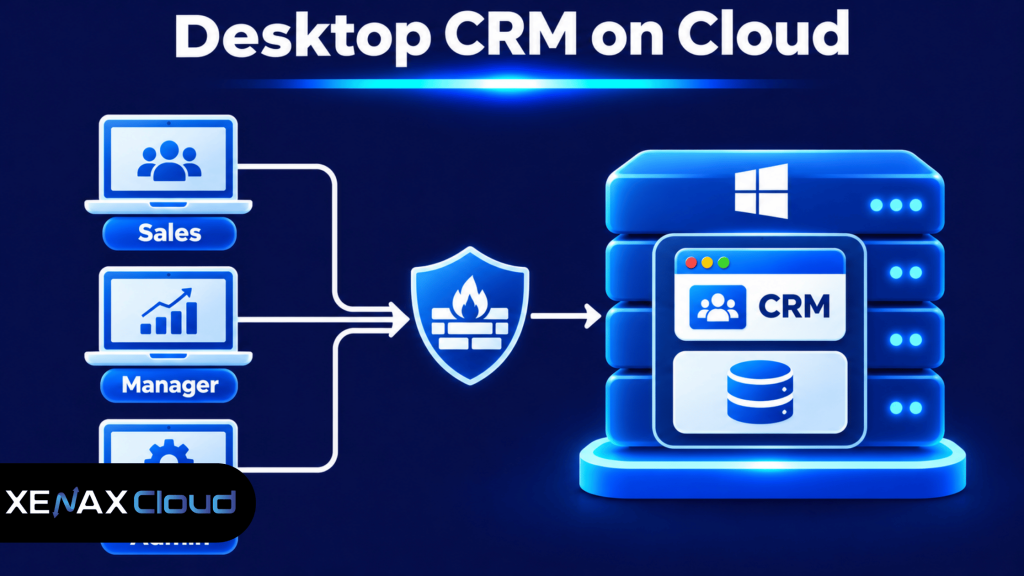
When a sales representative connects, the remote Windows session opens the CRM application installed on the server. The employee works with customer records and sales activities inside that session, while the local computer handles the display, keyboard and mouse input.
The database arrangement depends on the CRM software. Some applications use a database installed on the same server, while others require a separate database service or a vendor-supported client-server configuration. Follow the CRM vendor’s instructions rather than moving database files into arbitrary folders.
A central environment can also simplify software maintenance. An administrator can manage the CRM installation and approved updates on the server instead of repeating the same installation process on every workstation.
There is an important limitation: a hosted desktop does not guarantee that every CRM product supports multiple simultaneous users. Confirm the application’s multi-user architecture, database requirements and remote access terms before moving live customer records.
RDP for CRM Software vs a Browser-Based CRM
RDP for CRM software is suitable for compatible Windows desktop applications, while a browser-based CRM is accessed through a web browser without requiring a full remote Windows desktop for each user.
| Requirement | Desktop CRM through RDP | Browser-based CRM |
| Application access | Remote Windows desktop | Web browser |
| Installation | CRM installed in hosted Windows environment | Usually managed by the CRM provider or web administrator |
| Server administration | Required for the hosted Windows environment | Depends on the CRM service |
| Software compatibility | Must support the Windows and server setup | Must support the user’s browser |
| Local device requirements | RDP client and network connection | Compatible browser and network connection |
| User management | Windows and CRM permissions | Usually managed through CRM accounts |
A desktop CRM on cloud can make sense when your business already uses a Windows application that needs a desktop environment. It may also suit organisations that depend on Windows-specific integrations, local application components or a vendor-supported central installation.
A browser-based CRM may be simpler if the application is already designed for web access and the vendor manages its infrastructure. In that case, hosting a separate Windows desktop just to open a browser can add administration without solving a real problem.
Do not select RDP simply because the phrase “CRM on cloud” sounds appropriate. First identify whether your CRM is a Windows desktop application, a web application or a hybrid product. The software architecture determines the hosting requirement.
When Does a Remote Desktop for Sales Team Make Sense?
A remote desktop for sales team members makes sense when employees need access to the same Windows CRM environment from different approved locations and devices.
For example, a distributor may have sales staff working from its office, warehouse and field locations. A central CRM environment can provide a consistent place to open customer records, review order histories and update follow-up activities.
The arrangement is particularly useful when:
- Sales employees use a Windows-only CRM application.
- Managers need access to the same centrally hosted application.
- The business wants to manage CRM installation and updates centrally.
- Employees work from more than one office or approved remote location.
- The CRM vendor supports the proposed multi-user server configuration.
A remote desktop does not automatically provide a shared CRM database. The application must be configured to use the correct central data source, and its vendor must support concurrent access.
For a wider explanation of how remote Windows access works for distributed employees, read Xenax Cloud’s article on RDP for remote employees and secure access. The same access principles apply to sales staff, but CRM-specific database and licensing requirements still need separate checks.
Which Xenax Cloud RDP Configuration Fits a CRM Workload?
The right Xenax Cloud RDP configuration depends on the CRM application’s memory use, processing activity, storage requirements and number of simultaneous users.
Xenax Cloud provides Windows RDP on KVM virtualisation with administrator access. The RDP infrastructure uses a 500 Mbps network port and follows the same network and backup framework as its VPS environment.
The available RDP families have different resource characteristics:
| RDP family | Starting configuration | Main resource characteristic | Consider it when |
| Speed RDP | 2 vCPU, 4 GB RAM | Eight configurations, up to 32 vCPU and 64 GB RAM | Storage activity is a priority |
| General RDP | 2 vCPU, 8 GB RAM | Four configurations, up to 16 vCPU and 64 GB RAM | The workload needs more RAM per vCPU |
| Gold RDP | 2 vCPU, 4 GB RAM | High-frequency Xeon Gold processors, up to 32 vCPU and 64 GB RAM | CPU frequency matters to the workload |
For CRM applications, memory matters because Windows, the CRM software, database processes and active user sessions all consume RAM. CPU capacity matters when multiple users run searches, generate reports, import records or perform other processing-heavy operations.
Storage requirements depend on the CRM database, attachments, document uploads, application files and backup arrangements. Do not size storage only around the CRM installer because customer records and supporting files grow as the business uses the system.
You can compare the available Xenax Cloud Windows RDP plans and select a family after checking the CRM vendor’s requirements. Confirm the supported Windows environment and any required application or database licences before ordering.
Worked Example: A Sales Team With Six CRM Users
Consider a wholesale distributor in Lucknow with six sales employees and one sales manager. The team uses a Windows desktop CRM to manage customer records, quotations, follow-up tasks and order enquiries, with four employees expected to work in the CRM at the same time.
The business needs a central Windows environment, individual employee access and enough memory for the CRM application and its supporting processes. It should not choose the smallest 4 GB configuration simply because the total team is small.
A General RDP configuration starting at 2 vCPU and 8 GB RAM is a reasonable starting point to evaluate because the family provides more RAM per vCPU. The 4 GB starting configurations in Speed RDP and Gold RDP provide less memory headroom for a multi-session CRM workload.
This is a starting configuration, not a guarantee that every six-person CRM deployment will fit. If the CRM database is large, the application uses additional services or several users generate reports simultaneously, the business may need more CPU, RAM or storage.
The next step is to test the CRM with a representative dataset and the expected concurrent users. Monitor Windows Task Manager for CPU, memory and disk activity during normal sales work, then adjust the configuration if resources remain consistently constrained.
If the CRM vendor requires a separate database server or a particular server architecture, follow that design instead of assuming one RDP server can host every component.
How to Set Up RDP for CRM Software
You can set up RDP for CRM software by checking application compatibility, preparing the Windows server, installing the CRM and testing access with authorised users.
- Check compatibility. Confirm the CRM supports your intended Windows Server environment and remote deployment.
- Confirm licensing. Check the CRM vendor’s terms for server installation and concurrent users.
- Select resources. Choose CPU, RAM and storage based on application requirements and expected simultaneous sessions.
- Connect to Windows. Open Remote Desktop Connection and enter the server address supplied by the provider.
- Install the CRM. Follow the vendor’s installation and database configuration instructions.
- Create user accounts. Give each sales employee an individual Windows account and CRM login where supported.
- Restrict access. Apply firewall rules, Network Level Authentication and appropriate account permissions.
- Test the workflow. Check logins, customer records, reports, attachments, printing and concurrent sessions before production use.
On a Windows client, press Win + R, enter the following command and press Enter:
mstsc
In Remote Desktop Connection, enter the server’s IP address or hostname in the Computer field. Select Connect and authenticate using the credentials supplied for your account.
On the server, keep Network Level Authentication enabled where supported. Restrict incoming RDP access to approved source networks or use a suitable VPN or Remote Desktop Gateway rather than exposing the service without access controls.
For a production CRM, take a verified backup before installing updates or changing database settings. Test restoring the backup before migrating live customer information.
How Should You Secure CRM Access Through RDP?
CRM access through RDP should use individual accounts, strong authentication, restricted network access and controlled permissions for customer information.
Sales records can contain names, telephone numbers, business details, quotations and communication history. Giving every employee administrator access creates unnecessary risk because a normal sales role rarely needs permission to install software or change server settings.
Use these controls:
- Create separate Windows accounts for employees rather than sharing one login.
- Assign CRM permissions according to each person’s role.
- Keep administrator credentials restricted to authorised IT staff.
- Enable Network Level Authentication where supported.
- Apply Windows security updates and maintain a supported CRM version.
- Restrict incoming RDP connections through firewall rules or an appropriate secure gateway.
- Review login activity and remove access when an employee leaves.
- Keep CRM database backups separate from routine remote desktop access.
Microsoft explains that Remote Desktop Services deployments have licensing requirements for users or devices connecting to a session host. Review Microsoft’s Remote Desktop Services client access licence guidance before deploying multi-user Remote Desktop Services.
Do not assume that administrator access to a Windows RDP server automatically grants the right to run unlimited employee sessions. Windows Server access, Remote Desktop Services licensing and CRM application licensing are separate matters. Confirm the applicable arrangements with the provider and software vendors.
For more practical Windows access controls, see Secure Remote Desktop: Settings to Protect Windows Access. Apply the security controls that match your deployment rather than relying on a changed RDP port as the main protection.
When Is RDP Not the Right Choice for CRM?
RDP is not the right choice when your CRM is designed exclusively as a browser-based service or its vendor does not support installation on a hosted Windows environment.
A browser-based CRM generally does not need a separate Windows desktop server for every user. A dedicated application server or another supported hosting architecture may also be more appropriate if the CRM requires specialised database services or components that should not run on the same Windows server.
Use this decision rule:
- Choose RDP when the CRM is a supported Windows desktop application and employees need remote access to its central environment.
- Evaluate General RDP when memory is the main resource requirement and several users work concurrently.
- Evaluate Speed RDP when the application workload places particular importance on storage activity.
- Evaluate Gold RDP when higher-frequency CPU processing is a priority.
- Choose browser-based CRM access when the vendor provides a web application and a remote Windows desktop adds no necessary functionality.
The recommended RDP setup is also not suitable if the CRM vendor prohibits the proposed server installation or does not support the required multi-user arrangement. In that case, use the vendor’s supported deployment model instead of forcing the application onto RDP.
RDP for CRM Software: FAQs
Can I run desktop CRM software on a Windows RDP server?
Yes, you can run desktop CRM software on a Windows RDP server if the CRM vendor supports the Windows environment and remote deployment. Check database requirements, application licensing and concurrent-user support before installation. Test the CRM with representative records before moving the live customer database.
How much RAM does RDP for CRM software need?
The required RAM depends on Windows, the CRM application, database processes and concurrent sessions. Xenax Cloud General RDP starts with 2 vCPU and 8 GB RAM, while Speed RDP and Gold RDP start with 2 vCPU and 4 GB RAM. Test actual usage before finalising the size.
Can multiple sales employees use the same CRM through RDP?
Yes, multiple sales employees can use one hosted CRM environment when the application, database and Windows deployment support concurrent users. Create separate accounts and confirm the required Windows and CRM licences. Test simultaneous record updates and reporting to check that the application handles the intended workflow correctly.
Is desktop CRM on cloud different from a browser-based CRM?
Yes, desktop CRM on cloud runs a Windows application on a hosted server that users access remotely, while a browser-based CRM is accessed through a web browser. The desktop approach suits compatible Windows applications; the browser approach may avoid the need for a hosted Windows desktop.
Can a remote desktop for sales team members be accessed outside the office?
Yes, authorised sales employees can access a remote desktop outside the office if the server is reachable and security rules permit the connection. Use strong authentication, individual accounts and suitable network restrictions. If access is restricted by source IP, configure approved networks or a secure gateway.
Does RDP include the CRM software licence?
No, an RDP hosting plan does not automatically provide a licence for your CRM application. You must obtain and maintain the software licence required by the CRM vendor. Also check Windows Server and Remote Desktop Services licensing for the intended user or device arrangement.
Is RDP suitable for a CRM with a large database?
It can be suitable if the CRM vendor supports the server architecture and the environment has enough CPU, RAM and storage for the database workload. Large databases may need a separate database server or specific storage configuration. Follow the vendor’s architecture recommendations and test database performance before migration.
For a Windows-based CRM used by several sales employees, start by confirming the vendor’s multi-user requirements and counting simultaneous sessions. Evaluate General RDP if memory is the main constraint, then validate the configuration with a representative CRM workload before moving live customer records.