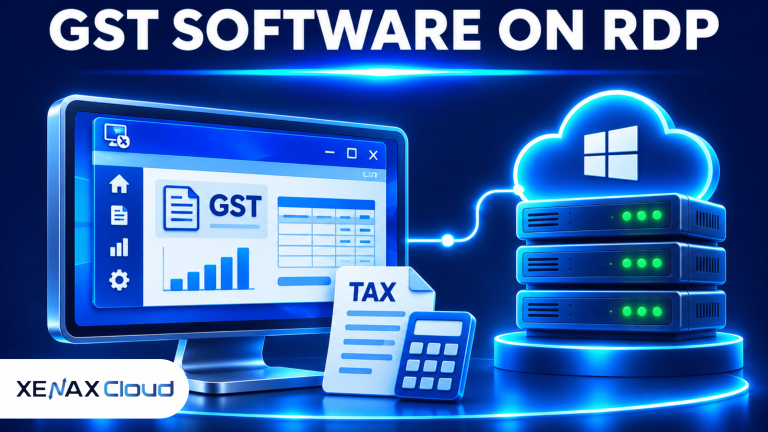
RDP for GST software lets accountants, tax consultants and businesses access GST filing applications installed on a remote Windows server from different locations. Instead of keeping the application on one office computer, authorised users can connect through Remote Desktop Protocol (RDP), work with shared business files and manage accounting activities through a centrally maintained Windows environment.
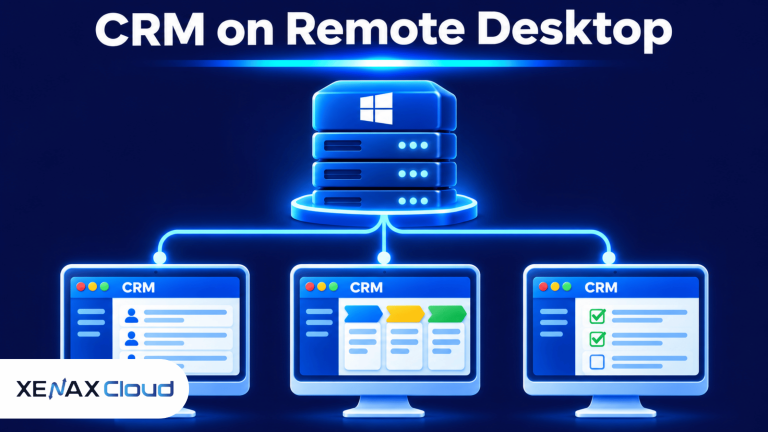
This arrangement can help CA firms handling multiple client accounts, businesses with distributed accounting staff and tax professionals who need access to their working environment outside the office.
However, choosing an RDP server requires more than checking whether Windows opens successfully. You need to consider software compatibility, RAM, CPU, storage, concurrent users, licensing and the security of GST-related documents.
What Is RDP for GST Software and How Does It Work?
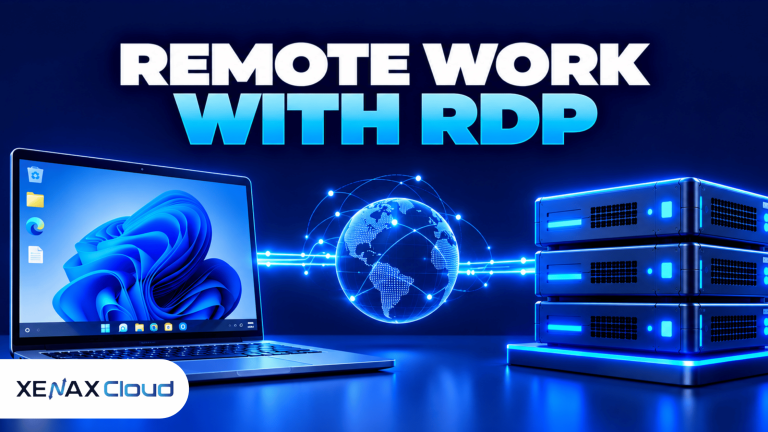
RDP for GST software is a remote computing arrangement that allows users to operate GST applications installed on a Windows server through an internet connection.
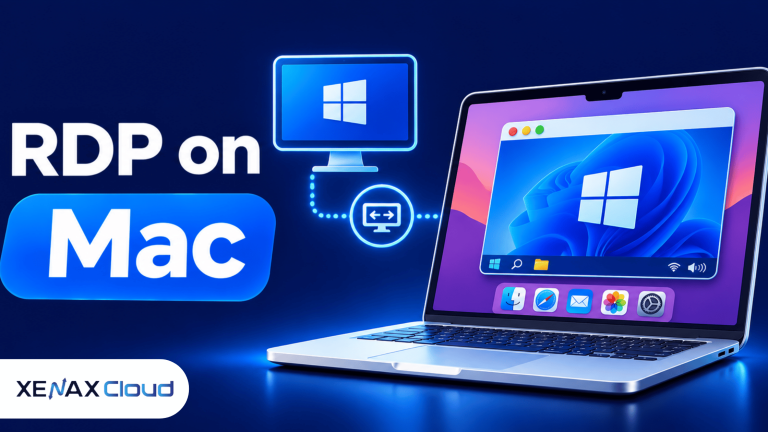
Remote Desktop Protocol is a Microsoft protocol that enables a user to interact with a remote Windows desktop. The application runs on the server, while the user’s computer displays the remote session and sends keyboard and mouse input.
For example, a CA working from home can connect to an office RDP server, open the installed accounting application and continue working with the files stored in that environment.
A typical setup works like this:
- A Windows server runs the GST or accounting application.
- The authorised user connects using a Remote Desktop client.
- The server processes the application and file operations.
- The remote screen displays the application interface.
- Documents and working files remain in the server environment, subject to the application’s configuration.
This is different from installing the same application separately on every employee’s computer. A centrally managed environment can reduce duplicate installations and simplify software maintenance.
However, centralisation does not automatically mean every user can work in the same application session simultaneously. The software’s licensing, Windows configuration and supported multi-user architecture determine how users can connect.
Using RDP for GST software allows authorised accountants to access their Windows accounting environment without depending on a single office computer.
How Does GST Software on Remote Desktop Work for CA Firms?
GST software on remote desktop allows accounting professionals to access an application and its working environment from different locations without depending on one physical office computer.
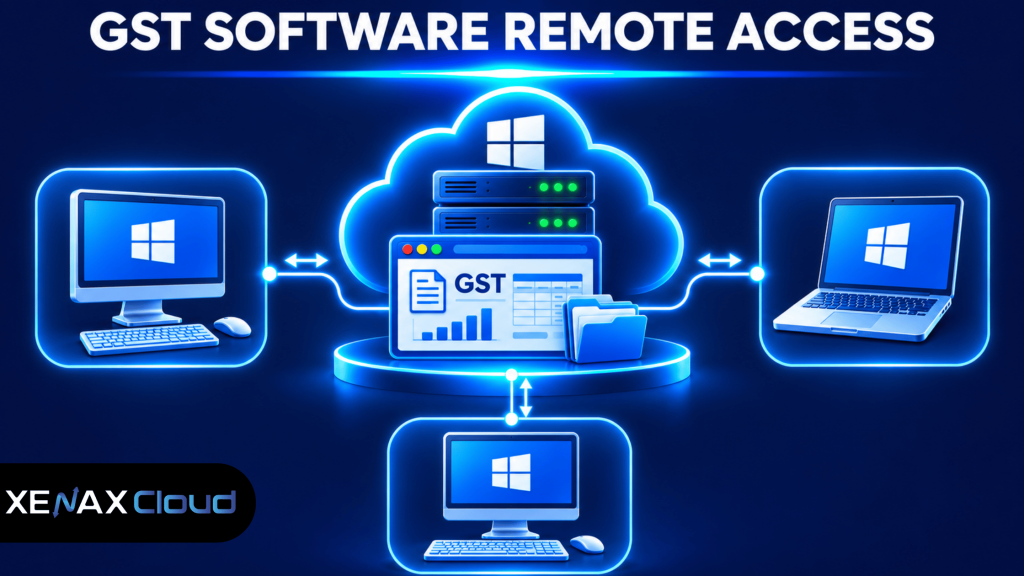
Consider a CA firm managing GST returns for several clients. Its accounting team may need access to invoices, purchase records, reconciliation files and supporting documents. Keeping the working environment on a centrally managed server can make it easier for authorised staff to access the same application infrastructure.
There are several practical benefits:
Centralised application installation: The administrator can maintain the application installation on the Windows server rather than managing separate installations on every workstation.
Consistent working environment: Staff can access the same configured server environment, subject to their individual Windows accounts and application permissions.
Remote accessibility: An authorised accountant can connect from an office, home or another location with a suitable internet connection.
Centralised file management: Working documents can be stored on the server instead of being scattered across multiple employee computers.
Simplified administration: Software updates, application configuration and server maintenance can be managed centrally.
There is an important limitation. Two users connecting to the same Windows server do not automatically receive independent application sessions or permission to use one software licence simultaneously. Check the GST application’s multi-user licensing and the Windows Server Remote Desktop Services configuration before planning simultaneous access.
For CA firms handling multiple clients, RDP for GST software provides a central environment for managing accounting applications and related working documents.
Which GST Applications Can You Run on Windows RDP?
GST applications can run on Windows RDP when their operating system, hardware, database and licensing requirements are compatible with the server environment.
Businesses use different types of accounting and GST-related applications. Some are installed desktop programs, while others are browser-based platforms or cloud services.
Examples include:
| Software or platform | Main purpose | RDP consideration |
| TallyPrime | Accounting and GST-related workflows | Check Windows and multi-user requirements |
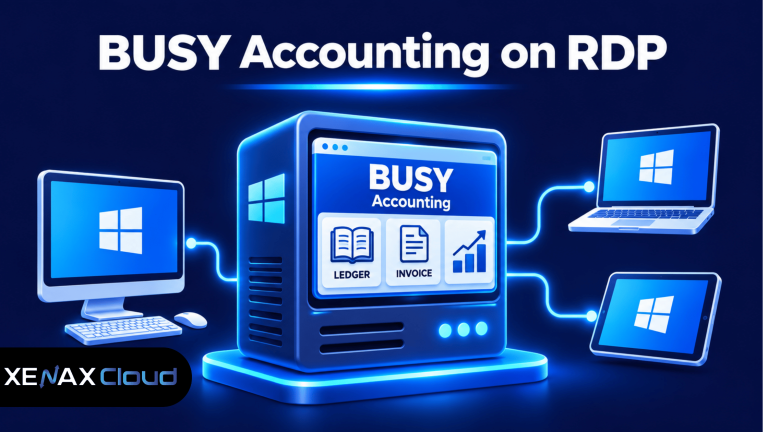
| BUSY Accounting | Accounting and GST management | Verify installation and database compatibility |
| Marg ERP | Business accounting and inventory | Check supported Windows configuration |
| Desktop GST utilities | GST data preparation and filing support | Verify the utility’s current system requirements |
| Browser-based GST services | Online GST activities | Check browser and authentication compatibility |
Not every GST application needs a Windows RDP server. A browser-based service that works well on your existing computers may not justify moving the entire workflow to remote desktop.
For desktop applications, confirm the vendor’s supported Windows Server environment, database requirements, activation process and remote access conditions before ordering a server.
Also distinguish between GST accounting software and the government GST portal. Software may help prepare returns and manage accounting information, but filing and authentication can still involve the official portal, authorised credentials, OTP verification or other required processes.
How Much RAM and CPU Does GST Software RDP Need?
The required RAM and CPU depend on the GST application, the number of concurrent users and the other programs running alongside it.
A user who opens a basic accounting application has different resource requirements from an accountant who simultaneously works with Excel, PDF documents, a browser and large accounting databases.
RAM is the memory used by Windows and running applications. vCPU represents a virtual processor allocation available to the virtual machine.
Use the following configurations as starting points for evaluating RDP resources:
| RDP configuration | CPU | RAM | Suitable evaluation |
| Speed RDP entry size | 2 vCPU | 4 GB | One light desktop workload |
| General RDP entry size | 2 vCPU | 8 GB | Memory-heavy office workloads |
| Gold RDP entry size | 2 vCPU | 4 GB | Workloads requiring high-frequency CPU |
| Larger RDP sizes | Depends on plan | Up to 64 GB | Higher resource requirements |
These are available starting configurations, not guaranteed GST software requirements. The application vendor’s specifications and actual resource consumption should determine the final selection.
Storage also matters. GST applications, accounting databases, exported reports, invoice PDFs and supporting documents consume disk space. Xenax Cloud Speed RDP uses NVMe storage, which is worth considering when application and database storage performance matters.
For a memory-heavy accounting workload, General RDP provides more RAM per vCPU. For a workload that benefits more from high-frequency CPU performance, Gold RDP is another configuration to evaluate.
Do not assume that increasing vCPU alone will solve slow application performance. A server can have sufficient processor allocation but still struggle because of low available RAM, slow storage, database locking or an inefficient application configuration.
Before selecting RDP for GST software, check the application’s RAM requirements and the number of users working simultaneously.
How to Set Up GST Filing Software RDP?
You can set up GST filing software RDP by preparing a compatible Windows server, configuring remote access and installing the application according to its vendor instructions.
Follow these steps:
- Select an RDP configuration based on application requirements.
- Confirm Windows and GST software compatibility.
- Create authorised Windows user accounts.
- Secure remote access and firewall settings.
- Install the GST application and required dependencies.
- Configure application licensing and database access.
- Test application functionality and file recovery.
Configure the Remote Desktop Connection
On a Windows computer, open Remote Desktop Connection:
Windows Start
> Search: Remote Desktop Connection
> Open
> Enter server IP address
> Connect
Enter the authorised Windows username and password when prompted.
For a secured deployment, the administrator should also review the following Windows settings:
Windows Server
> Server Manager
> Local Server
> Remote Desktop
Enable Network Level Authentication (NLA) where supported and required by the deployment. NLA authenticates users before establishing a full remote desktop session.
Avoid exposing remote access without appropriate security controls. Restrict permitted connections, use strong unique passwords and review Windows firewall rules. A VPN or other controlled access layer may also be appropriate depending on the network architecture.
For accountants and CA firms, RDP for GST software provides a central Windows environment for accessing accounting applications and managing client-related work remotely.
Install the GST Application
Download the installation package from the official software vendor and verify that the application supports the selected Windows environment.
Install the required database components and configure the application’s data directory. If multiple authorised users need access, follow the software vendor’s multi-user installation instructions instead of simply sharing one application folder.
Before migrating existing accounting records, take a separate backup of the original database and verify that it can be restored. Never use the only copy of a GST database for an initial migration.
For additional Windows administration guidance, see [ARTICLE LINK: how to secure a Windows RDP server] and [ARTICLE LINK: how to fix Windows RDP connection problems].
Is GST Filing Software RDP Safe for Accounting Data?
GST filing software RDP can be used in a secured Windows environment, but its safety depends on access controls, encryption, application configuration and backup practices.
Accounting information can contain business identities, tax records, invoices and financial documents. Unauthorised access or accidental deletion can create operational and compliance problems.
Pay attention to these controls:
Network Level Authentication: Require authentication before users establish full remote desktop sessions.
Strong account security: Give every employee an individual account and avoid sharing administrator credentials.
Restricted access: Allow users to access only the folders and applications required for their responsibilities.
Firewall restrictions: Limit remote access to authorised network sources where practical.
Encryption: Use properly configured secure remote connections rather than exposing unprotected remote desktop services.
Backups: Maintain separate recovery copies of accounting databases and important documents. Test restoration instead of assuming a completed backup job guarantees recovery.
Session management: Lock or disconnect unused sessions according to the firm’s access policy.
Xenax Cloud RDP plans include weekly backups, but firms handling active GST records should also establish their own backup frequency according to transaction volume and recovery requirements.
For security guidance, consult Microsoft’s Remote Desktop Services documentation.
For additional protection, read our guide on secure remote desktop to understand Network Level Authentication, firewall restrictions, strong passwords and safer remote access controls.
Worked Example: A Jaipur CA Firm Using GST Software
Consider a Jaipur CA firm with four employees, two of whom need to work on the accounting application simultaneously. The firm uses GST accounting software, Excel and PDF utilities to prepare client records and supporting documents.
The firm wants a central Windows environment with enough memory for its accounting workflow. It also wants staff to connect remotely without maintaining separate application installations on every workstation.
Which Xenax Cloud RDP Plan Fits?
General RDP is the first configuration to evaluate because its entry size provides 2 vCPU and 8 GB RAM, offering more memory per vCPU than the entry configurations of Speed RDP and Gold RDP.
The decision is based on the firm’s memory requirements, not simply its employee count. Two concurrent users still need software licensing and a Windows configuration that supports the intended session arrangement.
The smaller Speed RDP and Gold RDP entry configurations provide 2 vCPU and 4 GB RAM. Those configurations may be insufficient if the accounting application, Excel, browser and PDF utilities collectively require more memory.
The firm’s selection rule should be:
- Choose General RDP with 2 vCPU and 8 GB RAM when a small team needs more memory for accounting and office applications.
- Choose Speed RDP when NVMe storage is a priority and the workload fits the selected RAM configuration.
- Choose Gold RDP when the application benefits from high-frequency Xeon Gold CPU performance.
- Choose a larger RDP configuration if measured RAM usage, CPU consumption or concurrent workload exceeds the entry configuration.
Xenax Cloud RDP runs Windows on KVM and provides administrator access, a 500 Mbps network port and weekly backups. The RDP families share the VPS network and backup arrangement.
General RDP is not necessarily the right choice for every CA firm. A workload dominated by processor-intensive operations may benefit from Gold RDP, while a larger accounting team may need a higher-resource configuration after checking software licensing and concurrent session requirements.
You can compare the available Windows RDP hosting plans in India before selecting a configuration.
Common Mistakes When Using GST Software on Remote Desktop
The most common mistakes involve ignoring application licensing, assuming that every RDP configuration supports multiple independent users and failing to verify accounting database backups.
Avoid these problems:
Assuming one licence supports multiple users: GST software vendors may impose separate user or installation restrictions. Check the applicable licence before allowing simultaneous access.
Choosing RAM based only on employee count: Resource consumption depends on concurrent sessions, software features, database size and other applications.
Using one shared Windows account: Shared accounts make it harder to control permissions and identify which employee performed an action.
Ignoring database backup requirements: Weekly server backups may not provide the recovery point required for active accounting records. Maintain additional application-level backups.
Assuming RDP completes GST filing automatically: A remote desktop provides an environment for running software. It does not remove GST portal authentication, verification or filing requirements.
Opening remote desktop access to everyone: Restrict connections and use appropriate authentication and firewall controls.
Before moving an existing accounting environment, document the application version, database location, licence details and current backup status. This makes migration easier to verify and reduces the risk of losing important accounting records.
rdp for gst software: FAQs
Can I use GST software on remote desktop from home?
Yes, you can access compatible GST software on a Windows RDP server from home using an authorised Remote Desktop connection. The application runs on the server rather than your local computer. You need a suitable internet connection, authorised login credentials and software licensing that permits the intended use.
How much RAM is required for GST filing software RDP?
The RAM requirement depends on the application and concurrent workload. General RDP starts with 2 vCPU and 8 GB RAM, while Speed RDP and Gold RDP start with 2 vCPU and 4 GB RAM. Check vendor requirements and actual memory usage before choosing a configuration.
Can multiple accountants use one GST RDP server?
Yes, multiple accountants can use a Windows server when its configuration, Remote Desktop Services licensing and GST application’s licensing support the intended sessions. Each employee should have an appropriate account. Do not assume that one application licence automatically permits simultaneous independent users.
Is GST software on remote desktop suitable for CA firms?
Yes, GST software on remote desktop can suit CA firms that need centralised application access for accounting staff. It can simplify application administration and remote working. Firms should separately evaluate concurrent users, database requirements, software licensing, access permissions and backup frequency.
Does RDP automatically submit GST returns?
No, RDP does not automatically submit GST returns. It provides remote access to the Windows application environment. Return preparation, portal authentication, verification and submission still depend on the GST application, authorised users and applicable GST portal procedures.
Which RDP plan is suitable for GST accounting software?
General RDP is a useful starting configuration to evaluate for memory-heavy GST accounting workloads because its entry size includes 2 vCPU and 8 GB RAM. Choose Speed RDP for NVMe storage priorities or Gold RDP for high-frequency CPU requirements, subject to application compatibility.
Is GST filing software RDP secure for financial documents?
GST filing software RDP can support secure document handling when properly configured, but no hosting plan alone guarantees data security. Use individual accounts, NLA, firewall restrictions, appropriate encryption and tested backups. Also restrict access to accounting databases and review the software’s own security controls.
If your CA firm or business needs a central Windows environment for GST accounting, start by evaluating General RDP with 2 vCPU and 8 GB RAM. Move to a larger Speed, General or Gold RDP configuration when application requirements and measured resource usage justify it.