VDI security means protecting the servers that host your desktops, because that is now where all company data lives. Good VDI security rests on five habits: one login per person, Remote Desktop hidden from the open internet, account lockout, monthly updates and tested backups. Add clipboard and drive rules for sensitive staff.
VDI is already safer than files spread across laptops, as we explained in VDI vs VPN. But a desktop server reachable from anywhere attracts automated attacks within hours of going online. This checklist covers the settings that stop most of them.
What are the main VDI security risks?
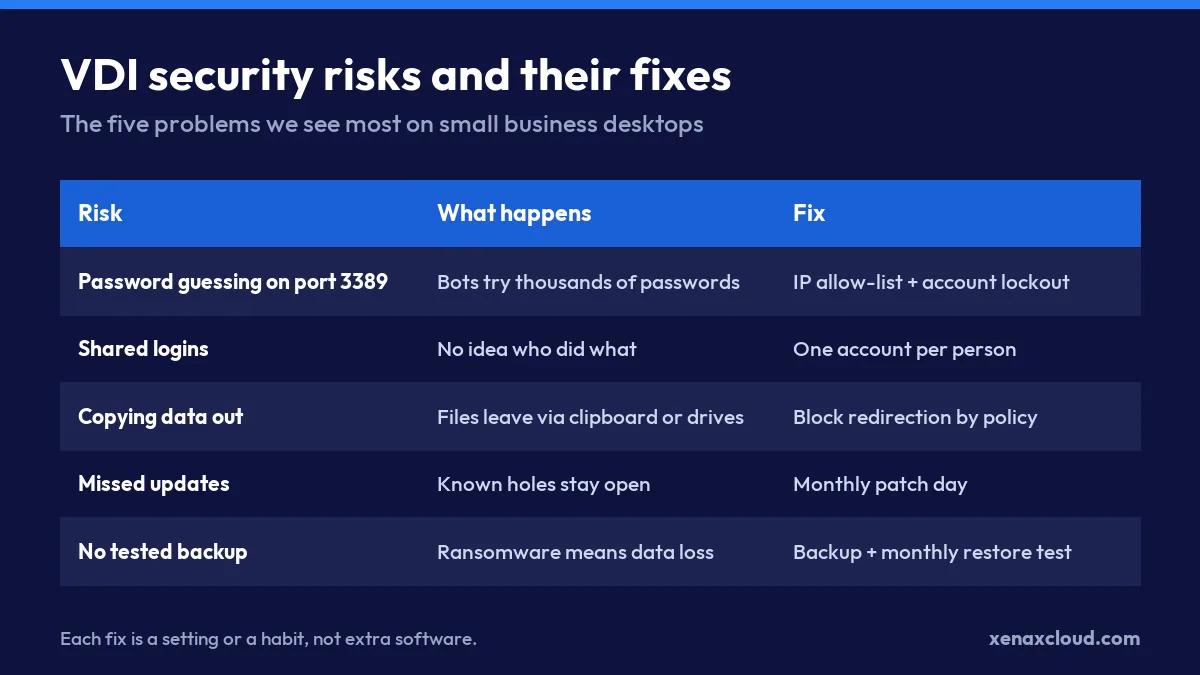
The main VDI security risks for a small business are password-guessing bots on the Remote Desktop port, shared or weak logins, staff copying data out, missed Windows updates, and having no working backup when ransomware strikes.
These are not exotic attacks. Any Windows server with port 3389 open to the internet sees login attempts from bots, usually within hours. You can see them yourself in the Security event log as event ID 4625 (failed logon).
Logins and passwords: the first layer
Give every person their own Windows account, use long passwords, and never let staff work as Administrator. Shared logins make it impossible to know who did what, and one leaked password exposes everyone.
1. One account per person
Create a standard user for each staff member and add them to the Remote Desktop Users group. Remove accounts on the day someone leaves.
2. Long passwords
Use at least 14 characters. A short phrase of four random words is easier to remember and harder to guess than a short complex password.
3. Lock out repeated failures
Set Windows to lock an account after a number of failed attempts. In a Command Prompt opened as administrator:
net accounts /lockoutthreshold:5 /lockoutwindow:15 /lockoutduration:15This locks an account for 15 minutes after 5 wrong passwords within 15 minutes. Run net accounts afterwards; the output shows the new lockout threshold and duration.
4. Rename or disable the built-in Administrator
Bots try “Administrator” first. Create a separate admin account with a different name, then disable the built-in one after confirming the new account works.
Hide Remote Desktop from the open internet
The single most effective VDI security step is making the Remote Desktop port answer only to people you trust. Bots cannot guess a password on a login screen they cannot reach.
5. Allow-list office IPs or use a VPN
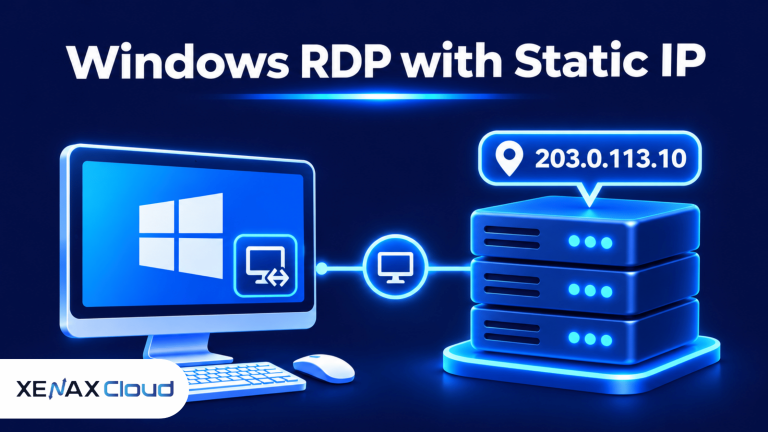
If your office has a static IP, allow port 3389 only from that IP in Windows Defender Firewall. If staff work from changing home IPs, put a VPN in front and allow Remote Desktop only from the VPN range.
6. Keep Network Level Authentication on
Network Level Authentication (NLA) makes users authenticate before Windows creates a session, which blocks a class of attacks and saves server resources. It is on by default on current Windows Server; confirm it in System Properties, Remote tab.
Our guide on how to secure an RDP server walks through the firewall rule step by step.
Control what leaves the desktop
Device and clipboard redirection let users copy files and text between their own laptop and the VDI desktop. That is convenient, and it is also the easiest way for data to leave the company.
7. Block clipboard and drive redirection for sensitive roles
In Group Policy (gpedit.msc), go to Computer Configuration, Administrative Templates, Windows Components, Remote Desktop Services, Remote Desktop Session Host, Device and Resource Redirection. Enable “Do not allow Clipboard redirection” and “Do not allow drive redirection”. Apply it on servers used by staff who handle customer lists, patient data or financial records.
8. Keep printing if you need it
Printer redirection can stay on, so staff can print bills locally. Decide per team. A Surat billing desk that prints twenty invoices an hour needs it; a back-office team that only exports PDFs to a shared folder does not.
If staff still need to move a file in or out, give them one controlled route instead of open drive sharing: a shared folder on the server that only a manager can copy from. Our guide on how to transfer files to RDP lists the options and their trade-offs.
Updates, antivirus and session limits
Unpatched Windows is how many ransomware attacks start. Pick one day a month to install updates and restart, outside working hours.
9. Monthly patch day
Use Windows Update, then restart. On a shared server, warn users the day before so they save their work.
10. Keep Microsoft Defender on
Microsoft Defender Antivirus is built into Windows Server. Check it is running:
Get-MpComputerStatus | Select-Object AntivirusEnabled, RealTimeProtectionEnabled, AntivirusSignatureLastUpdatedBoth values should read True, and the signature date should be recent.
11. End idle sessions
Set session time limits in the same Group Policy area under Session Time Limits, so forgotten sessions do not stay open all night. A sensible starting point is to disconnect sessions idle for 30 minutes and end disconnected sessions after a few hours. Staff who run long exports overnight can be given a longer limit through a separate group.
Also set the screen to lock after a few minutes of inactivity. A desktop left open on a home laptop in a shared room is as exposed as an office PC left logged in.
Backups and logs: the last line of defence
Backups decide whether a ransomware attack is a bad day or a closed business. Logs tell you something is wrong before it becomes serious.
12. Back up, test, and read the logs
- Keep the server’s weekly backup and add a daily copy of key data folders to a second place.
- Restore one file every month to prove the backup works.
- Once a week, check failed logins. In PowerShell:
Get-WinEvent -FilterHashtable @{LogName="Security"; Id=4625} -MaxEvents 20 | Select-Object TimeCreated, MessageA long list of failures from unknown addresses means your port is exposed and step 5 needs attention.
Under India’s DPDP Act 2023, a business that holds personal data must take reasonable security safeguards. These twelve steps are a practical baseline; your CA or legal adviser can tell you what else your sector needs. The Act is published on the MeitY website.
Xenax Cloud Windows RDP vs the usual alternatives
| Feature | Xenax Cloud | Typical Indian shared host | Global budget host |
|---|---|---|---|
| Starting price | ₹649/mo | ₹199/mo | ₹149/mo (renews ₹499) |
| Storage | 40 GB SSD storage | 10 GB SSD | 25 GB SSD |
| DDoS protection | 100 Gbps, always on | Basic | Cloudflare only |
| Support | 24×7, in-house engineers | Tickets, business hours | Chat, outsourced |
| Data centre | India (NVMe) | India | Singapore / US |
| Control panel | cPanel / WHM included | cPanel | Custom panel |
Entry-level plans, list prices including GST where shown. Check each provider before buying — prices change.
See Windows RDP plansVDI security: FAQs
Is VDI secure?
VDI is secure when the desktop servers are locked down: separate logins, hidden Remote Desktop port, lockout, updates and backups. It is safer than data on laptops because data stays in one place.
What are the VDI security best practices?
One account per person, IP allow-list or VPN, account lockout, Network Level Authentication, clipboard and drive restrictions for sensitive roles, monthly updates, antivirus, idle-session limits, and tested backups.
Should I change the RDP port from 3389?
Changing the port reduces bot noise but does not stop a determined attacker. An IP allow-list or VPN is the real fix; a changed port is a small extra.
Can staff copy files from a VDI desktop to their laptop?
Only if drive or clipboard redirection is allowed. Block both by Group Policy for roles that handle sensitive data.
How often should I check VDI security?
Read failed-login logs weekly, install updates monthly, test a backup restore monthly, and review user accounts whenever someone joins or leaves.
For a small team, a Xenax Cloud Windows RDP server with full administrator access lets you apply every step in this checklist yourself; start with the IP allow-list and account lockout on day one.